> ## Documentation Index
> Fetch the complete documentation index at: https://zite.com/llms.txt
> Use this file to discover all available pages before exploring further.
# AI Fields
> Automatically fill in database fields using AI. Categorize, score, summarize, extract information, and more — every row gets filled for you.
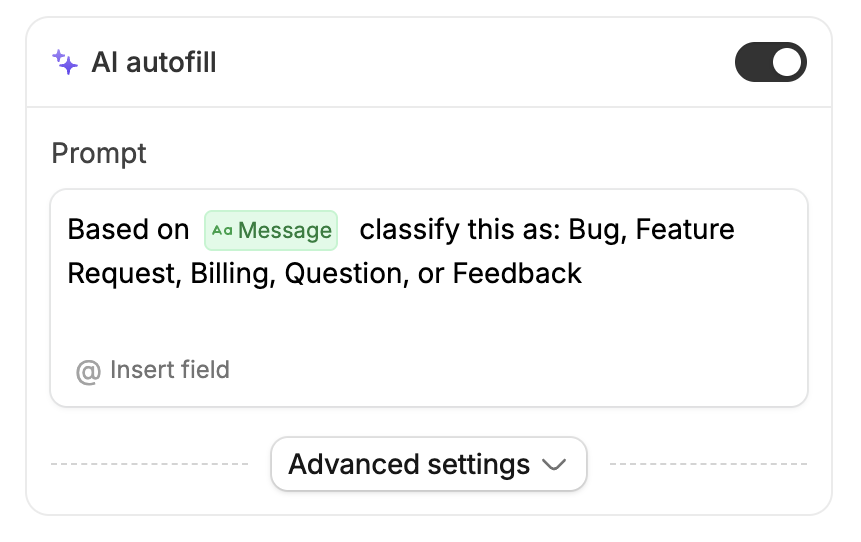
AI Fields let you add a prompt to any field so the AI fills in values automatically. Write a prompt like *"Based on @Message, classify this as Bug, Feature Request, Billing, or Question"* and every row gets filled instantly.
You can use AI autofill on **16 different field types** including text, numbers, ratings, dates, select options, checkboxes, and more.
## Set up an AI field
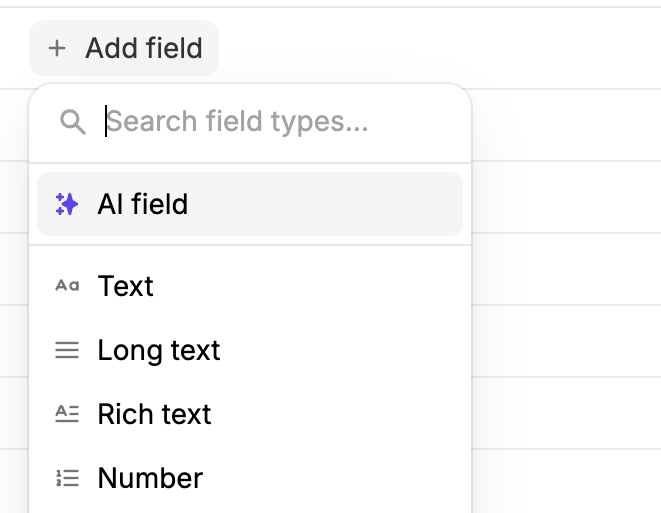 Open your database and click **+ Add field**. Select **AI field** from the field type picker, or click the header of an existing field to add AI to it.
Toggle on **AI autofill** at the top of the field settings panel.
Write a plain-language instruction that tells the AI what to generate. Use **@references** to point the AI at the fields it should read. For example:
* *"Rate the urgency of @Message from 1 to 5, where 5 is extremely time-sensitive"*
* *"Draft a polite response to @Message based on its @Category. If @Urgency is 4 or 5, apologize for the frustration."*
Select which AI model to use from the dropdown.
Click **Create** (or **Save** if editing an existing field).
Open your database and click **+ Add field**. Select **AI field** from the field type picker, or click the header of an existing field to add AI to it.
Toggle on **AI autofill** at the top of the field settings panel.
Write a plain-language instruction that tells the AI what to generate. Use **@references** to point the AI at the fields it should read. For example:
* *"Rate the urgency of @Message from 1 to 5, where 5 is extremely time-sensitive"*
* *"Draft a polite response to @Message based on its @Category. If @Urgency is 4 or 5, apologize for the frustration."*
Select which AI model to use from the dropdown.
Click **Create** (or **Save** if editing an existing field).
 ## Reference other fields
Use **@** to reference other fields in the same row. Click **@ Insert field** below the prompt box or type `@` to open the field picker.
The AI reads the actual data from each row and generates a tailored result. You can reference as many fields as you need.
If a referenced field is empty for a given row, the AI skips that row until the data is filled in.
## Run automatically
Open **Advanced settings** and toggle on **Run automatically** to have the AI fill in values the moment a new record is added or a referenced field changes. Your database stays up to date on its own — no manual triggers needed.
Leave it off if you prefer to generate values on demand.
## Protect existing values
Two settings under **Advanced settings** help you avoid overwriting data:
* **Skip if cell already has a value** — the AI won't overwrite cells that already contain something
* **Skip if manually edited** — the AI won't overwrite values you've typed in yourself
## Generate values manually
You don't have to wait for automatic triggers:
* **Single cell** — click the **Auto-fill** button on any empty cell
* **Regenerate** — hover over a filled cell to reveal a regenerate button
* **From the field header** — click the field header and choose:
* **Generate empty cells** — fills all rows that haven't been generated yet
* **Regenerate errors** — retries rows that previously failed
* **Regenerate edited** — regenerates rows you've manually overwritten
* **Generate all in view** — fills all visible cells in the current view (respects your active filters)
Bulk operations are capped at **500 cells** per run.
## Enable web search
Need live data? Open **Advanced settings** and toggle on **Enable web search**. The AI pulls in current information when generating values — for example, company details, pricing, recent news, or websites.
This is useful for prompts like *"Find the company website for @Company Name"* or *"What industry is @Company Name in?"*
Web search uses additional credits per generation.
## Chain AI fields together
AI fields can reference other AI fields. When one field generates a value, any downstream AI field that references it fills in next — like dominoes.
For example, in a support tickets table:
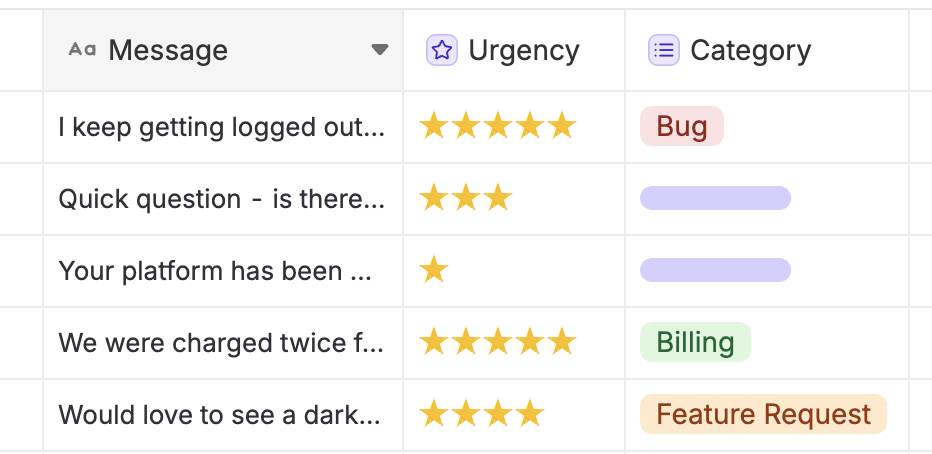
1. **Category** — *"Based on @Message, classify as: Bug, Feature Request, Billing, or Question"*
2. **Urgency** — *"Rate the urgency of @Message from 1 to 5"*
3. **Assigned Owner** — *"Based on @Category, assign to the right person: Bugs = @Alice, Features = @Bob, Billing = @Carol"*
4. **Draft Reply** — *"Draft a response to @Message based on @Category. If @Urgency is 4 or 5, apologize for the frustration. Mention that @AssignedOwner is looking into it."*
A new message comes in and the entire row fills itself — category, urgency, owner, and a drafted reply — in seconds.
Chains work up to **5 levels** deep.
## Reference other fields
Use **@** to reference other fields in the same row. Click **@ Insert field** below the prompt box or type `@` to open the field picker.
The AI reads the actual data from each row and generates a tailored result. You can reference as many fields as you need.
If a referenced field is empty for a given row, the AI skips that row until the data is filled in.
## Run automatically
Open **Advanced settings** and toggle on **Run automatically** to have the AI fill in values the moment a new record is added or a referenced field changes. Your database stays up to date on its own — no manual triggers needed.
Leave it off if you prefer to generate values on demand.
## Protect existing values
Two settings under **Advanced settings** help you avoid overwriting data:
* **Skip if cell already has a value** — the AI won't overwrite cells that already contain something
* **Skip if manually edited** — the AI won't overwrite values you've typed in yourself
## Generate values manually
You don't have to wait for automatic triggers:
* **Single cell** — click the **Auto-fill** button on any empty cell
* **Regenerate** — hover over a filled cell to reveal a regenerate button
* **From the field header** — click the field header and choose:
* **Generate empty cells** — fills all rows that haven't been generated yet
* **Regenerate errors** — retries rows that previously failed
* **Regenerate edited** — regenerates rows you've manually overwritten
* **Generate all in view** — fills all visible cells in the current view (respects your active filters)
Bulk operations are capped at **500 cells** per run.
## Enable web search
Need live data? Open **Advanced settings** and toggle on **Enable web search**. The AI pulls in current information when generating values — for example, company details, pricing, recent news, or websites.
This is useful for prompts like *"Find the company website for @Company Name"* or *"What industry is @Company Name in?"*
Web search uses additional credits per generation.
## Chain AI fields together
AI fields can reference other AI fields. When one field generates a value, any downstream AI field that references it fills in next — like dominoes.
For example, in a support tickets table:
1. **Category** — *"Based on @Message, classify as: Bug, Feature Request, Billing, or Question"*
2. **Urgency** — *"Rate the urgency of @Message from 1 to 5"*
3. **Assigned Owner** — *"Based on @Category, assign to the right person: Bugs = @Alice, Features = @Bob, Billing = @Carol"*
4. **Draft Reply** — *"Draft a response to @Message based on @Category. If @Urgency is 4 or 5, apologize for the frustration. Mention that @AssignedOwner is looking into it."*
A new message comes in and the entire row fills itself — category, urgency, owner, and a drafted reply — in seconds.
Chains work up to **5 levels** deep.
 ## When something goes wrong
If the AI can't generate a value, the cell turns amber and shows what happened. Hover over it to see the reason, then click regenerate to retry. You can also use **Regenerate errors** from the field header to retry all failures at once.
## Credits
AI autofill uses credits from your account balance. Before a bulk generation starts, the system checks that you have enough credits. If credits run out mid-batch, cells that already finished keep their values.
Web search-enabled generations use additional credits.
## Works everywhere in Zite
AI fields aren't limited to the database view. When a Zite app or workflow creates or updates a row in a table with AI autofill enabled, the automatic triggers fire the same way — no extra setup needed.
Configure your AI fields once in the database and they work automatically whenever records are created or updated.
## When something goes wrong
If the AI can't generate a value, the cell turns amber and shows what happened. Hover over it to see the reason, then click regenerate to retry. You can also use **Regenerate errors** from the field header to retry all failures at once.
## Credits
AI autofill uses credits from your account balance. Before a bulk generation starts, the system checks that you have enough credits. If credits run out mid-batch, cells that already finished keep their values.
Web search-enabled generations use additional credits.
## Works everywhere in Zite
AI fields aren't limited to the database view. When a Zite app or workflow creates or updates a row in a table with AI autofill enabled, the automatic triggers fire the same way — no extra setup needed.
Configure your AI fields once in the database and they work automatically whenever records are created or updated.