> ## Documentation Index
> Fetch the complete documentation index at: https://zite.com/llms.txt
> Use this file to discover all available pages before exploring further.
# Manage database fields
> Edit, convert, delete, and adjust your Zite database fields or columns.
## Overview
As your needs change, Zite stays flexible so you can adapt your database structure anytime. You can edit, convert, hide, sort, and perform other field configurations to keep your data organized, without affecting the actual records.
## Edit field
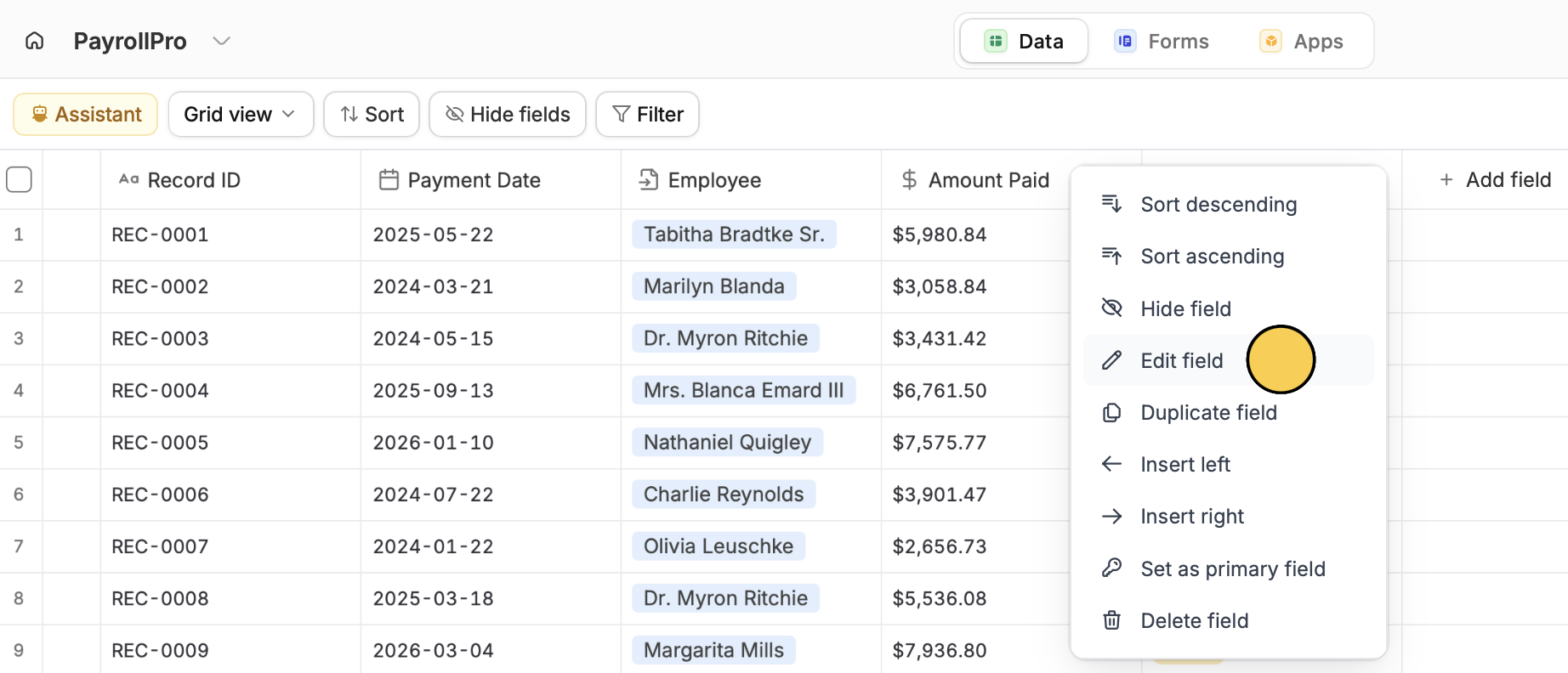
**Right-click on a column** to `Edit field`. From here, you can also duplicate, [hide](https://www.zite.com/help/database/configure-database/manage-views#hide-fields), [sort](https://www.zite.com/help/database/configure-database/manage-views#sort-records), and delete the field.
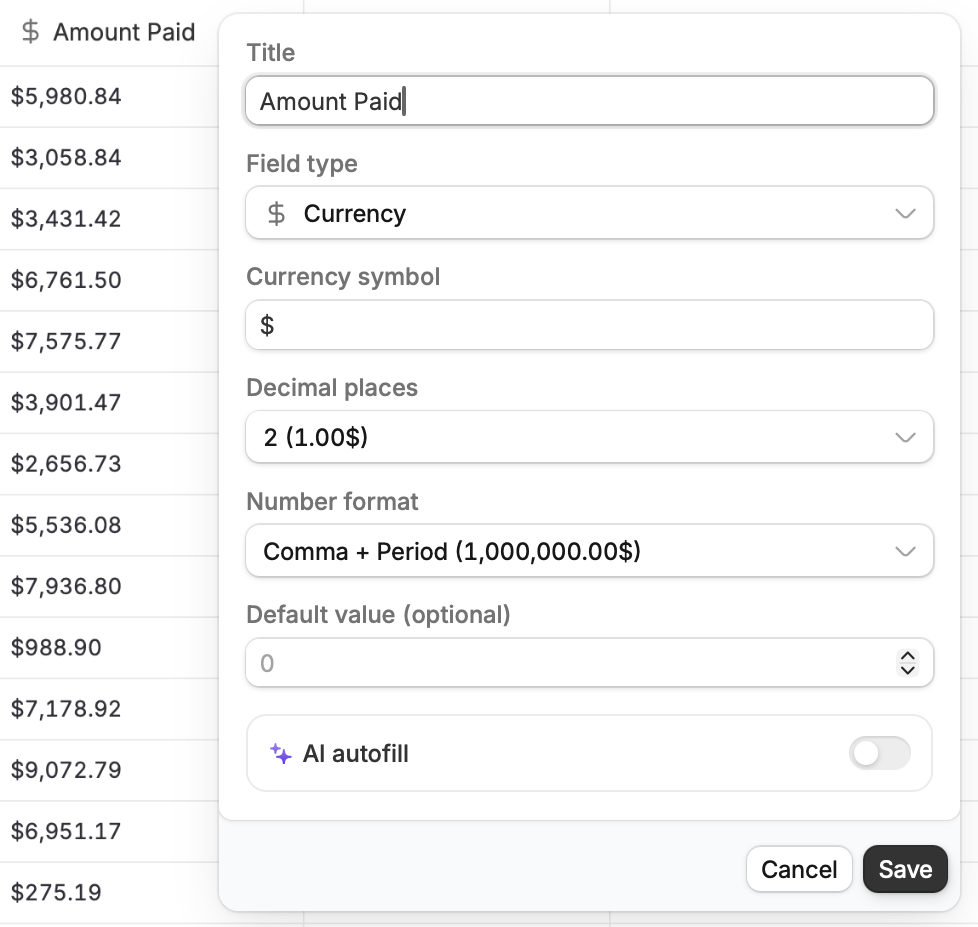
 In the popup, you can change the label of your column or field, and adjust the default settings. For example, in a Currency field, you can change the symbol, decimal places, and number format.
 ### Convert field type
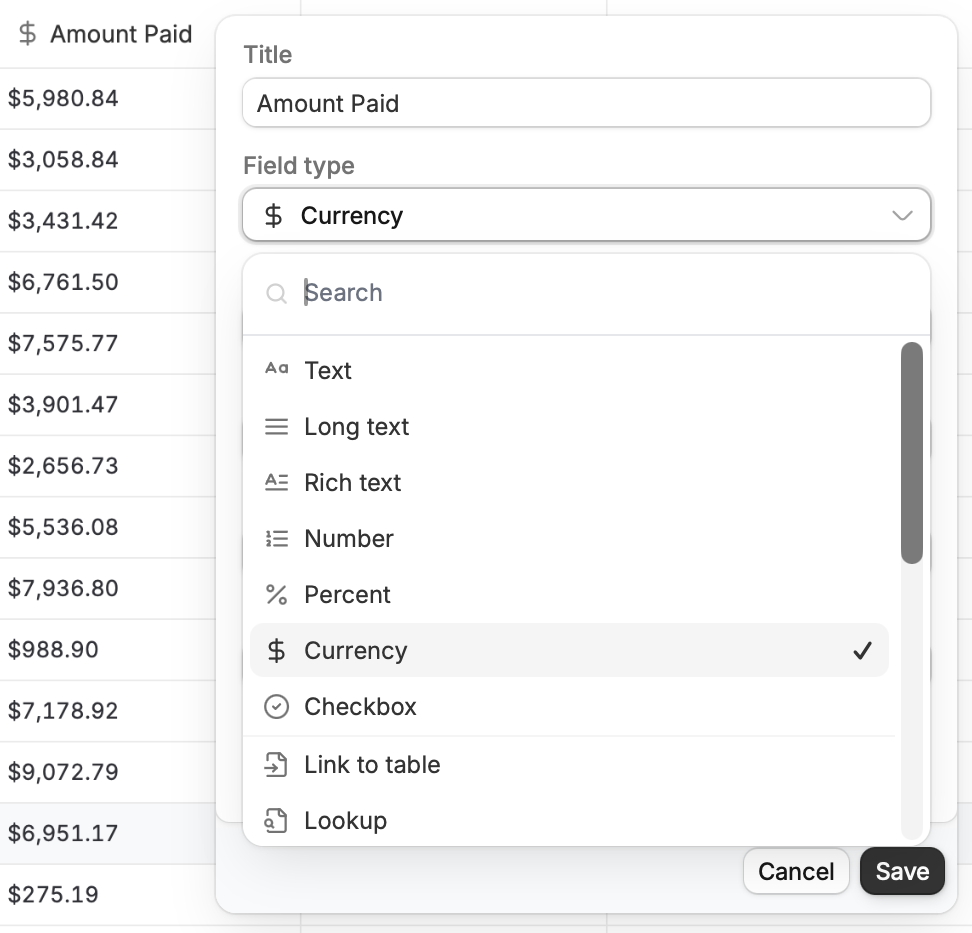
You can also change the field type of an existing database column. Click the `Field type` dropdown and choose your preferred field. Be sure to click `Save` afterward.
### Convert field type
You can also change the field type of an existing database column. Click the `Field type` dropdown and choose your preferred field. Be sure to click `Save` afterward.
 Converting certain field types may cause deletion of some data.
### Set a default value
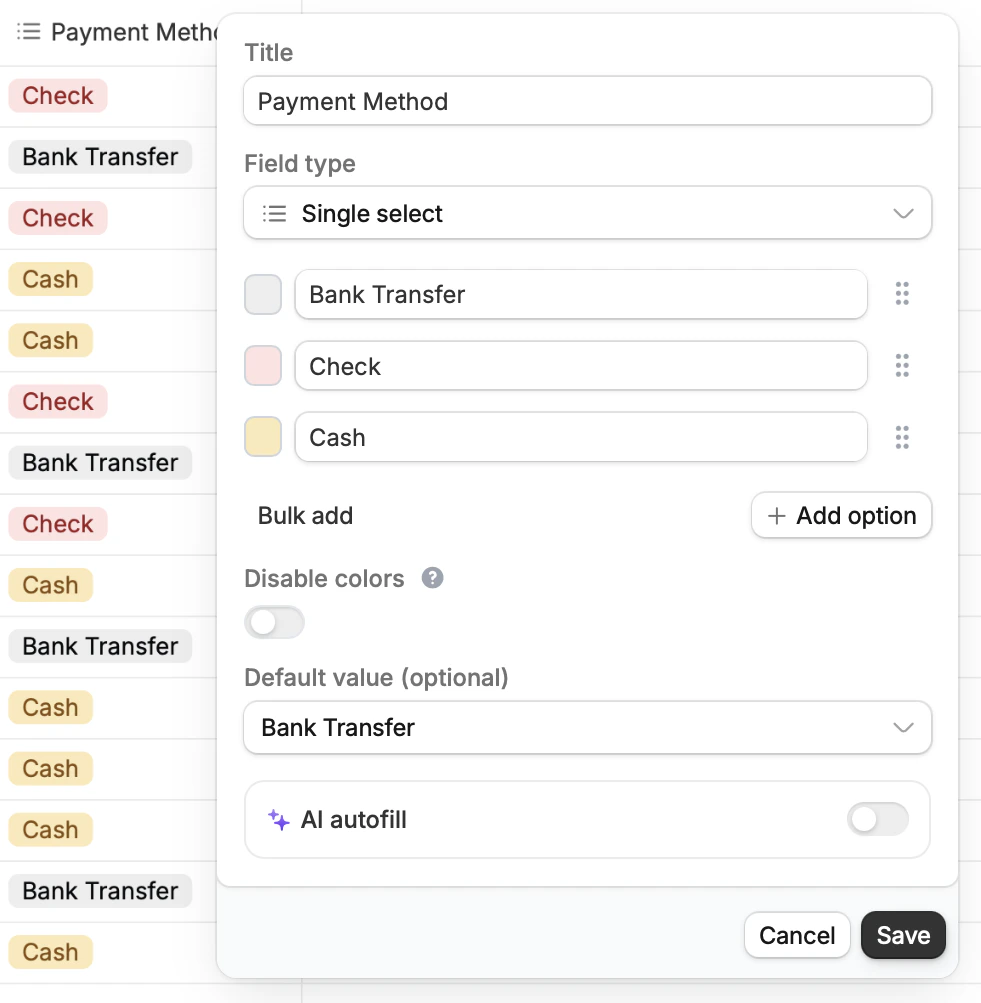
Auto-fill a value for that field when a new record is added. For example, when a new record is created, we can set the default payment method to “Bank Transfer.”
Converting certain field types may cause deletion of some data.
### Set a default value
Auto-fill a value for that field when a new record is added. For example, when a new record is created, we can set the default payment method to “Bank Transfer.”
 ## Change primary field
By default, the leftmost column is the primary field, which cannot be deleted. To select a new primary field, right-click on the column you want to use, then `Set as primary field`.
Some field types like Date, Link to table, and Single and Multiple select cannot be primary fields.
## Change primary field
By default, the leftmost column is the primary field, which cannot be deleted. To select a new primary field, right-click on the column you want to use, then `Set as primary field`.
Some field types like Date, Link to table, and Single and Multiple select cannot be primary fields.