> ## Documentation Index
> Fetch the complete documentation index at: https://zite.com/llms.txt
> Use this file to discover all available pages before exploring further.
# Export database
> Keep an offline copy of your data or upload it in BI platforms to extract insights and help your team understand performance and patterns.
## Export Zite database
You can export your Zite database by exporting each table in there. Click the `ellipsis icon` next to a table's name followed by `Export to CSV` and `Grid view`.
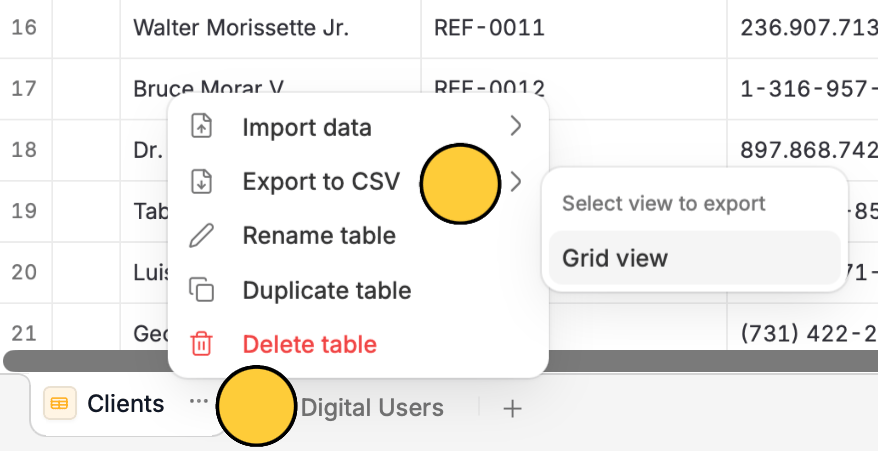 A CSV file will automatically be added to your device's downloads folder. Follow the same steps for the other tables in your database.
## Move databases
If you need to simply transfer a database into a different workspace, drag and drop them there. More info [here](/help/platform/access/duplicate-export-and-import).
## Import database
You can also import an external database or spreadsheet into your Zite database. Check out the guide [here](https://www.fillout.com/help/database/import-data).
A CSV file will automatically be added to your device's downloads folder. Follow the same steps for the other tables in your database.
## Move databases
If you need to simply transfer a database into a different workspace, drag and drop them there. More info [here](/help/platform/access/duplicate-export-and-import).
## Import database
You can also import an external database or spreadsheet into your Zite database. Check out the guide [here](https://www.fillout.com/help/database/import-data).