> ## Documentation Index
> Fetch the complete documentation index at: https://zite.com/llms.txt
> Use this file to discover all available pages before exploring further.
# Build an app with Google Gemini
> Create apps on Zite with advanced text and image processing.
## How it works
Add AI capabilities for text and image processing with Gemini to your app. This enables it to understand and extract data from user uploads or inputs. By connecting Gemini, you can:
* Process and analyze text and images
* Generate summaries and reports from documents or research
* Classify and categorize images
* Review content for compliance and quality
* Enrich records intelligently
Using Zite's Gemini account/API key in published Zite apps is only available on paid plans. You can still connect your own Google Gemini API key if you want usage billed directly through your Google account.
## How to integrate Gemini into your app
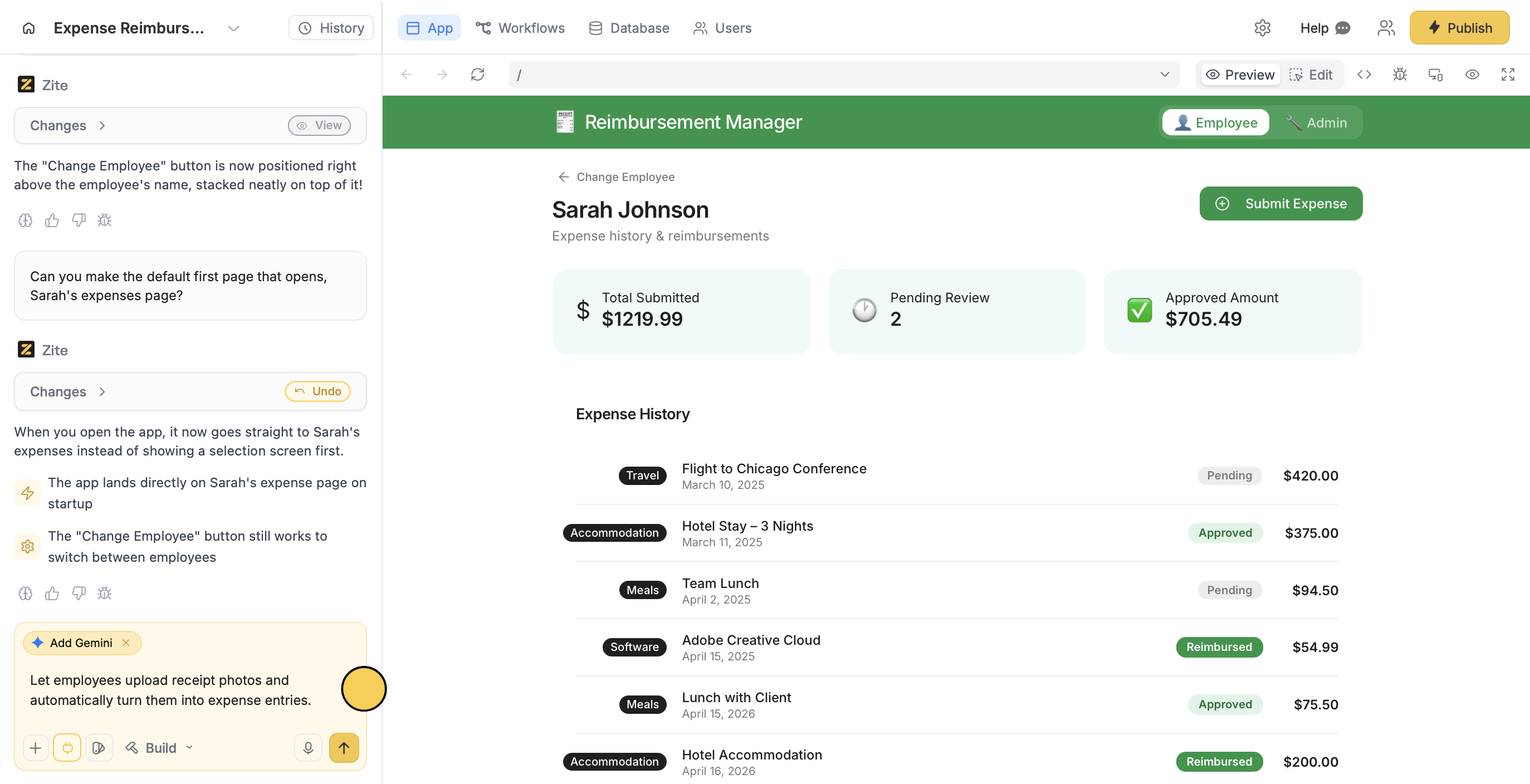
In the chat box, request your app to be integrated with Gemini or click the `plug icon` .
 Choose to `Use Zite's account` or use your `Custom API Key`.
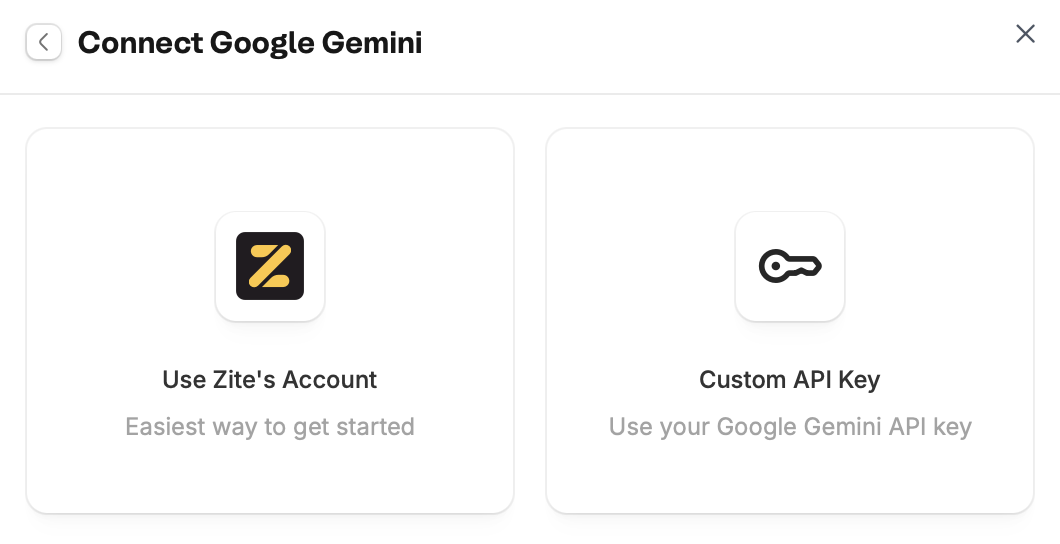 Overage charges may apply for excessive usage. Connect your Google Gemini API key to use your own.
Tell Zite how you want to use Gemini in your app. For example, we'll enable our app to extract data from uploaded receipts and log them as an expense.
Overage charges may apply for excessive usage. Connect your Google Gemini API key to use your own.
Tell Zite how you want to use Gemini in your app. For example, we'll enable our app to extract data from uploaded receipts and log them as an expense.
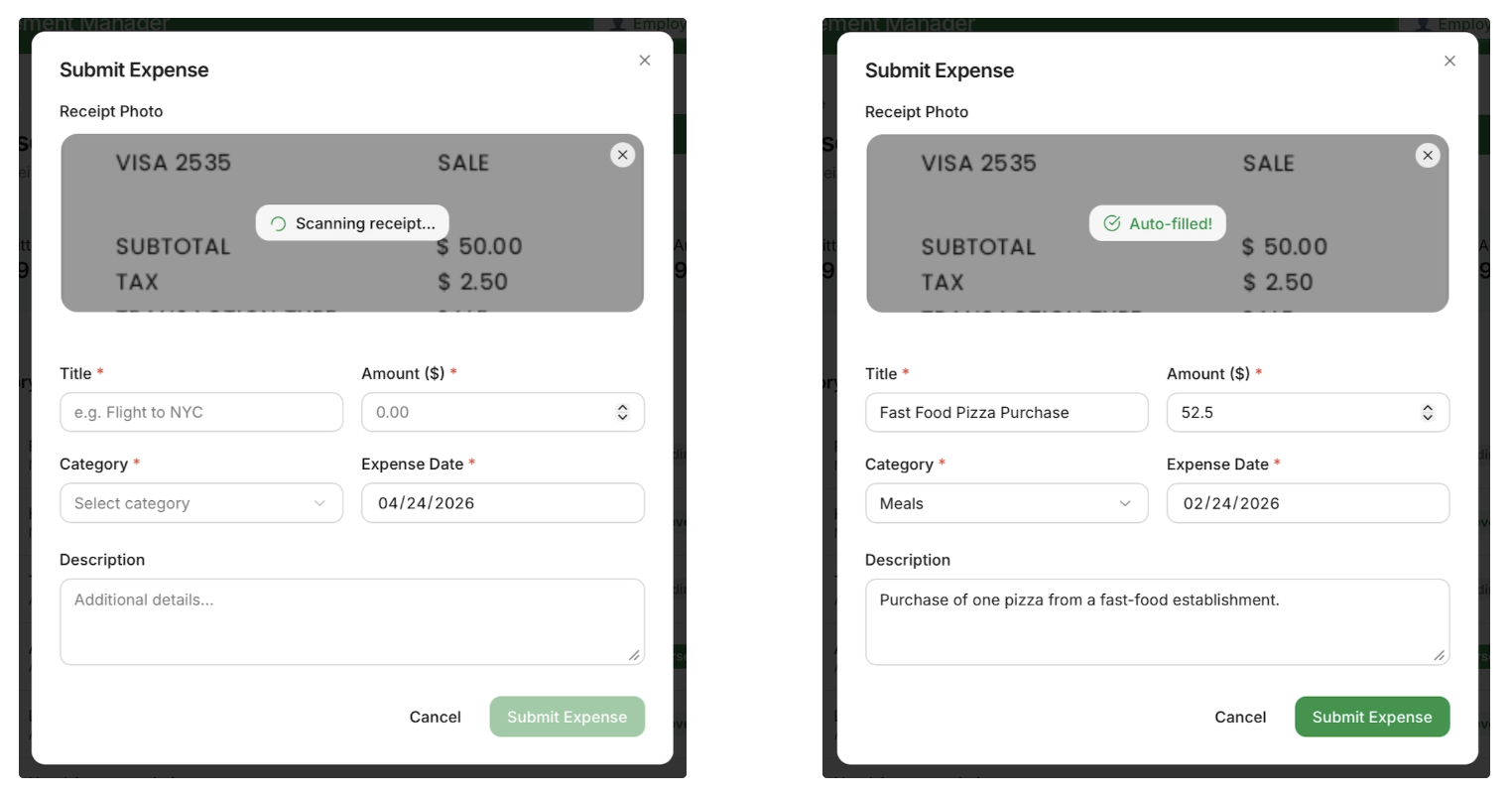
 Use the chat box or the respective buttons in your app to ensure everything's working properly.
 Click `Publish` in the upper right corner and [**share**](/help/platform/access/share-to-web) your app.
[Modify the theme](/help/platform/how-to-build/design) or [style specific elements](/help/platform/basics/selective-edits) your app to personalize it or match it with your brand.
## Common use cases
With a Gemini connection, you can create apps like:
* **Expense Approval Tools:** Let employees submit expenses and admins approve or reject them
* **Visual Data Extractors:** Let users pull information from images like receipts, IDs, etc.
* **Document Intelligence Tools:** Let users extract key data from forms and reports
* **Content Review Tools:** Evaluate text and image submissions for quality and compliance
* **Data Enrichment Tools:** Let users enhance records using extracted data from uploads
Click `Publish` in the upper right corner and [**share**](/help/platform/access/share-to-web) your app.
[Modify the theme](/help/platform/how-to-build/design) or [style specific elements](/help/platform/basics/selective-edits) your app to personalize it or match it with your brand.
## Common use cases
With a Gemini connection, you can create apps like:
* **Expense Approval Tools:** Let employees submit expenses and admins approve or reject them
* **Visual Data Extractors:** Let users pull information from images like receipts, IDs, etc.
* **Document Intelligence Tools:** Let users extract key data from forms and reports
* **Content Review Tools:** Evaluate text and image submissions for quality and compliance
* **Data Enrichment Tools:** Let users enhance records using extracted data from uploads