> ## Documentation Index
> Fetch the complete documentation index at: https://zite.com/llms.txt
> Use this file to discover all available pages before exploring further.
# Create apps that notify with email
> Send emails when users take specific actions in your Zite app or when they submit a form.
## How it works
Automatically send emails and notifications based on your workflows. This is useful for confirmations, reminders, receipts, and more. Four email services are supported:
| **Type** | **Sender Name** | **Use-case** |
| :---------- | :------------------------------------------------------------------------------------------------------------------------------- | :---------------------------------------- |
| Zite | Notifications ([notify@mail.zite.com](mailto:notify@mail.zite.com)) | Internal or testing |
| Gmail | Your Account Name (e.g. Finn Green - [finn@gmail.com](mailto:finn@gmail.com) or [finn@company.com](mailto:finn@company.com)) | Personal or team inboxes |
| Outlook | Your Account Name (e.g. Finn Green - [finn@outlook.com](mailto:finn@outlook.com) or [finn@company.com](mailto:finn@company.com)) | Personal or team inboxes |
| Custom SMTP | SMTP hosts (e.g. SendGrid, Mailgun, Loops) | Scalable, high-volume or production email |
Custom SMTP notifications is available on the Enterprise plan. Learn more [here](https://www.zite.com/pricing).
Each email sent from your **published app** uses 1 credit. Emails sent from the editor are free. See [How credits work](/help/platform/getting-started/credits).
## How to automate with email providers
The quickest way to send emails is using Zite’s built-in option, ideal for testing or internal apps.
You can also connect your personal, Gmail, or Outlook account to send messages from your personal or work email.
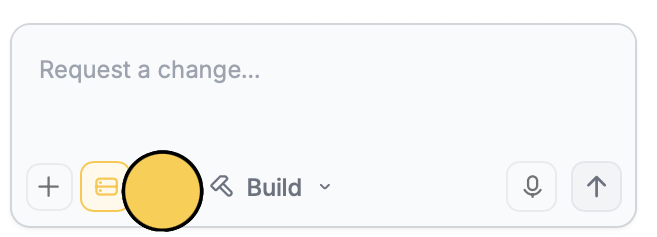
In the chat box, request your app to be integrated with Email or click the `plug icon` .
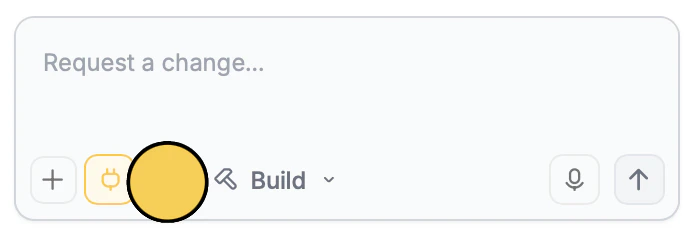 Select `Email` followed by your **preferred email provider** (Zite, GMail, or Outlook). If you choose Gmail or Outlook, you'll be prompted to sign in to your account.
For Custom SMTPs, check [this section](/help/integrations/notify-with-email#how-to-automate-via-smtp).
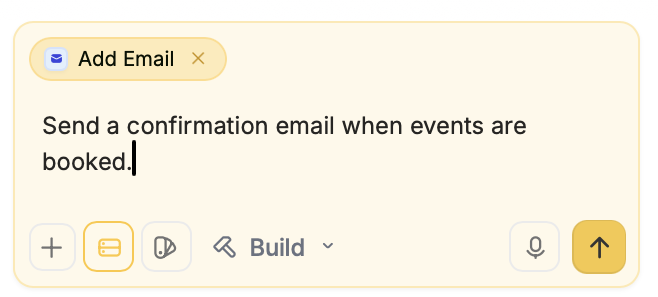
In the chat box, tell Zite how you'd like to use email in your app. For example, we'll send an email when events are booked.
Select `Email` followed by your **preferred email provider** (Zite, GMail, or Outlook). If you choose Gmail or Outlook, you'll be prompted to sign in to your account.
For Custom SMTPs, check [this section](/help/integrations/notify-with-email#how-to-automate-via-smtp).
In the chat box, tell Zite how you'd like to use email in your app. For example, we'll send an email when events are booked.
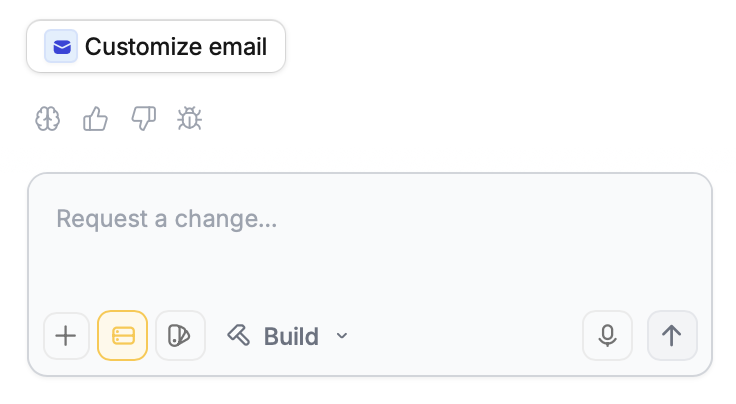
 Once Zite completes the integration, you’ll be prompted to `Customize email` using a pre-created template.
 Hover over the email body and click `Edit email body`. Click [here](/help/integrations/notify-with-email#customize-your-email) to see all custom options.
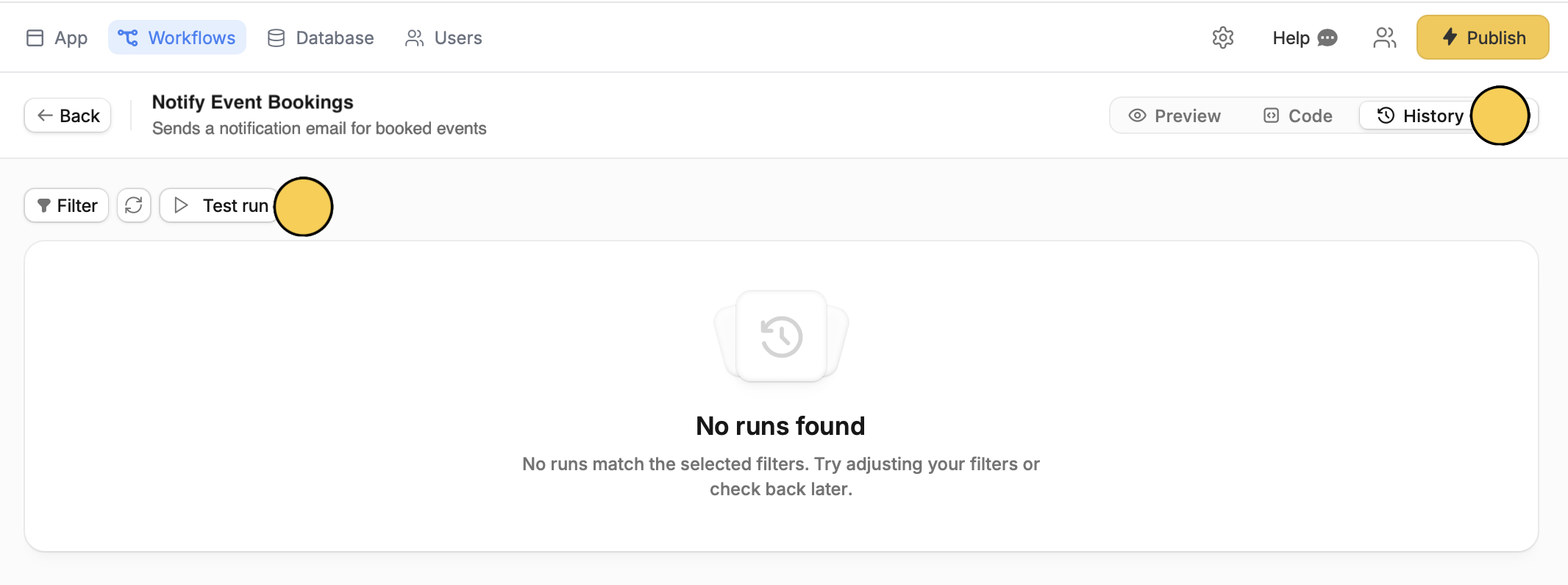
Click `Workflows` on top and select your email workflow. Then, click `History` followed by `Test run`.
Hover over the email body and click `Edit email body`. Click [here](/help/integrations/notify-with-email#customize-your-email) to see all custom options.
Click `Workflows` on top and select your email workflow. Then, click `History` followed by `Test run`.
 Your app will often display a toast notification to confirm if an action was successful or not.
Click `Publish` in the upper right corner to [**share**](/help/platform/access/share-to-web) or [**embed**](/help/platform/basics/embedding) your app.
## Customize your email
Aside from the custom email button that shows up during connection, you can access the email editor from the `Workflows` page (top) by selecting the email workflow.
This feature is only available for Zite mails. To customize the format of your Gmail or Outlook subject and contents, send a request in the chat.
From there, you can:
* Edit the recipient email or use a dynamic email field
* Edit the default subject and body
* Change font weight, add bullets, and more by **highlighting text**
* Insert dynamic data like name and preferences (orange tags) to personalize email by **typing or clicking @ and selecting a field**
Your app will often display a toast notification to confirm if an action was successful or not.
Click `Publish` in the upper right corner to [**share**](/help/platform/access/share-to-web) or [**embed**](/help/platform/basics/embedding) your app.
## Customize your email
Aside from the custom email button that shows up during connection, you can access the email editor from the `Workflows` page (top) by selecting the email workflow.
This feature is only available for Zite mails. To customize the format of your Gmail or Outlook subject and contents, send a request in the chat.
From there, you can:
* Edit the recipient email or use a dynamic email field
* Edit the default subject and body
* Change font weight, add bullets, and more by **highlighting text**
* Insert dynamic data like name and preferences (orange tags) to personalize email by **typing or clicking @ and selecting a field**
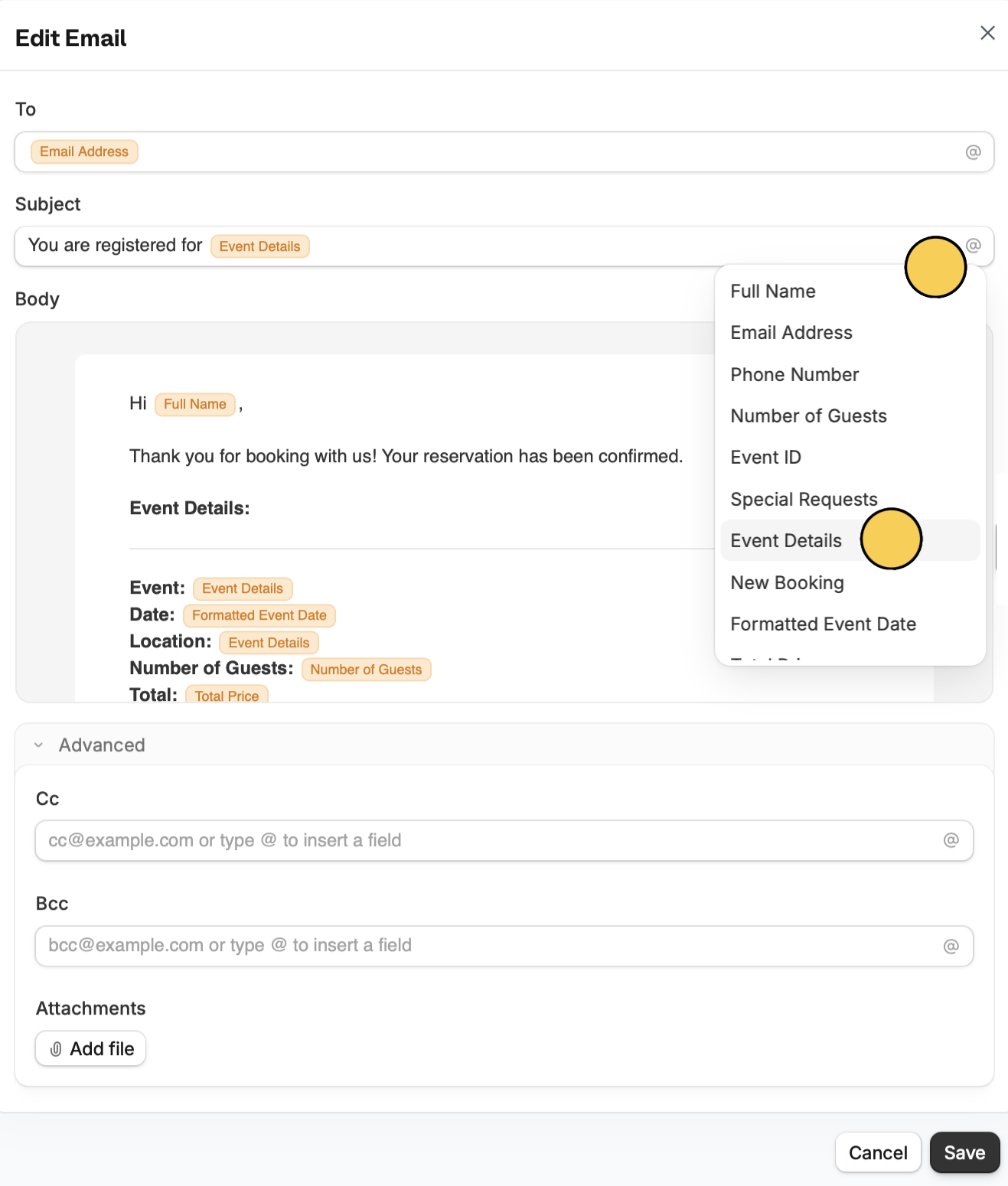 * Add recipients to CC and BCC under **Advanced**
* Add files and a logo (on top of the body)
* Customize button text, alignment, and URL
Can’t find the field or information you want to display in your custom email? Simply prompt Zite to add it.
To change the sender email, navigate to `integrations`, and link a new Gmail or Outlook account. For SMTPs, you will need to make edits on your provider's website.
## How to automate via SMTP
You can also connect to SMPT providers such as SendGrid, Loops, Mailgun and others. This is best suited for scalable, high-volume or production email and is recommended for public-facing apps.
In the chat box, click followed by `Email`.
* Add recipients to CC and BCC under **Advanced**
* Add files and a logo (on top of the body)
* Customize button text, alignment, and URL
Can’t find the field or information you want to display in your custom email? Simply prompt Zite to add it.
To change the sender email, navigate to `integrations`, and link a new Gmail or Outlook account. For SMTPs, you will need to make edits on your provider's website.
## How to automate via SMTP
You can also connect to SMPT providers such as SendGrid, Loops, Mailgun and others. This is best suited for scalable, high-volume or production email and is recommended for public-facing apps.
In the chat box, click followed by `Email`.
 Choose `SMTP`. In this example, we'll use SendGrid as our host.
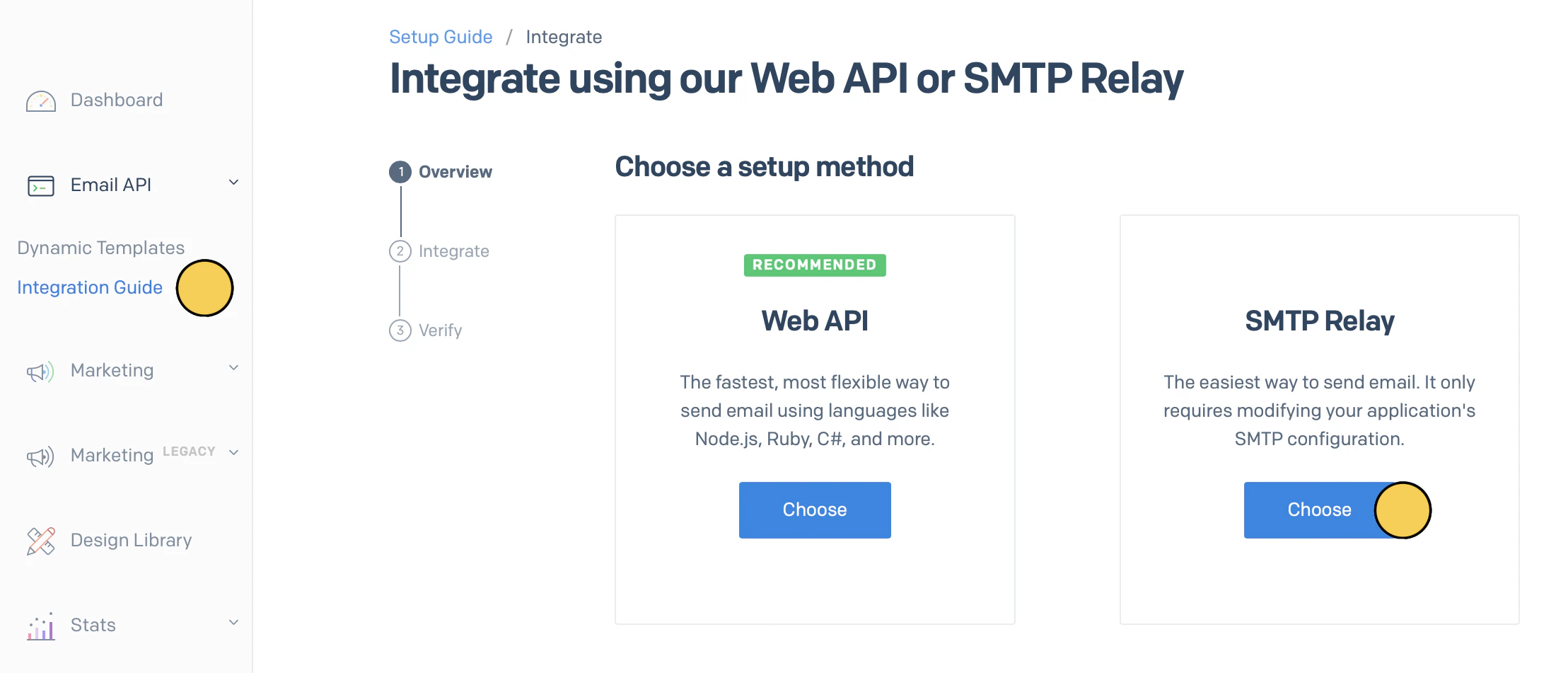
To fill out the necessary details, let's go to our SendGrid dashboard. Click `Email API` on the left-hand panel followed by `Integration guide`. We'll choose SMTP Relay.
Choose `SMTP`. In this example, we'll use SendGrid as our host.
To fill out the necessary details, let's go to our SendGrid dashboard. Click `Email API` on the left-hand panel followed by `Integration guide`. We'll choose SMTP Relay.
 Enter a label and `Create Key`.
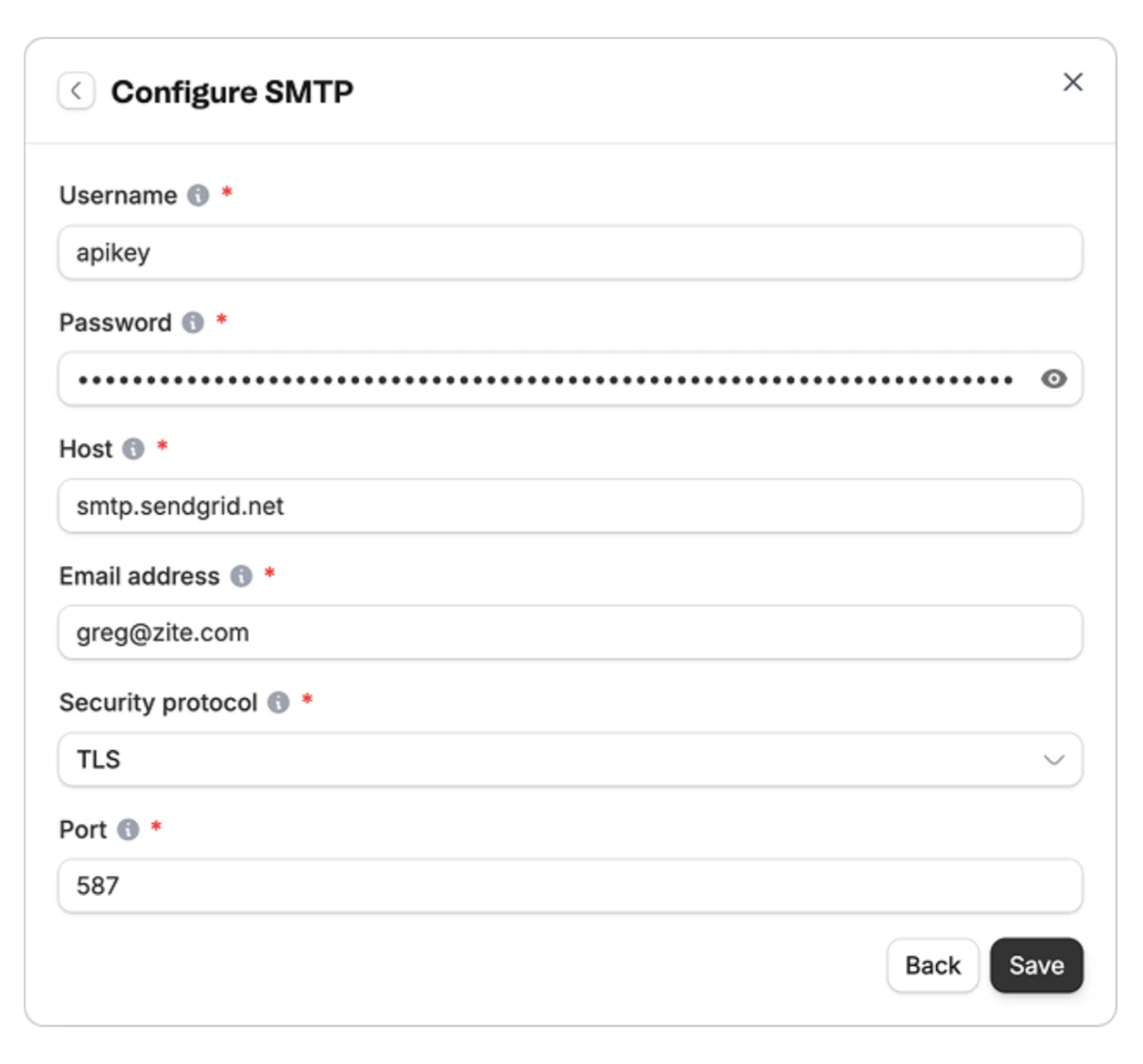
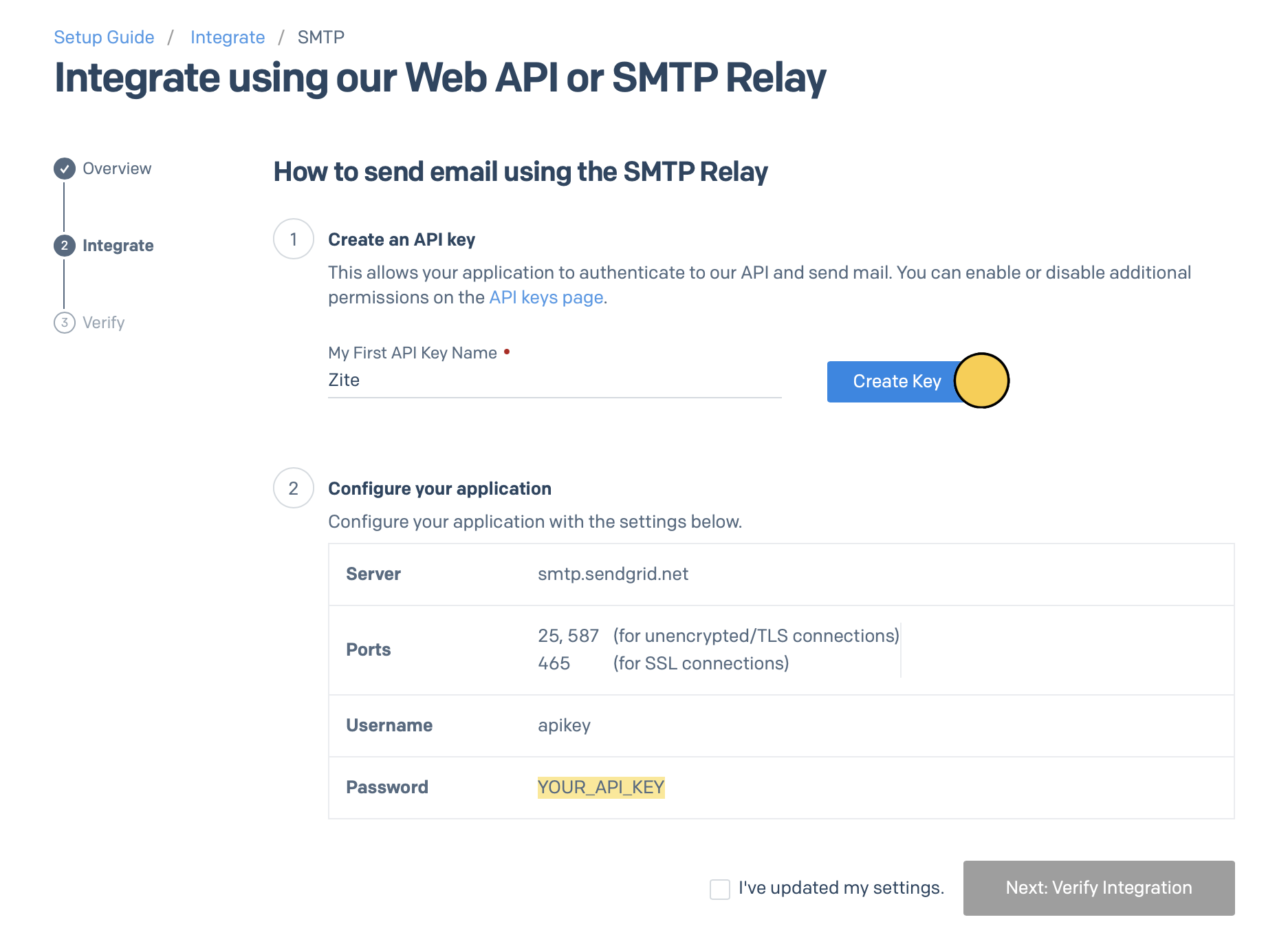 The required details will be displayed on number 2. For example:
* Username: apikey
* Password: sendgrid-api-key
* Host: [smtp.sendgrid.net](http://smtp.sendgrid.net)
* Email address: [greg@zite.com](mailto:greg@zite.com) (the email sender)
* Security protocol: TLS (recommended)
* Port: 587
Go back to Zite and paste the details from number 2.
The required details will be displayed on number 2. For example:
* Username: apikey
* Password: sendgrid-api-key
* Host: [smtp.sendgrid.net](http://smtp.sendgrid.net)
* Email address: [greg@zite.com](mailto:greg@zite.com) (the email sender)
* Security protocol: TLS (recommended)
* Port: 587
Go back to Zite and paste the details from number 2.
 ## Troubleshooting
If your email did not arrive, click `Workflows` on top followed by your **email workflow**. Then, go to `History`.
## Troubleshooting
If your email did not arrive, click `Workflows` on top followed by your **email workflow**. Then, go to `History`.
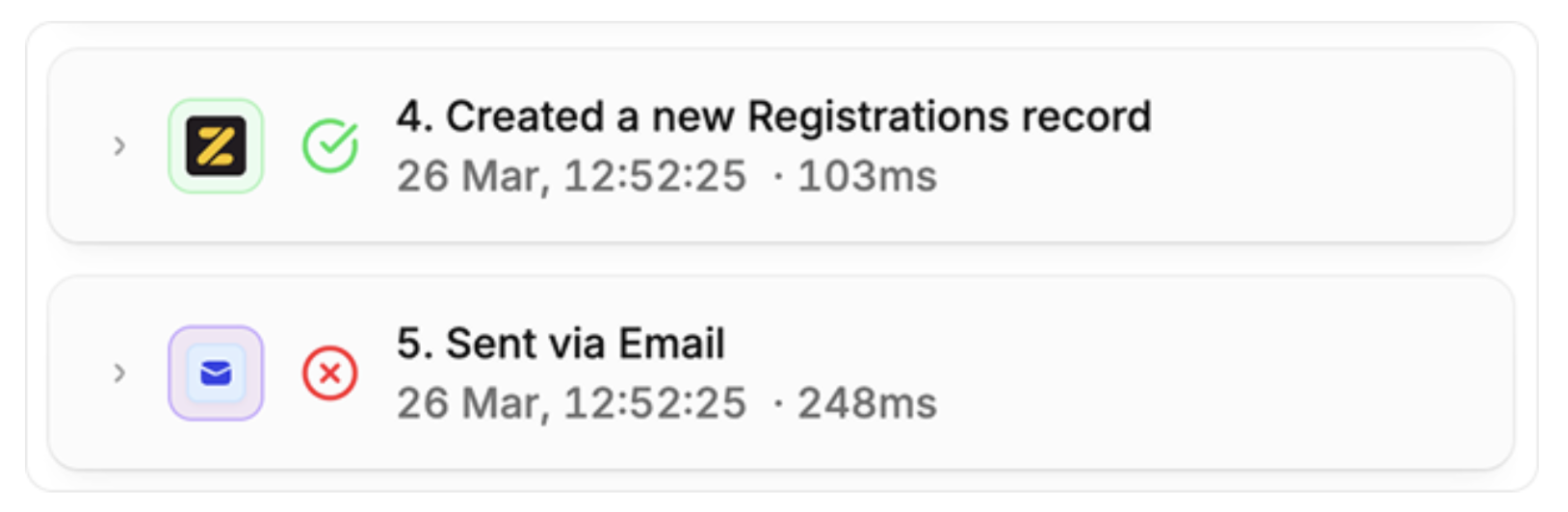
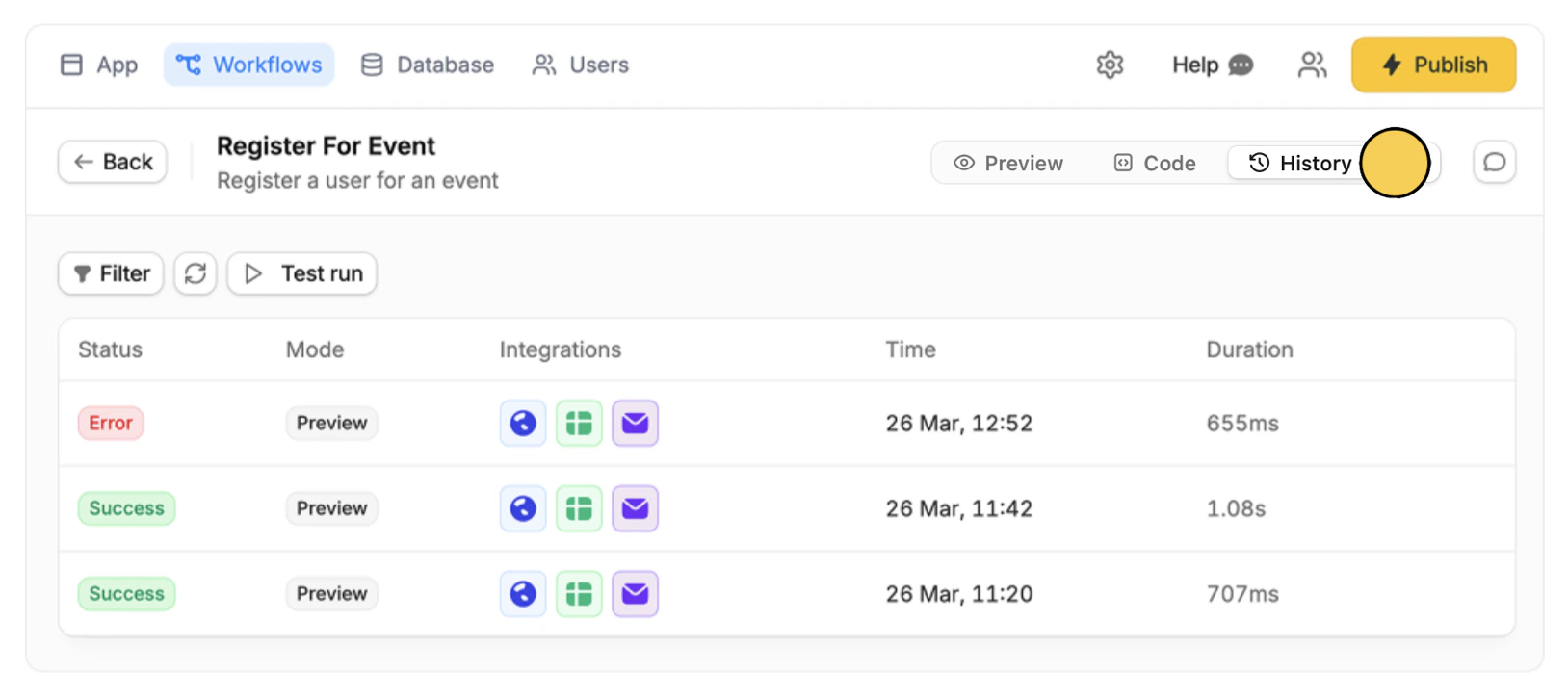 If you notice a red on your email workflow step, this means that there was an issue with the step completing. To fix this, ask Zite in the chat to check the workflow logs and attempt to fix the problem.