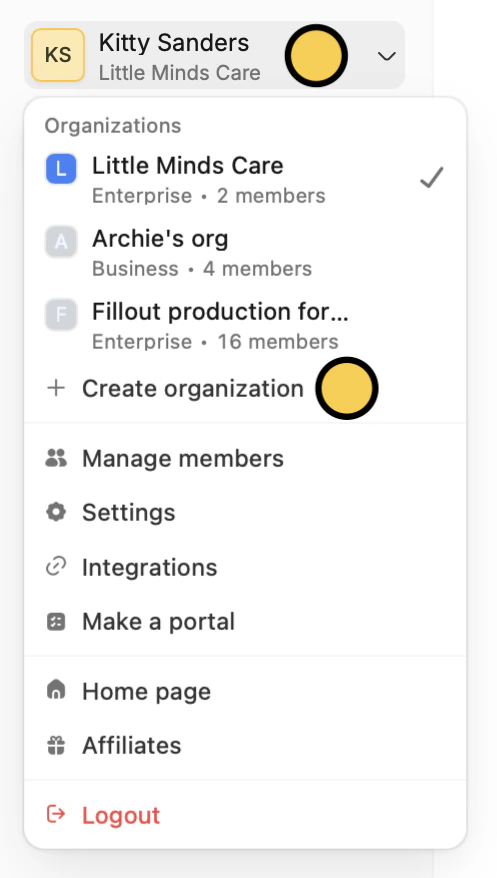
 See [Organizations](https://www.fillout.com/help/organizations) for more details on managing and switching between organizations.
## Add clients and team members
Invite clients or teammates to the appropriate organization. You can choose to invite them as:
* **Admin** — full access to all workspaces and settings within the client's organization
* **Member** — can create their own forms and apps, but cannot edit others'
On your dashboard, click `Invite members` in the upper right area.
See [Organizations](https://www.fillout.com/help/organizations) for more details on managing and switching between organizations.
## Add clients and team members
Invite clients or teammates to the appropriate organization. You can choose to invite them as:
* **Admin** — full access to all workspaces and settings within the client's organization
* **Member** — can create their own forms and apps, but cannot edit others'
On your dashboard, click `Invite members` in the upper right area.
 ## Export and deliver apps to clients
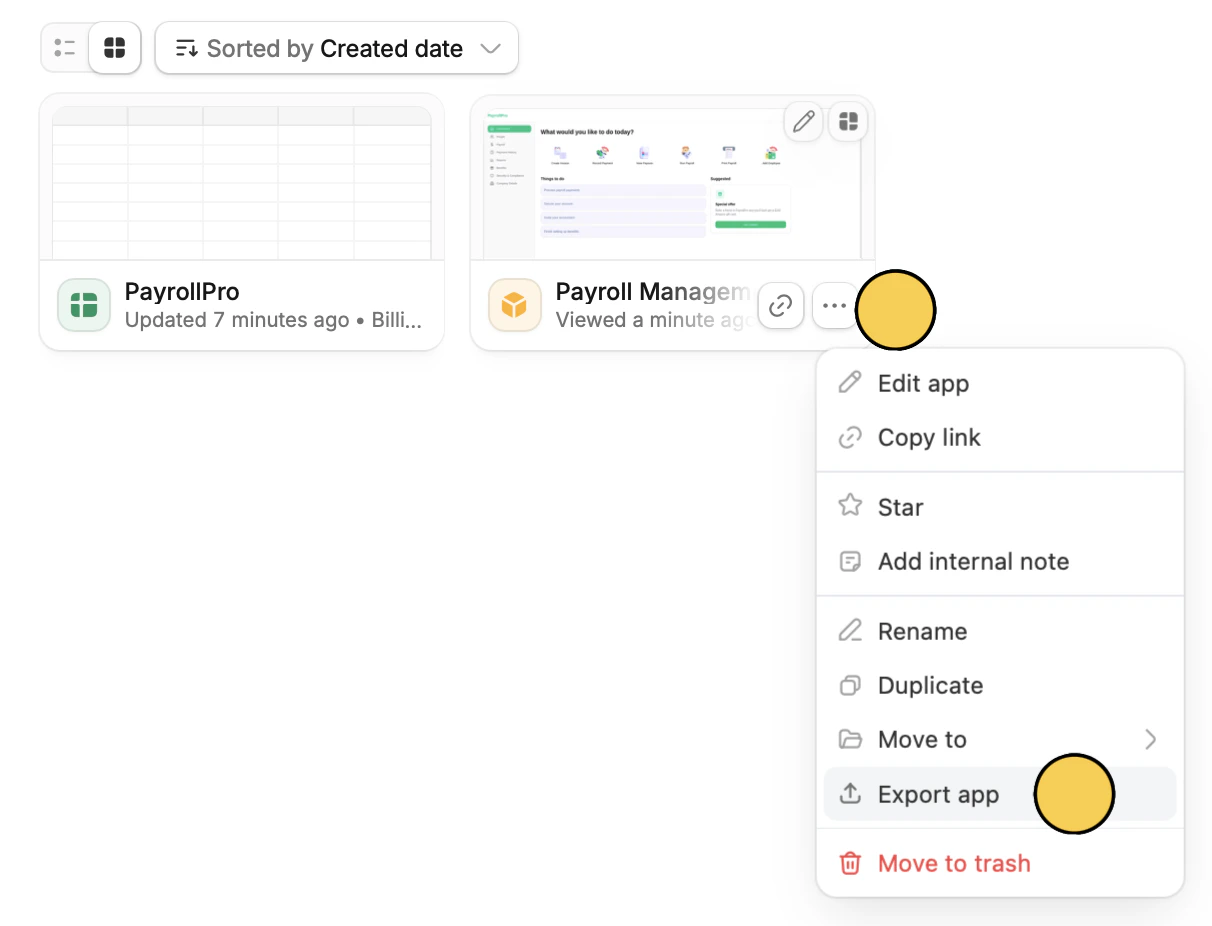 Then, switch to your client's organization and import the app from the dashboard by clicking `App` followed by `Import existing Zite`.
See [Import and export apps](/help/platform/access/import-and-export-apps) for the full guide.
## Become a partner
Agencies and consultants who regularly build with Zite can apply to become a **solution partner** and receive:
* A **free Team plan** for your agency (a [300 USD/month value](https://www.fillout.com/help/team-plan) with unlimited seats and 800 Zite credits/month)
* **30% recurring commission** on client referrals through the [affiliate program](/help/platform/account/affiliate-program)
* **Priority support** from the Zite team
* **More perks** depending on your Zite partner tier
[Apply to become a solution partner](https://partners.zite.com/apply).
Then, switch to your client's organization and import the app from the dashboard by clicking `App` followed by `Import existing Zite`.
See [Import and export apps](/help/platform/access/import-and-export-apps) for the full guide.
## Become a partner
Agencies and consultants who regularly build with Zite can apply to become a **solution partner** and receive:
* A **free Team plan** for your agency (a [300 USD/month value](https://www.fillout.com/help/team-plan) with unlimited seats and 800 Zite credits/month)
* **30% recurring commission** on client referrals through the [affiliate program](/help/platform/account/affiliate-program)
* **Priority support** from the Zite team
* **More perks** depending on your Zite partner tier
[Apply to become a solution partner](https://partners.zite.com/apply).
Related topics