> ## Documentation Index
> Fetch the complete documentation index at: https://zite.com/llms.txt
> Use this file to discover all available pages before exploring further.
# Create a brand kit
> Keep your branding consistent by using the same colors, fonts, icons, and logo across your Zite apps.
## Overview
Building multiple apps and landing pages for the same company or brand requires staying within brand guidelines to ensure a consistent look and feel across everything you create. Without a shared system, it can be difficult to keep colors, fonts, and styling aligned across different projects.
A **brand kit** helps solve this by keeping your key brand elements in one place so you can easily apply them across all apps and pages.
## What is a brand kit?
It's a centralized hub containing the visual styling elements that represent your brand. It contains the following:
* **Logo:** The primary visual symbol used in app headers and nav bars
* **Icon:** A small square logo used as favicon and app icon
* **Font:** The main text style
* **Color Palette:** Primary and secondary colors, including accents if any
* **Guidelines:** A set of rules that define how a brand should look and be presented
## Build your brand kit
From the dashboard, click the `swatch icon` followed by `Create brand kit`. Alternatively, you can open the [Branding kit settings](https://build.fillout.com/home/settings/branding-kit).
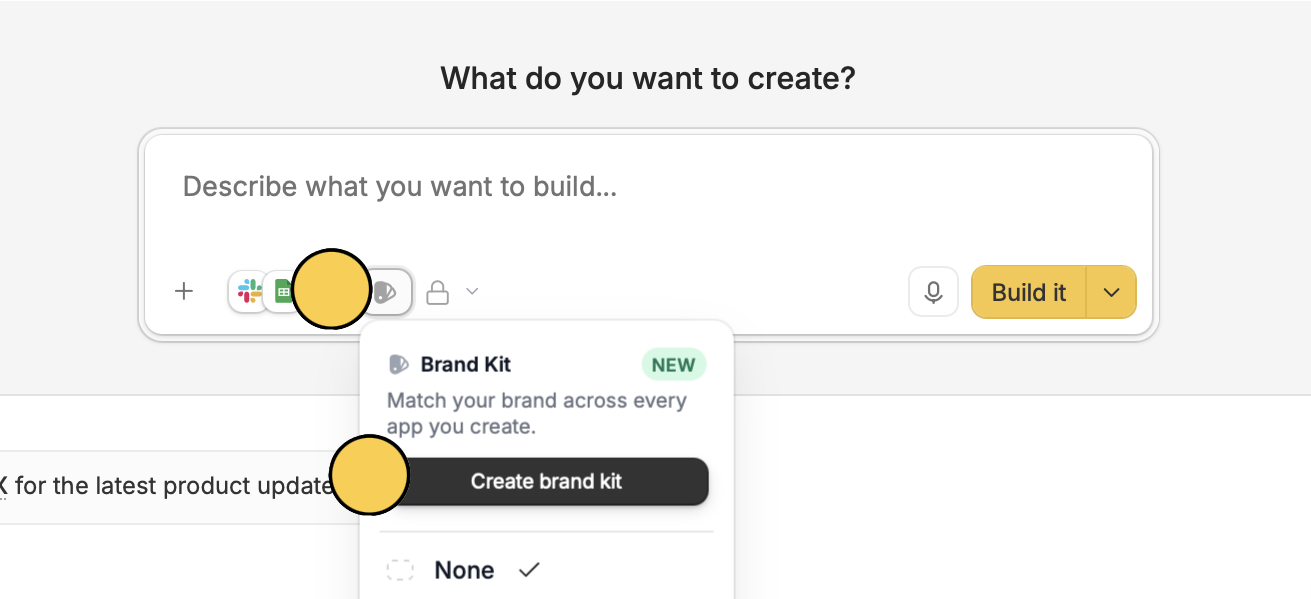 In the popup, you can either `Import your website` or `Create manually`. For our example, let's use Zite's website.
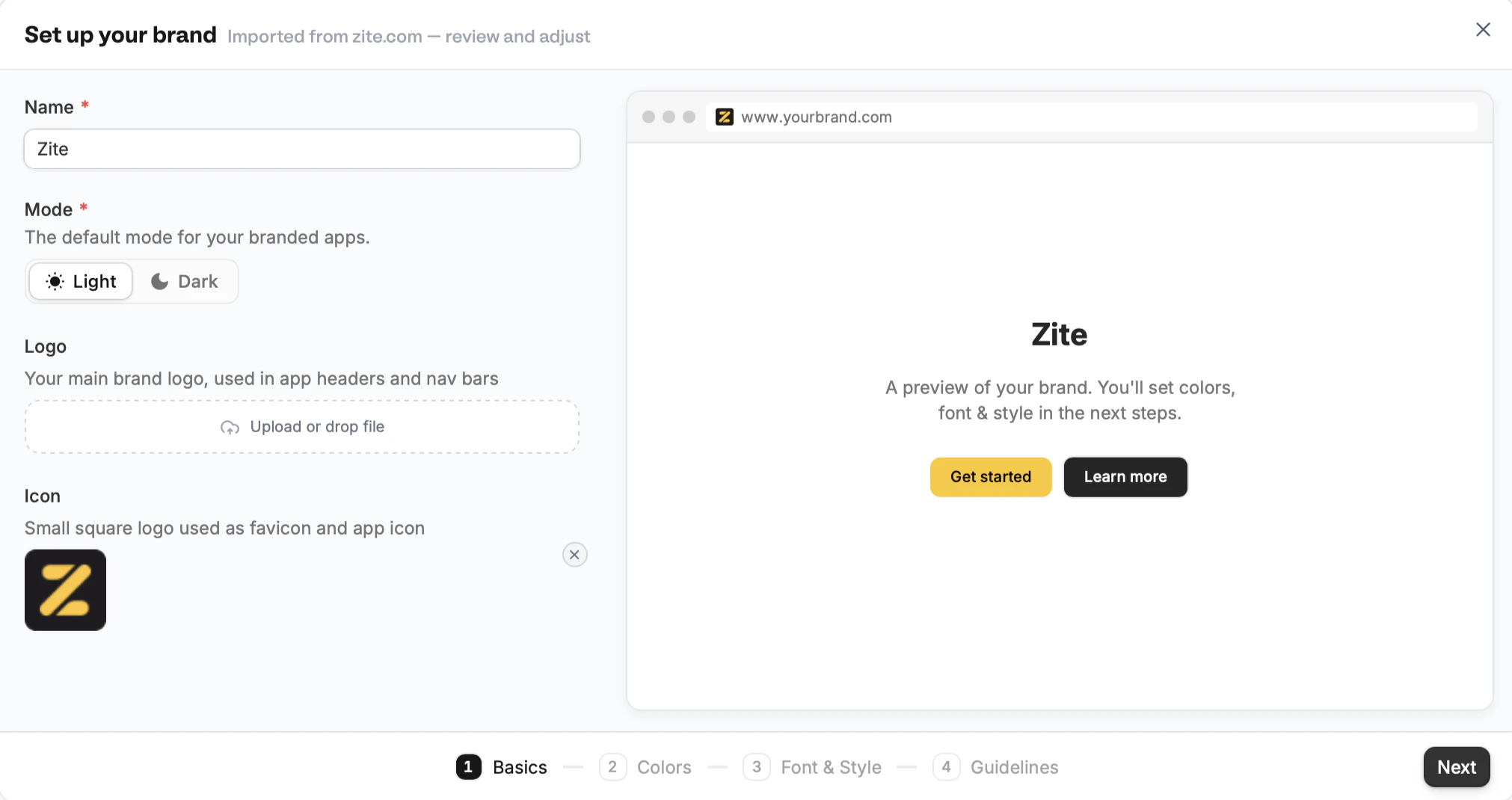 You can change the logo or icon by clicking **x** and uploading or dropping a file.
Importing will automatically capture a website's brand information and styling.
You can change the logo or icon by clicking **x** and uploading or dropping a file.
Importing will automatically capture a website's brand information and styling.
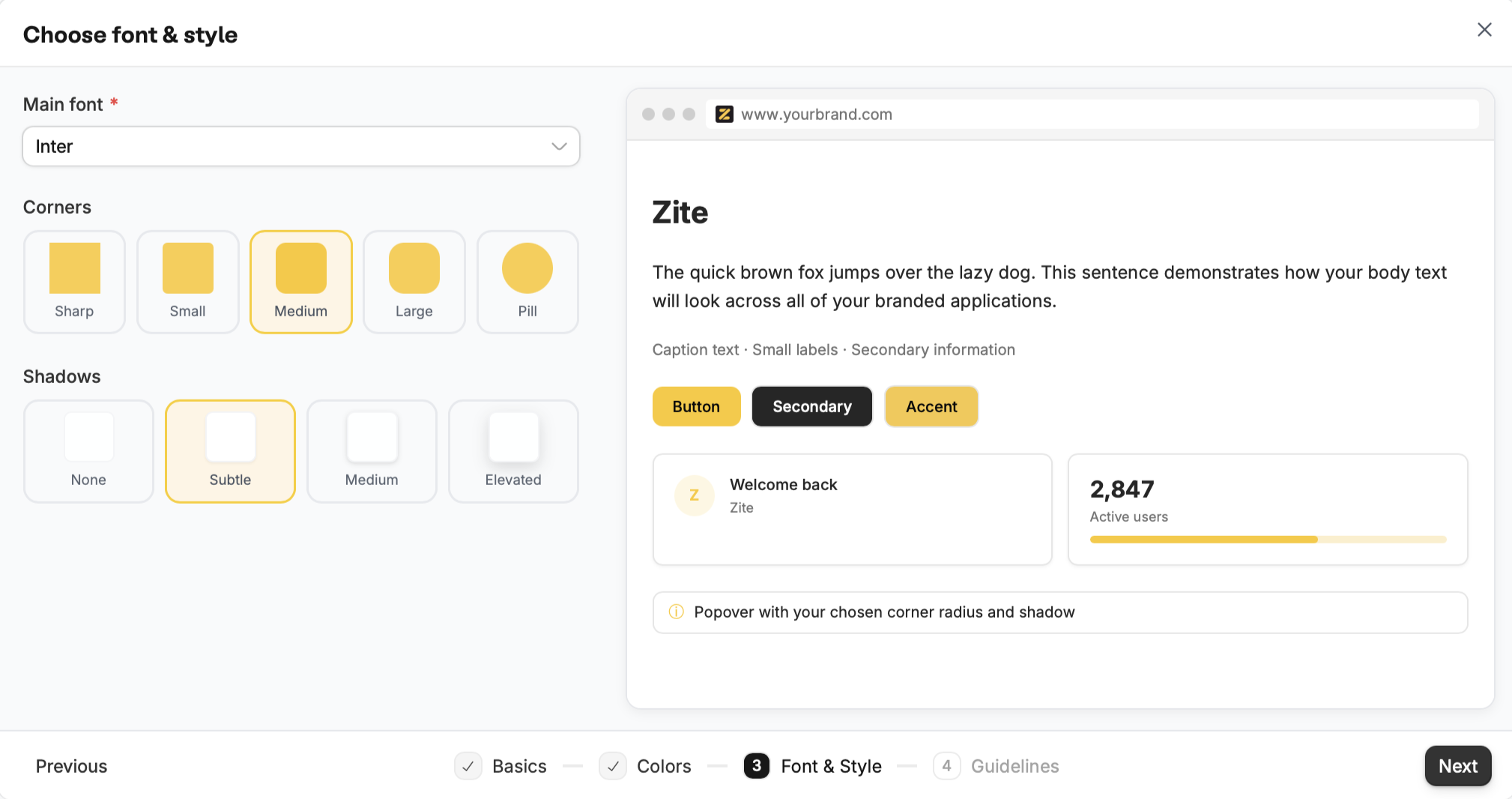 This is includes the logos, color palette, font, button, and card styles. You are free to edit these however you see fit.
Importing will automatically capture a website's brand information and styling.
This is includes the logos, color palette, font, button, and card styles. You are free to edit these however you see fit.
Importing also captures brand guidelines, specifically **Visual Style**, **Tone of Voice**, and **Business Context**. You can add more to this or edit them as needed.
This is includes the logos, color palette, font, button, and card styles. You are free to edit these however you see fit.
Importing will automatically capture a website's brand information and styling.
This is includes the logos, color palette, font, button, and card styles. You are free to edit these however you see fit.
Importing also captures brand guidelines, specifically **Visual Style**, **Tone of Voice**, and **Business Context**. You can add more to this or edit them as needed.
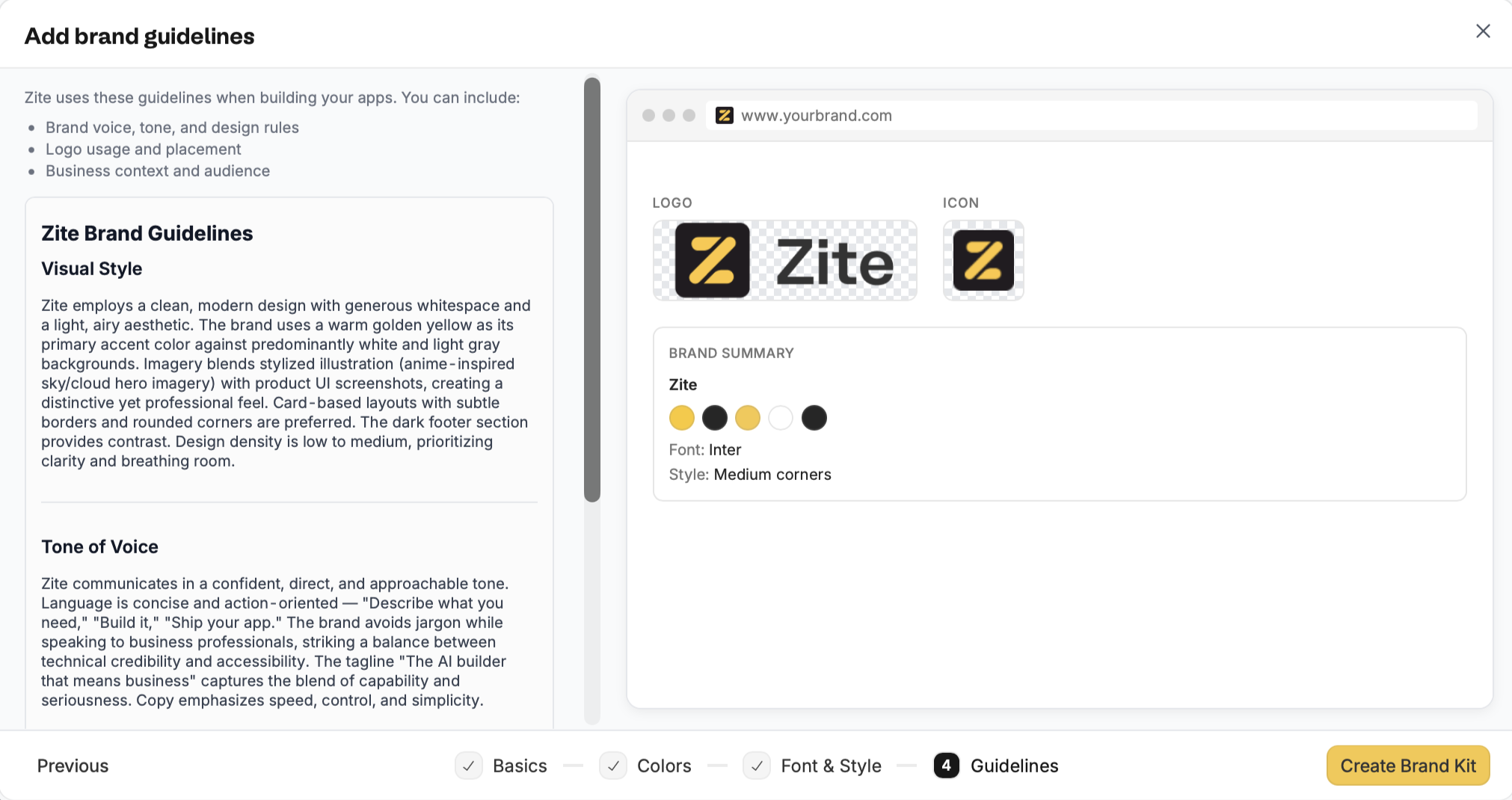 Click `Create Brand Kit` once you've reviewed all the details.
That's it! You’ll now see your brand kit when creating an app.
Importing also captures brand guidelines, specifically **Visual Style**, **Tone of Voice**, and **Business Context**. You can add more to this or edit them as needed.
Click `Create Brand Kit` once you've reviewed all the details.
That's it! You’ll now see your brand kit when creating an app.
Importing also captures brand guidelines, specifically **Visual Style**, **Tone of Voice**, and **Business Context**. You can add more to this or edit them as needed.
Click `Create Brand Kit` once you've reviewed all the details.
That's it! You’ll now see your brand kit when creating an app.
## Edit an existing brand kit
On the dashboard, click your `Account name` followed by `Settings`.
Navigate to `Branding kit` and click your **brand** to edit it.
Click `Create Brand Kit` once you've reviewed all the details.
That's it! You’ll now see your brand kit when creating an app.
Importing also captures brand guidelines, specifically **Visual Style**, **Tone of Voice**, and **Business Context**. You can add more to this or edit them as needed.
Click `Create Brand Kit` once you've reviewed all the details.
That's it! You’ll now see your brand kit when creating an app.
Importing also captures brand guidelines, specifically **Visual Style**, **Tone of Voice**, and **Business Context**. You can add more to this or edit them as needed.
Click `Create Brand Kit` once you've reviewed all the details.
That's it! You’ll now see your brand kit when creating an app.
## Edit an existing brand kit
On the dashboard, click your `Account name` followed by `Settings`.
Navigate to `Branding kit` and click your **brand** to edit it.
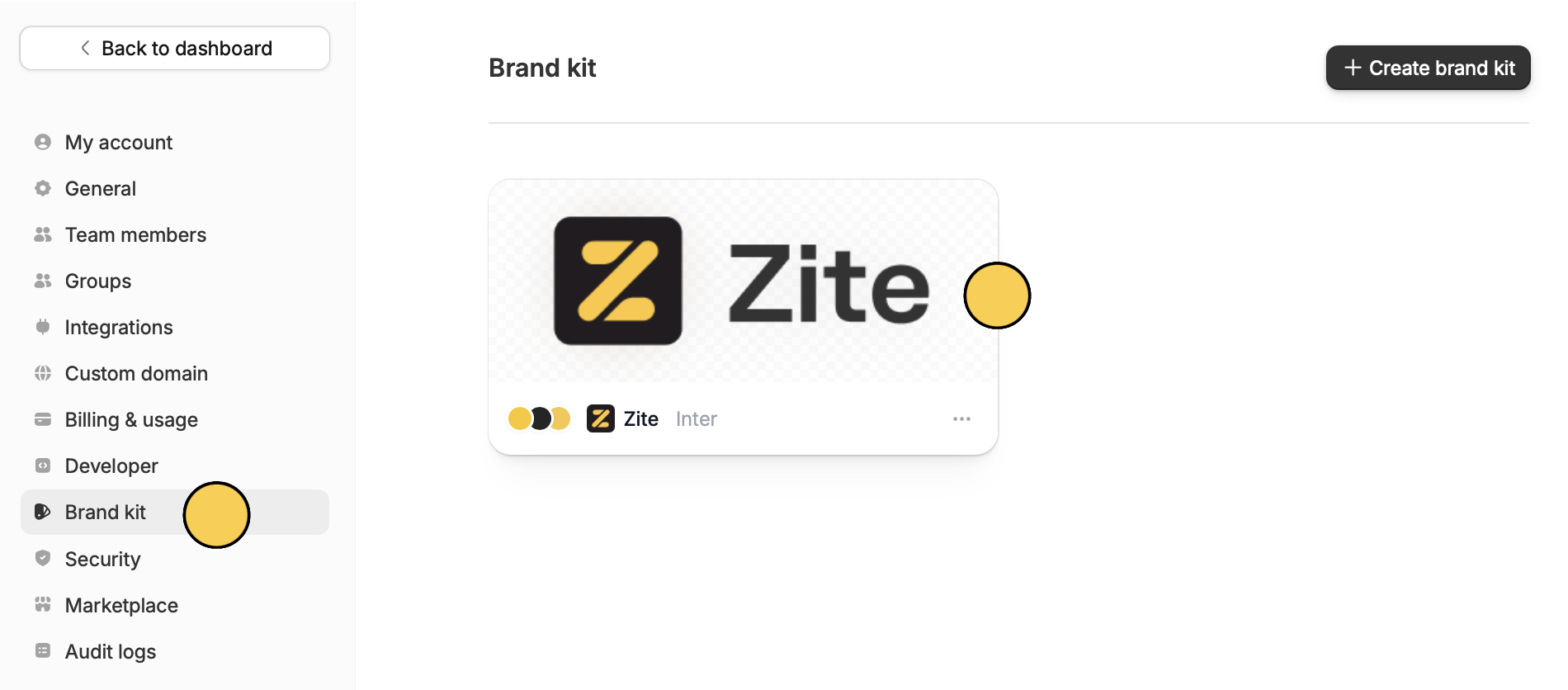 Click the `ellipsis` to `Delete` a brand kit.
## Apply brand kit to an existing app
If you already have an existing app and want to quickly match it to your brand, you can choose your brand kit as its theme.
Click your Zite app from the dashboard.
Click the `swatch icon` on the bottom left. Then, open the `Theme` dropdown menu to choose your brand kit.
Click the `ellipsis` to `Delete` a brand kit.
## Apply brand kit to an existing app
If you already have an existing app and want to quickly match it to your brand, you can choose your brand kit as its theme.
Click your Zite app from the dashboard.
Click the `swatch icon` on the bottom left. Then, open the `Theme` dropdown menu to choose your brand kit.
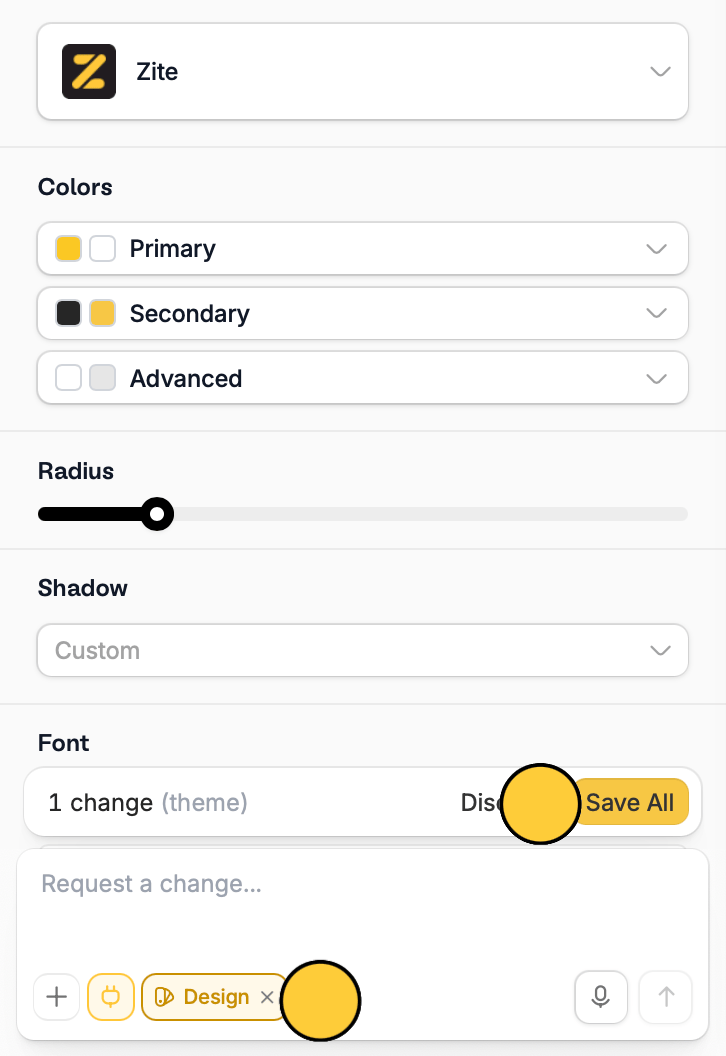
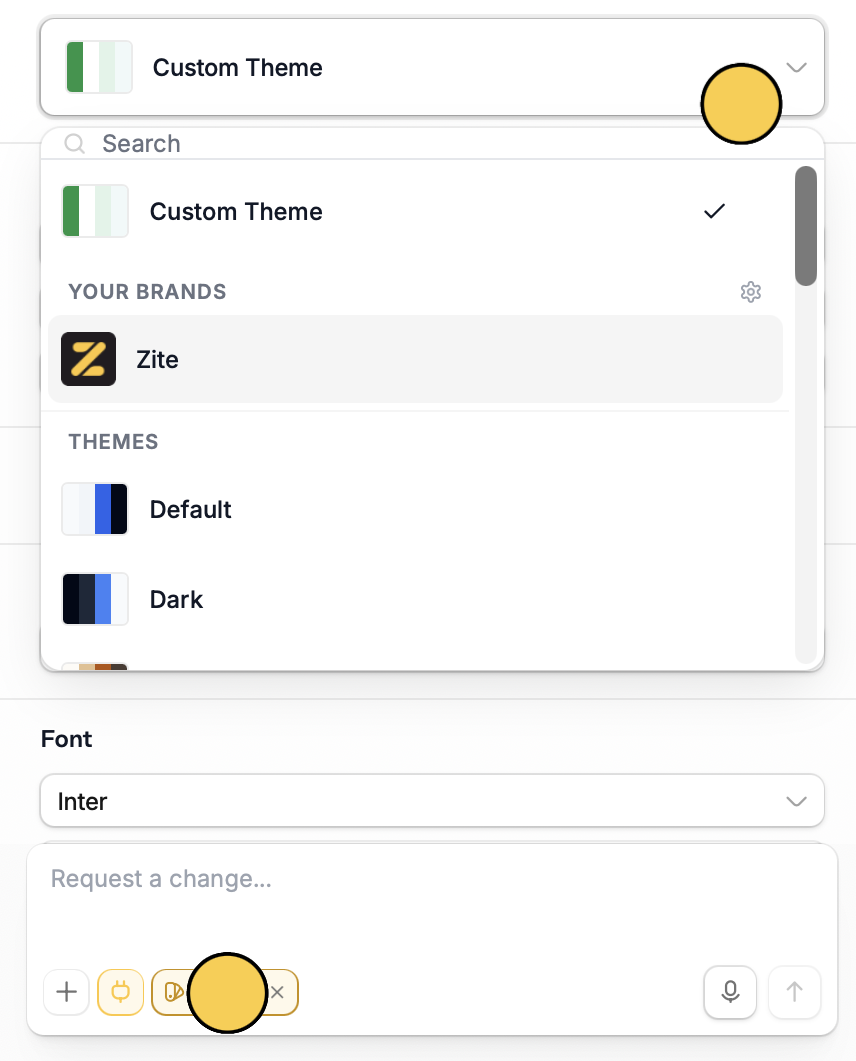 After choosing your brand kit, click `Save all`. Then, click exit design by clicking `x`.
 Click `Publish` in the upper right corner to [**share**](/help/platform/access/share-to-web) or [**embed**](/help/platform/basics/embedding) your app.