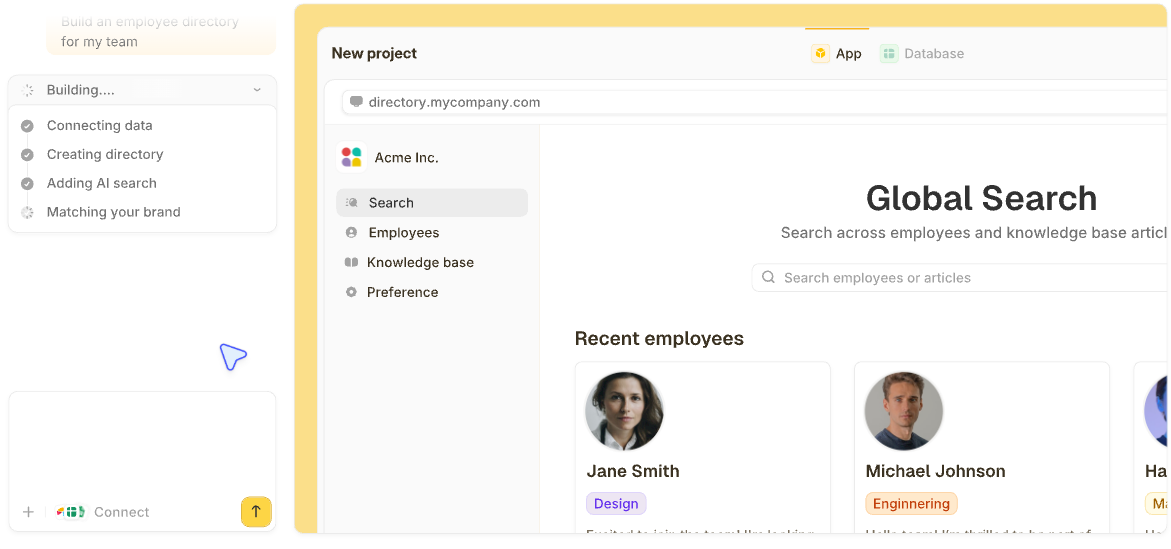


A client document portal is a secure, branded space where businesses share files and updates with clients without the chaos of email attachments. I've helped accounting firms and agencies set them up, and the right one cuts hours of back-and-forth every week.
What is a client document portal? The 30-second answer
A client document portal is software that gives each client a private space to access and exchange documents with a business. It replaces the mess of emailed attachments with one secure location both sides can rely on.
In short: if you're emailing the same files to clients on repeat, a portal saves you from that loop.
Key features
The features I’d treat as non-negotiable in any client document portal:
- Secure access: Clients log in to their own private area. No shared links floating around in email.
- Role-based permissions: You control who sees what. Each client only sees their own documents.
- Document organization: Folders, tags, or sections so clients can find what they need without asking.
- Upload and download: Clients submit signed contracts and intake forms, and you deliver finished work back through the same space.
- Activity logs: You see who opened what and when. Useful for proof of delivery and for spotting clients who haven’t reviewed an important file.
- Branding: The portal looks like yours, not a generic third-party tool. This matters for client trust.
- Notifications: Both sides are alerted when something new is uploaded or a deadline approaches.
How does a client document portal work?
A client document portal serves as a secure online space between your business and your clients. Each client gets their own login and a dedicated space where their files are organized.
Here’s the typical flow:
- Setup: You build the portal structure with folders, document categories, and any intake forms you want clients to fill out.
- Invite clients: Each client receives an invitation with their own credentials. They log in through your branded portal URL.
- Share documents: You upload files to a client’s space, and the client is notified. They can preview, download, or sign documents depending on the permissions you’ve granted.
- Collect uploads: Clients submit their own documents through the portal. Everything stays organized in their folder instead of being buried in your inbox.
- Track activity: You see when clients accessed a file, signed a document, or uploaded a requested item. No more “did you get my email?” exchanges.
Real example: An accounting firm I worked with used a client document portal during tax season. Each client uploaded their tax forms and receipts directly into a private folder, and the firm pulled the docs into their workflow without needing to ask clients to resend anything. The firm cut its document-chasing time roughly in half.
Client document portal vs. email and shared drives: what’s the difference?
For years, the default way to share files with clients was email attachments or a shared Google Drive folder. Both options work for small client counts, but they create real problems once you’re managing more than a few clients at once.
Here’s how a client document portal compares:
Who wins: For any business sharing documents with more than a few clients regularly, a client document portal is the clear winner. Email and shared drives might be free, but the time spent searching for files, resending attachments, and chasing clients adds up fast.
The exception is one-off projects with a single client where formality isn’t needed. In that case, email is fine.
What I liked and didn’t like about building a client document portal with Zite
I tested a few options for setting up a client document portal, and Zite stood out for ops teams who want to build a portal that fits their exact workflow, without writing code.
Pros
- Visible app logic you can troubleshoot: Zite generates the portal from a prompt, and the workflow logic is shown as a visual flowchart you can inspect and understand. If a client says they didn’t get a notification, you can trace what happened instead of guessing.
- Built-in database with a spreadsheet feel: All your client records, document details, and access settings live in tables and fields that look like a clean spreadsheet. You can edit data directly without clicking through nested menus.
- Real access control: You can publish the portal internally for your team, then give each external client their own login with role-based permissions. Clients only see their own documents, and you control what they can do with them.
- Unlimited users on all plans: Zite doesn’t charge per seat. If you’re sharing a portal with 50 clients, you pay the same as if you were sharing with 5.
- Generate documents, not just store them: Zite can create and fill out PDFs and other documents automatically, so you can produce engagement letters, filled intake forms, or summaries inside the same portal. The off-the-shelf storage portals don't do this.
Cons
- Newer product, smaller template library: Zite is younger than tools like Airtable, so the ecosystem of pre-built templates and community resources is still growing.
Should you use a client document portal? My take
If you’re regularly sharing documents with clients and you’re tired of digging through email threads, the answer is yes.
A client document portal is perfect for:
- Accounting and bookkeeping firms collecting tax forms and signed engagement letters from clients each year.
- Agencies and consultants sharing finished deliverables and signed contracts with clients during a project.
- Law firms sending case files and intake forms to clients securely.
- Real estate teams managing transaction documents between buyers and agents during a sale.
Skip a client document portal if you:
- Work with only one or two clients at a time on short-term projects where email is sufficient.
- Don’t need a record of document access or visibility into when clients opened files.
If a portal feels like overkill, a shared cloud folder with strict naming conventions can work for very small teams. Once you cross five active clients, the time you save adds up faster than the subscription cost.
How to get started with a client document portal in 5 steps
Setting up your first client document portal is straightforward if you know what you need before you start. Here's how to do it in five steps:
- Map out your client document workflow: Write down every type of document you exchange with clients, in both directions. This becomes your folder structure.
- Choose your software: Look at usability, branding options, permission controls, and pricing. For non-technical ops teams, an AI-powered no-code tool like Zite is worth a look. You describe what you want and get a working portal without hiring a developer.
- Build out your portal structure: Create your folder system and access rules. Start with the basics so you can refine the setup as you learn how clients actually use the portal.
- Add branding: Upload your logo, set your colors, and use a custom domain if your tool supports it. The portal should feel like an extension of your business.
- Onboard your first few clients: Don’t invite all your clients on day one. Start with two or three, test the experience, then scale up.
Pro tip: Send a short Loom video to each client when you invite them, walking through how to log in and upload documents. In my experience, this cuts login-related support questions to almost nothing and shows clients you respect their time.
Client document portal best practices I wish I knew earlier
Building the portal is the easy part. Getting clients to actually use it is where most teams get stuck.
Essential practices:
- Make uploads frictionless: If you can pre-fill metadata or auto-categorize files, do it. Every extra click reduces the chance that a client will complete the upload.
- Set expectations in onboarding: Tell clients upfront that you use the portal for all document exchange. If they email you a file, gently redirect them back to the portal.
- Use folder templates per client type: A new client should get a pre-built folder structure based on their service tier. Don’t recreate this for every new account.
- Send portal links in every reminder: Clients forget login URLs. Include the link in every reminder email so they’re one click away.
Common mistakes to avoid:
- Over-organizing on day one: I’ve seen ops teams spend two weeks designing a folder hierarchy that clients ignore. Start with four top-level categories and let real use guide the rest.
- Skipping the activity log review: The whole point of a portal is visibility. Check the access logs weekly to spot clients who are stuck or unresponsive.
My verdict on client document portals
If you’re sharing files with more than a handful of clients on a regular basis, a client document portal is the cleaner choice. The time savings alone cover the subscription cost within the first month, and the activity logs provide a record of what was shared and when.
For ops teams or SMB owners who want to build their own portal without hiring a developer, an AI-powered tool like Zite gives you visible workflows, a built-in database, and real access control in one place. You can compare options like Zite vs. Airtable or Zite vs. Lovable to see which approach best fits your team.
For accountants, agencies, or law firms who’d rather buy off-the-shelf, dedicated portal tools like ShareFile or FileCloud are mature options. Expect to pay per user and accept fewer customization options.
My recommendation: Pick the option that matches how much control you need over the portal experience. If your clients see your brand on every email and meeting, your document portal should match.
Build your own client document portal in an afternoon
A custom client document portal that fits your exact workflow used to mean hiring a developer or spending months learning a complicated no-code builder. With AI-powered tools, you can describe what you want and have a working portal up and running in an afternoon.
What you get with the right setup:
- A branded portal with your colors, logo, and domain.
- A built-in database where client records and documents stay organized.
- Visible workflows you can troubleshoot if something breaks.
- Role-based access so each client only sees their own files.
- No per-seat pricing as you add more clients.
- Document generation that creates and fills PDFs like engagement letters and intake forms, not just storage.
Start building with Zite for free and have your first client document portal live this afternoon.
Frequently Asked Questions
What is the best client document portal tool?
The best client document portal tool depends on your need for customization and your budget. For non-technical teams who want a branded, custom-built portal without hiring a developer, Zite is a strong option because you can describe what you want, get visible workflows you control, and pay a flat rate instead of per user.
Is a client document portal secure?
Yes, a client document portal is secure when set up correctly. Look for tools with SOC 2 Type II compliance, role-based permissions, and encrypted file storage. Verizon's 2025 DBIR analyzed over 22,000 security incidents, including 12,195 confirmed data breaches, so secure file sharing is worth investing in.
How much does a client document portal cost?
A client document portal costs anywhere from $0 to $200 or more per month, depending on the tool and your team size. Dedicated portal software like ShareFile starts at $18.15 per user per month (3-user minimum). Zite starts at $19 per month with unlimited users, which adds up to major savings for teams sharing portals with many clients.
Can I build a client document portal myself?
Yes, you can build a client document portal yourself without writing code. AI-powered builders like Zite let you describe the portal you want, generate a working version, and customize it visually. For a basic portal with file uploads, downloads, and client logins, expect to spend an afternoon on setup.
What’s the difference between a client portal and a client document portal?
A client portal is the broader category, covering any shared client space that might include messaging, billing, scheduling, or project tracking. A client document portal is more focused on file sharing and document exchange. Many tools, including Zite, can do both depending on how you build them.