

A lot of employee portals are built with high ambitions. Three months later, though, no one is usually using it. That’s because they're designed around features, instead of the primary tasks employees actually need handled.
My guide covers how to build an employee portal around your most important tasks, with a prompt template and launch checklist included.
What Is an Employee Portal and Why Does It Matter?
An employee portal is a secure online hub where staff access the information and services they rely on daily. That includes company policies, HR forms, payroll info, IT requests, knowledge articles, and team directories.
Portals save time, reduce confusion, and give employees one place to find what they need. A well-built portal also creates a consistent onboarding experience and controls access so only the right people see sensitive resources.
In 2025, only one in five employees worldwide was engaged at work, according to Gallup's 2026 State of the Global Workplace report. That's the lowest figure since 2020. A good portal won’t solve disengagement on its own, but it removes one of the cheapest and most fixable sources of frustration: time wasted hunting for basic information.
What You’ll Need Before You Start
People and roles
- A project owner who makes product decisions
- A content owner for policies, onboarding guides, and FAQs
- A technical owner for integrations and hosting
Tools
- A portal or app builder that supports authentication, roles, a database, and integrations with your existing tools
- Secure storage for documents (Google Drive, SharePoint, or equivalent)
- Optional: single sign-on if you plan to publish externally
Data and content
- Employee directory data (names, emails, roles, teams, manager relationships)
- A short list of onboarding materials and the most-requested policies
- A sample document or two for testing uploads and previews
Time estimate
- Basic portal prototype: 1 to 3 days
- Full pilot with authentication, workflows, and integrations: 2 to 6 weeks, depending on scope
How to Build an Employee Portal: Step by Step
Step 1: Define the Portal’s Single Highest-Value Job
Pick one sentence that explains why the portal exists. “Help new hires get productive in their first two weeks.” Or “Reduce internal IT and HR tickets by 40%.”
Every design choice should make that job easier. A focused job prevents feature creep and gives you a measurable success metric from day one.
Step 2: Pick your platform (AI no-code, intranet, or custom)
The platform you choose shapes how fast you can build and who can maintain the portal. You have three main options.
- No-code and AI builders are the right fit when a non-technical team will own the portal long-term. You get faster iteration and lower running costs than intranet software or custom builds, especially for small to mid-size companies.
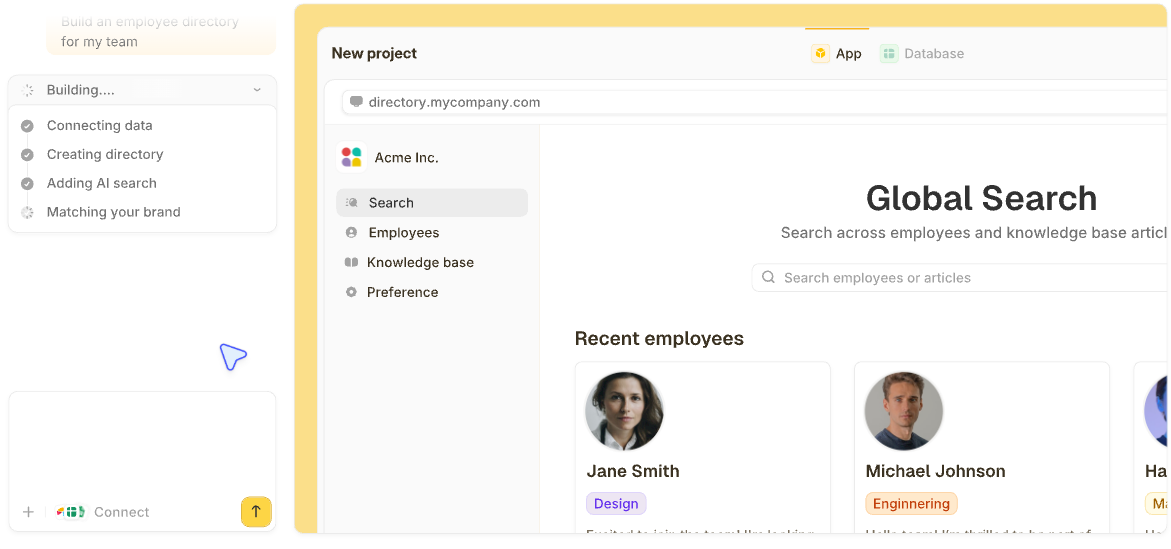
AI-powered builders like Zite take this further by generating the portal, database, and workflows from a single prompt, so you don't stitch together separate tools.
- Intranet products (like SharePoint or Confluence) fit when enterprise compliance, existing HR integrations, or IT governance are hard requirements.
- Custom builds make sense only when the portal must be embedded in a larger workflow system with unique requirements that no existing tool covers.
Whatever you choose, confirm the platform supports authentication, role-based permissions, a built-in database, document previews, embeddable forms, and integrations with tools like Google Drive, Slack, or your HRIS.
Step 3: Prompt the platform and generate a first draft
With an AI-powered platform like Zite, you describe what the portal needs to do, and the platform generates the app, database, and workflows. Use the prompt template later in this guide as your brief.
A good prompt covers:
- Primary job: The one-sentence purpose from Step 1.
- Core pages: Home, directory, onboarding, HR and benefits, IT and facilities, requests.
- User types: Admins, HR editors, managers, employees, contractors.
- Core data: Employees, policies, requests, announcements.
- Key workflows: One or two end-to-end flows (e.g., IT ticket submission and assignment).
Zite creates the database tables, page layouts, and workflow logic from that prompt. You get a working portal to review in minutes, not weeks.
Step 4: Inspect what the AI generated
Generated portals need to be inspected before rollout. This is where AI builders either earn trust or lose it.
Look for these things:
- Visual workflows: Zite displays the AI-generated logic as a visual flowchart your team can inspect and trace. If an IT request form triggers a Slack notification and creates a ticket, you can see the entire chain and find where something broke. The visual editor is for inspection and troubleshooting, not manual drag-and-drop building.
- Built-in database: The spreadsheet-like interface shows every table, field, and linked record the AI generated. Check that relationships make sense (managers linked to reports, policies linked to owners) and that AI Fields are enriching records the way you expected.
- Permissions: Apps default to internal access for your team. Confirm who can see what through roles and permissions before inviting users. Limit policy edits to HR and admins. Make sure the admin console records who changed what and when.
For contractor or client access, require explicit sign-up or external publishing. Audit trails prevent the "who edited this?" arguments that slow teams down.
Step 5: Brand it and hook up your existing tools
Once the structure is right, make it yours.
- Visual editing: Change pages, labels, and layouts directly without re-prompting the AI for every tweak. Non-technical team members can update onboarding content or add a new policy page without waiting for someone technical.
- Branding kit: Enter your company website URL and Zite automatically extracts colors, fonts, and styling so the portal matches your brand from the first build.
- Integrations: Connect to Airtable, Google Sheets, Slack, OpenAI, and other tools your team already uses. The portal can send email notifications, route requests, and trigger actions in response to data changes.
Add shortcuts for common tasks. A visible "Submit IT ticket" button on the home page saves more time than a well-organized nav menu. Add contextual help on dense pages so users don't have to leave the flow to figure out what a field means or where a form goes.
Step 6: Run a two-week pilot with one team
Pick one team or department for a two-week pilot. Watch how they use the portal and gather feedback across four questions.
- What did they expect to find?
- What couldn't they find?
- What was confusing?
- What worked well?
Fix the top three friction points before wider rollout. Small adjustments during the pilot prevent large-scale frustration later.
Step 7: Launch, track adoption, and plan for maintenance
On launch, measure adoption against your initial job metric.
- Useful KPIs: portal visits per user per week, time to complete onboarding tasks, volume of requests filed through the portal versus manual channels, and search success rate.
- Plan a quarterly content review: assign a single owner for policy updates. Review new content before it goes live. Since contractors and outside writers often draft policy pages, many teams run new submissions through an AI detector to confirm the writing is original before it goes live. Without a governance plan, portals can quickly become outdated.
Track these metrics for 90 days after launch. Set a monthly content audit cadence for high-traffic pages and a quarterly security and access review.
Employee portal prompt template (copy and use)
Paste this into a doc, ticket, or AI builder brief to keep the project on track.
Portal title: [Company] Employee Portal
Primary job: [One sentence, e.g., “Help employees find answers and tools to do their work.”]
Audience: All staff, HR editors, IT support
Top navigation: Home, Directory, Onboarding, HR and Benefits, IT and Facilities, Requests, Admin
Core pages
Data model
Permissions: Admin (full access), HR editor (edit HR pages and policies), Manager (view direct reports, approve time-off), Employee (view public pages, submit requests)
Acceptance criteria: New-hire checklist stores completion per employee. Requests create tickets visible in the admin queue. Document preview works for PDF and DOCX. Search returns relevant results in under 1 second.
Common Mistakes to Avoid
Portal projects tend to fail in the same few ways:
- Overloading the homepage: too many widgets bury the next action. Keep the home focused on the portal's top job and link everything else from navigation.
- Treating content as one-time work: policies change. Without a regular review cadence and a clear content owner, the portal quickly becomes outdated.
- Not modeling relationships: storing manager relationships and teams as linked records (not free text) is what makes approvals, filtering, and org charts work cleanly.
- Skipping mobile testing: many employees use phones for quick lookups. If search and request forms don't work on mobile, adoption drops.
- Granting edit rights too broadly: limiting edit permissions to HR and admins prevents accidental policy changes that create confusion.
Advanced Ideas
Once the basics are running, a few additions lift the portal from functional to genuinely useful:
- Auto-summarize long policies: use AI fields so search results show short, scannable answers instead of linking to 20-page PDFs.
- Schedule training reminders: nudge employees before mandatory deadlines so nothing slips through the cracks.
- Surface a "what's changed" feed: let returning users read only new policy items rather than scan the entire library.
- Route help requests by keyword: IT questions go to IT and HR questions go to HR without manual triage.
Why Zite works well for employee portals
Most of what makes Zite a good fit for employee portals is already covered in the steps above. Here's the short version:
- Visual workflows: AI-generated from prompts, shown as a flowchart your team can inspect and trace.
- Built-in database: linked records, formulas, and AI Fields that can enrich data and search the web for context. App and database are created together from a single prompt.
- Permissions and publishing: internal by default, with role-based access. Publishable to the web when contractors or external partners need access.
- Branding kit: reads your website URL and extracts colors, fonts, and styling automatically.
- Native integrations: Airtable, Google Sheets, Slack, and OpenAI. Email notifications and Stripe payments work as workflow actions.
- Flat pricing: unlimited users and apps on every plan, including free. Paid plans start at $19/month. No per-seat pricing, so rolling the portal out to 10 or 500 employees costs the same.
If you want to compare AI builders directly, Zite publishes side-by-side breakdowns with Lovable, Base44, and Replit.
Ready to Try Zite?
If you're building an employee portal that your team needs to trust and maintain long-term, Zite is worth trying. The free plan includes unlimited apps and users, no credit card required.
Frequently Asked Questions
How long does it take to build an employee portal?
Building an employee portal takes a few days for a basic version with onboarding and request forms. A full production rollout with integrations, permissions, and governance typically takes 4 to 6 weeks.
Who should own the employee portal?
The employee portal should have a single product owner in HR or operations, with technical support from IT. The product owner handles content decisions and prioritization.
Do I need SSO for an employee portal?
SSO is not always required for an employee portal. Many platforms let internal portals use directory logins by default. Choose SSO if you plan to publish externally or if your security policies require it.
What content should I migrate first?
The first content to migrate is your top 20 pages or 10 most-accessed documents. Migrate those before expanding to less-used material, and assign a content owner for editorial cleanup.
Can I build an employee portal without code?
Yes, you can build an employee portal without code using no-code and AI-powered platforms like Zite. The platform generates the app, database, and workflows from prompts without requiring technical skills.