

After testing AI app builders, traditional development, and no-code builders over the past year, I've landed on a simple process anyone can follow to ship an app. Here's how to make an app from scratch in 2026.
How to make an app in 2026: Quick answer
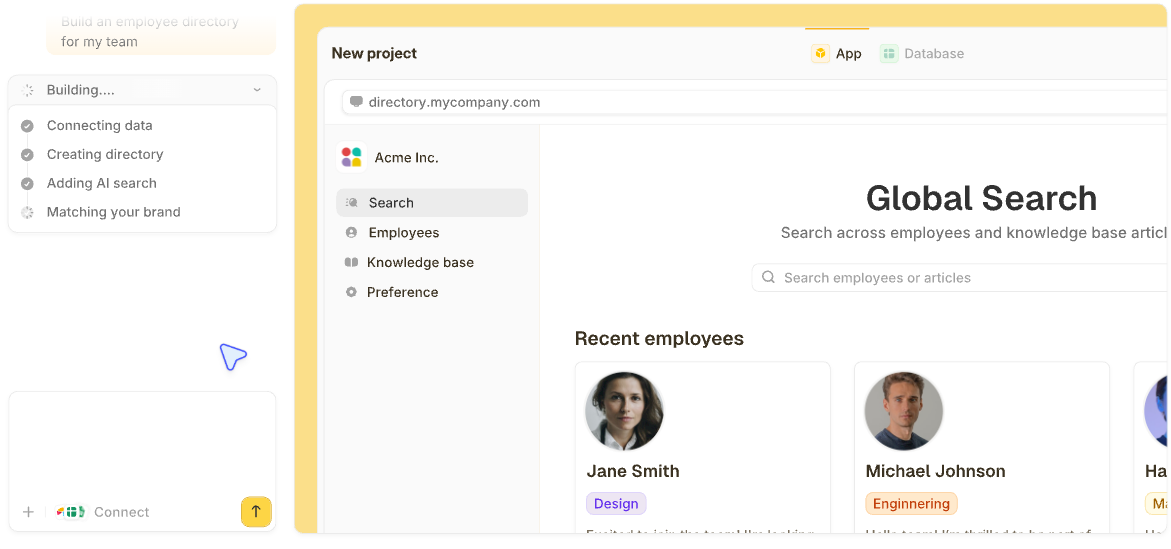
Making apps has changed a lot recently. You don’t have to code anymore. AI app builders like Zite let you describe the app you want in plain English, and it generates a working app with pages, a database, and app logic in minutes.
However, the app-building process still has 7 fundamental steps:
- Define your idea: Nail down who the app is for, what problem it solves, and the 3–5 features your first version actually needs.
- Choose where it'll live: You can publish to the web, or access the app via mobile or desktop.
- Pick your build method: AI builders are the fastest path, no-code builders give you visual control, and coding gives you total flexibility but takes the longest.
- Design your screens. Sketch out what users will see and how they'll move between pages, even rough boxes on paper.
- Build it: Turn your designs into a working app using whichever method you picked in step 3.
- Test it with real users: Send it to someone for testing and watch where they get confused, stuck, or lost.
- Launch: Publish your app to get it in front of users.
No-code platforms like Bubble and Retool give you drag-and-drop visual builders instead. And if you want full control, you can still code from scratch using frameworks like React or Flutter.
What are the different types of apps?
An app doesn't just mean software you download from the App Store anymore. Today, apps can live on your phone as mobile apps, your browser as web apps, your desktop, or all three at once.
I’ll cover each type below:
Native mobile apps
Native mobile apps are what most people picture when they hear app. These apps run directly on iOS or Android and have full access to your phone's hardware (camera, GPS, Bluetooth, notifications, and more). They’re the apps you download from the App Store or Google Play Store. Think Uber or Candy Crush.
Cost: From $40K–$250K with freelancers or agencies (or $20–$50/month using an AI app builder)
Development time: 3–6 months or longer, depending on complexity
Desktop apps
Desktop apps are designed to run exclusively on your computer, whether that's Windows, macOS, or Linux. Many desktop apps today are built with cross-platform frameworks like Electron or Tauri, making them available on multiple operating systems. They're ideal for resource-intensive tasks, like video editing, code editing, and desktop gaming.
Cost: From $20K–$150K with freelancers or agencies (or $20–$50/month using an AI app builder)
Development time: 3–6 months, though simpler tools come together faster
Web apps
Web apps run on any device with a browser. They’re great for marketing sites, dashboards, and business applications.
Cost: From $30K–$200K with freelance developers or agencies (or $20–$50/month using an AI app builder)
Development time: A few hours with an AI builder, 6-14 weeks if coding from scratch
Progressive web apps (PWAs)
Progressive web apps (PWAs) run in the web too, but you can install them on your home screen, get push notifications, and even use them offline. They’re good options for social apps, ecommerce, and news sites.
Cost: From $25K–$150K with freelancers or agencies (or $20–$50/month using an AI app builder)
Development time: A few hours with an AI builder to 6-14 weeks if coding from scratch
3 approaches to building your apps: Code, no-code, and AI
Once you know what type of app you want to build, the next decision is how you'll build it. There are three main approaches: mainly writing code, using a no-code builder, or using an AI app builder.
Here's a closer look at each approach:
No-code builders
No-code is like assembling IKEA furniture. The pieces are pre-made; you just drag, drop, and connect them. It's faster than coding, but you're limited to what the platform gives you.
What you can build depends on the platform you pick. For example:
- Bubble builds consumer web apps such as marketplaces and SaaS products.
- Retool builds internal tools such as admin panels, dashboards, and ops tools that connect to your existing databases and APIs.
- Adalo builds mobile apps that publish directly to the App Store and Google Play.
AI app builders
AI builders are like describing your dream house to an architect and getting it back the same day. You type what the app should do, and the AI tool generates the screens, database, and logic for you.
Some of these tools include:
- Zite for apps that let you see and control how everything works. Logic shows up as visual flowcharts, not code. Good for client portals, CRMs, inventory trackers, and team tools.
- Lovable for complete web app prototypes, you can export as code.
- Replit for web and mobile apps if your team is comfortable working with code when things break.
Traditional coding
Coding is like building a house from scratch. You have total control over every detail, but it can take years to finish.
Here's what that looks like depending on the type of app you're building:
- Web apps: Most web apps use HTML for structure, JavaScript for behavior, and CSS for styling. Frameworks like React (frontend) and Express (backend) speed development up by providing tools for navigation, database connections, and common web features.
- iOS apps: iOS apps are built in Xcode using Swift, Apple's recommended language for all new iOS projects.
- Android apps: Android apps are built in Android Studio using Kotlin or Java.
- Cross-platform apps: Cross-platform apps or hybrid apps run on both iOS and Android. Frameworks like React Native and Flutter let you write one codebase that works across platforms. React Native uses JavaScript, while Flutter uses Dart.
- Desktop apps: These apps are built with frameworks like Electron (JavaScript), Tauri (Rust), or native toolkits like SwiftUI (macOS) and WinUI (Windows).
How much does it cost to make an app in 2026?
Building an app in 2026 can cost anywhere from $20/month to $250K+, depending on whether you use AI, no-code, code from scratch yourself, or hire developers.
But here's what I've found. Most business users can get a working app live for $20–$50/month using an AI builder. That covers the app itself, hosting, and a database. Add $10–$15/year for a custom domain, and you're looking at under $100 to get started. For the majority of business apps and websites, that's all you need.
Here’s a quick breakdown of each approach and how it can cost you:
How to make an app from scratch: Step by step
Now that you know the types of tools available, it's time to put them to work. The process below works regardless of whether you choose to code, use a no-code builder, or go with an AI platform. I'll flag where your choice of tool changes what you actually do.
Step 1: Clarify your app idea
Before you touch a single tool, you need to define the goal of your apps. This could be a one-sentence problem statement, such as "[Target user] needs a way to [solve this problem] because [why it matters]."
For example:
- Freelance designers need a way to track unpaid invoices because they're losing an average of 15 hours a month chasing payments manually.
- Our warehouse team needs a way to log inventory counts from their phones because the current spreadsheet system causes duplicate entries every week.
Once your problem statement is locked, strip your idea down to the absolute essentials. Your MVP should have 3–5 features. If you build everything you think your app needs, you may end up spending months building functionality nobody needs.
For a client portal, for instance, you can start with a login page, a list of active projects with status updates, and a way for clients to upload files. That's three features. You can build that in a weekend with AI, get it in front of clients, and then decide what to add based on what they ask for.
Step 2: Choose where your app will live (Mobile vs. Web vs. PWA)
A web app or PWA is a good starting point unless you have a compelling reason for a native mobile or desktop app. They’re more budget-friendly and easier to build. You can always go native later, once you've validated the idea and users are asking for it.
To help you decide, I reviewed pricing pages from major app builders like Zite, LiveCode, and Lovable. I also referenced developer cost estimates and timelines from agencies and freelance platforms such as Appinventiv, CleverRoad, JPLoft, and Upwork.
To help you decide, here’s a side-by-side comparison of native apps, desktop apps, web apps, and PWAs:
Web vs mobile vs PWA vs desktop: Which app should you build?
- Build a web app is often the better starting point if you're looking for broad accessibility. It works on any device with a browser, there's no app store approval process, and updates roll out instantly to all users. Development costs tend to be lower since you're building one codebase.
- Build a native mobile app if your app needs hardware access (Bluetooth, NFC, advanced sensors), you're building a performance-heavy app like a game, or app store presence is critical for your audience. It’s also great if your users will interact with your product frequently throughout the day (think messaging, ride-hailing).
- Build a PWA if you want maximum accessibility on a budget. PWAs work across all devices from a single codebase, can be installed directly from the browser, and offer offline functionality or limited connectivity. However, native apps still provide the most extensive hardware integration. PWAs only access some sensors.
- Build a desktop app if your app is resource-intensive (think video editing, design tools, or data processing) or if users need access from their desktops.
Step 3: Pick how you’ll build it (Code, no‑code, or AI)
You can use code, no-code, or AI builders. Coding will take longer, but it's the most flexible. No-code and AI builders are the fastest.
Here’s a quick decision guide on whether to code or use a no-code or AI builder:
Unless you’re building a super custom application, use an AI builder to create your app. You'll have a working app in a fraction of the time you’d take if you were building from scratch. If you’re set on coding, consider using AI editors like Cursor to speed up the development process.
Step 4: Design your app
You don't need to be a designer to plan what your app looks like. You just need to know what screens your users will see and how they'll move between them.
You can sketch your screens on paper or use a wireframing tool like Figma. Even rough boxes and arrows save you from rebuilding screens later because you didn't think through the layout first. For design inspiration, browse similar apps on Dribbble or Behance.
Step 5: Build your app
If you’re coding the app, you’ll need to set up your development environment and start writing the code using a programming language of your choice.
Most no-code platforms offer templates for common use cases like CRMs, project trackers, or client portals. If one matches your app design closely, start there and customize it. If not, start with a blank project and build from scratch.
If you’re using an AI app builder, you just have to describe what the app should do and then refine with follow-up prompts. Some builders also let you upload your designs or sketches to use as a starting point or match your branding.
Step 6: Test your app with real users
Testing with real users is the fastest way to find problems you'd never catch on your own. Before you share your app widely, run through three types of tests:
- Functional testing checks whether your app works as intended. Does every button do what it's supposed to? Does every form save data correctly? Do notifications actually fire? Go through your app screen by screen and test every action.
- Device testing checks how your app performs on different screen sizes, operating systems, and network speeds. An app that looks great on your laptop might have overlapping text on a phone. Make sure it’s responsive.
- User testing is where you hand the app to someone who's never seen it and watch what happens. This is the type of testing that reveals confusion, friction, and assumptions you didn't know you were making.
Once your app is live with a broader group, you'll want more structured feedback channels.
You can add a simple in-app feedback button that lets users report bugs or suggest improvements. And if you have the budget, tools like Contentsquare can record user sessions so you can see exactly where people get stuck without being in the room with them.
Step 7: Launch your app
Web apps and PWAs are much simpler to launch than mobile apps because there's no app store gatekeeper.
Most no-code and AI builder platforms handle hosting for you and let you connect a custom domain in their settings.
If you're launching a PWA, make sure your web app manifest and service worker are configured correctly. This is what allows users to "install" your app to their home screen directly from the browser
Getting your app on the App Store and Google Play Store requires:
- A development account
- App assets such as screenshots, an app icon, app descriptions, and a privacy policy URL
Reviews typically take ~24hrs, though complex apps can take longer.
You can distribute desktop apps via platforms like the Microsoft Store (Windows), Mac App Store (macOS), or package managers such as Snapcraft (for Linux). However, many desktop apps are distributed directly from the developer's website.
If your app gains traction, you'll eventually need to think about performance under load. The good news is that most modern platforms are designed to scale with you. Zite, Bubble, and similar tools can handle thousands of users without any custom infrastructure.
Can you build your app for free?
You can build an app for free using many no-code, AI, or coding platforms, but you may still need to pay for extras like custom domains and publishing.
Free app builders
Most platforms offer free plans:
- Zite has a free plan that supports unlimited apps and users with enough credits to build and test the app
- Replit has a free plan that supports 1 published app
- Webflow’s free plan supports static websites with up to 2 pages
What sets Zite apart is unlimited users and apps on every plan (including the free tier). There’s no per-seat pricing, so your whole team (and clients) can access every tool you build at no extra cost.
Free tools for coding
If you code, most of the tools you’ll use are free. Programming languages and editors like VS Code cost nothing, and you can host your app for free on platforms like Vercel and Netlify.
Costs to watch out for
Even on free plans, a few expenses are hard to avoid:
- Custom domains run $10–$15/year
- Publishing to the App Store requires a $99/year Apple Developer account, and Google Play charges a one-time $25 fee
- Better hosting as user traffic grows
- A paid plan for better performance, more storage, or additional features
The best approach is to start with a platform that lets you build, test, and publish without paying upfront. Zite's free plan is one of the few that supports unlimited apps and users with no paywall before launch. Build your first version, get it in front of real users, and only upgrade once you've validated that people actually use it.
How to build a custom app with AI using a tool like Zite
You can quickly build an app from scratch with AI no-code platforms like Zite by using plain language prompts to generate, customize, and launch your app without coding. You don’t have to set up a development environment or manually configure components.
Zite, unlike most AI tools, keeps the database and app logic visible. The database works like a spreadsheet you can browse and edit directly, and workflows show up as flowcharts you can follow step by step.
This means that when a workflow fails, you don't have to guess where it broke. You can trace the exact step that caused the issue and tell Zite to fix it. You never have to touch code to understand how the app works or troubleshoot it.
Here's the exact flow I follow to go from idea to working business app inside Zite:
Step 1: Describe what you're building
Open Zite and type a plain-English description of your app in the chat interface.
Example prompt:
"Build a client portal where clients can log in, see their open projects, upload files, and message our team. Internally, we need a dashboard to manage all client requests, assign owners, track statuses, and generate weekly summaries."
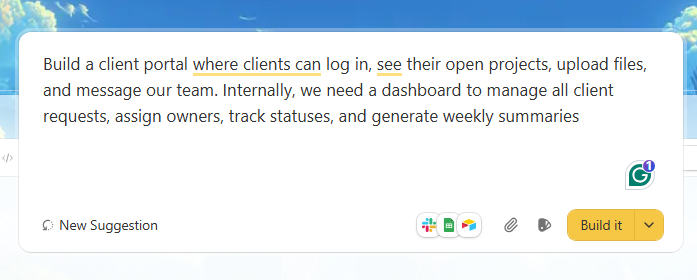
That one description is enough for Zite to generate a first version with pages for both clients and internal users.
It'll prompt you to connect a database to store the portal's data.
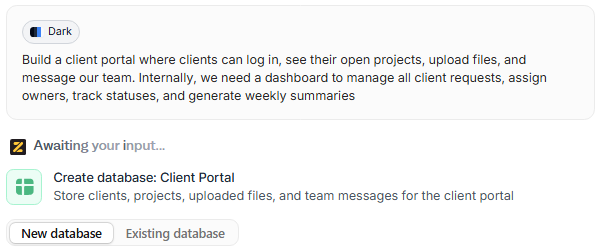
Review the generated tables, edit them if you need to, then click Create database.
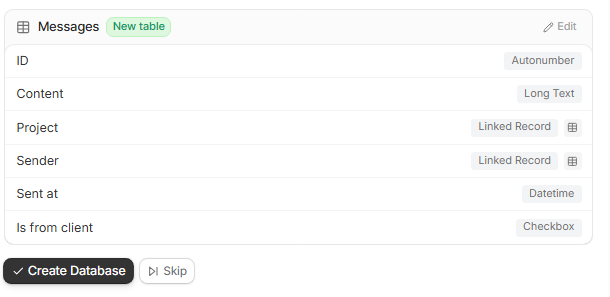
You can keep Zite's database or connect external sources like Airtable, Google Sheets, or CSVs.
Step 2: Preview your app and refine
Once Zite generates your app, you can start customizing how it looks.
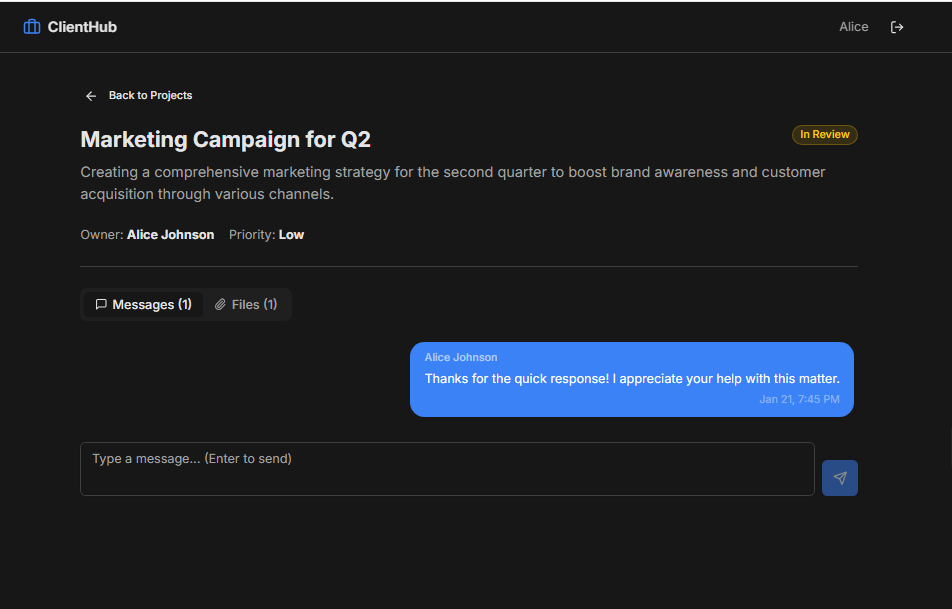
You can use:
- Visual editor: Click edit, then click any element to change text, colors, typography, or layout. You can also use AI edit to target a specific component and describe what you want changed, like "move the sidebar to the right."

- Themes: Click the paintbrush icon to swap the entire color scheme and fonts at once. Useful for matching your brand without adjusting each element one by one.
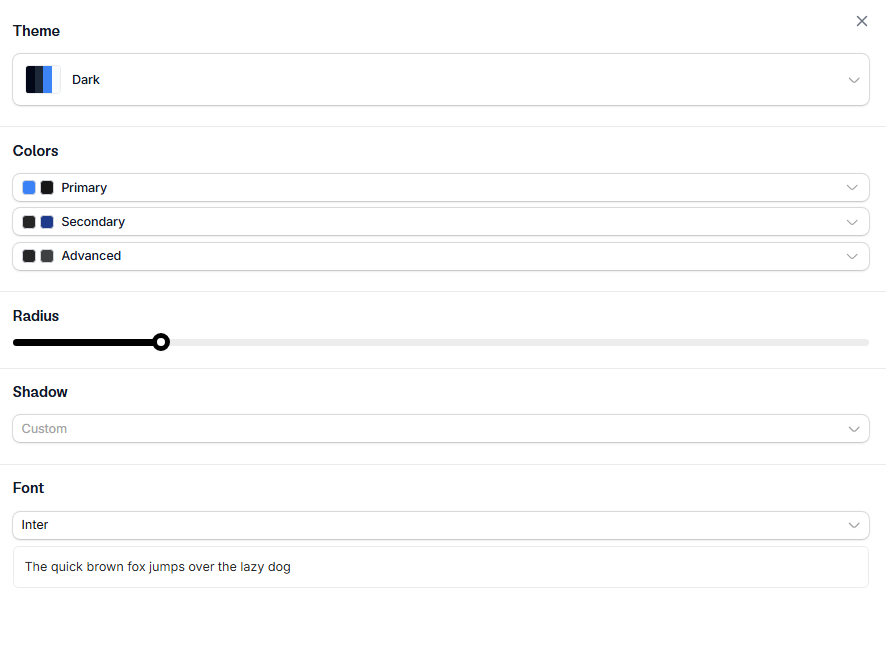
Step 3: Creating workflows and tracing issues in the app’s logic
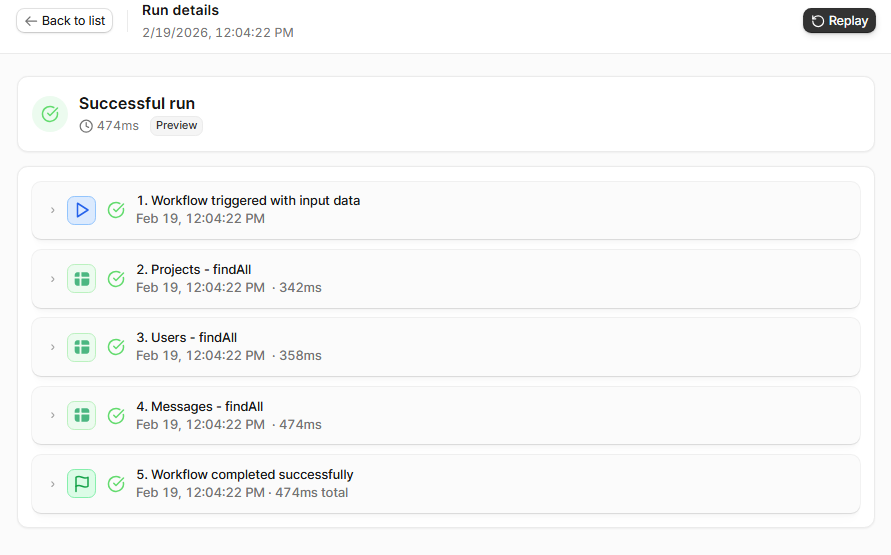
Click the workflows tab to see the logic powering your app. Zite will likely have already created some workflows for you. They appear as flowcharts with steps connected to one another.
For example, here's the workflow behind generating the weekly project summaries.
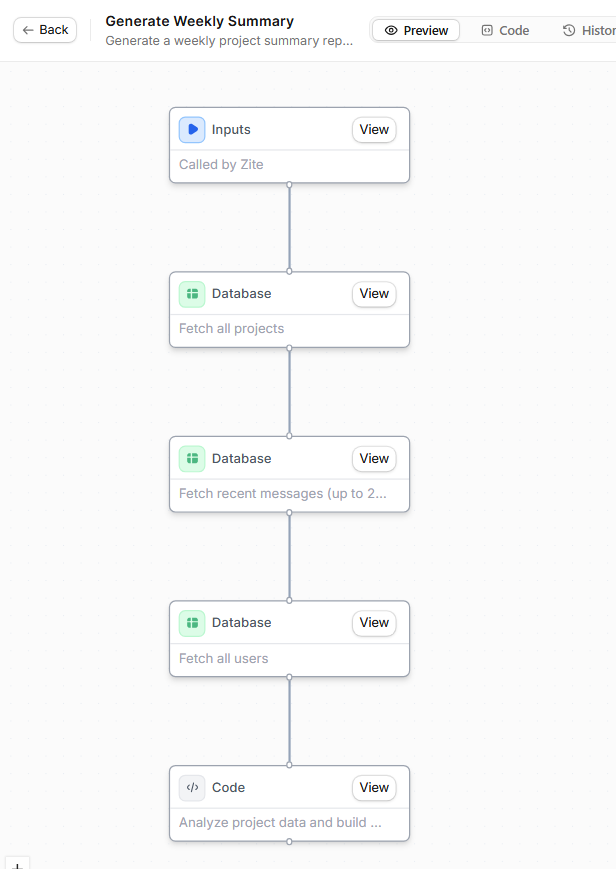
You can test run it to verify it works as expected.
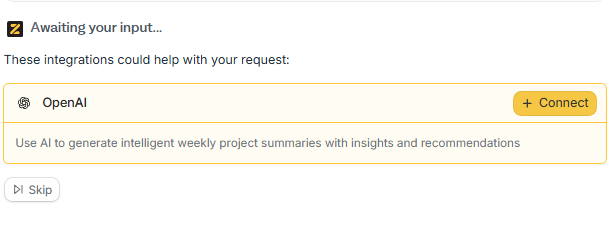
To add more workflows, describe what you want in the chat box, and Zite will build it. If it needs to connect to another tool like OpenAI or Slack, Zite will prompt you to connect it.
This is where the visual flowcharts really pay off. If something's not working, you can replay the workflow, follow the data step by step, and tell Zite exactly what to fix instead of guessing or reading code.
Step 4: Test and publish
Before going live, test from every user perspective:
- Log in as a client to confirm you only see what you should.
- Log in as an admin to verify you can manage and see all projects.
- Submit forms, trigger workflows, and check that notifications fire correctly.
Once everything checks out, click Publish. You get a live URL like yourapp.zite.so.
Step 5: Configure access
Zite defaults to internal publishing, so only your team can access the app. To share it outside your org, you have a few options:
- Share to web: Anyone with the link can access it. You can also generate a QR code by clicking on the share button and then selecting share settings.
- Invite collaborators: Click share > people with access > add collaborators. Enter their email, choose an access level (edit or use-only), and hit send. You can change access levels, remove access, or revoke pending invites anytime.
- Add authentication: If you want to restrict who can access the public link, add sign-in with magic links, Google, or invite-only access. Enterprise plans also support SSO. Just type "add user login" in the chat box, then configure your sign-in method.
You can also customize how the app looks when shared. Change the meta title and description, set a thumbnail for social previews, and add a favicon for the browser tab.
If you want your app to reflect your company’s branding, Zite lets you connect a custom domain (like tools.yourcompany.com). You can also customize page titles, meta descriptions, favicons, and visuals for polished, on-brand client experiences.
Build your apps with Zite
Most AI app builders handle the entire build process for you. Describe what you want, and they'll generate it. But most of them are black boxes. You can't see why something broke or what the app is actually doing behind the scenes.
Zite gives you full transparency into your app’s logic via visual workflows, while maintaining a built-in, auto-generated database with no extra setup required. All apps are production-ready with authentication, permissions, and secure hosting. On enterprise plans, you also get SSO and audit logs.
The free plan supports unlimited users and apps with enough credits to build and make several rounds of changes. No credit card required!
Start building with Zite today →
Frequently asked questions
How long does it take to make an app from scratch?
A basic web app can take a few hours to build if you use AI builders or no-code tools. More complex apps with multiple user types and workflows take days to a couple of weeks. Coding the app may take weeks to months for a polished version one, depending on team size and scope.
Do I need to know how to code to use Zite?
No, you don’t need to know how to code to use Zite. The visual workflows and spreadsheet-like database mean non-technical users can build and maintain the app without writing code. If you have developers on your team, they can access code, but that’s completely optional.
Can Zite build mobile apps?
No, Zite doesn't build mobile apps. It creates web-based apps like portals, dashboards, CRMs, community tools, and custom apps for your team or clients.
Can ChatGPT build an app?
No, ChatGPT can’t build an app, but it can generate the code for the app. You'd need to take the code it writes, set up a development environment, debug errors, and handle hosting yourself. For non-technical users, that's a lot of friction.
Can I make an app with no experience?
Yes, you can make an app with no experience if you use no-code and AI platforms, which have made app building accessible to people with zero technical background. AI builders like Zite are faster to start with because you describe what you want in plain English. Drag-and-drop builders like Bubble and Adalo take a few days to learn.
What's the difference between a web app and a mobile app?
A web app runs in a browser on any device, while a mobile app runs natively on iOS or Android. Web apps are cheaper and faster to build, and you can update them instantly without app store approval. Mobile apps cost more and take longer, but they get full access to hardware like Bluetooth and NFC.
Which is better, no-code or coding an app?
No-code is better for apps that don't need highly custom logic, complex integrations, or pixel-perfect design control, while code is better when you need full control over performance or deeply custom logic. The tradeoff is time and cost. Even experienced developers take weeks to months to ship a first version.