

Lead forms show up in dozens of formats depending on the goal. Some capture simple email subscriptions. Others qualify high-value B2B prospects before a sales call. Here are 27 lead generation form examples across common use cases, plus how to build your own with a form builder like Fillout in 2026.
What is a lead generation form?
A lead generation form is a web form that collects contact details and qualifying information from potential customers. In return, you offer something worth their time, such as a free trial, a downloadable guide, a pricing estimate, or a consultation. That trade turns anonymous visitors into real leads your marketing and sales teams can follow up with.
Chances are, you’ve filled out one of these forms after reading a great article or scrolling through a site. Those pop-ups or signup boxes are classic examples of lead generation forms.
Lead gen forms show up everywhere. You'll find them on landing pages, inside blog posts, as pop-ups, within chatbots, and even natively inside LinkedIn and Facebook ads.
Why lead generation forms matter
You can drive all the traffic in the world, but without a way to capture it, most visitors leave and never come back. Lead gen forms are the bridge between "someone visited your site" and "someone your sales team can talk to."
Here's why they're worth getting right:
- They build your pipeline on autopilot: A well-placed form with a strong offer generates leads 24/7 without a sales rep picking up the phone. Every submission feeds your CRM and kicks off nurture sequences automatically.
- They qualify leads before sales gets involved: By choosing which fields to include (company size, budget range, use case), you can filter out poor-fit prospects before anyone spends time on a call. Short forms generate volume; longer forms generate quality. The right balance depends on your sales process.
- They give you first-party data you own: With third-party cookies mostly phased out and privacy regulations tightening, form submissions are one of the most reliable sources of first-party data. Every email address, company name, and use case answer goes straight into your database.
- Speed of follow-up changes everything: Responding to a form submission within five minutes can multiply your contact rate dramatically compared to waiting even 30 minutes. Forms that feed directly into your CRM and trigger instant notifications make that fast follow-up possible.
27 lead generation form examples
Before we go into the details, here’s a quick rundown of the 27 lead generation form examples we’ll discuss:
- Sales inquiry contact form
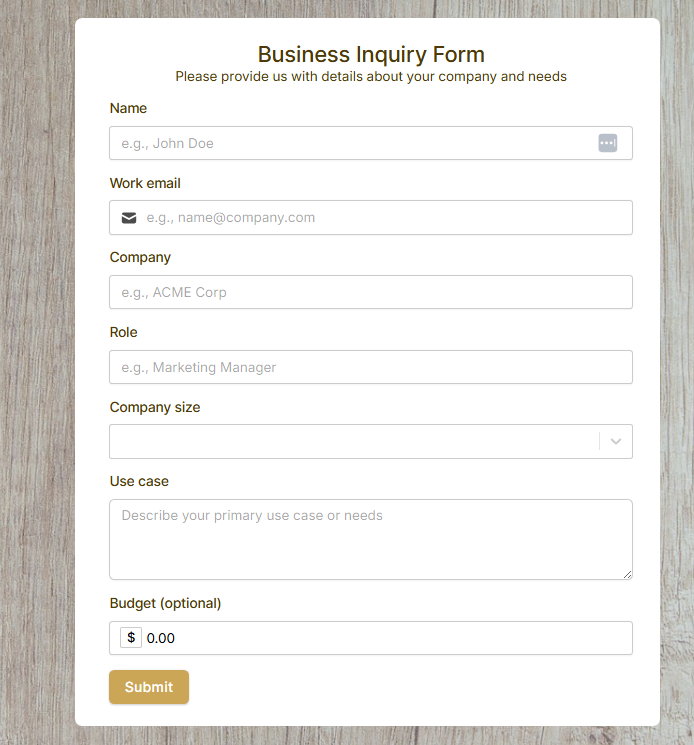
Sales inquiry forms look like basic contact forms but add qualification fields that help B2B sales teams understand fit and prioritize leads before anyone picks up the phone. The goal is to collect just enough context that your sales team can personalize their outreach.
When to use it: On pricing pages, "Talk to Sales" CTAs, or any page targeting mid-to-bottom-funnel B2B buyers.
- Newsletter signup form
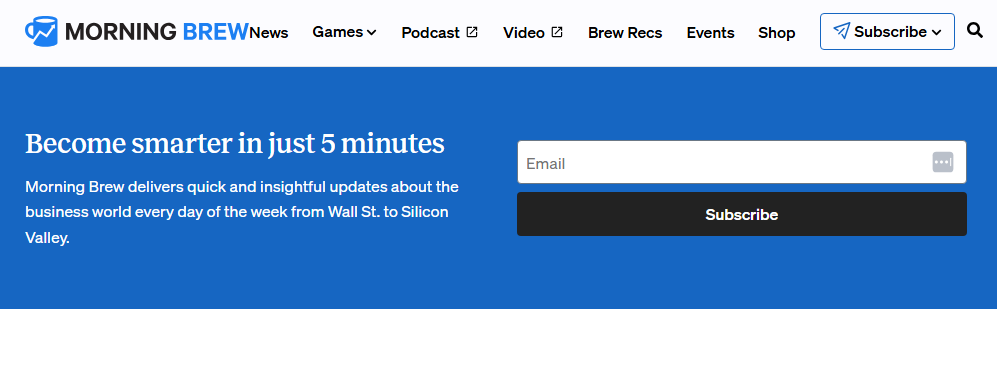
A newsletter signup form is a short form, usually just an email field, that subscribes visitors to recurring content like weekly tips, industry news, or promotional offers. For example, Morning Brew has a simple subscription form on its home page that collects only your email. It's the most common top-of-funnel lead generator because the barrier to entry is about as low as it gets.
When to use it: Site-wide, typically in headers, footers, or as a dedicated landing page. Works for every industry.
- Content preference form
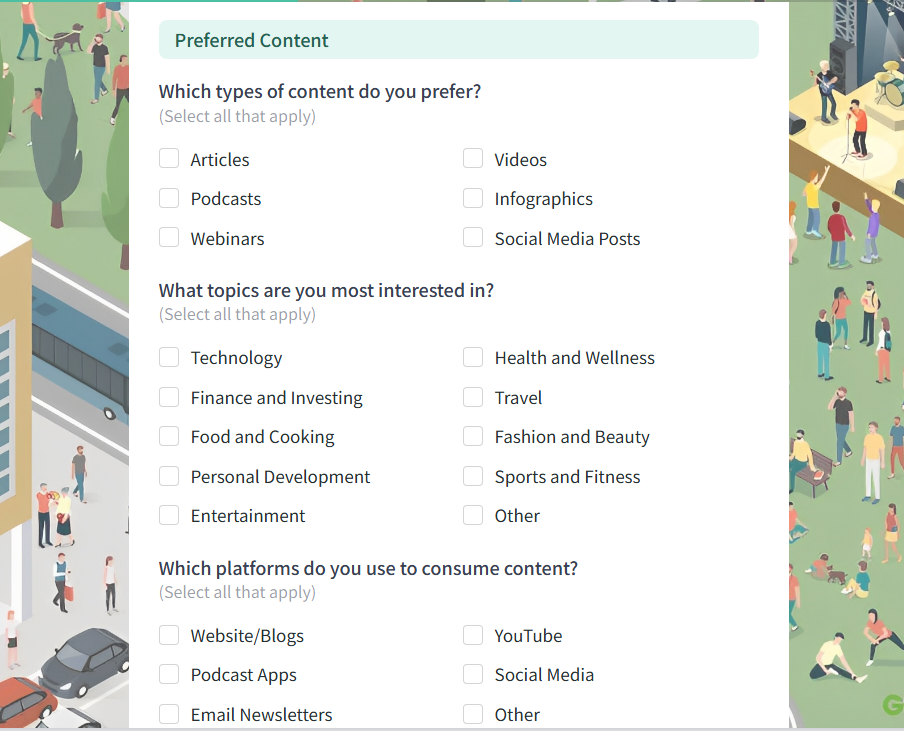
A content preference form appears in blogs and promises topic-specific updates rather than a generic newsletter blast. Readers opt into exactly the content they care about.
The advantage is twofold. Subscribers get content they actually care about, which means better open rates and lower unsubscribes, and your team gets segmentation data from day one. You know what topics each lead cares about before you ever send them a sales email. This kind of preference data also makes AI email writers more useful: tools like Snov.io can use those interest signals to shape follow-up emails around what the lead actually cares about, instead of relying on generic messaging.
When to use it: On blogs with diverse content categories where subscribers want to filter by interest.
- Simple contact form
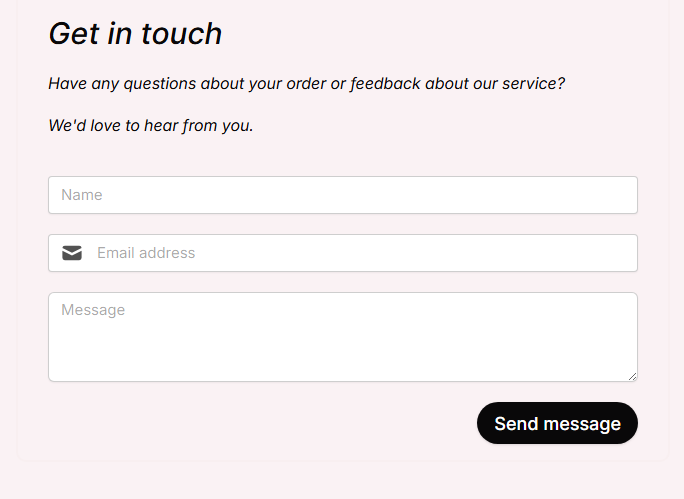
A simple contact form is often the first lead capture point on any website. It gives visitors a low-friction way to reach out with questions, project ideas, or general inquiries without committing to a sales call.
When to use it: When you want a universal catch-all form that works for any visitor, whether they're ready to buy or just exploring.
- Industry report and benchmark download form

An industry report download form provides access to original research, benchmark data, or state-of-the-industry reports behind a form. Gartner, for example, asks for your work email before letting you download a report.
These reports attract data-driven leads, often decision-makers and analysts who are actively benchmarking their performance against peers.
Example fields: Name, work email, company, company size or revenue band, and an optional "How will you use this report?" field.
When to use it: When you've invested in original research or data analysis. These forms tend to attract decision-makers and analysts who are actively benchmarking.
- Referral partner form
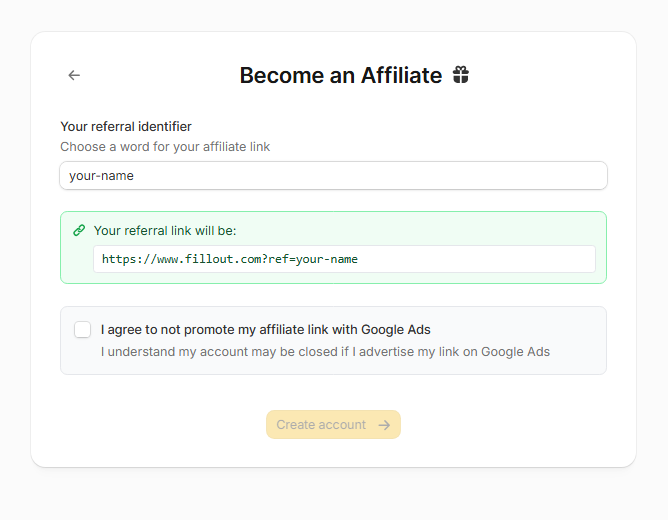
A referral partner form collects details from people who want to promote your product in exchange for a commission or other incentive. It typically asks for name, email, website or social media profiles, audience size, and how they plan to promote. Some forms also ask about the applicant's niche or industry to help you assess fit.
When to use it: When you have an affiliate or referral program and want to screen applicants before granting access. Works well for SaaS, e-commerce, and course creators.
- Support and help request form
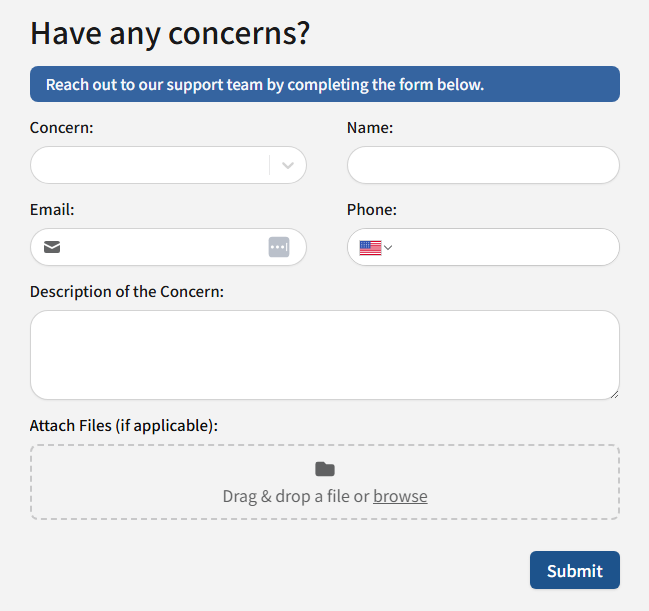
A support and help request form is a structured form where users report issues, ask questions, or request help, typically with fields for issue category, description, and account details. It routes problems to the right team while simultaneously capturing lead data.
It’s especially valuable for freemium and trial users, where a support interaction can double as a sales touchpoint.
When to use it: On help center pages, inside product dashboards, or as part of a knowledge base where trial users are looking for answers.
- Giveaway form

A giveaway form collects contact details from visitors who enter a contest or sweepstakes. In exchange for a chance to win a prize, participants share their name, email, and sometimes additional info like social handles or product preferences.
When to use it: When you want to build your email list fast, boost social engagement, or create buzz around a product launch. Works well for e-commerce, DTC brands, and B2C companies.
- Free trial signup form
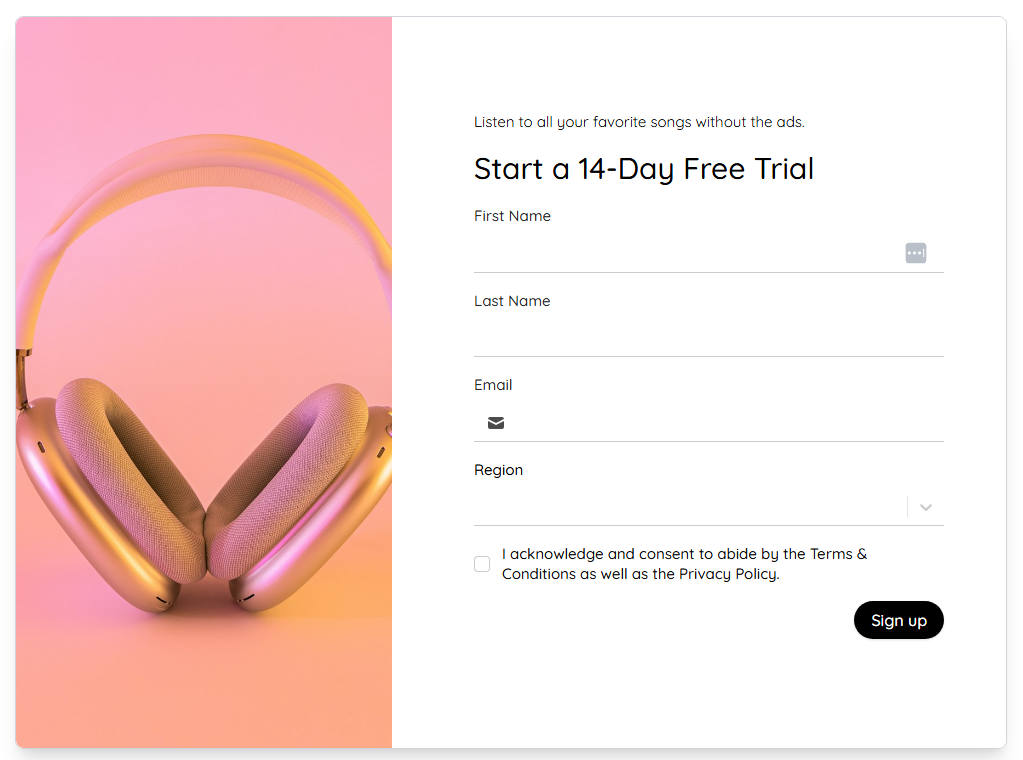
A free trial signup form collects the minimum information needed (usually just an email) to get a user into your product right away. It's built for speed, not qualification, because in a product-led growth model, the product itself does the selling.
When to use it: For product-led growth companies where the product experience drives conversion more than a sales conversation.
- Product demo request form
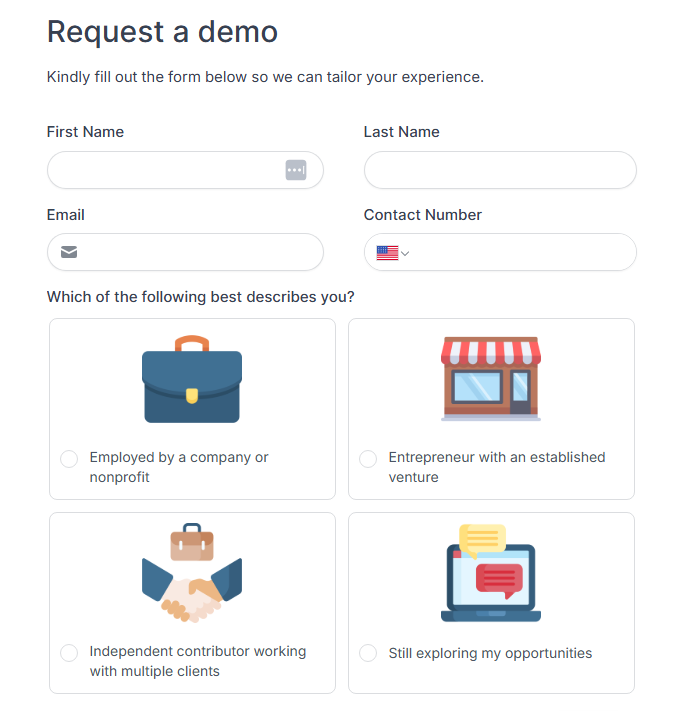
A product demo request form collects contact and business details from visitors who want a guided walkthrough of your product with a sales rep.
Because the visitor is explicitly asking to talk to a human, intent is high, and you can ask for more fields without killing conversion rates.
When to use it: On product pages, pricing pages, and high-intent landing pages targeting buyers who want a guided walkthrough.
- Custom quote and pricing request form
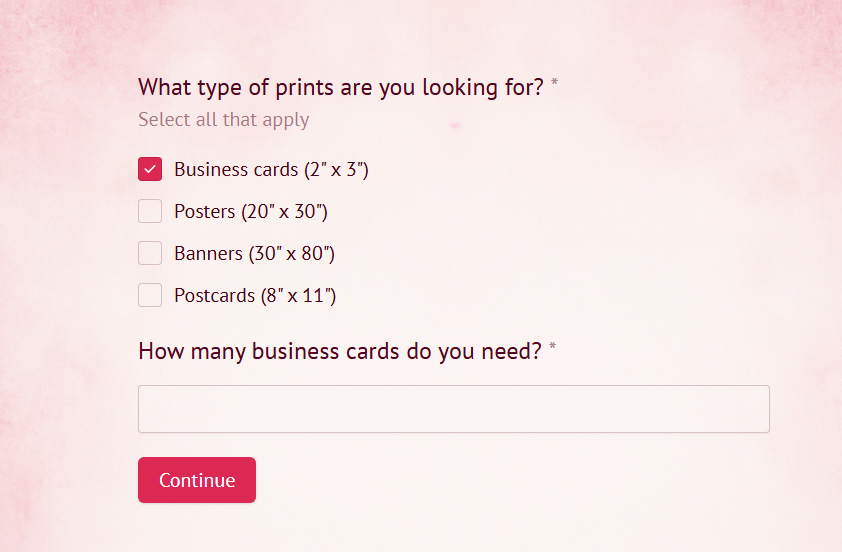
A custom quote form collects project details from prospects who need tailored pricing rather than a standard rate card. For example, a printing studio could ask for the kind of prints you need, the number of cards, and shipping details.
Example fields: Contact info, service or package of interest, budget range, timeline, and project description.
When to use it: For agencies, consulting firms, custom software, or any business where pricing depends on scope.
- Consultation and strategy session form
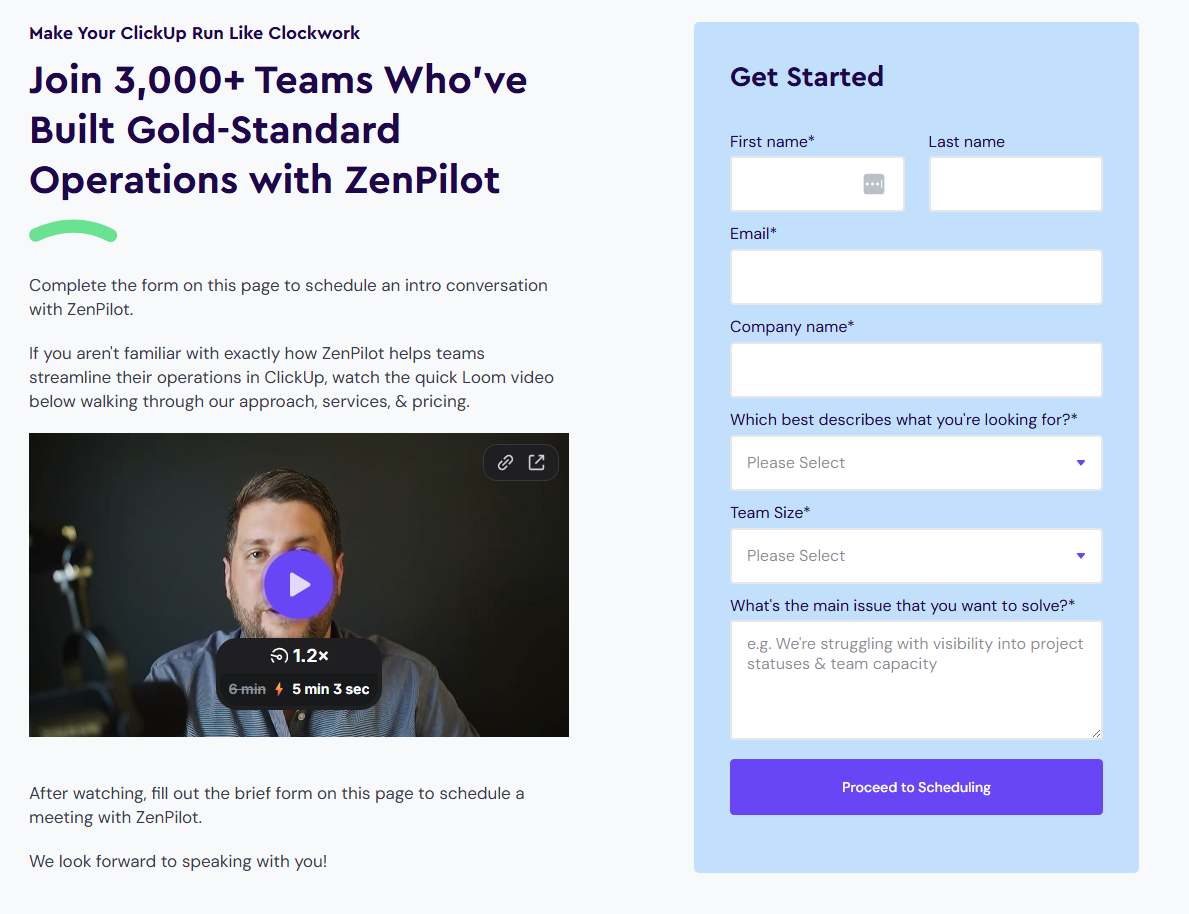
These forms offer a free strategy call instead of a product demo. They work especially well for consultants, agencies, and high-touch service providers where the first conversation is the product.
ZenPilot uses a video to walk you through their services and pricing, then invites you to schedule a meeting.
When to use it: When your sales process starts with a discovery or strategy call rather than a product walkthrough.
- Waitlist and early-access form
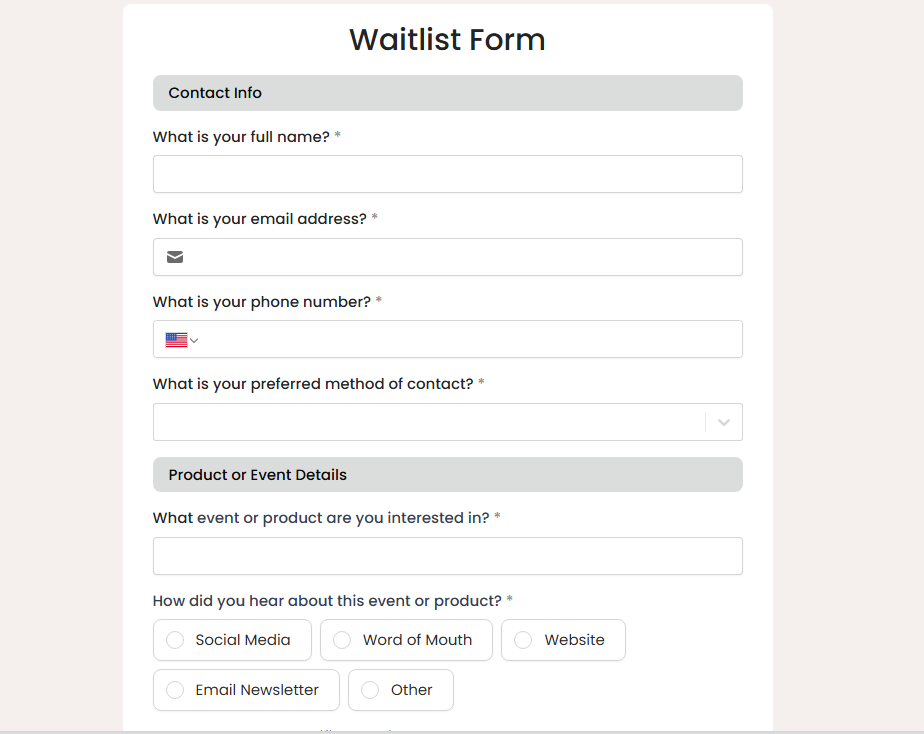
A waitlist form collects details from people who want early access to a product, feature, or service that hasn't launched yet. It validates demand and builds an audience before you've shipped anything.
When to use it: Pre-launch, during beta, or when rolling out a new feature to a limited audience.
- Webinar registration form
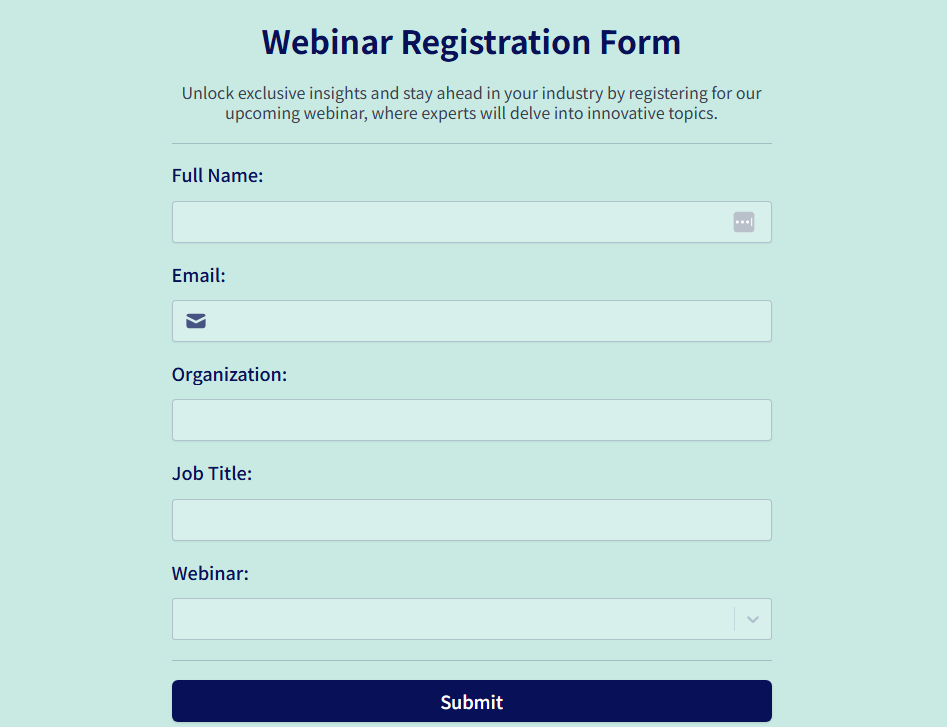
A webinar registration form collects attendee details and registers them for a live or scheduled online event. It often includes a question about what the registrant hopes to learn, which gives your sales team insight into each lead's priorities.
When to use it: When promoting live or on-demand webinars, especially for B2B audiences where the topic ties to your product or expertise.
- Welcome offer template
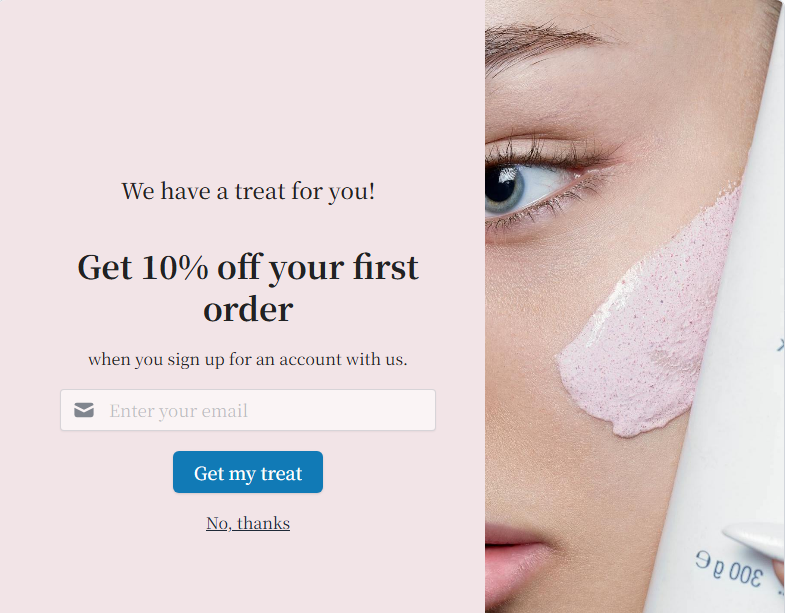
A welcome offer form presents first-time visitors with a discount, free shipping, or a bonus in exchange for their email address. It's typically displayed as a pop-up or embedded form on the homepage and targets people who haven't purchased or signed up yet.
When to use it: For e-commerce and DTC brands that want to convert first-time visitors into subscribers and buyers. Best triggered on the first visit or after a few seconds of browsing.
- On-demand replay and resource hub form
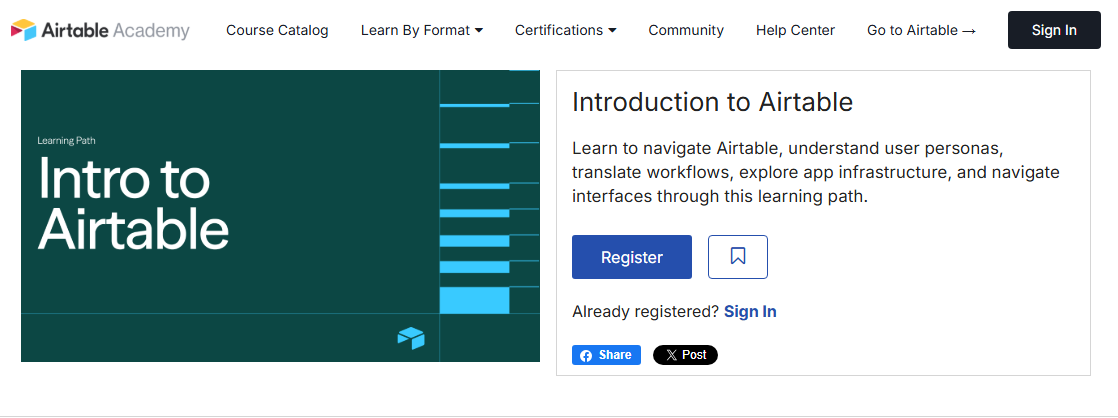
You can gate recordings and resource bundles behind a simple form to keep generating leads from evergreen content. For instance, you have to register before accessing content on Airtable Academy.
When to use it: Anytime you have recorded webinars, conference talks, or workshop materials sitting unused.
- Quiz-style diagnostic lead form
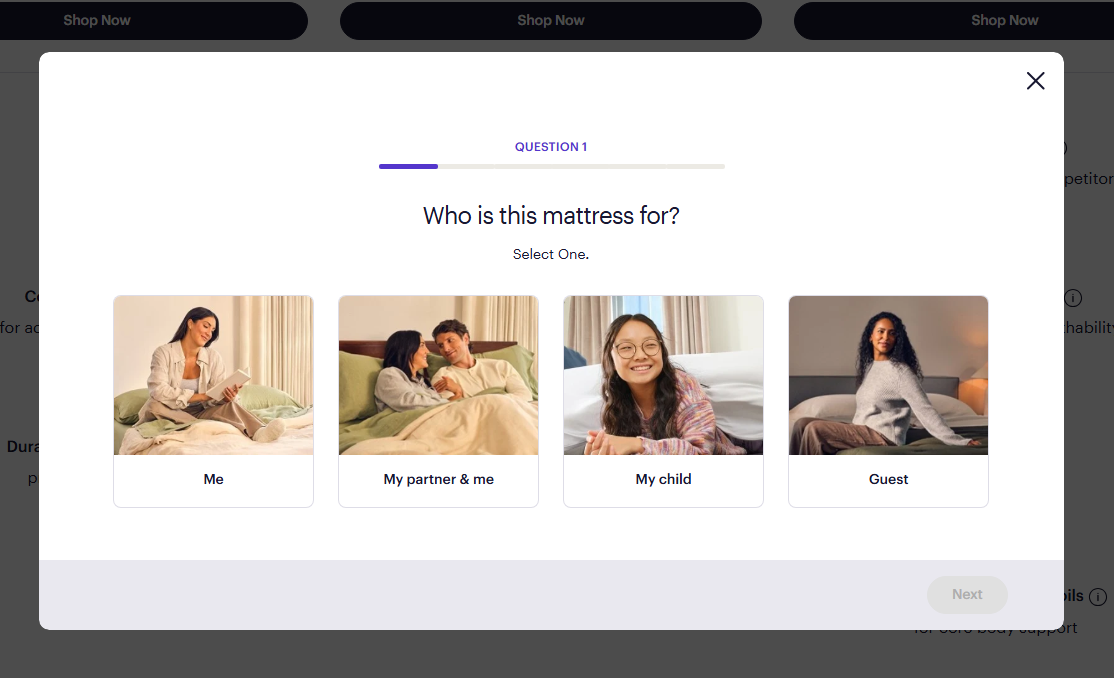
A quiz-style lead form walks visitors through 3–7 interactive questions and delivers a personalized result like a score, recommendation, or category in exchange for their email.
Purple, for example, has a mattress quiz that walks you through several questions designed to help you find the right mattress for your needs. It then asks you for an email if you want the results sent to you.
Fillout offers a product recommendation template you can edit and reuse.
When to use it: When you want to engage visitors who aren't ready to talk to sales but are curious enough to self-assess. Works across e-commerce, SaaS, and education.
- ROI and savings calculator form
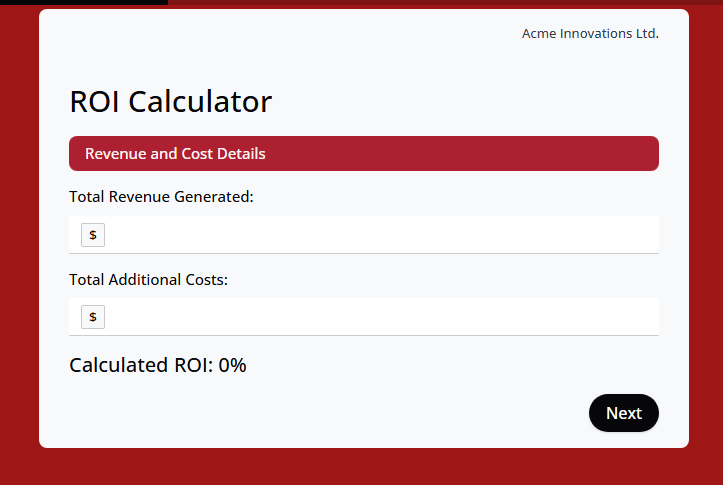
An ROI calculator form lets visitors input their own numbers and returns a personalized savings or ROI estimate. It then asks for an email to deliver a full results report.
Example fields: Current spend or time, team size, transaction volume, with an email requested to send the complete report.
When to use it: For B2B products and financial services where quantifying the impact in dollars or hours builds a compelling business case.
- Multi-step qualification form
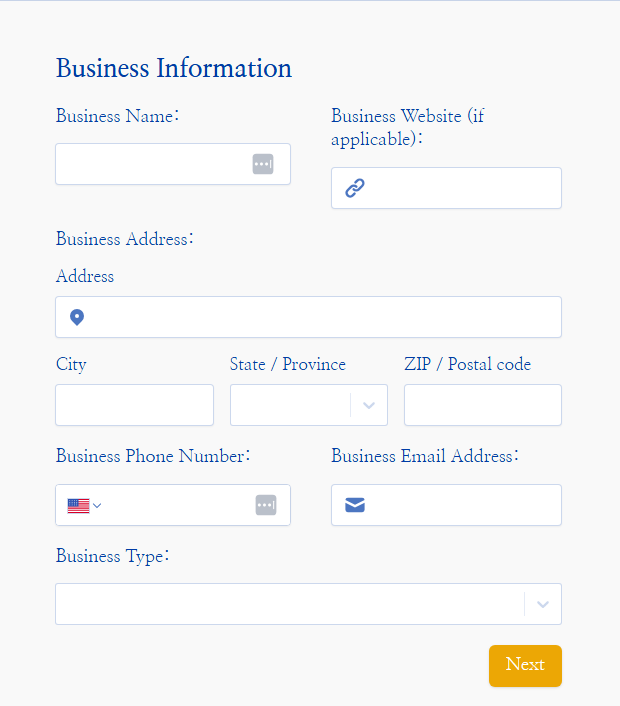
A multi-step qualification form breaks a long set of questions across multiple screens, showing one group of fields at a time with a progress indicator. Instead of presenting 8–12 fields on a single page (which overwhelms visitors), it walks them through 2–3 focused steps.
Typical flow: Step 1: business details → Step 2: needs and timeline → Step 3: contact information and consent.
When to use it: When you need more than four or five fields but don't want to scare people off with a wall of inputs on a single page.
- Work with me forms
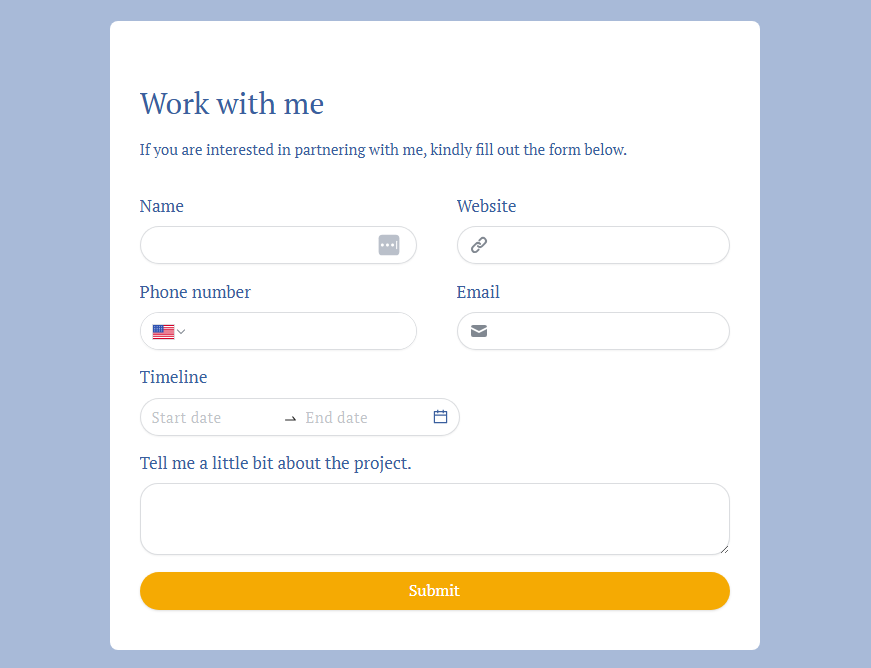
A work-with-me form is a lead intake form used by freelancers, consultants, and solo service providers to collect project details from potential clients. It typically asks about the prospect's business, what they need help with, budget, and timeline, so the provider can assess fit before hopping on a call.
When to use it: If you’re a professional who wants to pre-qualify inbound leads and avoid discovery calls with poor-fit prospects.
- Pop-up lead generation form
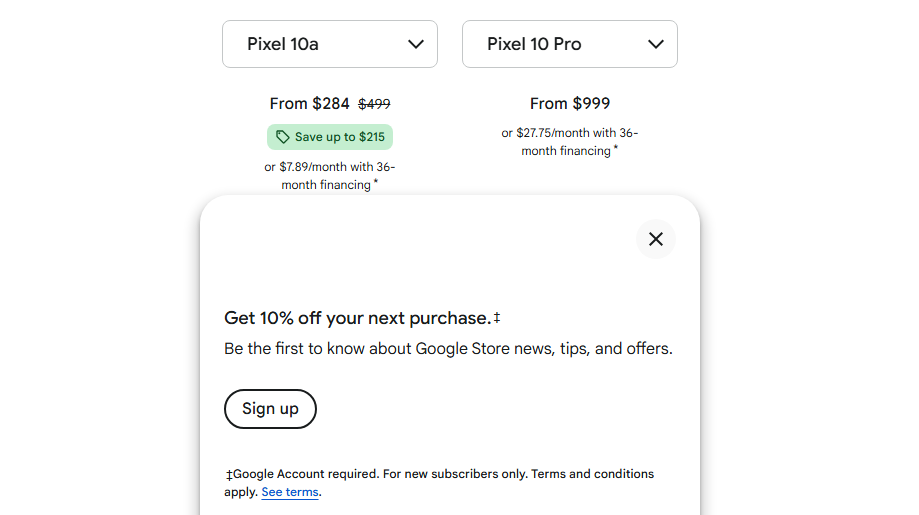
A pop-up or modal lead form is an overlay that appears on top of the page content, triggered by a specific user action like exit intent, scroll depth, or time on page. It typically presents a single compelling offer, like a discount. The Google store website, for instance, offers you a discount if you sign up.
Triggers: Exit-intent, time-on-page, or scroll depth, paired with offers like a discount code or downloadable resource.
When to use it: On high-traffic pages where you want to capture visitors who are about to leave, or at a scroll depth that signals genuine engagement.
- Chatbot and live chat lead form
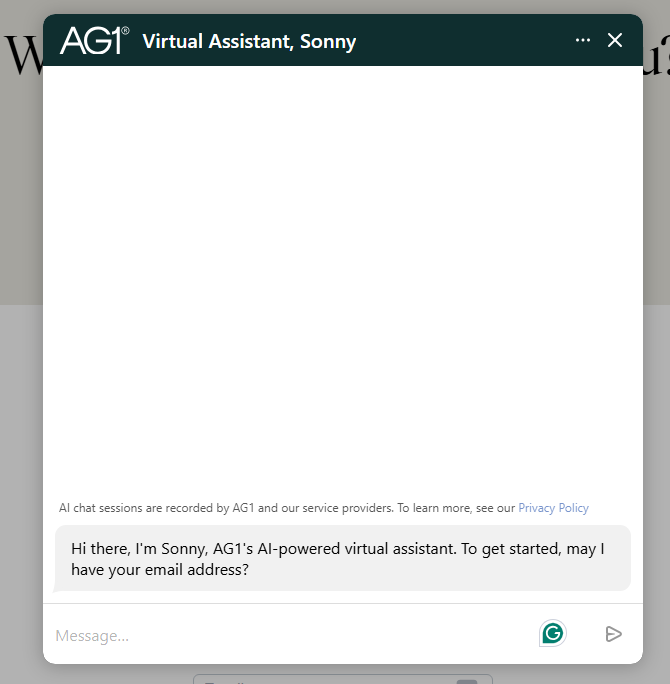
Chatbots collect lead information through conversation, asking one question at a time before requesting contact details. The conversational format makes the qualification process feel natural instead of transactional. For example, AG1 collects your email address when you ask for support from their AI assistant.
When to use it: On support pages and high-traffic pages where visitors have different intents, and you want to route them (and capture their info) in real time.
- House rental application form
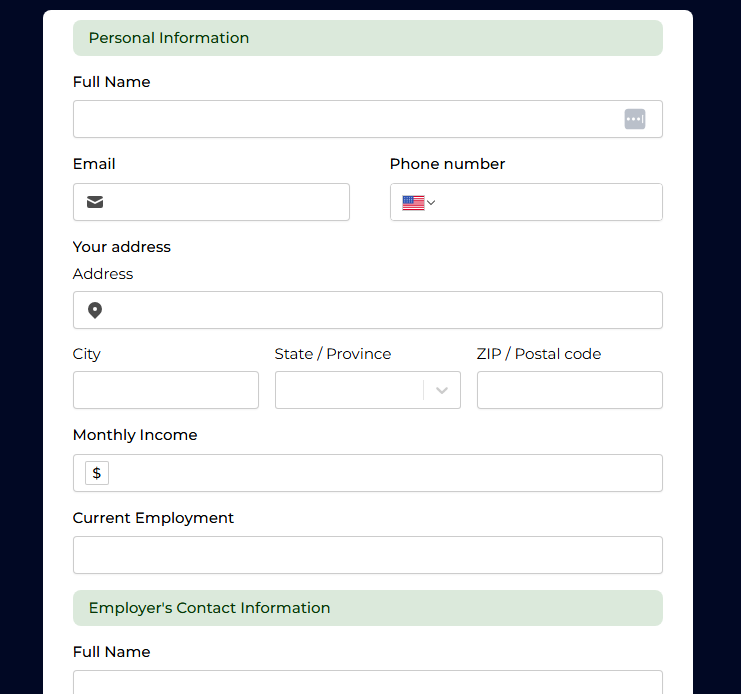
A house rental application form collects details from prospective tenants such as personal information, employment status, income, rental history, and references so landlords or property managers can screen applicants.
When to use it: For property managers, landlords, or real estate agencies who want to collect and organize rental applications digitally instead of dealing with paper forms or scattered emails.
- Insurance quote form
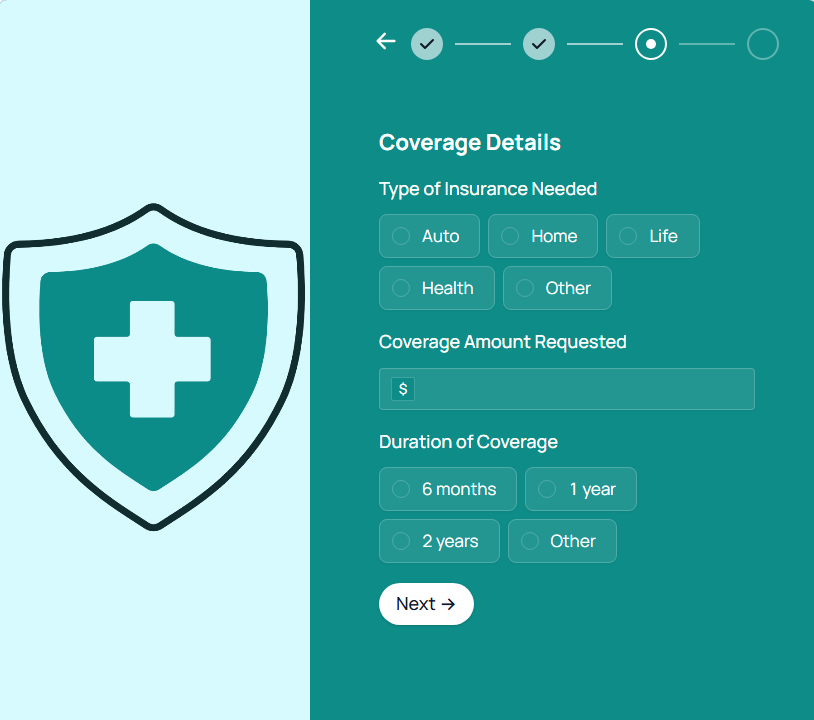
An insurance quote form collects personal and risk-related details like age, coverage type, property or vehicle info, and health status so an insurer or broker can generate a tailored quote.
When to use it: For insurance companies, brokers, or comparison platforms that offer personalized quotes based on individual risk profiles.
- Wholesale account application form
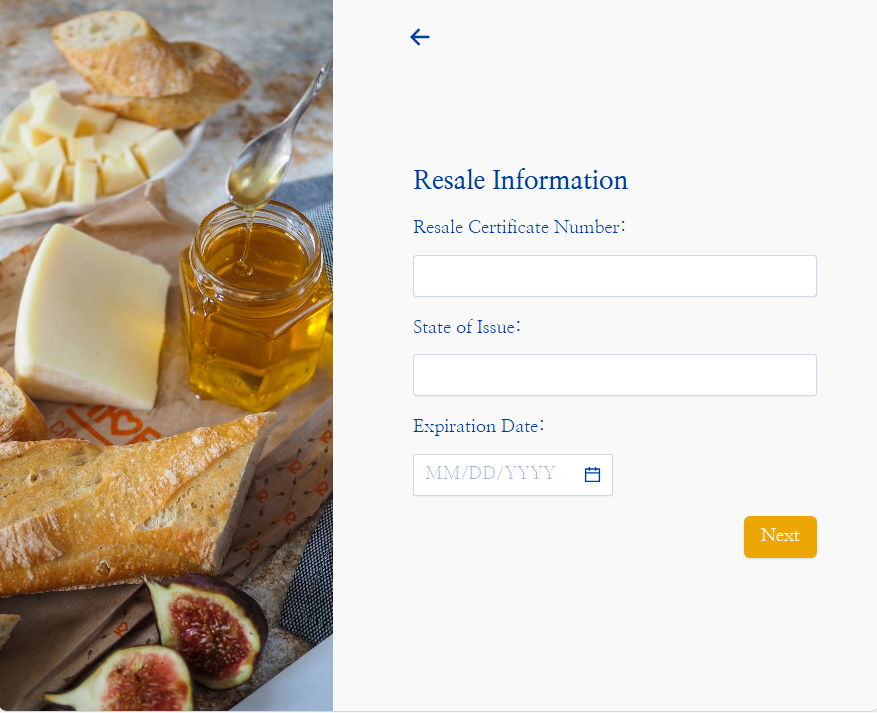
A wholesale account application form collects business credentials from retailers or resellers who want to buy at bulk pricing. It typically asks for business name, tax ID or resale certificate, business type, and estimated order volume.
When to use it: For manufacturers, distributors, or DTC brands that offer wholesale pricing and need to verify that applicants are legitimate businesses before granting access.
- Rewards program signup form
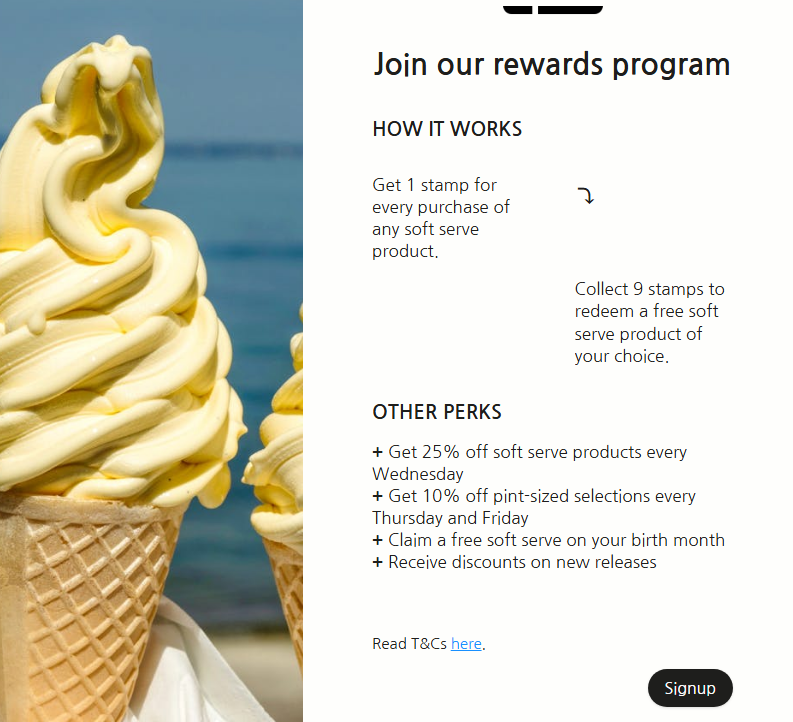
A rewards program signup form enrolls customers into a loyalty or points-based program. It collects basic contact info and sometimes purchase preferences so the brand can personalize rewards and communications.
When to use it: You want to increase repeat purchases and customer lifetime value through a structured loyalty program.
- Discount request application
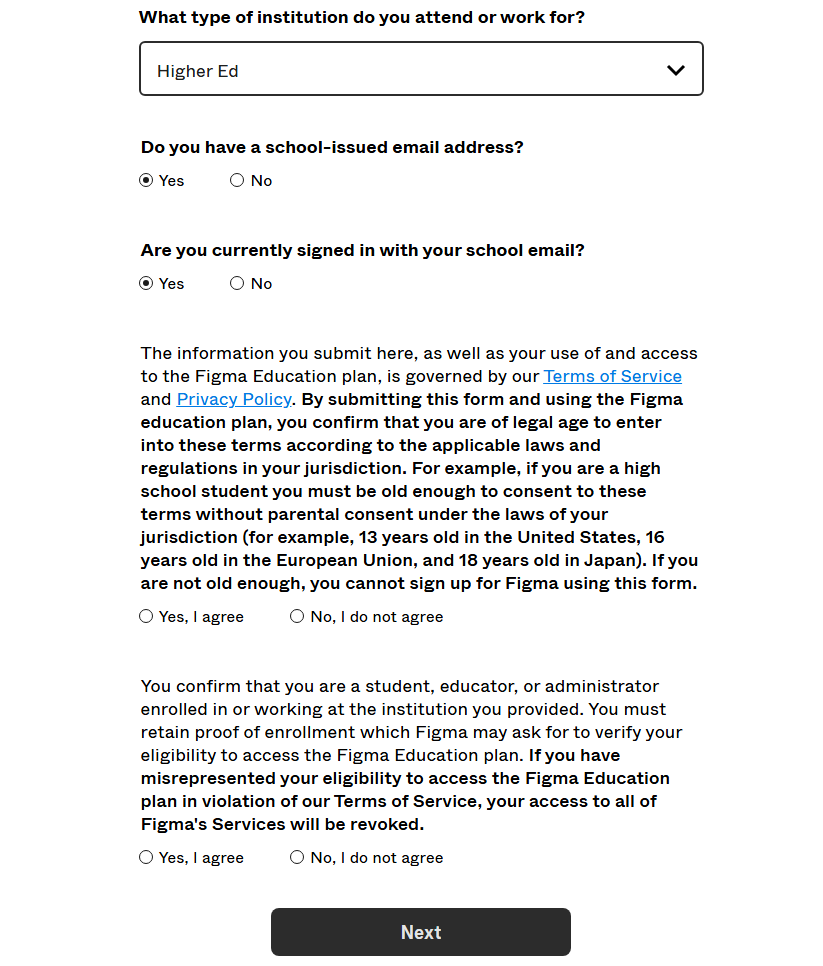
A discount request form lets potential customers ask for a reduced price, typically used in B2B, education, or nonprofit contexts where pricing flexibility exists. It collects the requester's details and the reason for the discount (e.g., student status, nonprofit, bulk order).
Figma, for example, is free for students, but you have to get verified by filling out a form. If you want to offer discounts too, create your own form using this template.
When to use it: When your pricing model allows for negotiated or conditional discounts, and you want a structured way to handle those requests instead of fielding one-off emails.
Best practices for building lead generation forms
Getting the form type right is only half the battle. Here's how to make sure your forms actually convert:
Only ask for fields you'll use
Every field you add creates friction. Before including a question, ask yourself: "Will my team act on this information within the first 48 hours?" If the answer is no, cut it.
For top-of-funnel offers like newsletters and checklists, email alone is usually enough. For demo requests and sales inquiries, you can justify more fields because the visitor's intent is higher, and they expect a qualification step.
Write benefit-driven CTAs
"Submit" tells the visitor nothing. Replace it with a CTA that describes what they're getting. For example:
- "Submit" → "Get the Free Guide"
- "Sign Up" → "Start My Free Trial"
- "Send" → "Book My Strategy Call"
The CTA should finish the sentence: "I want to..."
Use multi-step forms for complex qualification
If you need more than four or five fields, split the form into steps. Show a progress bar so visitors know how much is left. Put the easiest, least personal questions first (like company size or use case) and save contact details for the last step.
Place forms where intent is highest
A demo request form on your homepage might get views, but the same form on your pricing page will get completions. Match the form's ask to the visitor's mindset on that specific page.
Below are some quick guidelines:
- Blog posts: Low-friction content offers (newsletters, checklists)
- Product and feature pages: Free trials, demos
- Pricing pages: Demo requests, custom quotes
- Exit intent: Discount codes, lead magnets
Add trust signals near the form
People are more willing to share their information when they feel safe. Place social proof, client logos, security badges, or a brief privacy note next to your form. Something as simple as "No spam. Unsubscribe anytime." next to an email field can reduce hesitation.
Follow up fast
Aim to follow up within five minutes for high-intent forms like demo requests and consultation bookings. Set up CRM automations so leads get an immediate confirmation email, and sales get notified instantly.
Build your lead generation forms with a form builder like Fillout
Form builders like Fillout, Jotform, and FlowForma make creating forms much easier than building them from scratch. Most come with drag-and-drop editors, templates, and integrations that let you connect forms to your CRM, email platform, and other tools.
Fillout is one of the top options for building lead gen forms without code. It comes with hundreds of customizable pre-made templates, including ready-made lead capture forms you can customize in minutes.
Here’s a step-by-step guide to creating your form in Fillout:
Step 1: Sign up or log in
Go to Fillout and create an account. If you already have an account, just log in.
Step 2: Choose a form type
Click + Create or Form from your dashboard. You'll see three options:
- Blank form: Start from scratch and build exactly what you need.
- Template: Pick from 700+ ready-made templates, including lead capture forms you can customize in minutes.
- Connect: Link a third-party app like Airtable, Notion, or HubSpot and build a form on top of your existing data.
If you're not sure which to pick, start with a lead generation template. You can always connect an integration later.
Step 3: Customize the design
Click Theme to pick from pre-made themes or create your own. You can adjust colors, fonts, and add your logo so the form matches your brand. This matters for lead gen because a branded form feels like part of your site, not a third-party widget your visitors might hesitate to fill out.
Step 4: Add your questions and fields
Drag and drop fields from the left-hand panel into your form. Fillout gives you over 50 field types to choose from, including text inputs, dropdowns, email fields, phone numbers, file uploads, rating scales, and payment fields.
For a simple newsletter form, you might only need an email field. For a demo request or sales inquiry form, add fields for name, work email, company, role, and a dropdown for company size.
If you need more than four or five fields, break your form into multiple pages so visitors see one group of questions at a time instead of a wall of inputs.
Step 5: Preview, publish, and share
Click Preview to test your form and make sure everything works. Once it looks good, hit Publish.
From there, you have several ways to share it:
- Direct link: Share your form URL anywhere, including email campaigns, social posts, or ads.
- Embed on your website: Drop it into any page as an inline embed, pop-up, slider, or side tab.
- QR code: Generate a scannable code for print materials or events.
Every submission is automatically stored in Fillout's built-in database under the Results tab. You can filter, search, sort, and export responses to CSV without needing a separate spreadsheet.
Build your forms with Fillout
Fillout gives you everything you need to build lead generation forms that convert, from drag-and-drop editing and conditional logic to CRM integrations and built-in analytics.
Here's what makes it a solid pick for lead gen:
- Drag-and-drop builder with flexible components: Add text fields, dropdowns, rating scales, file uploads, payment fields, and more. Build anything from a two-field email capture to a multi-step qualification flow.
- Conditional logic and branching: Show or hide questions based on previous answers.
- Custom themes and branding: Match your form to your brand's colors, fonts, and style so it feels like a native part of your site rather than an embedded third-party widget.
- Unlimited forms on all plans, including free: No artificial limits on how many forms you create, so you can build different forms for different pages, campaigns, and audiences.
- Built-in database for responses: Every submission is stored and organized in Fillout's built-in database. Filter, search, and export without needing a separate spreadsheet.
- Integrations with the tools you already use: Connect your forms to Google Sheets, Airtable, Slack, Notion, and other platforms so leads flow directly into your existing systems.
Turn your forms into real working apps with Zite
If you need more than a form, Fillout integrates directly with Zite, an AI app builder. Here's what that unlocks:
- Apps on top of form data: Build dashboards, portals, or tools that let your team work with form submissions, not just view them in a spreadsheet.
- Automated follow-up: Use Zite workflows to send emails to prospects, route leads to the right person, or trigger actions based on form responses.
- Smart analysis: Connect OpenAI to analyze submissions, generate personalized follow-up emails, score leads, categorize responses, or summarize patterns across submissions.
- Fully custom forms: If you need forms with interactive elements or custom logic that go beyond what a standard form builder offers, you can build them as a Zite app.
Ready to start capturing leads? Sign up for a free Fillout account and build your first lead generation form in minutes. No credit card required.
Frequently asked questions
How many fields should a lead generation form have?
A lead generation form should have one to six fields, depending on where it sits in your funnel. Top-of-funnel offers like newsletters only need one to two fields (email plus an optional name). Bottom-of-funnel forms, such as demo requests, can justify four to six fields because visitors already have high intent and expect a qualification step.
Should I use a single-step or multi-step lead form?
You should use a multi-step lead form when you need more than four fields, and a single-step form when you need one to three. Breaking questions across screens reduces the visual overwhelm of a long form. It also works in your favor psychologically: once someone answers the first couple of questions, they're more likely to finish.
How do I reduce spam submissions on my lead forms?
You can reduce spam submissions with advanced anti-bot measures, such as honeypot fields, invisible verification, and AI-based spam detection. Most leading form builders, including Fillout, now include multiple layers of spam protection to keep your data clean without adding friction for real users.
Where should I place lead generation forms on my website?
Place forms where visitor intent matches the form's ask. For example, blog posts work for low-commitment offers like newsletters. Product and pricing pages work for demos and trials. Exit-intent pop-ups work for last-chance offers.