> ## Documentation Index
> Fetch the complete documentation index at: https://zite.com/llms.txt
> Use this file to discover all available pages before exploring further.

# Import data to your Zite database

> Transfer external data from CSVs, Google Sheets, or Airtable to a new or existing database on Zite.

## Add data to a new database

<Steps>
  <Step title="Choose database">
    From the dashboard, click `Database`. Alternatively, you may click `Create` on the upper left corner.
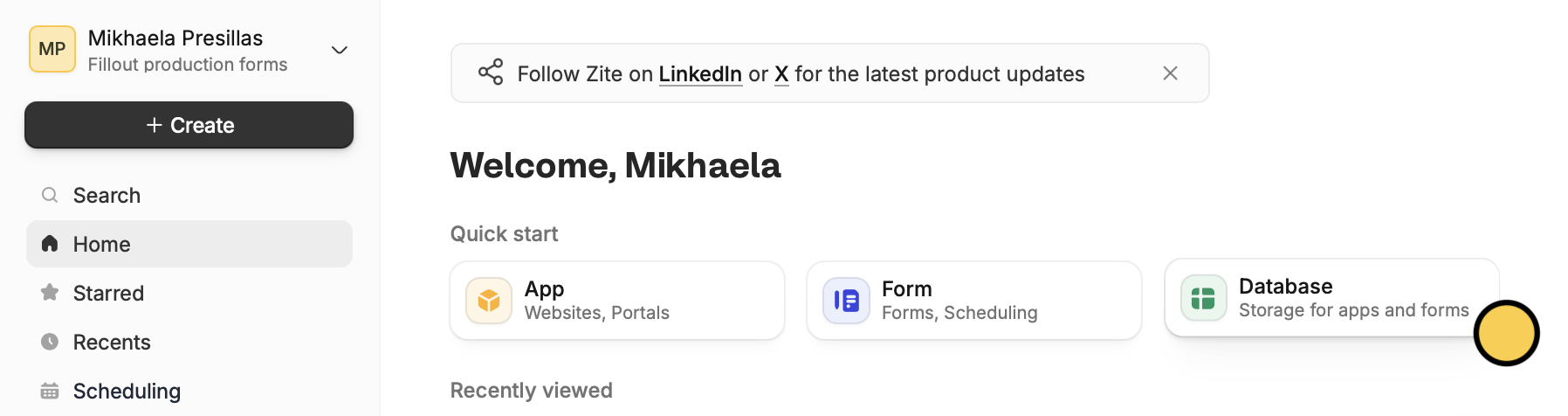
    <img src="https://mintcdn.com/zite/oNJ-JXut67KYxvh0/help/images/Screenshot2025-11-20at4.34.41PM.png?fit=max&auto=format&n=oNJ-JXut67KYxvh0&q=85&s=13587d3e7c84947c92b5e2e0de32abb6" alt="Screenshot 2025-11-20 at 4.34.41 PM.png" title="Screenshot 2025-11-20 at 4.34.41 PM.png" style={{ width:"85%" }} width="1796" height="476" data-path="help/images/Screenshot2025-11-20at4.34.41PM.png" />

    Choose to `Import` between a CSV, Google Sheets, or Airtable. In this example, we'll choose `Airtable`.
  </Step>

  <Step title="Choose an account and base">
    Select your **source account** and a **base** from there.
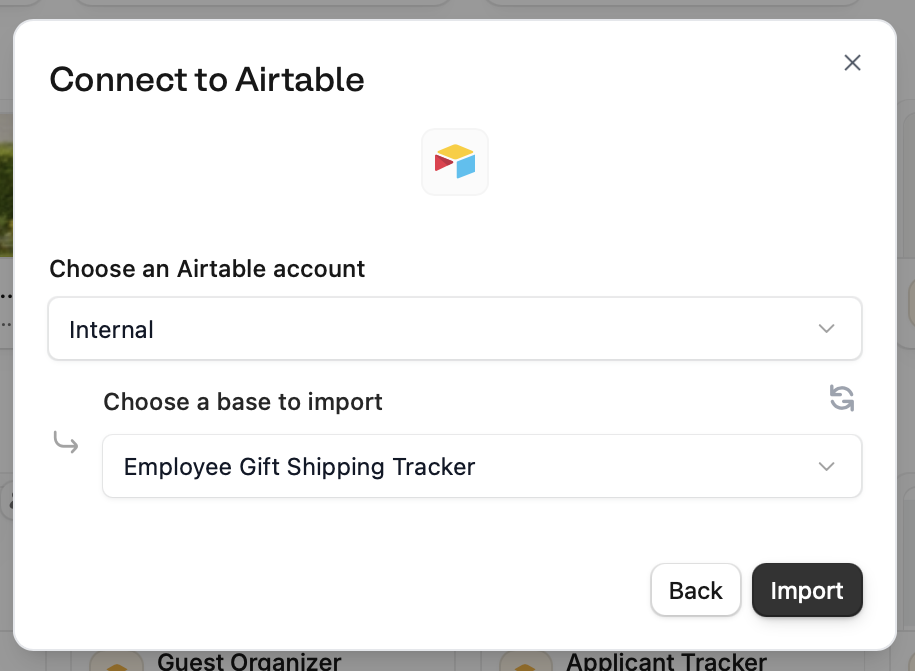
    <img src="https://mintcdn.com/zite/oNJ-JXut67KYxvh0/help/images/Screenshot2025-11-20at4.50.46PM.png?fit=max&auto=format&n=oNJ-JXut67KYxvh0&q=85&s=04a6729403e33482b891f3ba3316e93b" alt="Screenshot 2025-11-20 at 4.50.46 PM.png" title="Screenshot 2025-11-20 at 4.50.46 PM.png" style={{ width:"55%" }} width="915" height="671" data-path="help/images/Screenshot2025-11-20at4.50.46PM.png" />

    That's it! You now have a Zite database with external data.
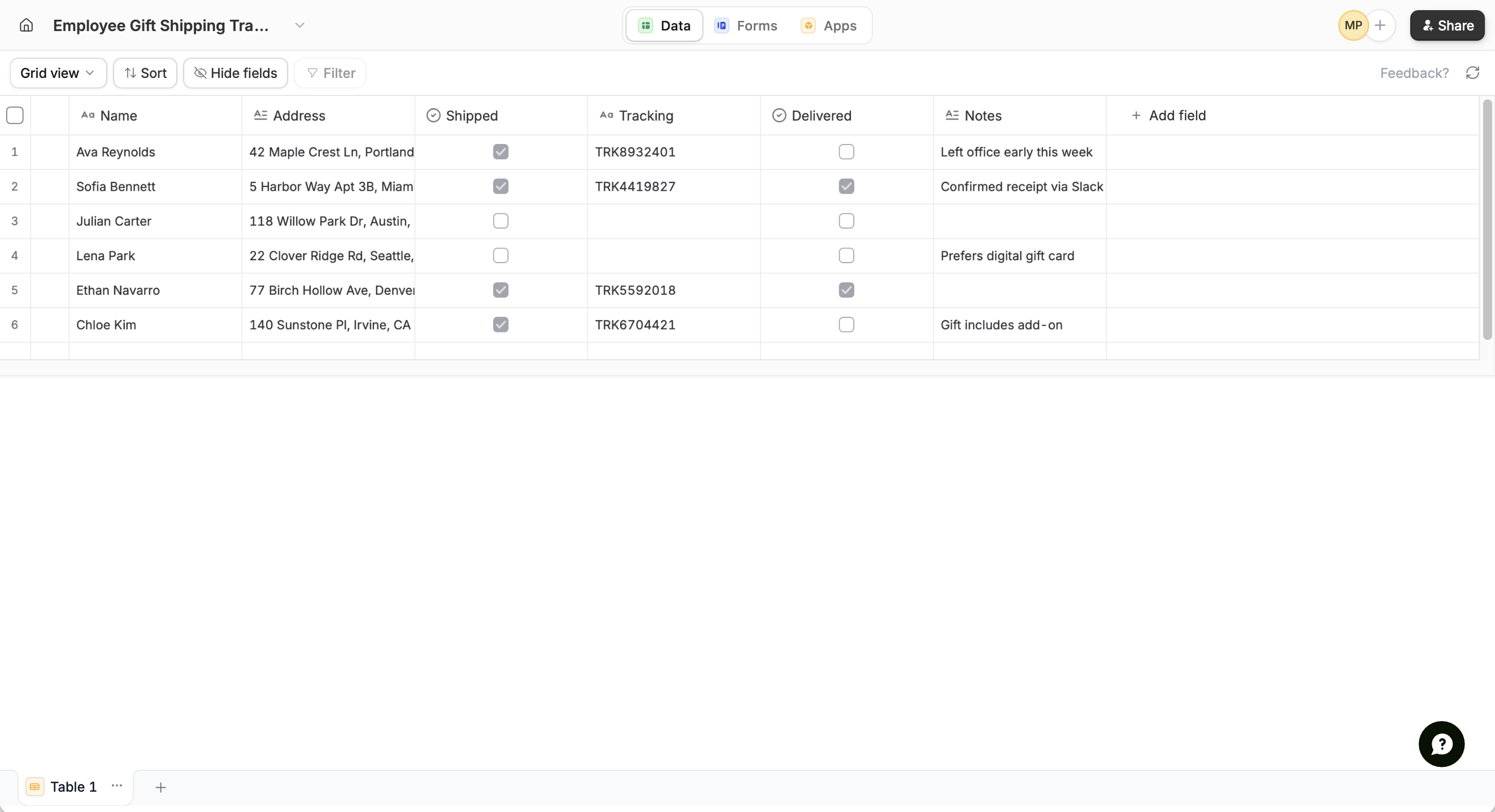
    <img src="https://mintcdn.com/zite/oNJ-JXut67KYxvh0/help/images/Screenshot2025-11-20at4.55.16PM.png?fit=max&auto=format&n=oNJ-JXut67KYxvh0&q=85&s=751d0f38d485744853177340ce639075" alt="Screenshot 2025-11-20 at 4.55.16 PM.png" width="2646" height="1438" data-path="help/images/Screenshot2025-11-20at4.55.16PM.png" />
  </Step>

  <Step title="Add fields (Optional)">
    Click `+ Add field` beside the rightmost column.
    <img src="https://mintcdn.com/zite/iguXXMxNAqjCcaY0/help/images/image.png?fit=max&auto=format&n=iguXXMxNAqjCcaY0&q=85&s=68d700c4acd3fc88d98383f097d4d435" alt="image.png" title="image.png" style={{ width:"49%" }} width="1780" height="440" data-path="help/images/image.png" />

    **Add tables**

    Click <Icon icon="square-plus" /> at the bottom right followed by `New table`.
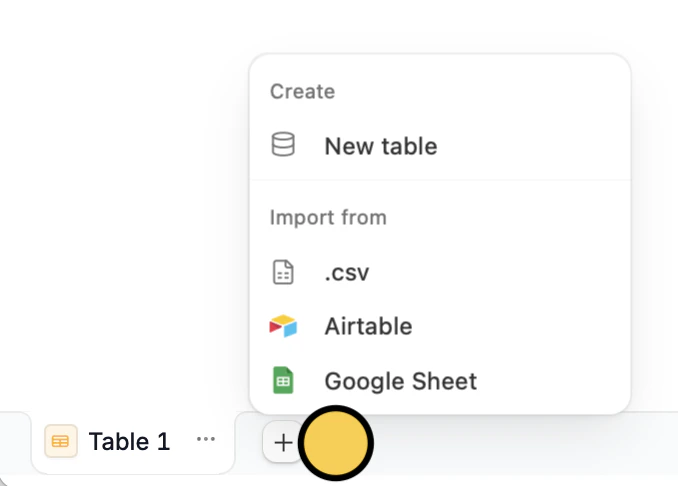
    <img src="https://mintcdn.com/zite/oNJ-JXut67KYxvh0/help/images/Screenshot2025-11-20at4.55.41PM.png?fit=max&auto=format&n=oNJ-JXut67KYxvh0&q=85&s=20e1599b93339460f2223ee6ed94f2ce" alt="Screenshot 2025-11-20 at 4.55.41 PM.png" title="Screenshot 2025-11-20 at 4.55.41 PM.png" style={{ width:"33%" }} width="678" height="486" data-path="help/images/Screenshot2025-11-20at4.55.41PM.png" />
  </Step>

  <Step title="Build forms and apps (Optional)">
    Connect your database to Fillout Forms or Zite Apps. Your data syncs automatically.
  </Step>

  <Step title="Share (Optional)">
    If necessary, `Share` your database to other users using the option on the top right corner.
  </Step>
</Steps>

## Add data to an existing database

### Import to a new table

<Steps>
  <Step title="Navigate to your database">
    Open your database directly or from your Fillout form or Zite app, click `Database` on top.
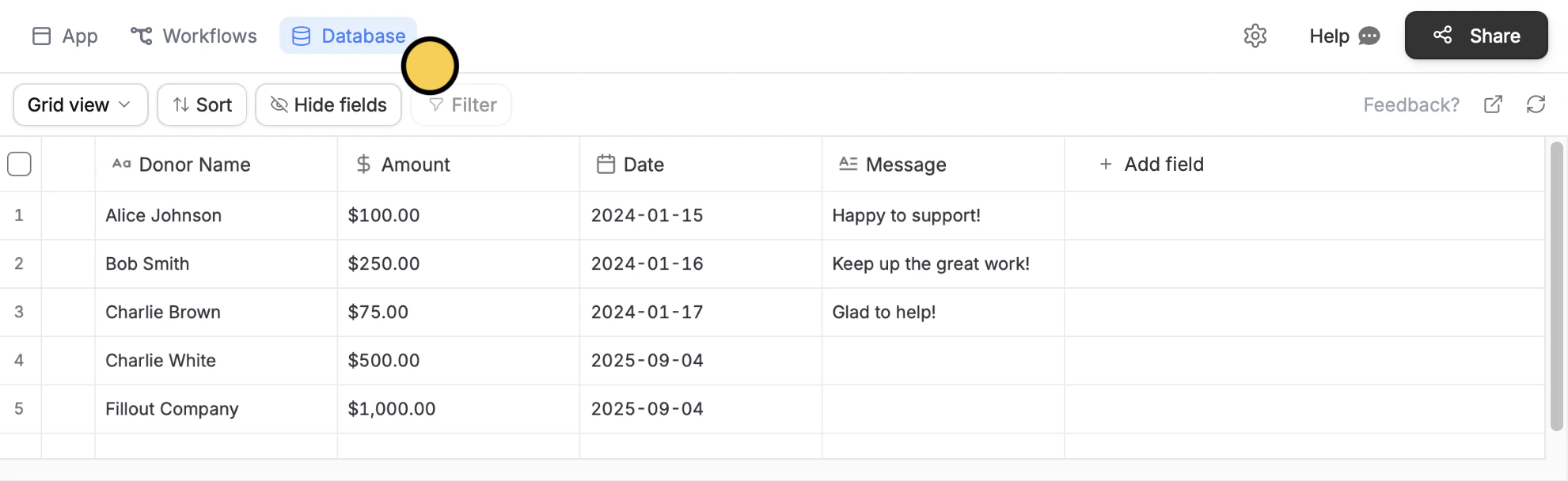
    <img src="https://mintcdn.com/zite/oNJ-JXut67KYxvh0/help/images/Screenshot2025-11-21at5.36.02PM.png?fit=max&auto=format&n=oNJ-JXut67KYxvh0&q=85&s=2feb33cd050f8ce9d68693afb501be72" alt="Screenshot 2025-11-21 at 5.36.02 PM.png" width="1981" height="608" data-path="help/images/Screenshot2025-11-21at5.36.02PM.png" />
  </Step>

  <Step title="Choose an external source">
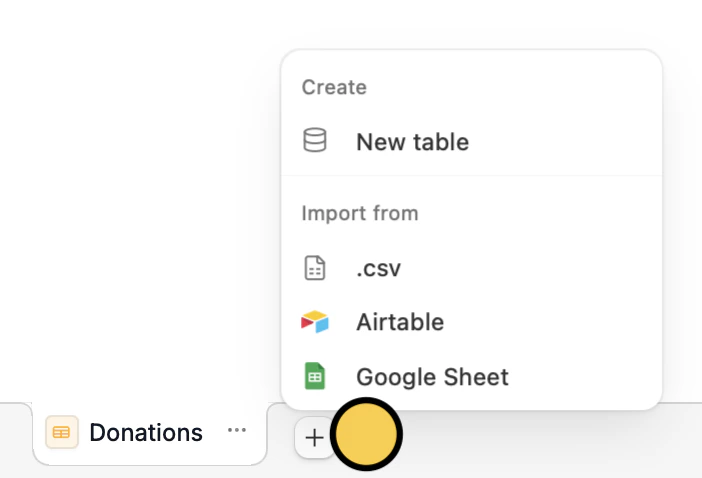
    From the bottom left, click <Icon icon="square-plus" /> followed by your **database source**.

    <img src="https://mintcdn.com/zite/oNJ-JXut67KYxvh0/help/images/Screenshot2025-11-21at5.41.00PM.png?fit=max&auto=format&n=oNJ-JXut67KYxvh0&q=85&s=77aebfb0e4bdc6e02c2123cb52ef7625" alt="Screenshot 2025-11-21 at 5.41.00 PM.png" title="Screenshot 2025-11-21 at 5.41.00 PM.png" style={{ width:"36%" }} width="702" height="478" data-path="help/images/Screenshot2025-11-21at5.41.00PM.png" />
  </Step>

  <Step title="Choose your database">
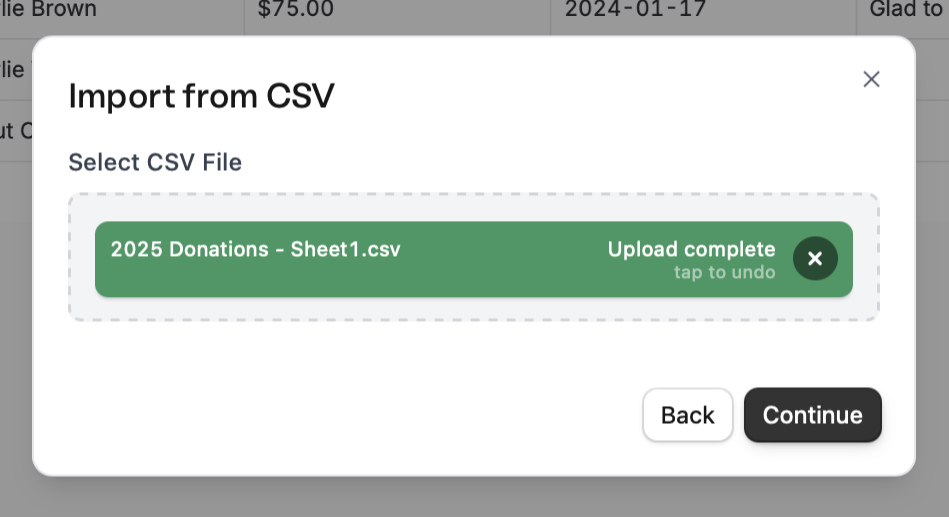
    Upload your CSV file

    <img src="https://mintcdn.com/zite/oNJ-JXut67KYxvh0/help/images/Screenshot2025-10-03at3.21.37PM.png?fit=max&auto=format&n=oNJ-JXut67KYxvh0&q=85&s=35206f38f4a758ace0ce73de90f56541" alt="Screenshot 2025-10-03 at 3.21.37 PM.png" title="Screenshot 2025-10-03 at 3.21.37 PM.png" style={{ width:"46%" }} width="949" height="517" data-path="help/images/Screenshot2025-10-03at3.21.37PM.png" />

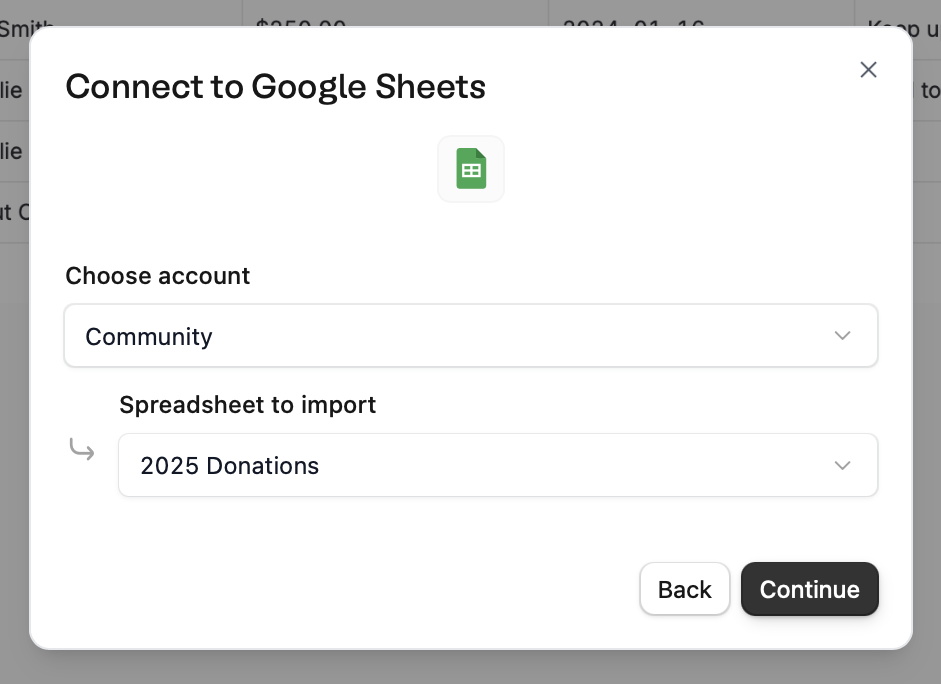
    or choose an existing database from Google Sheets or Airtable.
    <img src="https://mintcdn.com/zite/oNJ-JXut67KYxvh0/help/images/Screenshot2025-10-03at3.17.40PM.png?fit=max&auto=format&n=oNJ-JXut67KYxvh0&q=85&s=3cef91236ecaeb7e1bee29e2dc7131e1" alt="Screenshot 2025-10-03 at 3.17.40 PM.png" title="Screenshot 2025-10-03 at 3.17.40 PM.png" style={{ width:"59%" }} width="941" height="684" data-path="help/images/Screenshot2025-10-03at3.17.40PM.png" />
  </Step>

  <Step title="Review and edit">
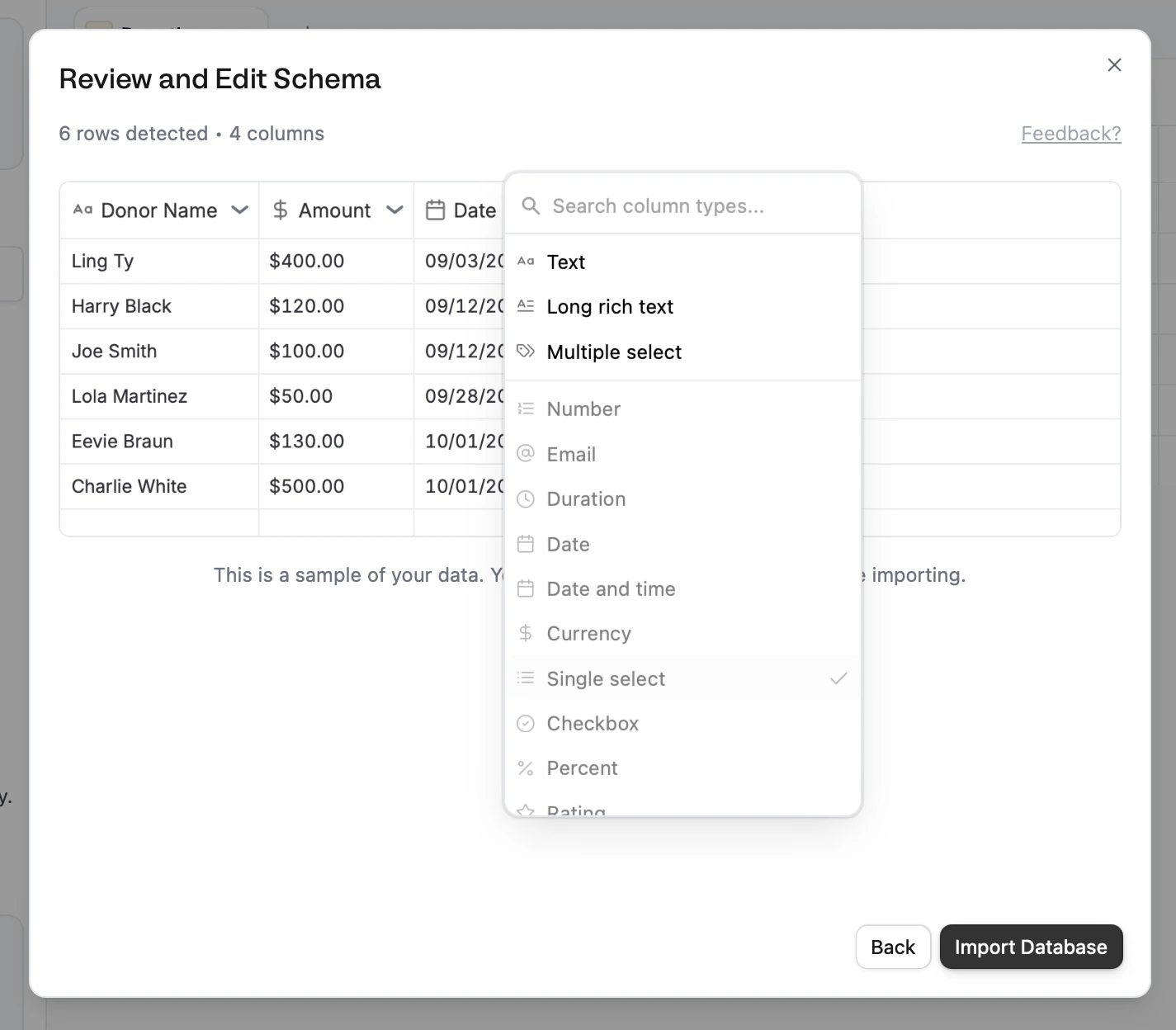
    View a sample of your data and change field types before importing by clicking the **column header**. When everything's all set, `Import database`.
    <img src="https://mintcdn.com/zite/oNJ-JXut67KYxvh0/help/images/Screenshot2025-10-03at3.07.15PM.png?fit=max&auto=format&n=oNJ-JXut67KYxvh0&q=85&s=512f11ee14cf4bfe29a1bf61d45a1920" alt="Screenshot 2025-10-03 at 3.07.15 PM.png" title="Screenshot 2025-10-03 at 3.07.15 PM.png" style={{ width:"83%" }} width="1425" height="1248" data-path="help/images/Screenshot2025-10-03at3.07.15PM.png" />

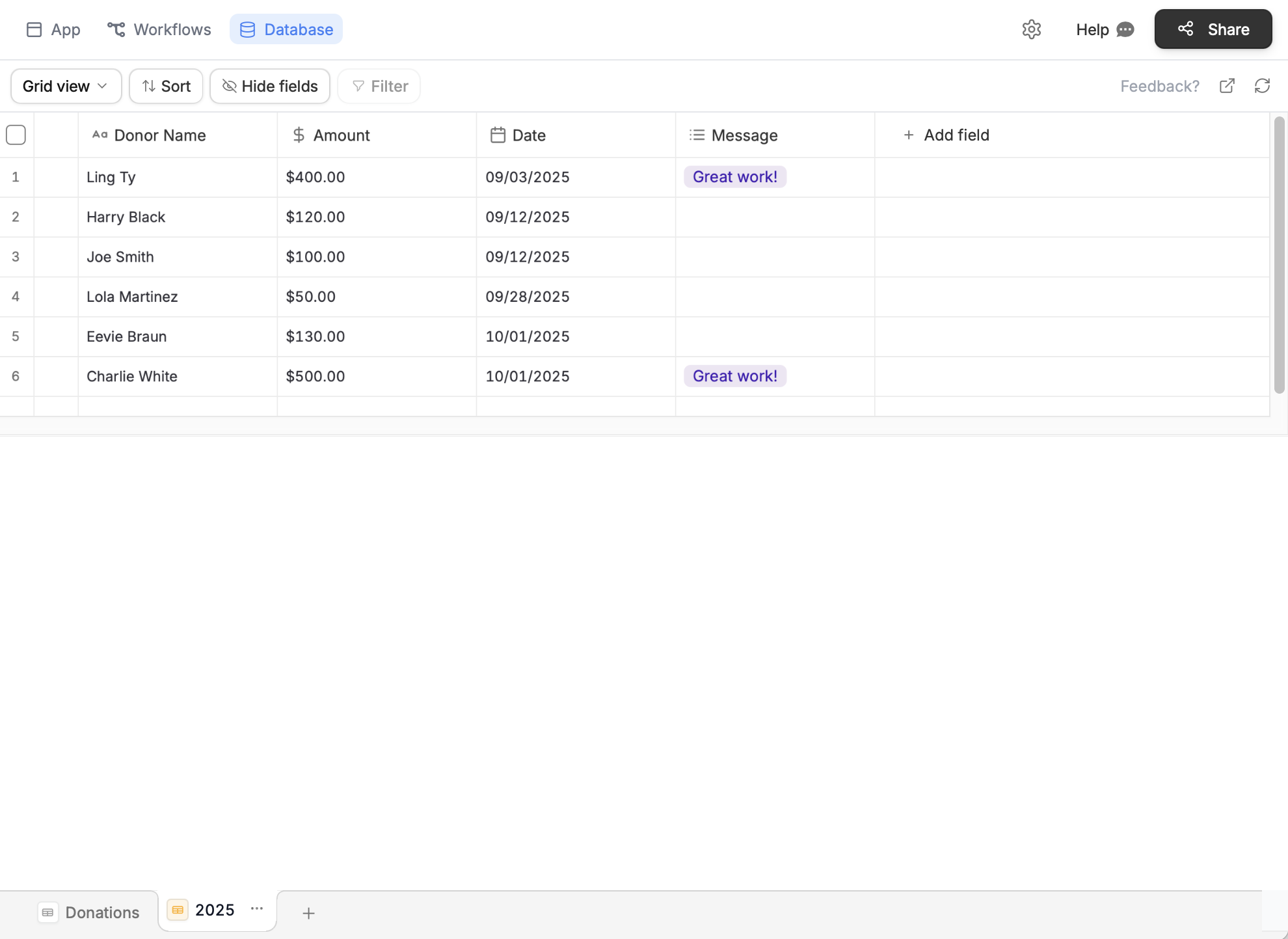
    That's it! A new table will be added to your database.
    <img src="https://mintcdn.com/zite/oNJ-JXut67KYxvh0/help/images/Screenshot2025-11-21at5.44.45PM.png?fit=max&auto=format&n=oNJ-JXut67KYxvh0&q=85&s=27f3805326e3179eeb80bec7b1584b02" alt="Screenshot 2025-11-21 at 5.44.45 PM.png" width="1980" height="1443" data-path="help/images/Screenshot2025-11-21at5.44.45PM.png" />
  </Step>

  <Step title="Publish">
    If your database is connected to an `App` or `Form`, remember to click `Publish` in the upper right corner to reflect the changes.
  </Step>
</Steps>

### Import to an existing table

<Steps>
  <Step title="Navigate to your database">
    Open your database directly or from your Fillout form or Zite app, click `Database` on top.

    <img src="https://mintcdn.com/zite/oNJ-JXut67KYxvh0/help/images/Screenshot2025-11-21at5.36.02PM.png?fit=max&auto=format&n=oNJ-JXut67KYxvh0&q=85&s=2feb33cd050f8ce9d68693afb501be72" alt="Screenshot 2025-11-21 at 5.36.02 PM.png" width="1981" height="608" data-path="help/images/Screenshot2025-11-21at5.36.02PM.png" />
  </Step>

  <Step title="Choose an external source">
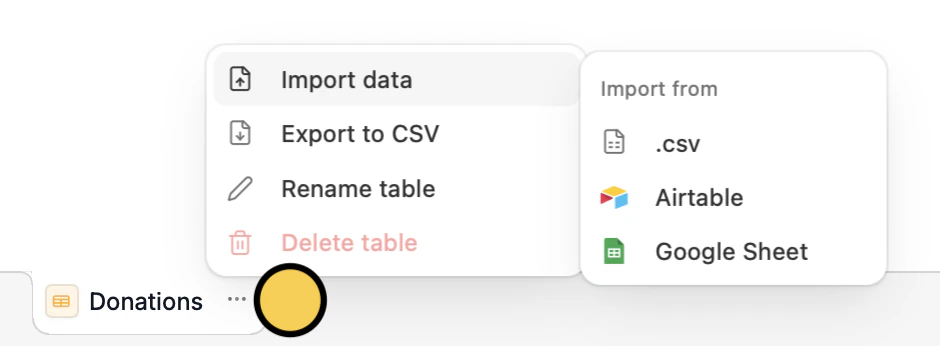
    On the bottom left, click <Icon icon="ellipsis" /> next to the name of your table followed by `Import data` and select your **database source**.
    <img src="https://mintcdn.com/zite/oNJ-JXut67KYxvh0/help/images/Screenshot2025-11-21at5.30.43PM.png?fit=max&auto=format&n=oNJ-JXut67KYxvh0&q=85&s=5163ac08e7d4cdbcf3263070275a4c55" alt="Screenshot 2025-11-21 at 5.30.43 PM.png" title="Screenshot 2025-11-21 at 5.30.43 PM.png" style={{ width:"48%" }} width="940" height="346" data-path="help/images/Screenshot2025-11-21at5.30.43PM.png" />
  </Step>

  <Step title="Choose your database">
    Upload your CSV file

    <img src="https://mintcdn.com/zite/oNJ-JXut67KYxvh0/help/images/Screenshot2025-10-03at3.21.37PM.png?fit=max&auto=format&n=oNJ-JXut67KYxvh0&q=85&s=35206f38f4a758ace0ce73de90f56541" alt="Screenshot 2025-10-03 at 3.21.37 PM.png" title="Screenshot 2025-10-03 at 3.21.37 PM.png" style={{ width:"46%" }} width="949" height="517" data-path="help/images/Screenshot2025-10-03at3.21.37PM.png" />

    or choose an existing database from Google Sheets or Airtable.

    <img src="https://mintcdn.com/zite/oNJ-JXut67KYxvh0/help/images/Screenshot2025-10-03at3.17.40PM.png?fit=max&auto=format&n=oNJ-JXut67KYxvh0&q=85&s=3cef91236ecaeb7e1bee29e2dc7131e1" alt="Screenshot 2025-10-03 at 3.17.40 PM.png" title="Screenshot 2025-10-03 at 3.17.40 PM.png" style={{ width:"59%" }} width="941" height="684" data-path="help/images/Screenshot2025-10-03at3.17.40PM.png" />
  </Step>

  <Step title="Review and edit">
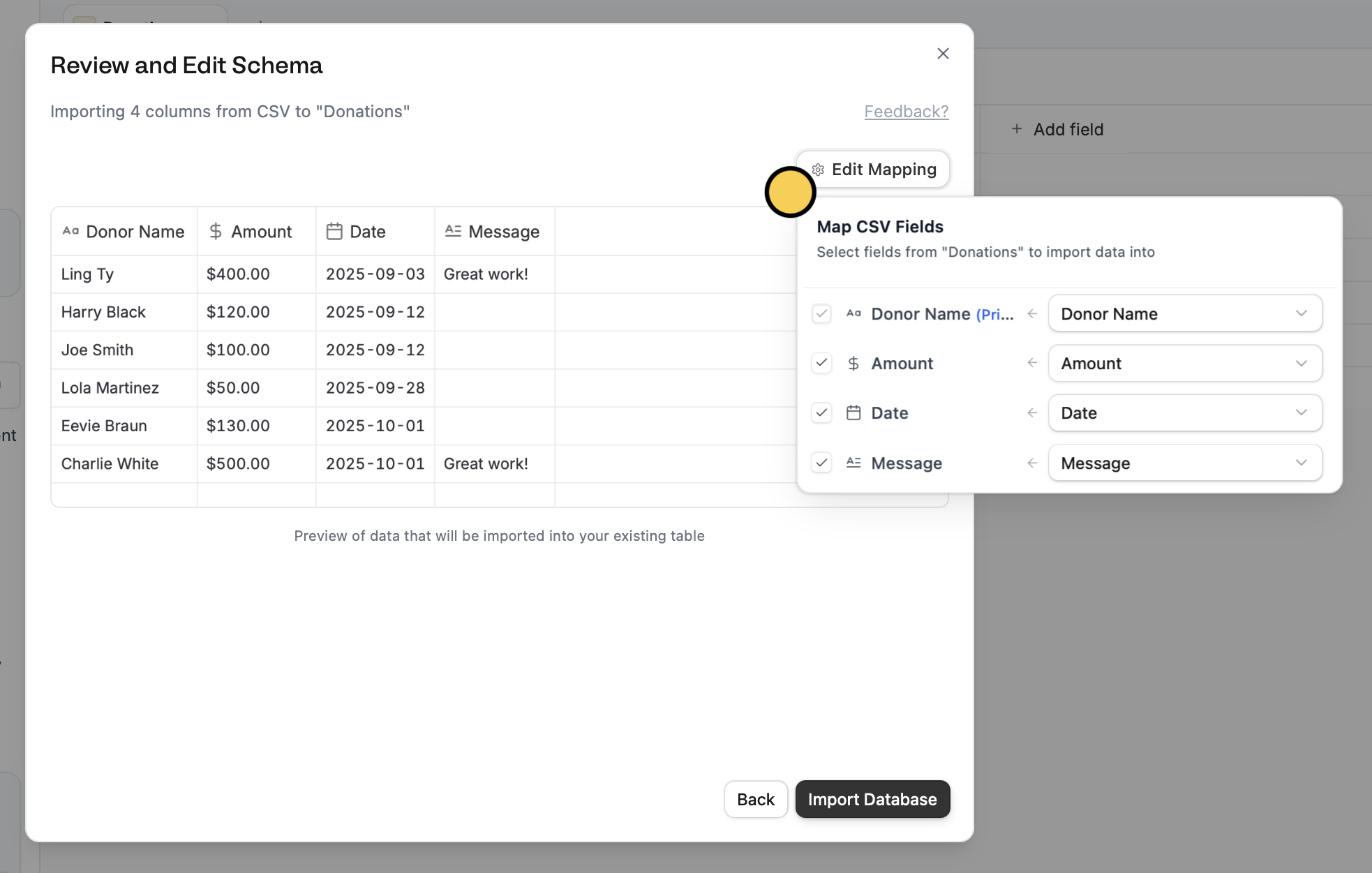
    You'll see a preview of the columns to be imported. Here, you can `Edit mapping` to change which columns on your external file you'd like to match with columns on your existing Zite database. `Import database` when the mapping's all set.
    <img src="https://mintcdn.com/zite/oNJ-JXut67KYxvh0/help/images/Screenshot2025-10-03at3.24.36PM.png?fit=max&auto=format&n=oNJ-JXut67KYxvh0&q=85&s=8541abac765746b63273d5299c3ef61d" alt="Screenshot 2025-10-03 at 3.24.36 PM.png" title="Screenshot 2025-10-03 at 3.24.36 PM.png" style={{ width:"82%" }} width="1966" height="1251" data-path="help/images/Screenshot2025-10-03at3.24.36PM.png" />

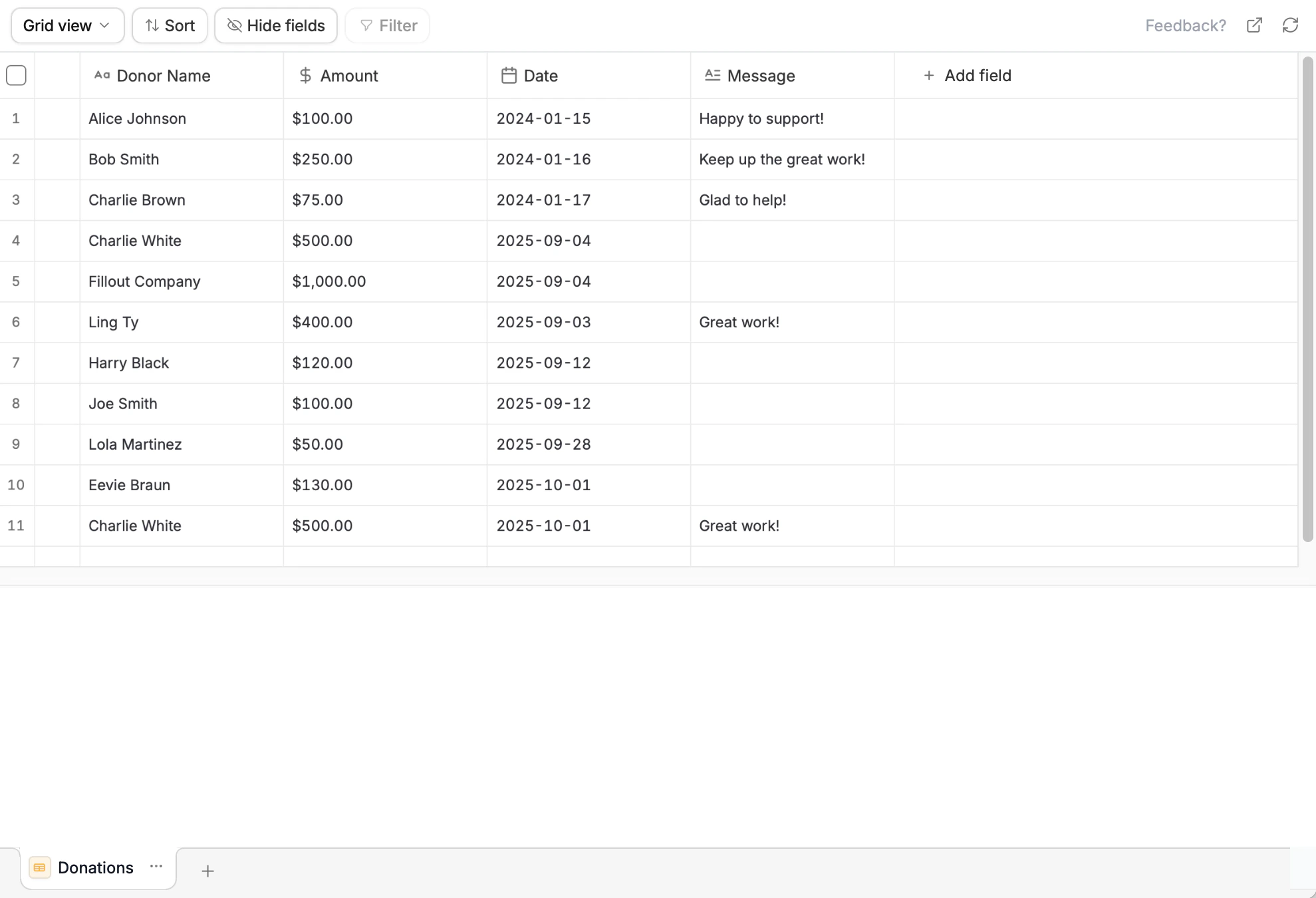
    That's it! New rows have now be added to your existing table.
    <img src="https://mintcdn.com/zite/oNJ-JXut67KYxvh0/help/images/Screenshot2025-11-21at5.29.45PM.png?fit=max&auto=format&n=oNJ-JXut67KYxvh0&q=85&s=3f91dc9ad816baeaa6eac6a1af66ee82" alt="Screenshot 2025-11-21 at 5.29.45 PM.png" width="1979" height="1350" data-path="help/images/Screenshot2025-11-21at5.29.45PM.png" />
  </Step>

  <Step title="Refresh and publish">
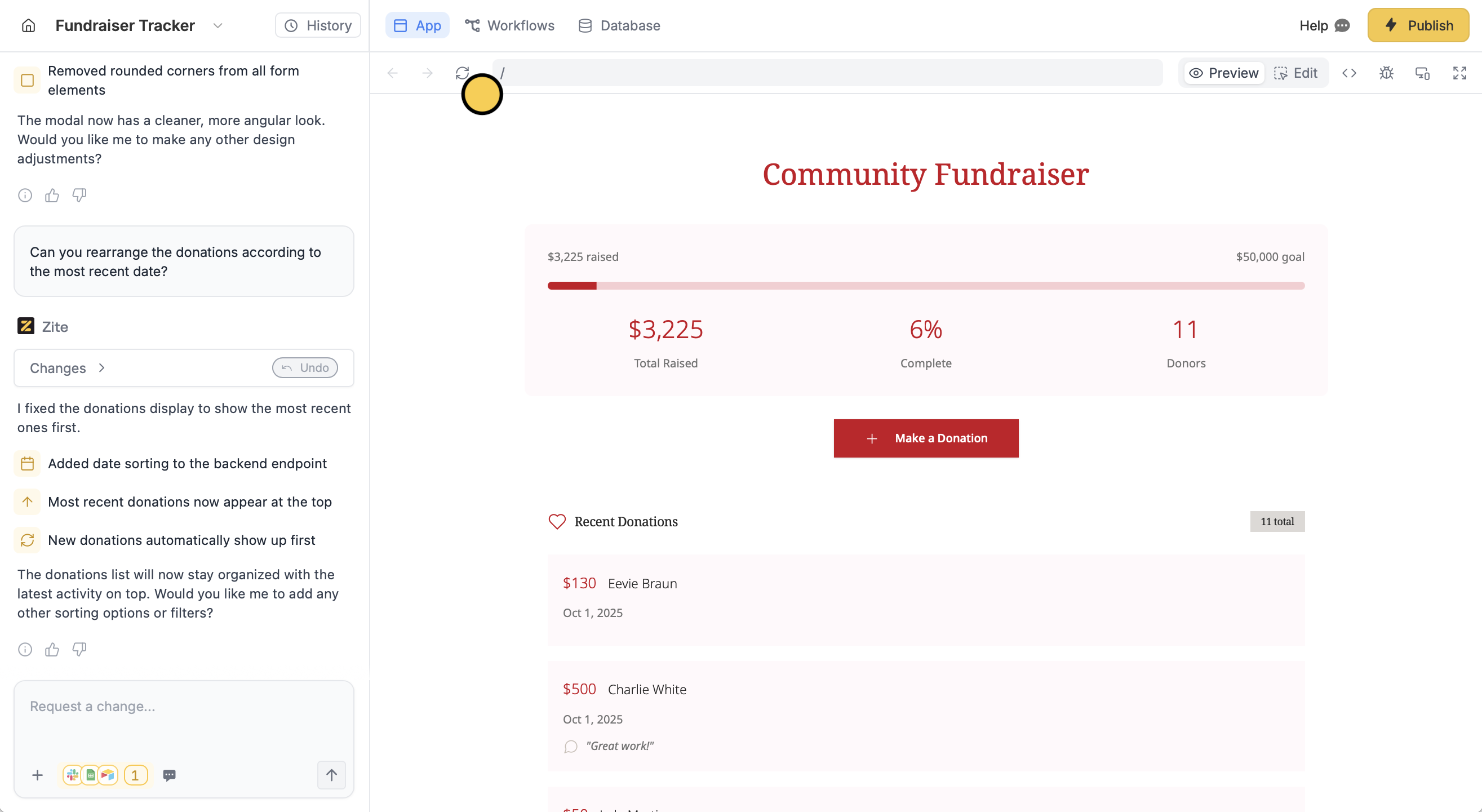
    If your database is connected to an `App` or `Form`, remember to click `Publish` in the upper right corner to reflect the changes.

    On apps, click <Icon icon="arrows-rotate" size={12} /> to make the imported data appear in your app.
    <img src="https://mintcdn.com/zite/oNJ-JXut67KYxvh0/help/images/Screenshot2025-10-03at3.48.50PM.png?fit=max&auto=format&n=oNJ-JXut67KYxvh0&q=85&s=cf17fd7ff2e943a4b9a376e6272435c2" alt="Screenshot 2025-10-03 at 3.48.50 PM.png" width="2630" height="1441" data-path="help/images/Screenshot2025-10-03at3.48.50PM.png" />
  </Step>
</Steps>

<div className="zite-related-topics">
  <a href="/help/database/getting-started/make-database">Make a Database</a>
  <a href="/help/platform/how-to-build/creating-an-app">Create an app</a>
</div>

<div className="zite-related-topics">
  <a href="/help/database/getting-started/make-database">Make a Database</a>
  <a href="/help/platform/how-to-build/creating-an-app">Create an app</a>
</div>

<div className="zite-related-topics">
  <a href="/help/database/getting-started/create-a-database">Create a Database</a>
  <a href="/help/platform/how-to-build/creating-an-app">Create an app</a>
</div>