> ## Documentation Index
> Fetch the complete documentation index at: https://zite.com/llms.txt
> Use this file to discover all available pages before exploring further.
# Customize app links
> Personalize your app links with a subdomain or domain that matches your branding. Plus, edit the preview that shows up when sharing your link.
## Domain vs subdomain
A **domain** is your main website address, like “example.com.” It’s what people type into their browser to visit your site. You buy and register this from a domain registrar like GoDaddy. The good thing is [Zite can also do this for you](/help/platform/basics/customize-links#purchase-a-domain)!
On the other hand, a **subdomain** is an extension added before your main domain, like “blog.example.com.” It’s a separate section of your website.
Custom domains are available for apps once they are [shared to the web](/help/platform/access/share-to-web).
## Add a domain or subdomain
After publishing your app, a random subdomain is generated. You can see this by clicking `Share` in the upper right corner. To edit this, click `Edit link`.
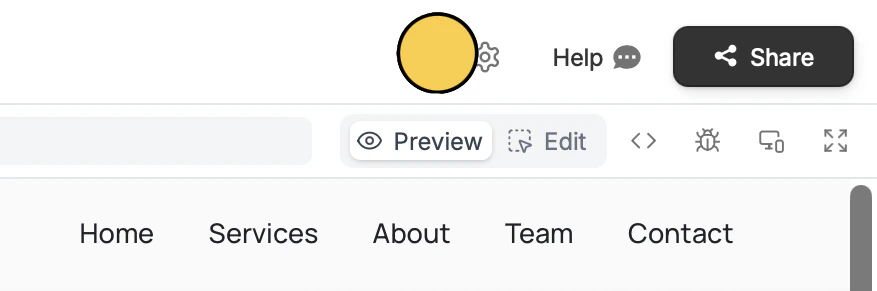
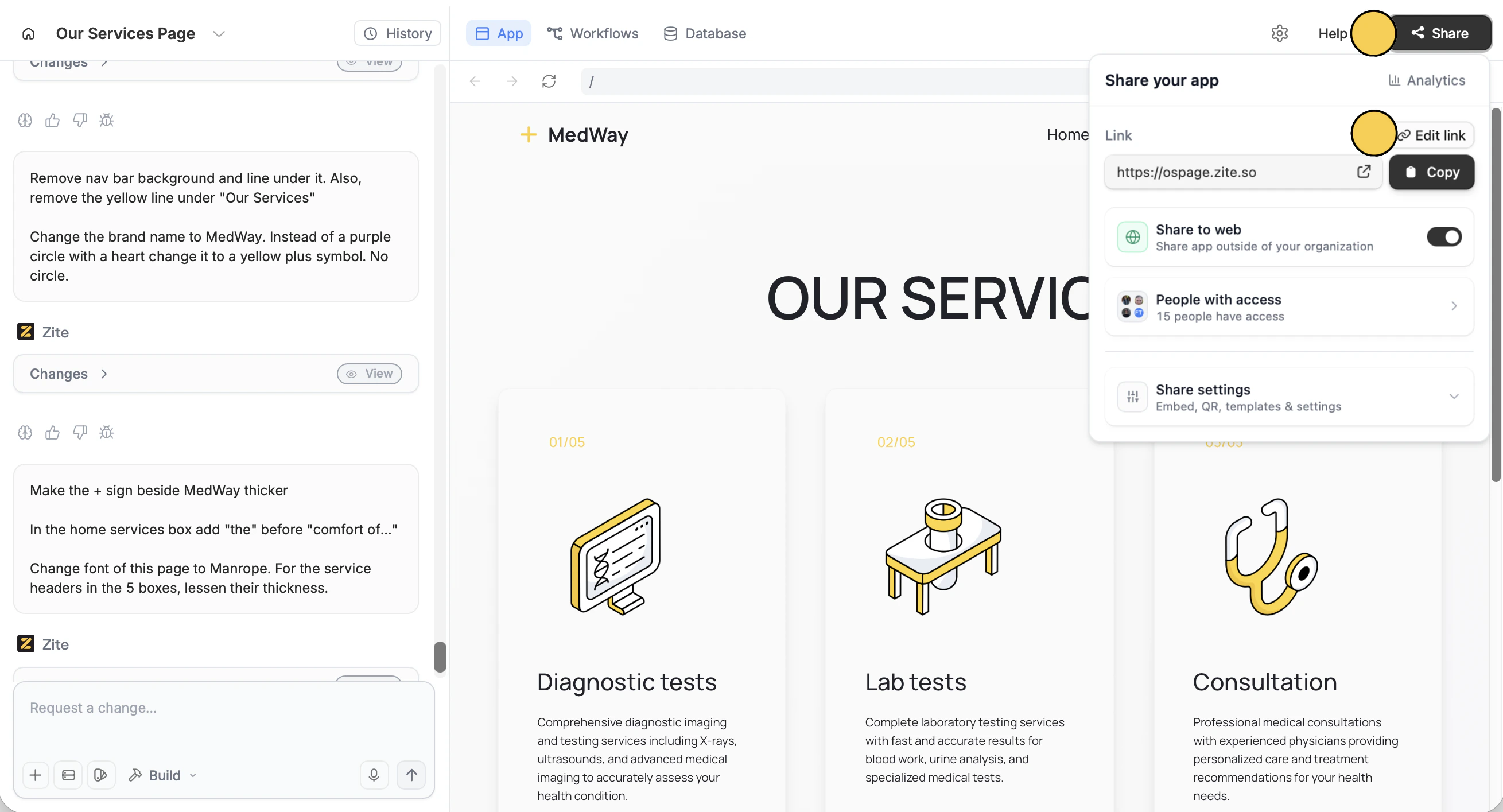 Alternatively, you may click (beside Help) to make changes.
In the popup, you can:
* **Add your own domain** - `Set up` a domain you already own (e.g., medway.com)
* **Customize Zite subdomain** - `Manage` the generated random subdomain (e.g., ourservicespage.zite.so)
Alternatively, you may click (beside Help) to make changes.
In the popup, you can:
* **Add your own domain** - `Set up` a domain you already own (e.g., medway.com)
* **Customize Zite subdomain** - `Manage` the generated random subdomain (e.g., ourservicespage.zite.so)
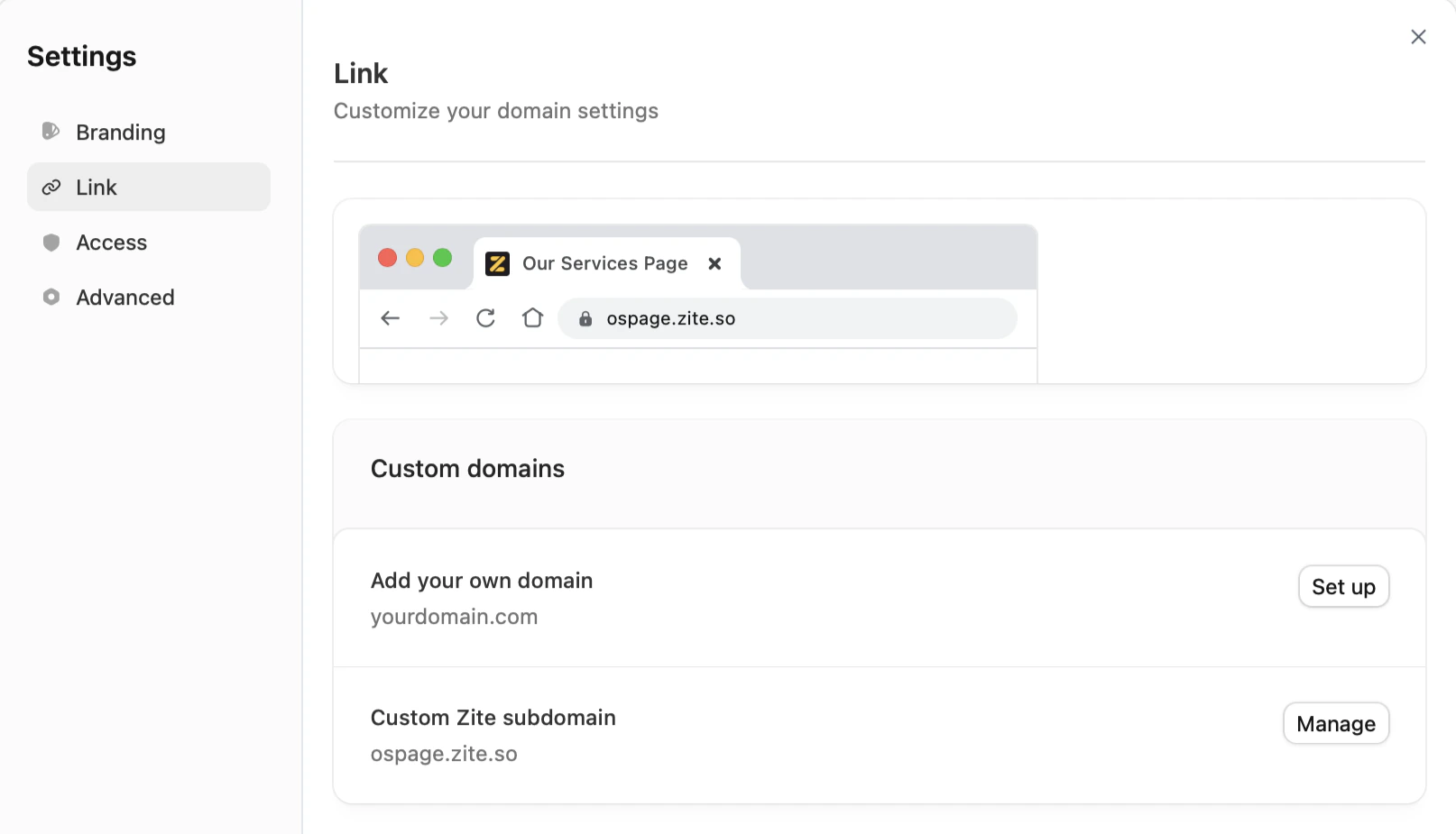 In the popup, enter your domain or subdomain, then click `Change link`.
After adding a domain, a popup will show if your domain has been verified. If not, you'll be required to configure the DNS with your domain provider.
## Purchase a domain
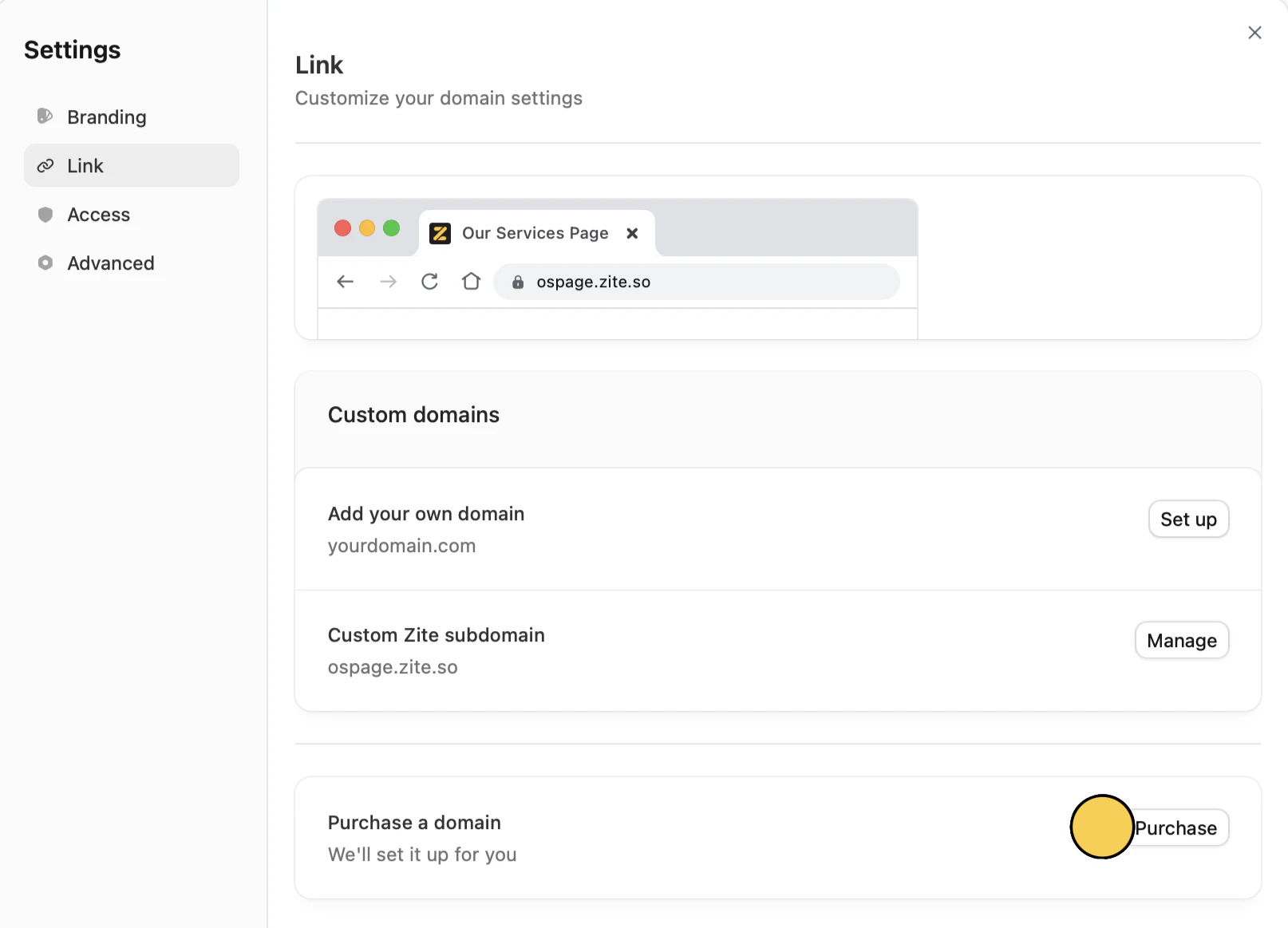
Click (beside Help) on the upper right area of your editor.
Click `Purchase`.
In the popup, enter your domain or subdomain, then click `Change link`.
After adding a domain, a popup will show if your domain has been verified. If not, you'll be required to configure the DNS with your domain provider.
## Purchase a domain
Click (beside Help) on the upper right area of your editor.
Click `Purchase`.
 [**Pro and Business users**](https://www.zite.com/pricing) can buy up to 3 domains for a total of \$15 per year.
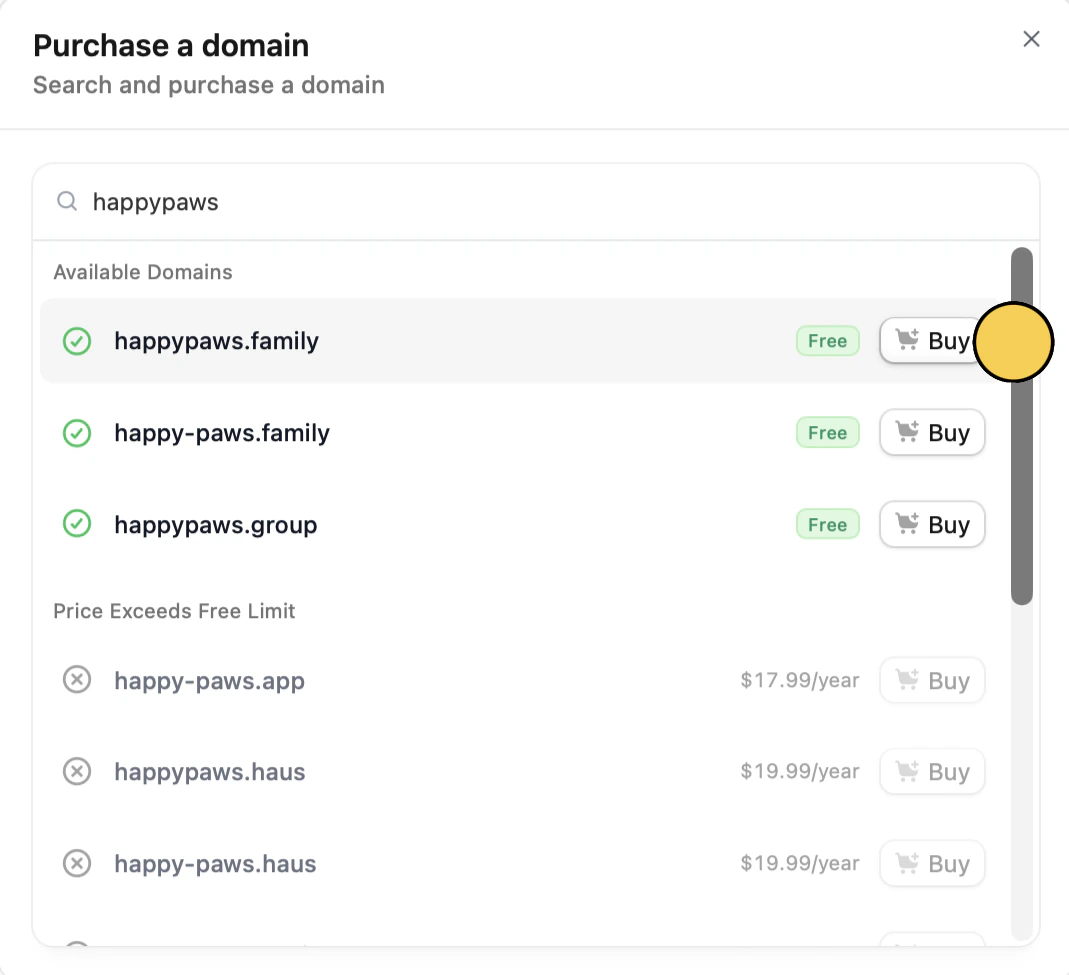
Enter your **preferred domain** in the search bar. In the list of available domains, `Buy` one that suits your app best.
[**Pro and Business users**](https://www.zite.com/pricing) can buy up to 3 domains for a total of \$15 per year.
Enter your **preferred domain** in the search bar. In the list of available domains, `Buy` one that suits your app best.
 Currently, DNS management of domains purchased isn't supported yet.
In the popup, enter the required details. Then, click `Purchase Domain`.
## Customize link preview
Click (beside Help) in the upper right area of your editor, then go to `Branding`.
Currently, DNS management of domains purchased isn't supported yet.
In the popup, enter the required details. Then, click `Purchase Domain`.
## Customize link preview
Click (beside Help) in the upper right area of your editor, then go to `Branding`.
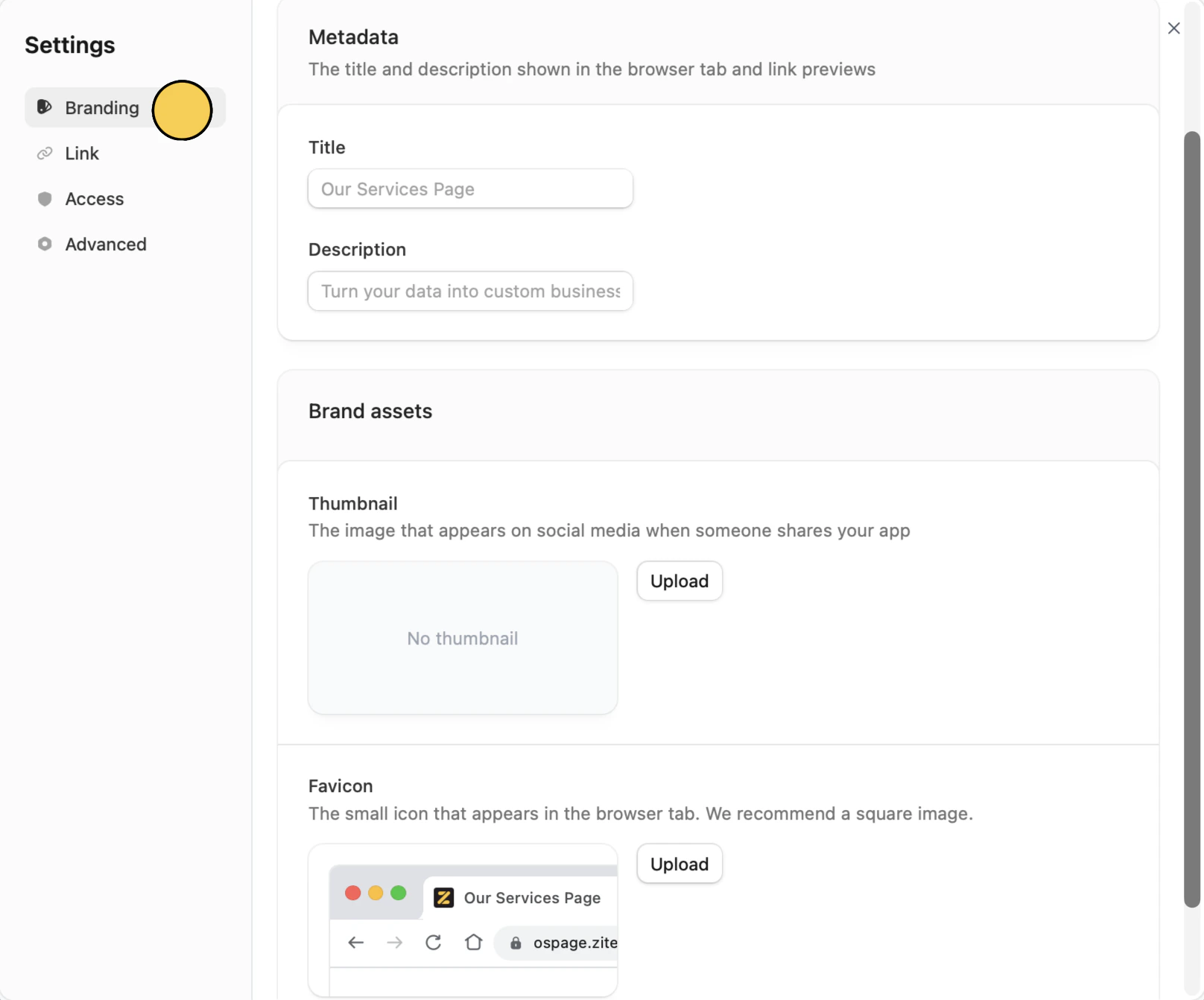
 Here, you can add a:
* **Meta title**
* **Meta description**
* **Thumbnail**
* **Favicon**
Here, you can add a:
* **Meta title**
* **Meta description**
* **Thumbnail**
* **Favicon**
 Preview images are cached by platforms, so it may take time for the updated thumbnail to show. Test your preview [here](https://www.opengraph.xyz).
Related topics