> ## Documentation Index
> Fetch the complete documentation index at: https://zite.com/llms.txt
> Use this file to discover all available pages before exploring further.
# Embed Zite app
> Embed your Zite app on websites, docs, wikis, dashboards, portals, and internal tools.
Embedding lets you place a published Zite app inside another website or open it from a button on that site. Use it for customer portals, internal tools, dashboards, knowledge bases, docs, and landing pages.
## Open embed settings
After publishing your app, click `Share` in the upper right corner, then choose `Embed`.
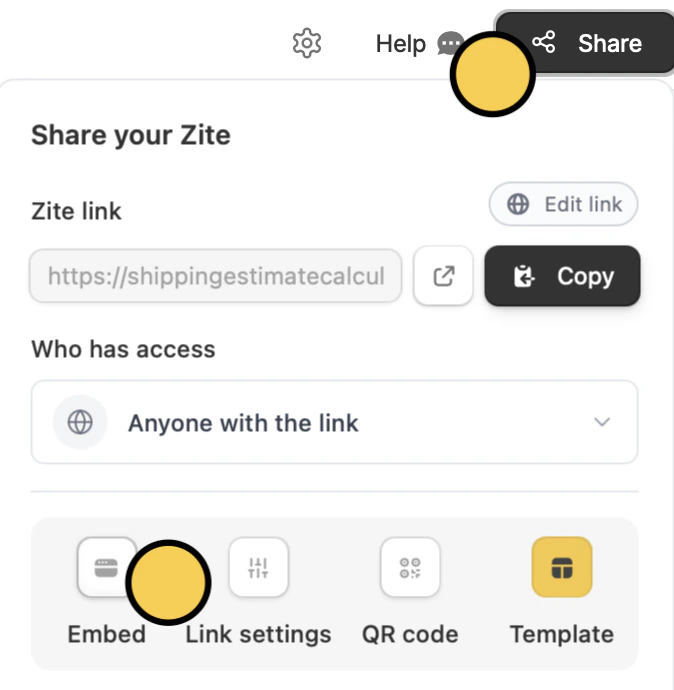 The embed settings panel shows a live preview of your app. Use the `Desktop` and `Mobile` tabs to check how the embed will appear on different screen sizes before copying the code.
## Choose an embed type
Zite supports four embed types:
* **Standard:** adds your app as an inline section on the page.
* **Popup:** opens your app in a centered modal when someone clicks a button.
* **Slider:** opens your app in a side panel from the left or right.
* **Full screen:** opens your app as a full-page embedded experience.
After choosing an embed type, adjust the settings, click ` Get the code`, and paste the code into your website, CMS, or web builder.
## Standard embed
Use `Standard` when your app should appear as part of the page content, such as inside a dashboard, customer portal, help article, or internal wiki.
The embed settings panel shows a live preview of your app. Use the `Desktop` and `Mobile` tabs to check how the embed will appear on different screen sizes before copying the code.
## Choose an embed type
Zite supports four embed types:
* **Standard:** adds your app as an inline section on the page.
* **Popup:** opens your app in a centered modal when someone clicks a button.
* **Slider:** opens your app in a side panel from the left or right.
* **Full screen:** opens your app as a full-page embedded experience.
After choosing an embed type, adjust the settings, click ` Get the code`, and paste the code into your website, CMS, or web builder.
## Standard embed
Use `Standard` when your app should appear as part of the page content, such as inside a dashboard, customer portal, help article, or internal wiki.
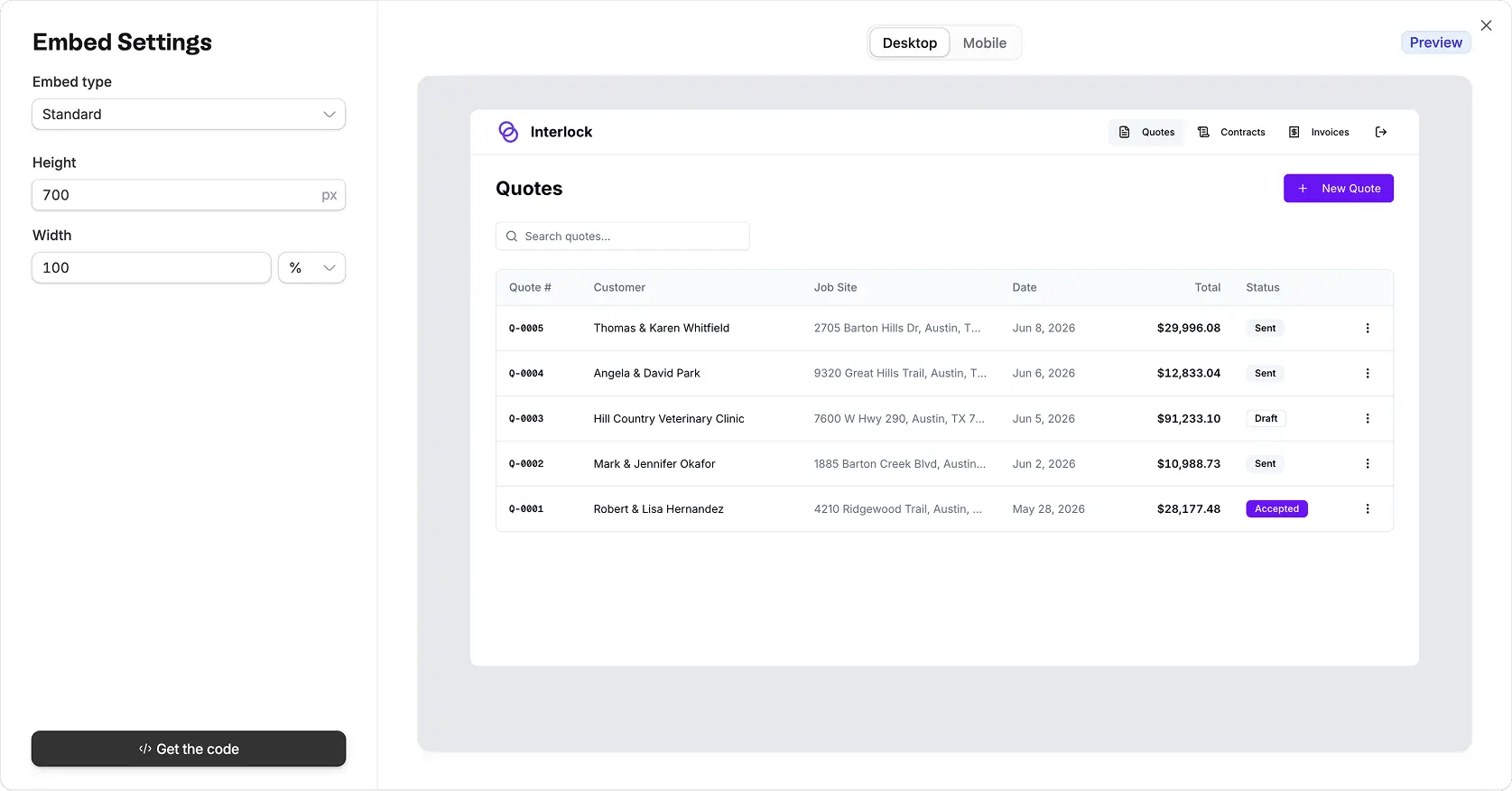 You can control:
* **Height:** sets the embed height in pixels.
* **Width:** sets how wide the embed should be. Use `100%` when you want the app to fill the available page width.
Standard embeds work best when the surrounding page already has space reserved for the app.
## Popup embed
Use `Popup` when you want visitors to stay on the current page until they click a button, then open the app in a focused overlay.
You can control:
* **Height:** sets the embed height in pixels.
* **Width:** sets how wide the embed should be. Use `100%` when you want the app to fill the available page width.
Standard embeds work best when the surrounding page already has space reserved for the app.
## Popup embed
Use `Popup` when you want visitors to stay on the current page until they click a button, then open the app in a focused overlay.
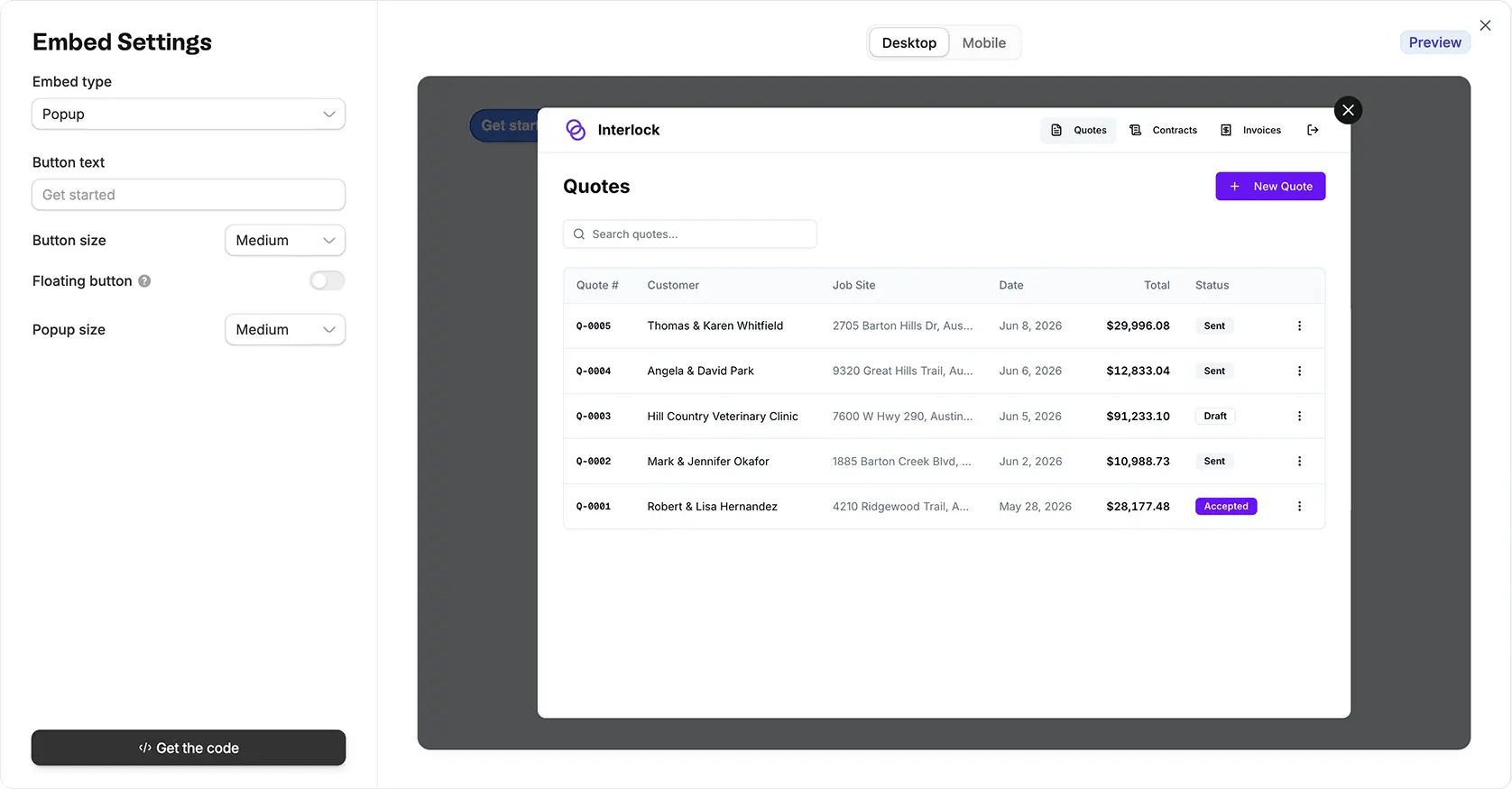 You can control:
* **Button text:** changes the label on the launch button.
* **Button size:** sets the size of the launch button.
* **Floating button:** keeps the button fixed on the page instead of placing it inline.
* **Popup size:** changes the size of the modal window.
Popup embeds are useful for calls to action like onboarding flows, quote requests, client portals, and support tools.
## Slider embed
Use `Slider` when the app should open without taking over the whole screen. The page dims behind the app, and the app slides in from one side.
You can control:
* **Button text:** changes the label on the launch button.
* **Button size:** sets the size of the launch button.
* **Floating button:** keeps the button fixed on the page instead of placing it inline.
* **Popup size:** changes the size of the modal window.
Popup embeds are useful for calls to action like onboarding flows, quote requests, client portals, and support tools.
## Slider embed
Use `Slider` when the app should open without taking over the whole screen. The page dims behind the app, and the app slides in from one side.
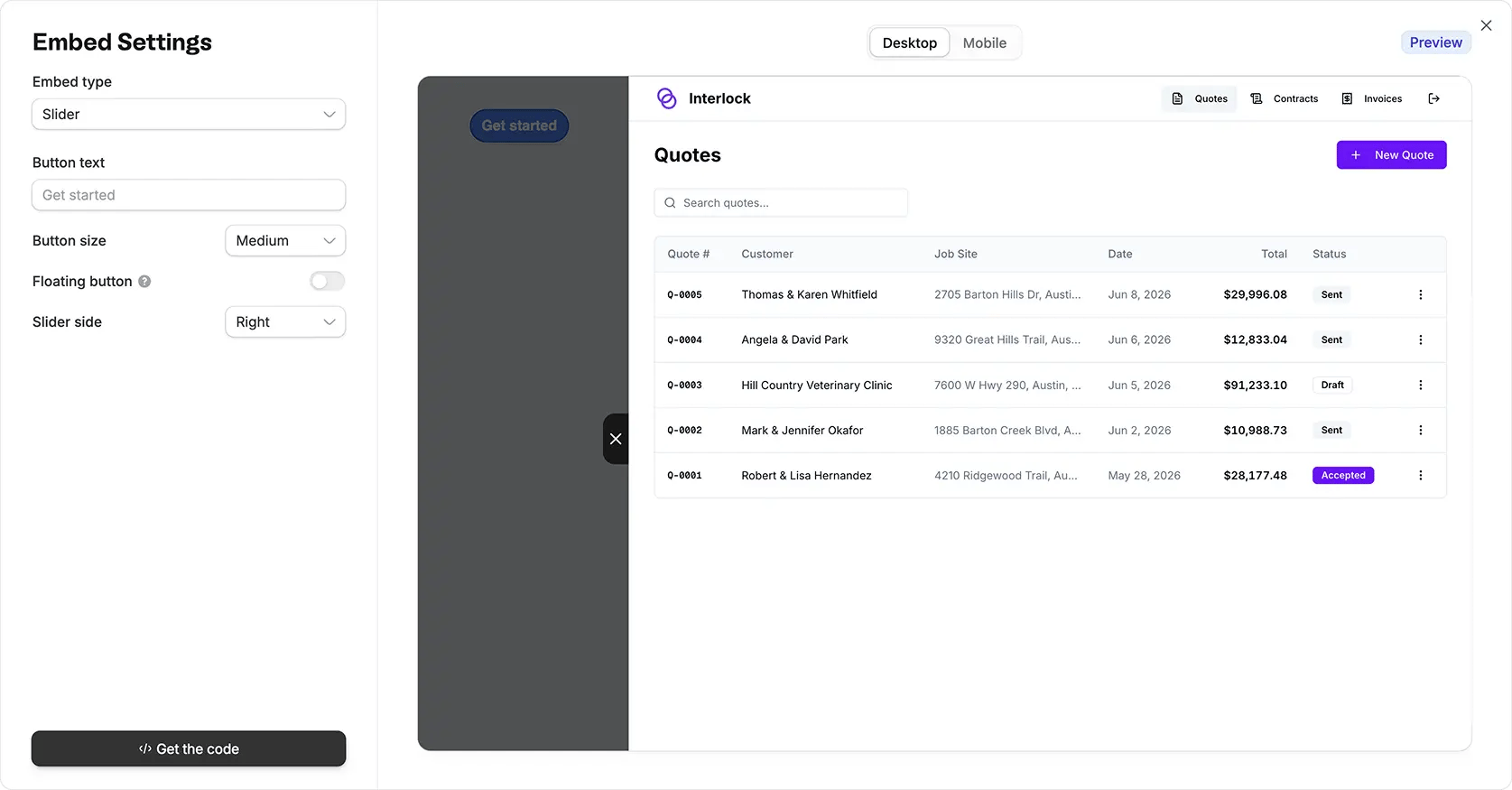 You can control:
* **Button text:** changes the label on the launch button.
* **Button size:** sets the size of the launch button.
* **Floating button:** keeps the button fixed on the page.
* **Slider side:** chooses whether the panel opens from the left or right.
Slider embeds work well for tools people may open while referencing the page behind it, such as calculators, intake flows, account tools, or admin panels.
## Full screen embed
Use `Full screen` when the Zite app should feel like the main experience on the page.
You can control:
* **Button text:** changes the label on the launch button.
* **Button size:** sets the size of the launch button.
* **Floating button:** keeps the button fixed on the page.
* **Slider side:** chooses whether the panel opens from the left or right.
Slider embeds work well for tools people may open while referencing the page behind it, such as calculators, intake flows, account tools, or admin panels.
## Full screen embed
Use `Full screen` when the Zite app should feel like the main experience on the page.
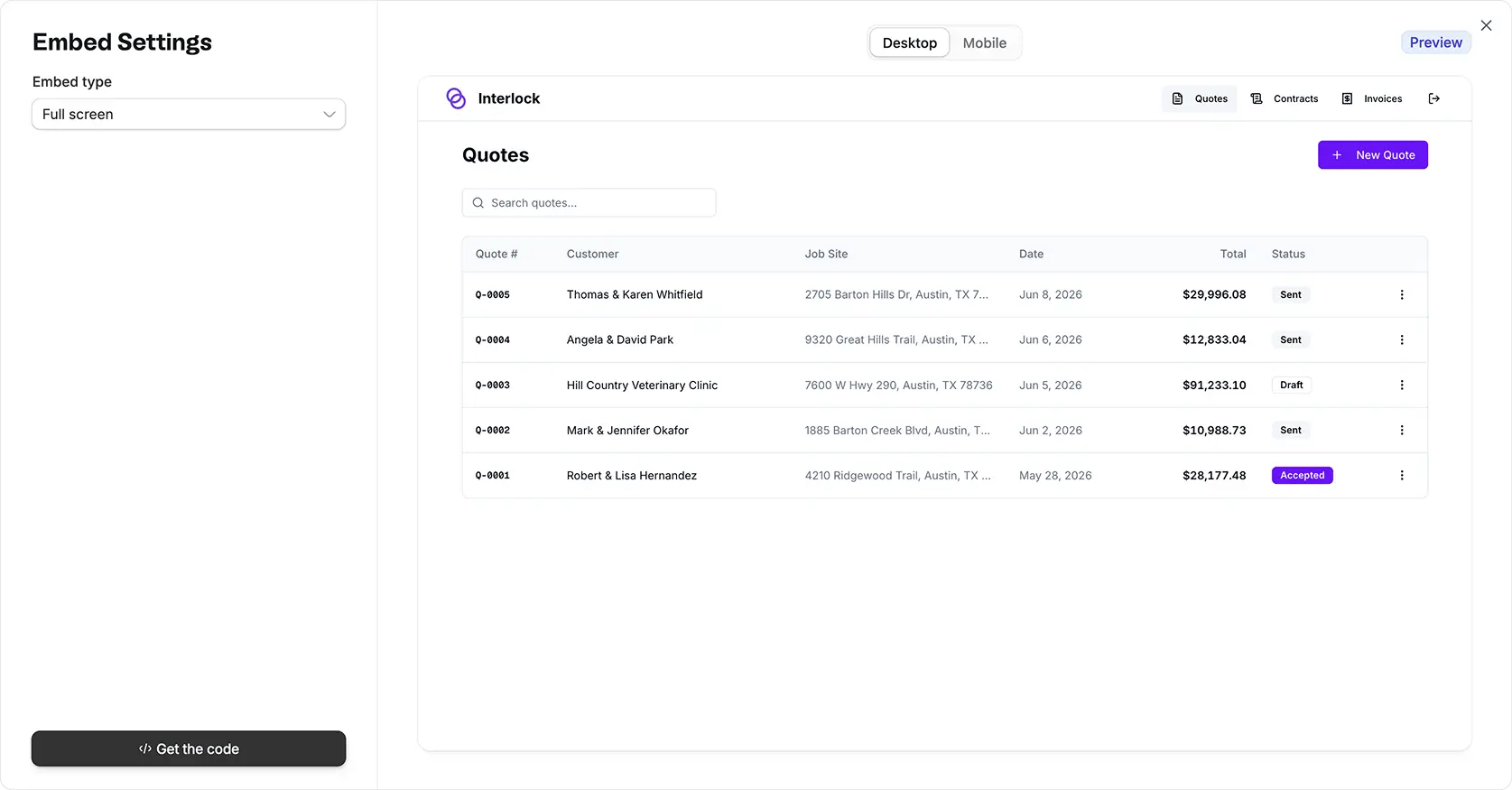 Full screen embeds are best for complete portals, dashboards, and app-like experiences where users should focus on the Zite app rather than the surrounding website.
## Preview and copy the code
Before adding the embed to your site:
* Use `Preview` to test the selected embed type.
* Check both `Desktop` and `Mobile`.
* Confirm popup or slider buttons use the right label and size.
* Confirm standard embeds have enough height to avoid cramped content.
* Click ` Get the code` and paste the generated snippet into your website.
If your app changes later, you usually do not need to replace the embed code. Publish the latest version of your Zite app, then refresh the page where it is embedded.
## Which embed type should I use?
Choose `Standard` when the app should sit directly in the page layout.
Choose `Popup` when someone should click a button, complete a focused task, then close the overlay.
Choose `Slider` when users may need to reference the original page while using the app.
Choose `Full screen` when the embedded Zite app should be the main interface.
Full screen embeds are best for complete portals, dashboards, and app-like experiences where users should focus on the Zite app rather than the surrounding website.
## Preview and copy the code
Before adding the embed to your site:
* Use `Preview` to test the selected embed type.
* Check both `Desktop` and `Mobile`.
* Confirm popup or slider buttons use the right label and size.
* Confirm standard embeds have enough height to avoid cramped content.
* Click ` Get the code` and paste the generated snippet into your website.
If your app changes later, you usually do not need to replace the embed code. Publish the latest version of your Zite app, then refresh the page where it is embedded.
## Which embed type should I use?
Choose `Standard` when the app should sit directly in the page layout.
Choose `Popup` when someone should click a button, complete a focused task, then close the overlay.
Choose `Slider` when users may need to reference the original page while using the app.
Choose `Full screen` when the embedded Zite app should be the main interface.