> ## Documentation Index
> Fetch the complete documentation index at: https://zite.com/llms.txt
> Use this file to discover all available pages before exploring further.
# Quick changes with selective edits
> Customize your app's UI. Edit the typography, color palette, and other elements on your Zite.
## How it works
Selective edits allow users to make direct changes to the elements of your app manually or with AI. You can click into any component and adjust it in place, whether that’s layout, text, or visuals. This feature is designed for precise control when you want to fine-tune specific parts of the page while keeping the rest of the design intact.
#### What you can do with selective edits
Here's what you can change directly:
* **Update text** - change headings, buttons, labels, and any visible text
* **Modify the design** - adjust colors, spacing, styles, and layout
* **Reorder elements** - change the order of sections, lists, or other elements
* **Add or remove sections** - insert new content blocks or delete existing ones
* **Change app interactions** - update how buttons, conditions, and other functions work
* **Fix issues instantly** - correct broken elements or unexpected behavior in place
## Style elements in your app
Click `Edit` in the upper right corner followed by the component you'd like to customize.
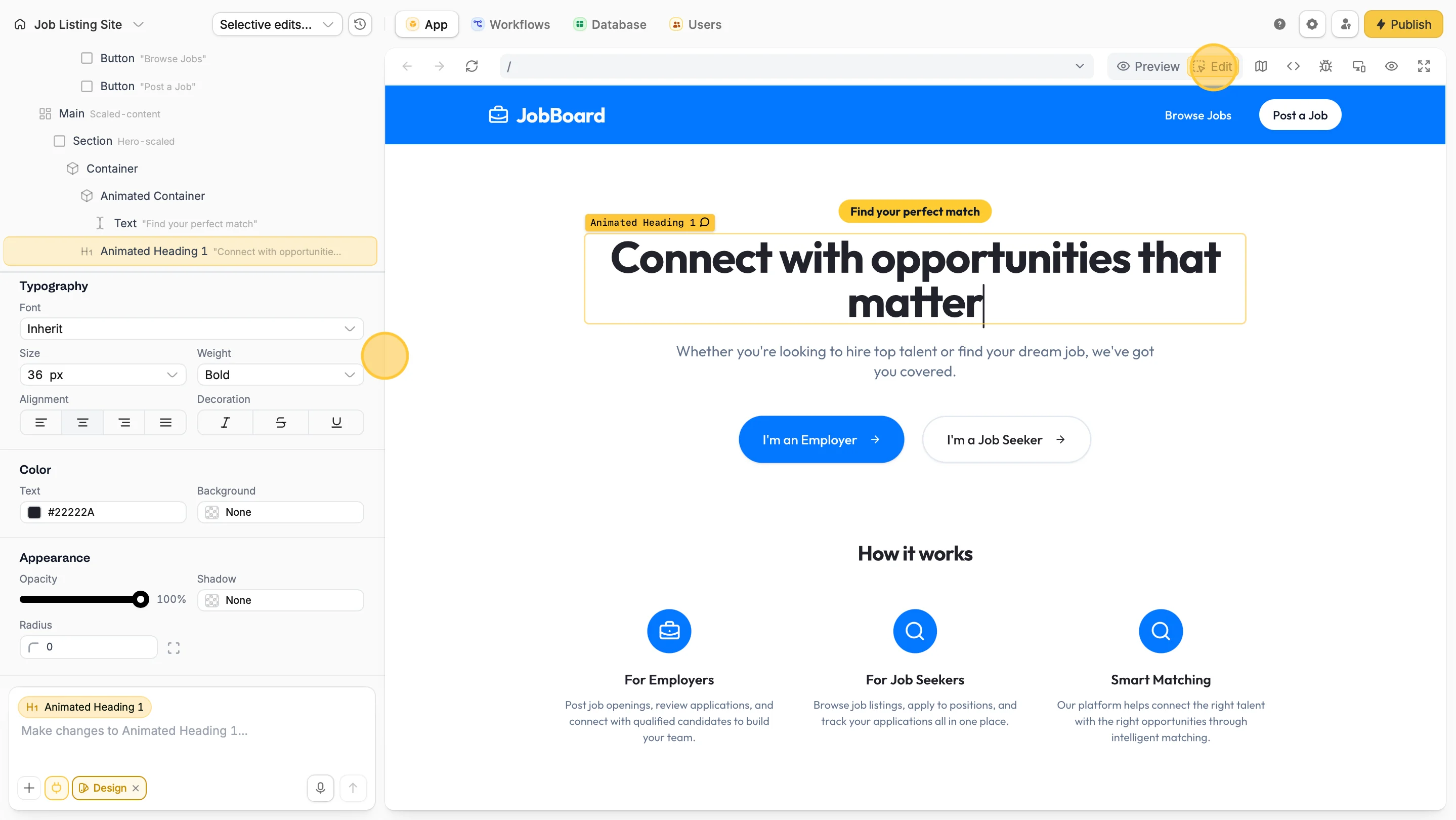 On the left side, **type a prompt** in the chat or **use the manual editor** to adjust typography, color, appearance, and more. Click `Save All` (above the chat box) to finalize edits.
Non-dynamic text can be edited directly in the app, while dynamic text requires a chat prompt.
### When edits use credits
Some edits consume very little credits like changing text directly or making other quick tweaks. Adding a prompt for an edit consumes a little bit more.
For full details on how credits work, check out our [credit usage guide](/help/platform/getting-started/credits).
## Undo changes
Simply click `Undo` on the change you'd like to revert. Once undone, this action cannot be reversed.
On the left side, **type a prompt** in the chat or **use the manual editor** to adjust typography, color, appearance, and more. Click `Save All` (above the chat box) to finalize edits.
Non-dynamic text can be edited directly in the app, while dynamic text requires a chat prompt.
### When edits use credits
Some edits consume very little credits like changing text directly or making other quick tweaks. Adding a prompt for an edit consumes a little bit more.
For full details on how credits work, check out our [credit usage guide](/help/platform/getting-started/credits).
## Undo changes
Simply click `Undo` on the change you'd like to revert. Once undone, this action cannot be reversed.
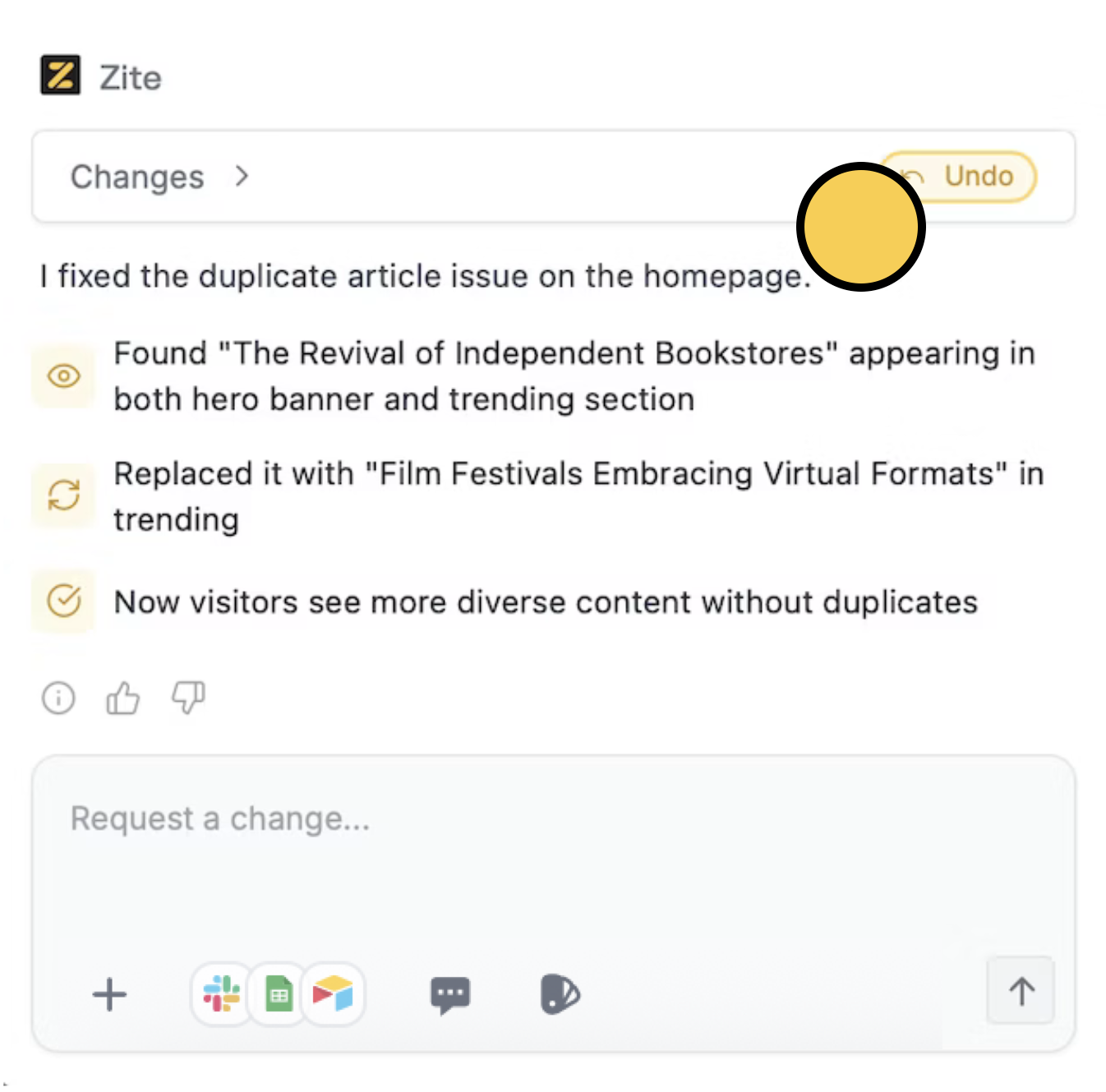 You can undo changes in bulk by restoring a previous version. Learn more [here](/help/platform/basics/history).