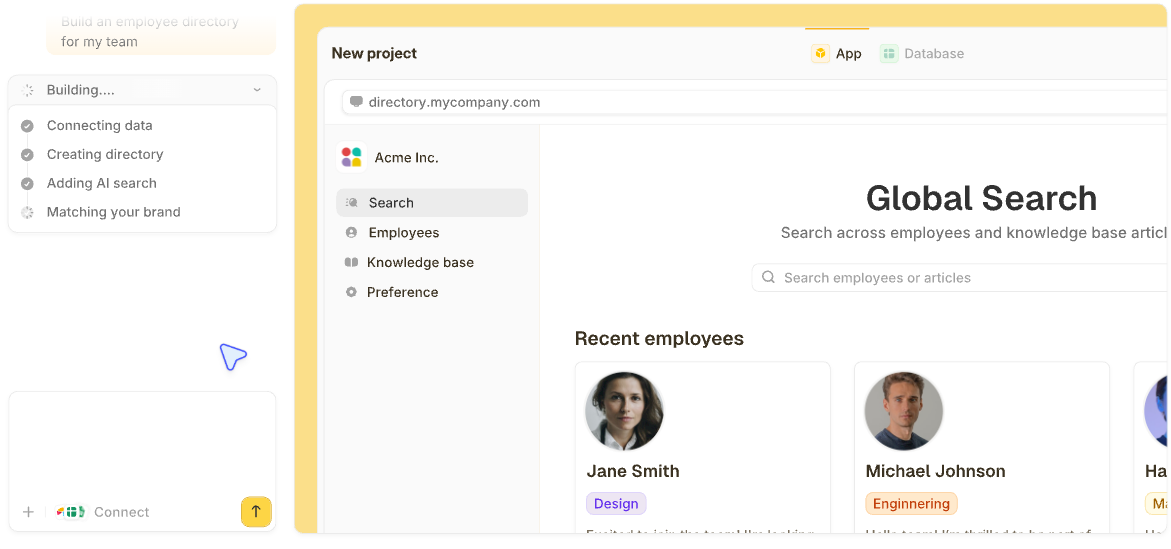


Building a CRM from scratch starts before any software opens, with no spreadsheet or template to inherit. You write a spec, sketch the data model on paper, and only then pick a tool.
What “from scratch” means here
You're starting with nothing. No existing CRM like Salesforce or HubSpot to customize, no template you're tweaking, no spreadsheet that's already half a system. The clean slate is the point.
Building from scratch with no-code tools means describing what you want and inspecting what the tool builds. You stay in control of the data model and the app logic without ever opening a code editor.
The discipline that separates a fast build from a rebuild is this: every later decision (which fields to add, which views to build, which rules to fire) traces back to a spec doc and a paper sketch you wrote before touching any software.
What you’ll need before starting
- A defined sales or operations process: How leads or work items move from start to finish, and who owns each step.
- A no-code app builder: Either a traditional drag-and-drop tool or an AI builder that generates the app from a plain-language description.
- Three to four focused hours: Enough time to plan, build, and pilot a working first version.
- A blank page or whiteboard: For the data model sketch in Step 2.
Skip the first item, and you’ll rebuild your CRM two or three more times.
How the build breaks down
The build covers four jobs across eight steps:
- Plan (Steps 1-2): Write the spec and sketch the data model on paper.
- Build the data foundation (Steps 3-4): Pick a builder and create your tables.
- Build the team experience (Steps 5-6): Create the views your team uses and add app logic.
- Ship to your team (Steps 7-8): Set permissions, connect external data, pilot, then launch.
Step 1: Write down what the CRM has to do
Open a doc and answer five questions:
- Who uses this CRM day-to-day?
- What information do they track for each lead, deal, or account?
- What actions move a record from one stage to the next?
- Who needs to see what, and who should be locked out?
- What reports does leadership ask for at the end of every month?
These answers become your build spec and are referenced at every step that follows. The fields you add come from question 2. The views come from questions 1 and 5. The app logic comes from question 3. The permissions come from question 4.
I've watched teams skip this step and rebuild their CRM twice before realizing the spec was the problem, not the software.
Step 2: Sketch your data model on paper
A CRM’s data model is the set of tables you’ll need and how they connect. For a sales CRM, that’s almost always three tables:
- Contacts: People at the companies you sell to.
- Companies: The accounts you sell to.
- Deals: The opportunities tied to those companies.
Each row in Deals connects back to one Company and at least one Contact. Each row in Contacts belongs to a Company. The relationships are what make a CRM a CRM, and without them, you have three disconnected spreadsheets.
Sketch this out on paper before touching software. A simple diagram with arrows showing what connects to what saves hours of rework later. Your sketch becomes the reference for your tables (Step 4), views (Step 5), and app logic (Step 6), all of which map back to it.
Step 3: Pick your no-code builder
Three options worth considering:
Traditional no-code (drag-and-drop): Tools like Softr or Glide provide templates and components to assemble, which work well for simple use cases. You can hit walls when your data model gets more complex.
AI no-code builders: Tools like Lovable, Base44, and Replit generate working apps from a description, with the underlying logic showing up as code you have to read when something needs adjusting. Zite takes a different approach: the tables, views, and app logic show up as visible building blocks you can inspect and adjust without opening a code editor.
Custom code: The highest ceiling but the longest timeline, realistic only if you have engineers and very specific needs that no other tool meets.
For a from-scratch CRM build, AI no-code is the fastest route. You’ll have a working first version while the custom code option is still in the spec-writing stage.
Step 4: Create your tables, fields, and relationships
This is where the foundation gets built. In an AI builder like Zite, you describe what you want, and the tool creates the tables for you. In a traditional builder, you'll click through to add each one manually.
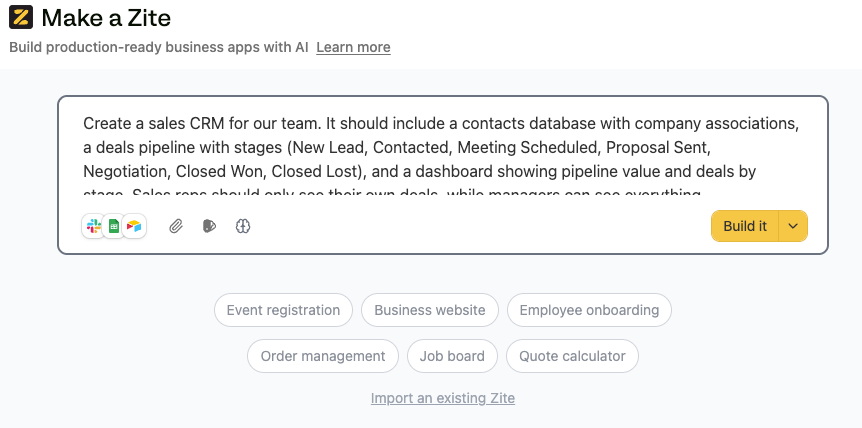
The fields you add should match the answers from question 2 of your spec doc. Resist the urge to plan for every possible future need. Half-empty records create an unrealistic impression that the data is there.
Contacts table fields:
- Name (text)
- Email (email)
- Phone (text)
- Job Title (text)
- Linked Company (record link)
- Last Contacted (date)
Companies table fields:
- Name (text)
- Website (URL)
- Industry (single select)
- Employee Count (number)
- Account Owner (user)
Deals table fields:
- Deal Name (text)
- Linked Company (record link)
- Linked Contact (record link)
- Stage (single select with your pipeline stages)
- Value (currency)
- Expected Close Date (date)
- Owner (user)
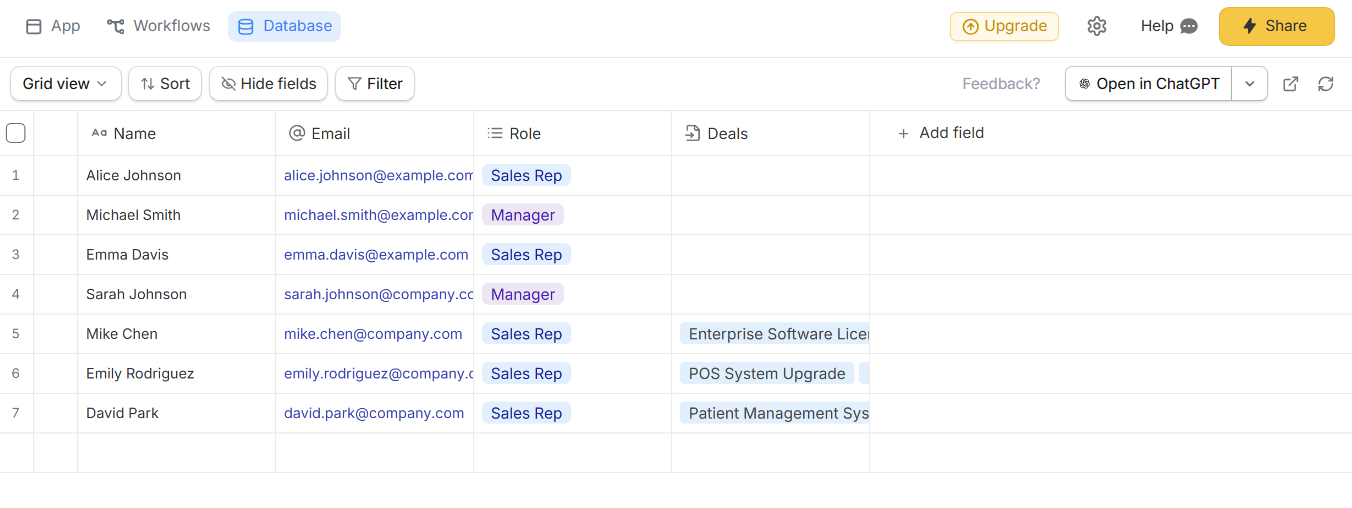
The linked-record fields are what stitch the data model together, exactly as you drew them on your paper sketch in Step 2. When you click a Company, you should see every Contact at that company and every Deal in flight. If your builder doesn't natively support linked records, switch tools before going further.
When I'm building a CRM, the first thing I test is the click-through from a Company record. If I can't see every Contact and Deal in a single view, the tool isn't ready for the rest of the build.
For teams migrating off Airtable, the table-and-link structure carries over cleanly.
Step 5: Create the views your team uses every day
Your tables hold the data, and views are how your team interacts with them. The views you build should map back to the user roles you named in question 1 of your spec doc and the reports leadership asked for in question 5.
Build at least four views to start:
- Pipeline kanban: Deals are organized as cards by stage, dragged between columns as they progress.
- My open deals: A filtered list view showing only the logged-in user’s active deals.
- Company detail page: One account at a time, showing every contact and every deal in flight.
- Sales dashboard: Pipeline value by stage, deals expected to close this month, and win rate by source.
Build the pipeline kanban first. It’s the most-used view in any CRM and the one your team will judge the whole build on.
Step 6: Add app logic for the actions you take most often
App logic handles the busywork your team would otherwise do manually. These are rules that fire when something changes in your data, and they come straight from question 3 of your spec doc (the actions that move a record from one stage to the next).
For a sales CRM, the high-value rules include:
- When a deal moves to “Proposal sent,” remind the owner in seven days if no activity has been logged.
- When a new contact submits your website form, create a contact record and assign it to the next rep in rotation.
- When a deal hits “Closed-won,” update the linked company’s status to “Customer” and notify finance.
- When a deal sits at any stage for more than 30 days, flag it on the manager’s dashboard.
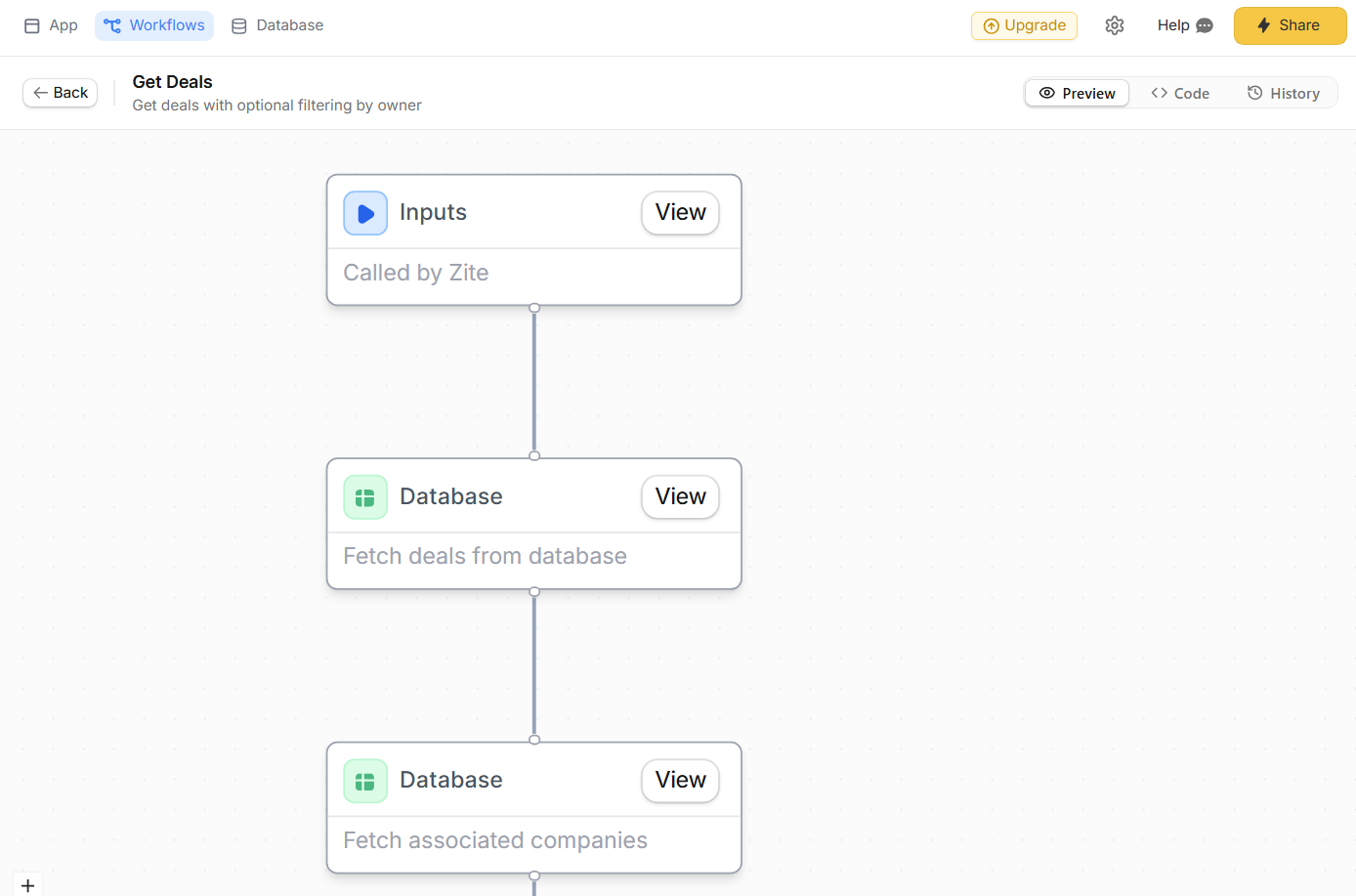
AI builders generate this logic from a plain-language description. The big advantage is the visual flowchart that appears afterward. You can see exactly what the AI built, trace how each rule fires, and troubleshoot anything that isn't behaving the way you expected.
Step 7: Set permissions and connect your existing data
Before anyone logs in, decide who sees what. This is question 4 of your spec doc made real:
- Reps: Their own deals and unclaimed leads.
- Managers: The full team’s pipeline and reports.
- Finance: Closed-won deals and revenue data only.
- External users (if applicable): Their own portal data, nothing else.
Look for a builder that lets you set role-based permissions on tables, views, and individual fields. If your CRM holds commission data or customer pricing, lock those fields to specific roles before launch.
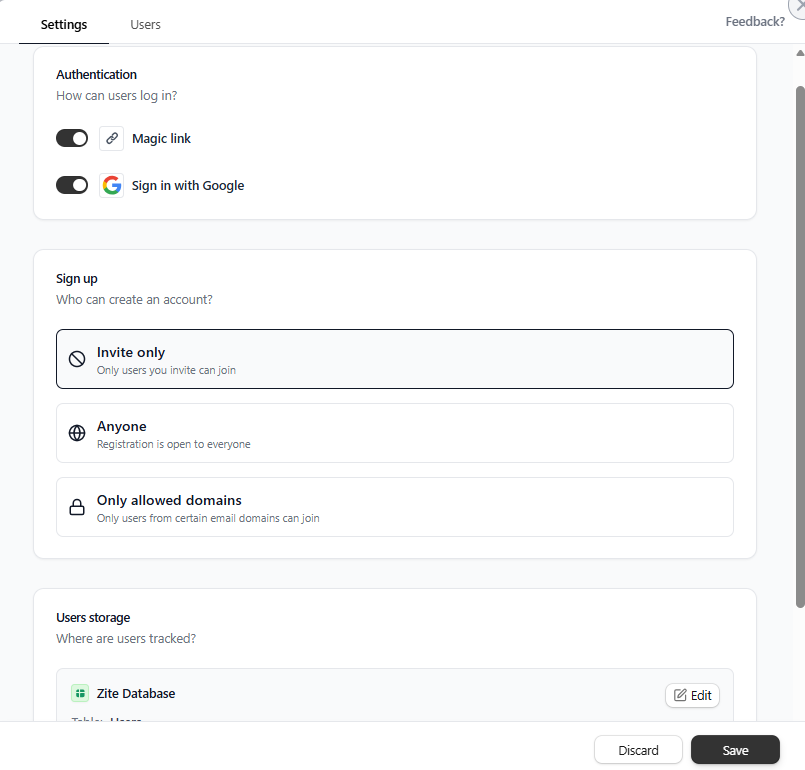
Connect external data while you’re at it:
- Form submissions: New leads from your website auto-create contact records.
- Email and calendar: Sync conversations and meetings into the activity feed.
- Slack: Push closed-won notifications to your sales channel.
- Lead enrichment: Tools like Clearbit or Apollo automatically fill in company size, industry, and contact details.
Step 8: Pilot with one user before the team launch
Pick one person on your team and have them use the CRM for a full week before anyone else logs in. The pilot is where you find out whether your spec doc and paper sketch hold up under real use.
You’ll discover:
- Fields you forgot to add (or fields no one needs).
- Views the pilot user wants to redesign within an hour of logging in.
- App logic that fires too aggressively or not aggressively enough.
- Permissions that are too restrictive (or too generous) for everyday use.
Fix what they find, then add a second user and fix the next round. Roll out to the full team only after the first two pilots are stable.
Rolling out to your whole team on day one almost always backfires. Every time I've done it, something fundamental has broken before I could spot it. Ten people had already created records in the broken version, and I was cleaning up data while fixing the build.
Common pitfalls when building from scratch
- Building before sketching the data model: Leads to rebuilds when the team realizes the tables don’t connect the right way.
- Adding too many fields upfront: Half-empty records create false confidence that the data is there.
- Treating views as cosmetic: A bad pipeline view is the fastest way to lose team adoption.
- Skipping permissions until the end: You’ll redo every role assignment after the first leak.
- Launching to the whole team at once: Compounds early mistakes across every user before you can fix them.
How Zite makes building a CRM from scratch easier
Building from scratch usually requires getting the data model, app logic, and access controls right, all at once. Zite generates all three from a single description of what you want to build, then shows you exactly what it built so you can adjust.
Here’s how Zite helps:
- AI-generated tables and fields: Describe your sales process, and Zite creates the Contacts, Companies, and Deals tables with the right links between them.
- Visual app logic you can inspect: Every workflow Zite generates shows up as a visual flowchart, so you can trace exactly what fires when a deal moves through stages.
- Built-in database: Tables and fields live inside Zite, so there’s no separate database to wire up or pay for.
- Role-based access: Control who sees which deals, contacts, and reports before you roll out.
- Unlimited users on every plan: No per-seat pricing, so adding sales reps doesn’t change your bill.
- Branding kit: Drop in your website URL, and Zite reads your colors and fonts so the CRM matches your brand on day one.
- Native connections to Airtable, Google Sheets, and Slack: If your data already lives in those tools, Zite reads from them directly.
Pricing starts free, with Pro at $19/month and Business at $69/month, both billed monthly.
Start building with Zite. Describe the CRM you want and have a working version before the afternoon’s over.
Frequently Asked Questions
How long does it take to build a CRM system from scratch?
Building a CRM system from scratch takes three to four hours for a working first version using an AI no-code builder. A polished version that your full team uses comfortably takes another week or two of iteration based on pilot feedback.
Do I need to know how to code to build a CRM from scratch?
No, you don’t need to know how to code to build a CRM from scratch. AI no-code tools let you describe what you want in plain language, then generate the tables, app logic, and views without requiring you to write any code.
What’s the most important step when building a CRM from scratch?
The most important step when building a CRM from scratch is sketching your data model on paper before you open any software. The tables and the links between them are the foundation of every other decision you’ll make, and getting them wrong forces a rebuild later.
Can a CRM I build from scratch handle real sales volume?
Yes, a CRM you build from scratch can handle real sales volume if you choose a builder with a database designed for it. Zite supports 100,000 records on Pro and 250,000 on Business, far above the per-base caps you'd hit in spreadsheet-based tools.
Can I add tables later as my needs grow?
Yes, you can add tables later as your needs grow, which is one of the advantages of building from scratch with no-code tools. Most builders let you add new tables and link them into your existing data model without rebuilding anything, so starting with the three core tables (Contacts, Companies, Deals) is fine.