

Overview
Building multiple apps and landing pages for the same company or brand requires staying within brand guidelines to ensure a consistent look and feel across everything you create. Without a shared system, it can be difficult to keep colors, fonts, and styling aligned across different projects. A brand kit helps solve this by keeping your key brand elements in one place so you can easily apply them across all apps and pages.Brand kits are applied per app, not per workspace. Apps in the same workspace can use the same brand kit or different ones, but you must select and apply the desired brand kit separately in each app.
Free, Pro, and Business organizations can have one brand kit. Team and Enterprise plans include unlimited brand kits.
What is a brand kit?
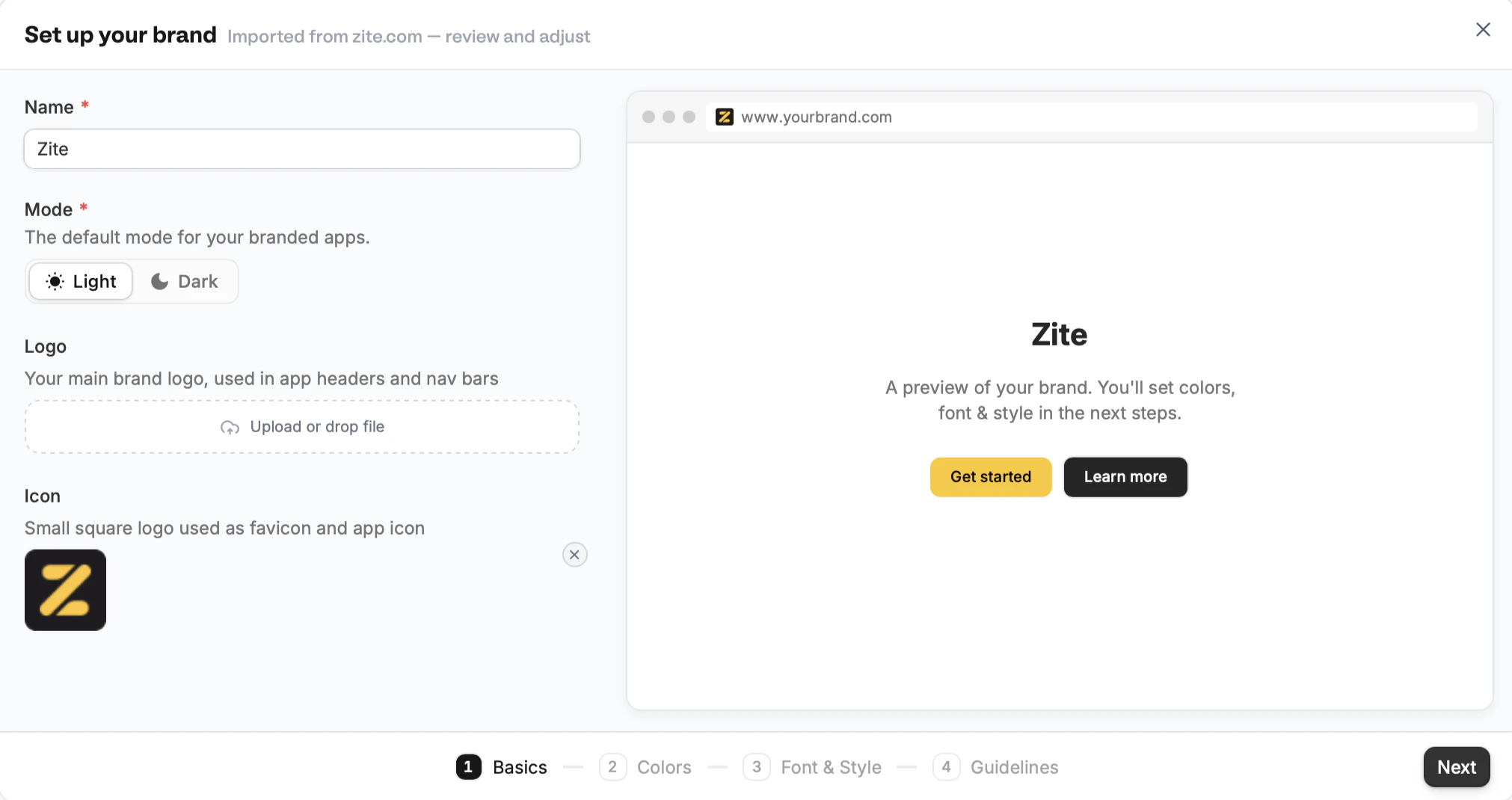
It’s a centralized hub containing the visual styling elements that represent your brand. It contains the following:- Logo: The primary visual symbol used in app headers and nav bars
- Icon: A small square logo used as favicon and app icon
- Font: The main text style
- Color Palette: Primary and secondary colors, including accents if any
- Guidelines: A set of rules that define how a brand should look and be presented
Build your brand kit
1
Choose how to set up
You can create or access a brand kit in three places: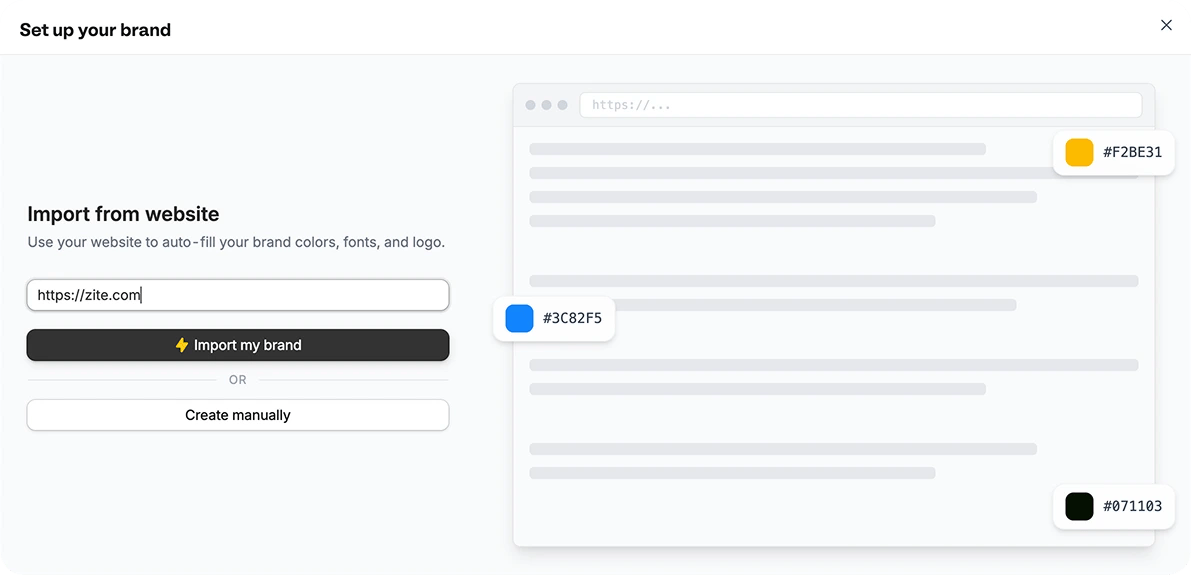
- In the initial app prompt box, click the
swatch iconand selectCreate brand kit. - In the app editor, click the
swatch icon, then openTheme. - From
Settings, openBrand kit.
Import your website or Create manually. For our example, let’s use Zite’s website.2
Add or edit your brand assets
Importing will automatically capture a website’s brand information and styling.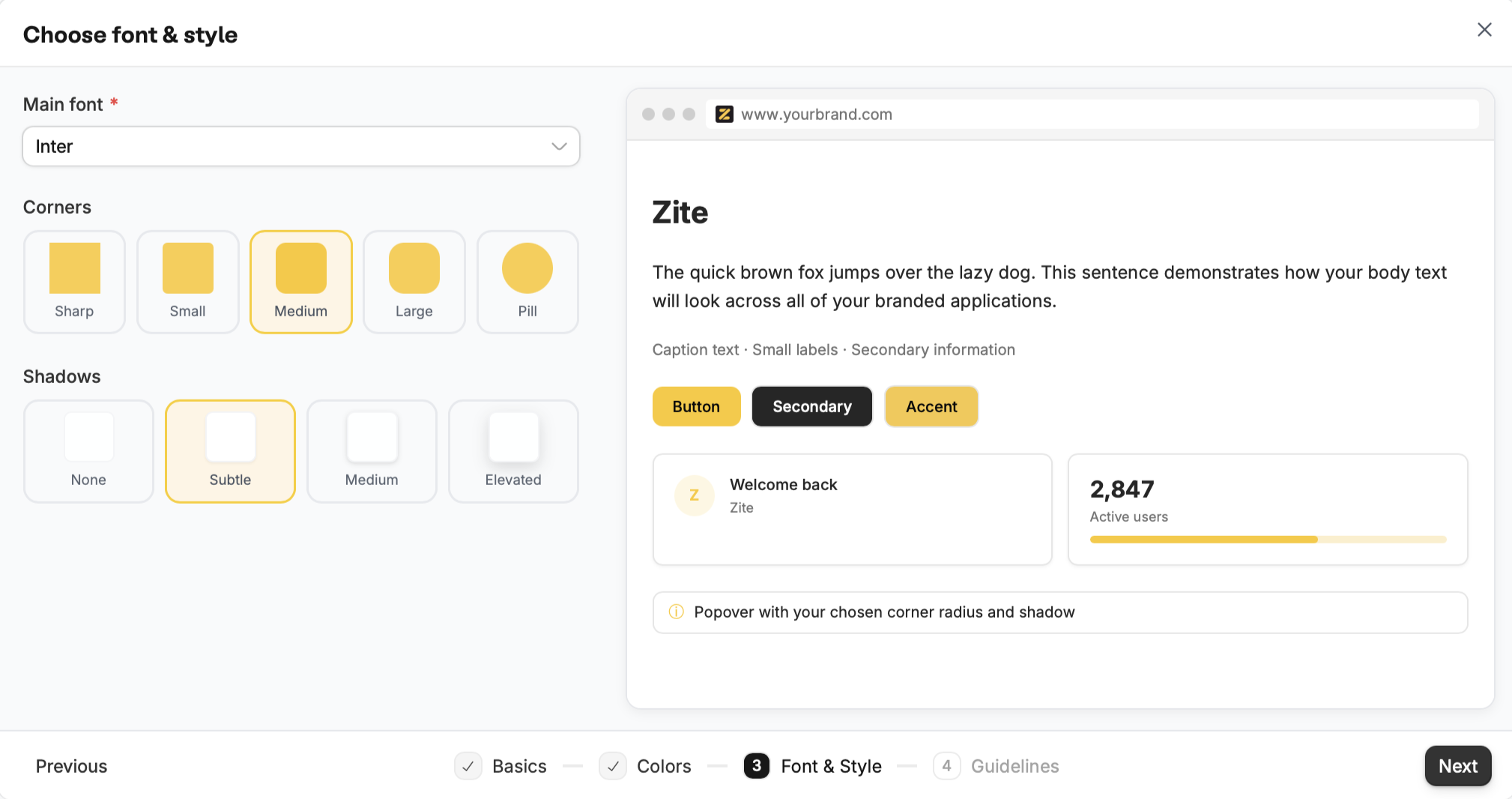
3
Review guidelines
Importing also captures brand guidelines, specifically Visual Style, Tone of Voice, and Business Context. You can add more to this or edit them as needed.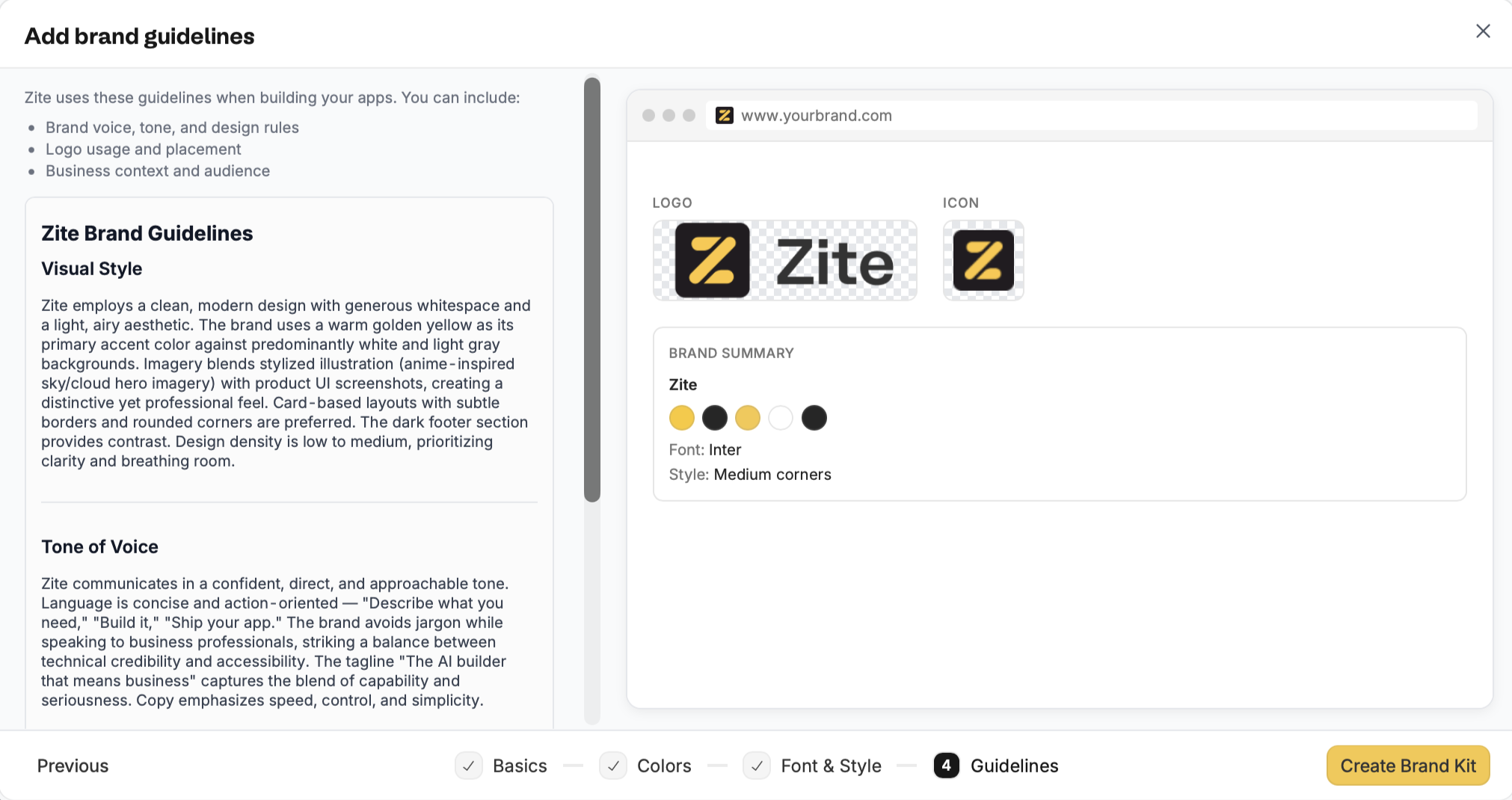
Create Brand Kit once you’ve reviewed all the details.That’s it! You’ll now see your brand kit when creating an app.Keep colors readable
When Zite creates a theme from your brand kit, it checks the contrast between text and backgrounds. It adjusts text, chart colors, and focus indicators where needed while keeping your main brand colors for backgrounds and buttons. Review the result in your app, especially if you’ve made individual color changes. For a wider check of readability and keyboard use, ask the Accessibility agent to review it.Edit an existing brand kit
On the dashboard, click yourAccount name followed by Settings.
Navigate to Branding kit and click your brand to edit it.
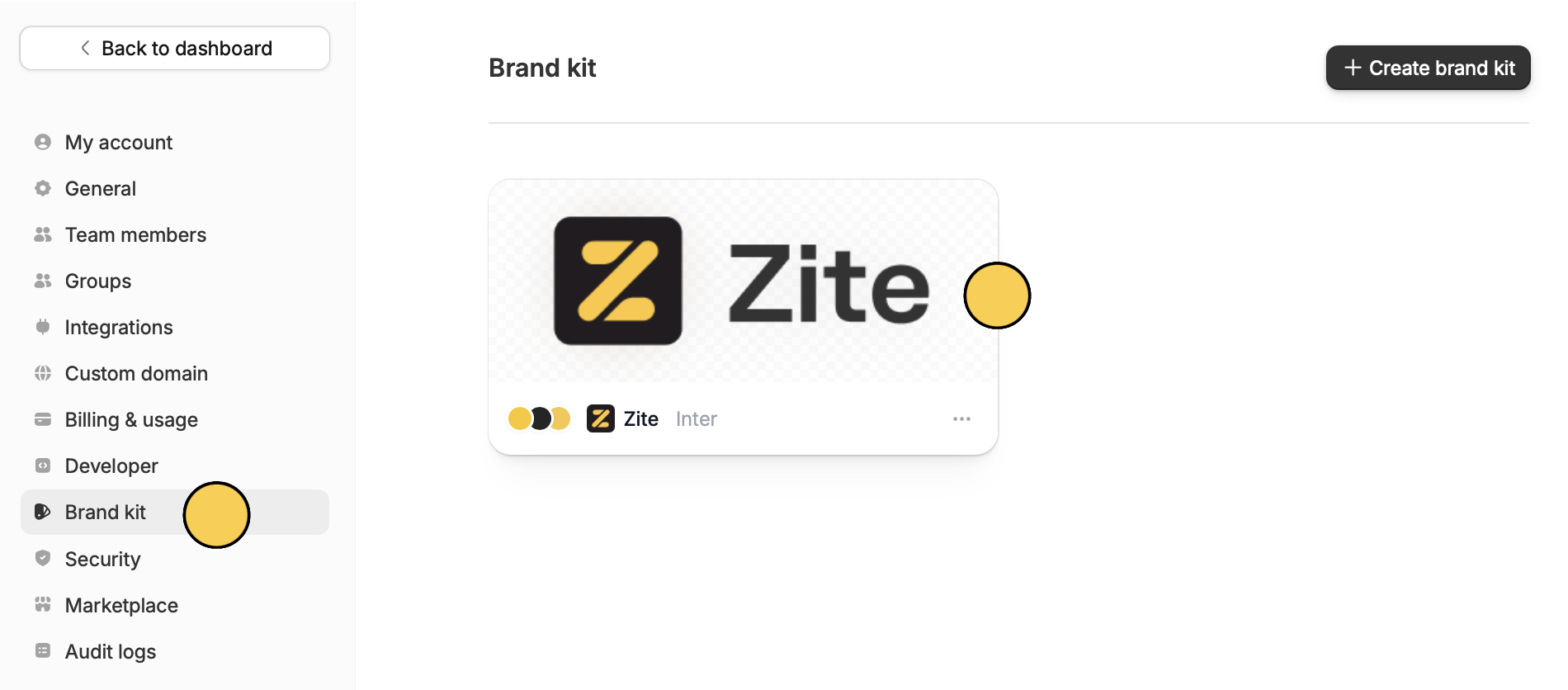
ellipsis to Delete a brand kit.
Apply brand kit to an existing app
If you already have an existing app and want to quickly match it to your brand, you can choose your brand kit as its theme.1
Open your app
Click your Zite app from the dashboard.
2
Edit theme
Click the 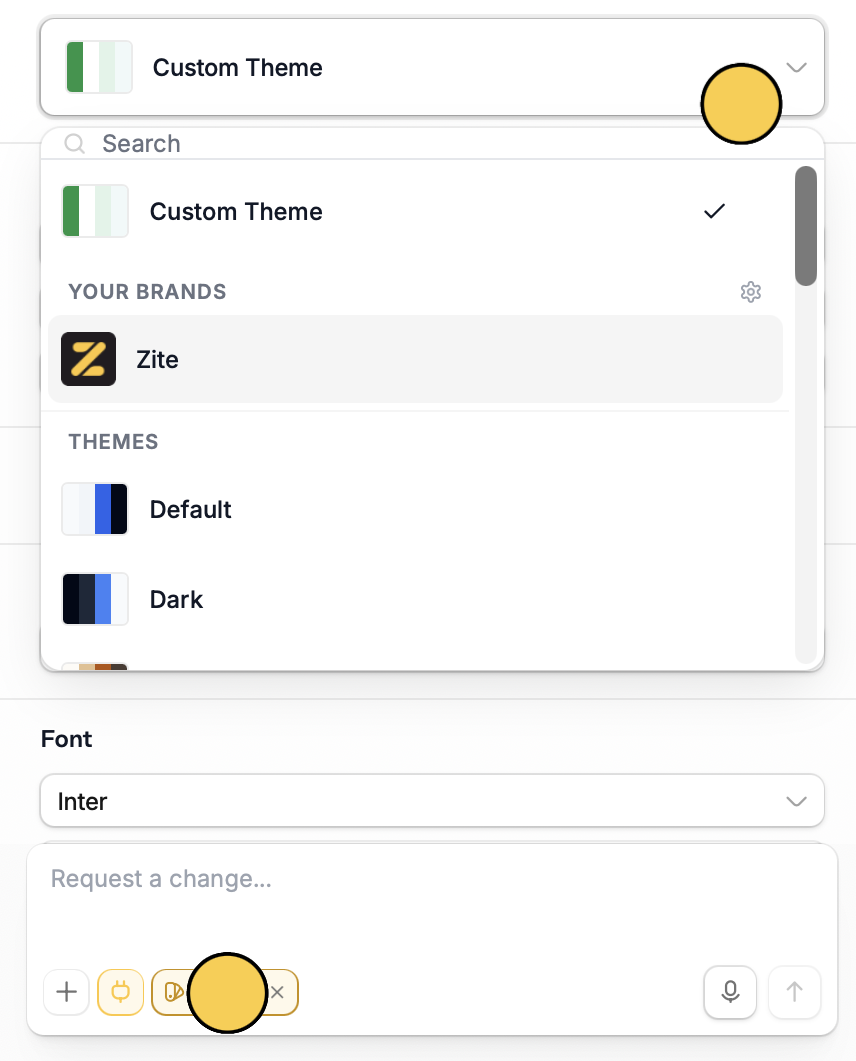
swatch icon on the bottom left. Then, open the Theme dropdown menu to choose your brand kit.3
Save changes
After choosing your brand kit, click 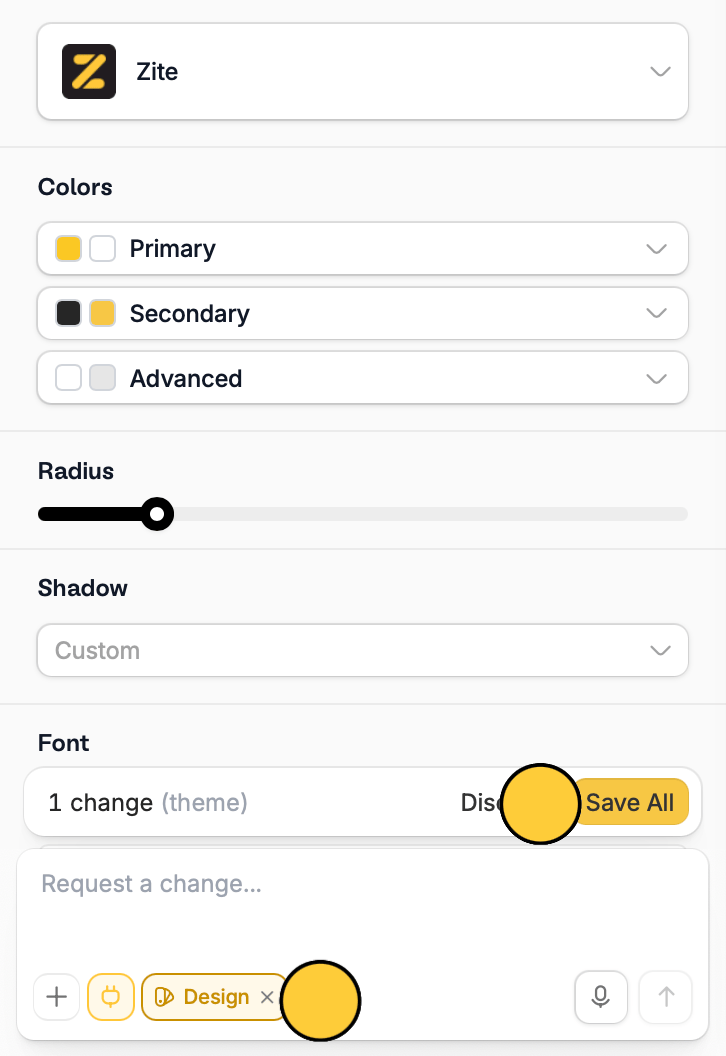
Save all. Then, click exit design by clicking x.