

Edit an element yourself
1
Select the element
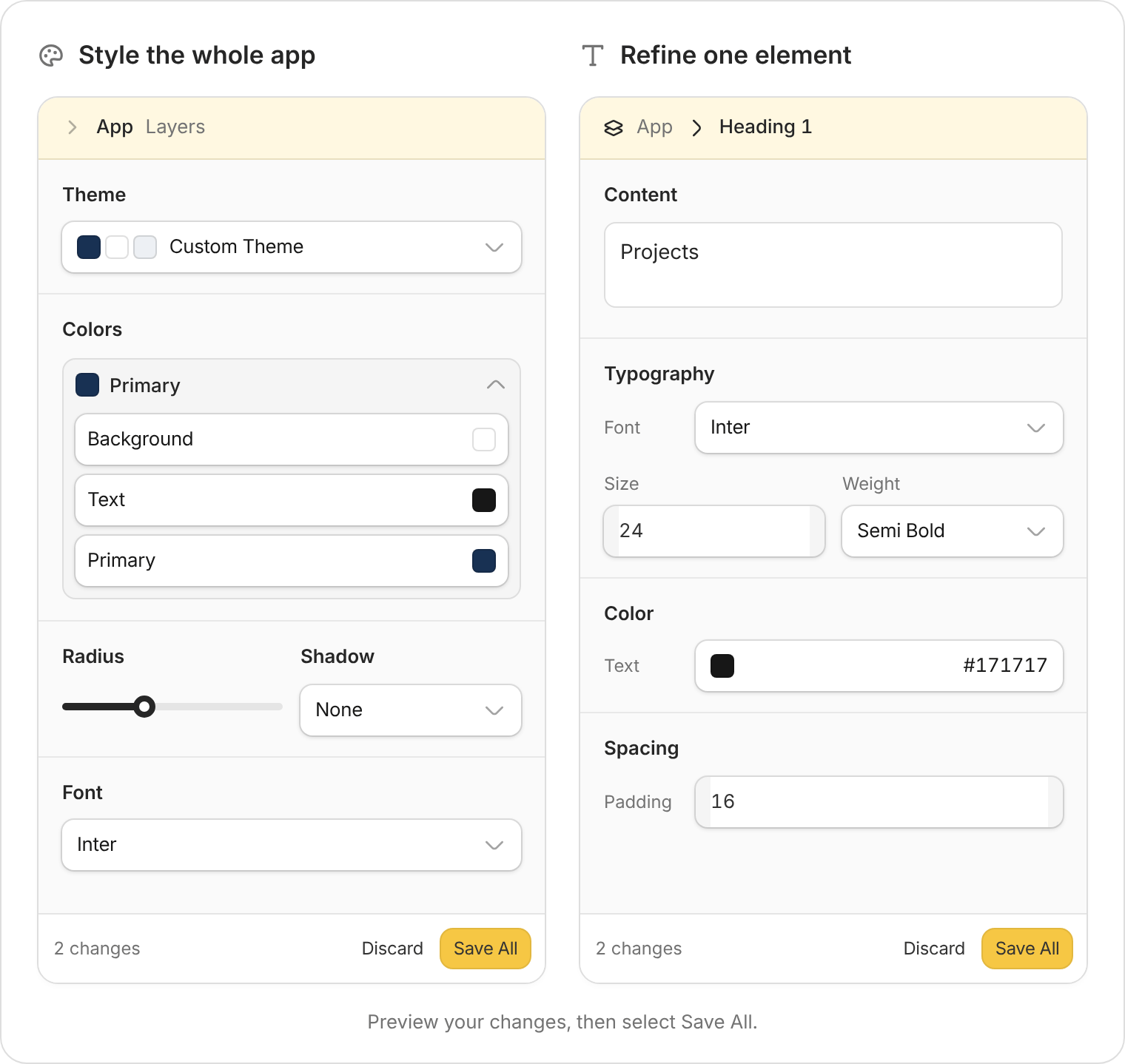
In the preview toolbar, select Edit, then click the heading, button, or other element you want to change.
2
Make your changes
Use the properties panel to adjust the available settings. For example, rename “Submit” to “Send request” or make a heading larger.The controls depend on what you select. Text loaded from a database may need to be changed in the record or through the chat instead.
3
Save and check
Select Save All, then leave editing mode and try the page. Publish when you’re ready for people to see the update.
Ask Zite to change a selected element
Select Comment in the preview toolbar, then click the element. Describe the result you want and send your request.On this project card, show the due date in red when it is overdue. Keep completed projects green.Include what should change and what should stay the same. Review the result, then test the action in your app. For changes across the whole system, use the main chat. For an app-wide visual update, see Design tools.