These settings are available for apps shared to the web with authentication. Internal apps use your organization’s permissions instead.
Open Notifications and emails
Open your app, clickSettings , then select Notifications in the sidebar.
Set branding and sender
Customizing invitation and sign-in email branding, sender, and content is available on the Business plan and above.
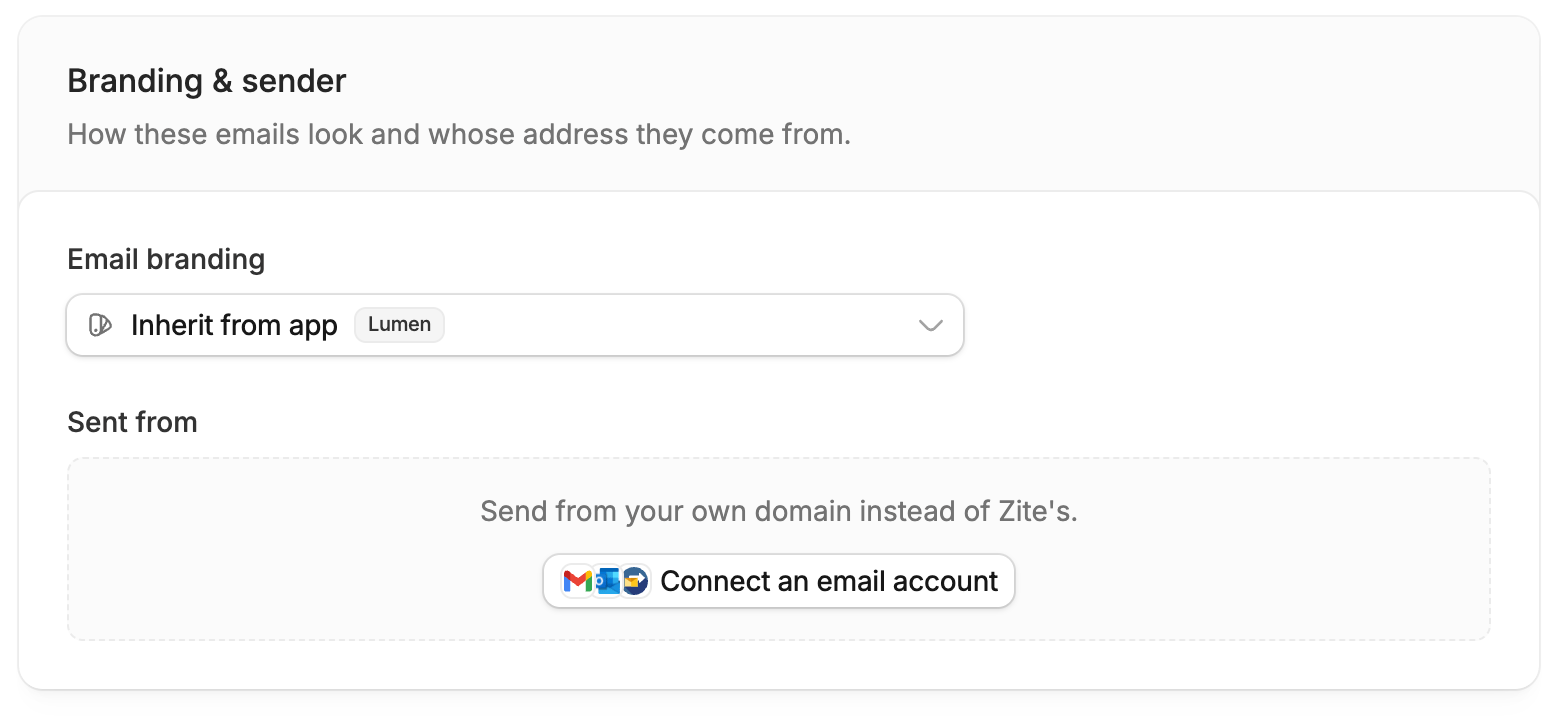
- Email branding: Choose a brand kit, or select
Inherit from appto use the app’s brand kit. - Sent from: Emails send from Zite by default. Click
Connect an email accountto use Gmail, Outlook, or Custom SMTP.
Save after changing the brand kit or sender selection.
Invitation, sign-in, and custom emails
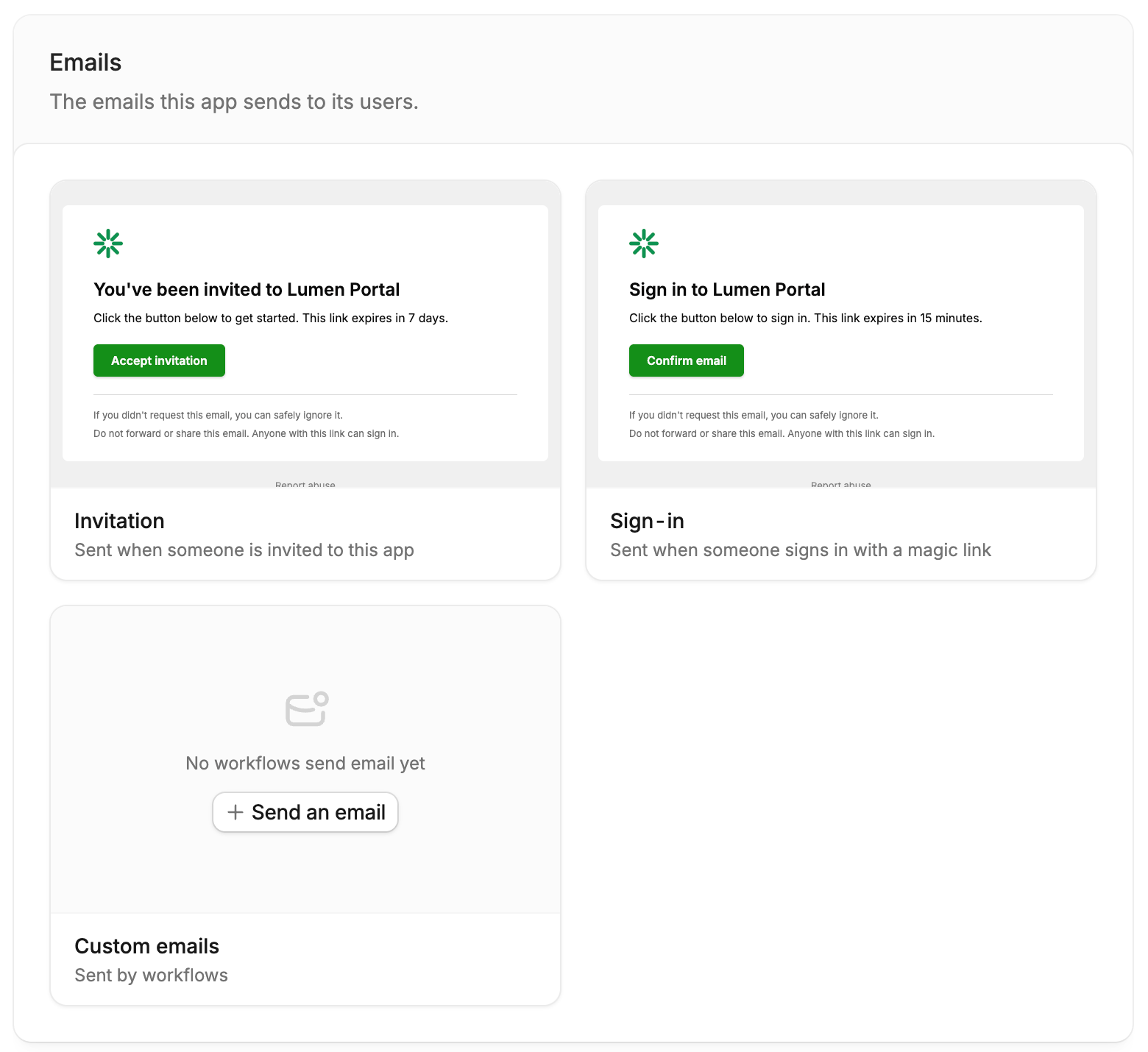
The Emails section shows previews of your invitation and sign-in emails. The Custom emails card lists workflows that send email.
Invitation sign-in links expire after 7 days; sign-in magic links expire after 15 minutes. An invitation that links to the login page instead has no expiry.
Custom emails from workflows
Use the Custom emails card to open Workflows filtered to those that send email. If none exist yet, clickSend an email, then describe what you want in the builder chat. See Notify with email to connect Gmail, Outlook, or SMTP in a workflow.
Edit an invitation or sign-in email
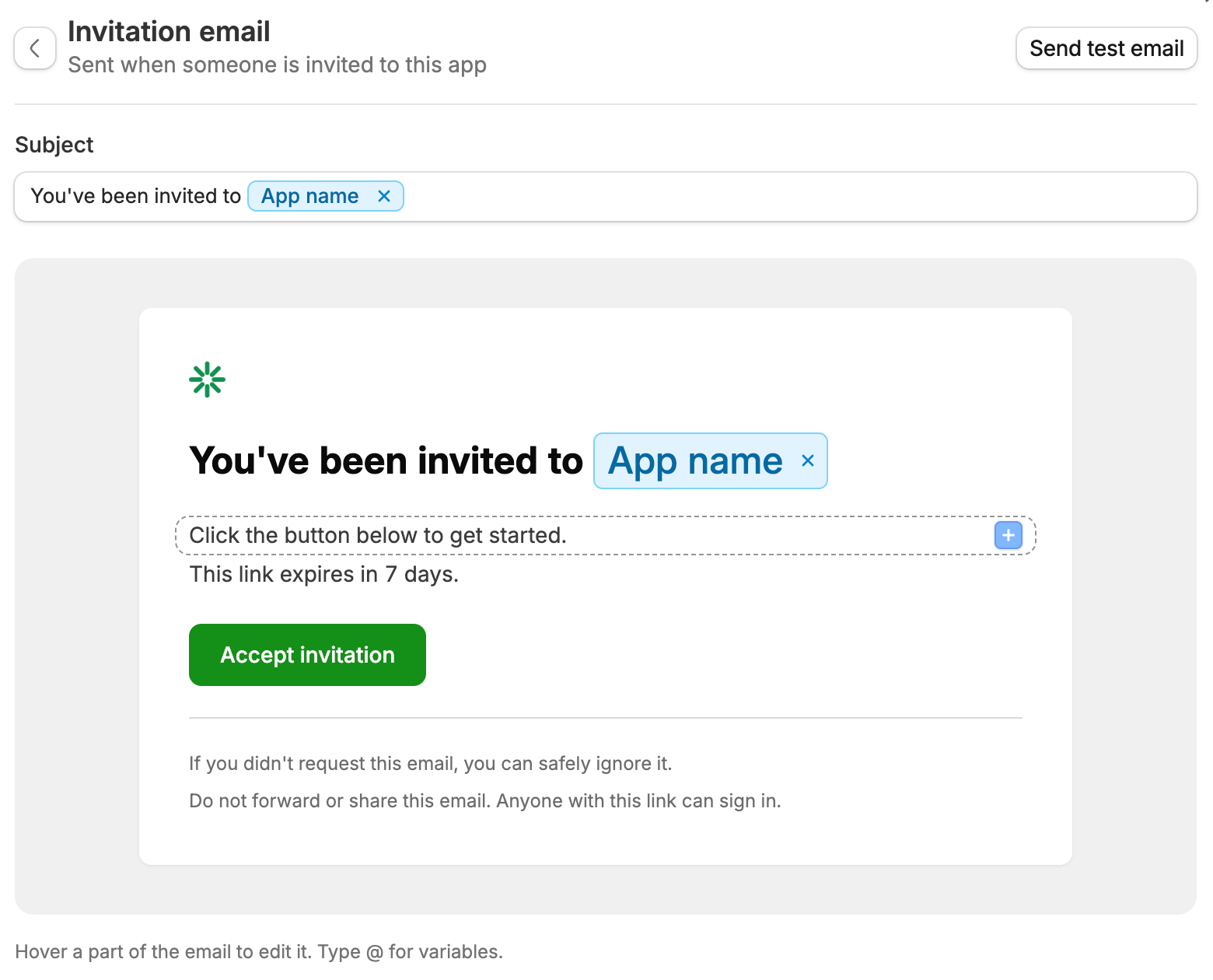
Open the Invitation or Sign-in card to edit its template.1
Edit the email
Change the Subject, then hover and click the title, message, or button to edit its text.
2
Add variables
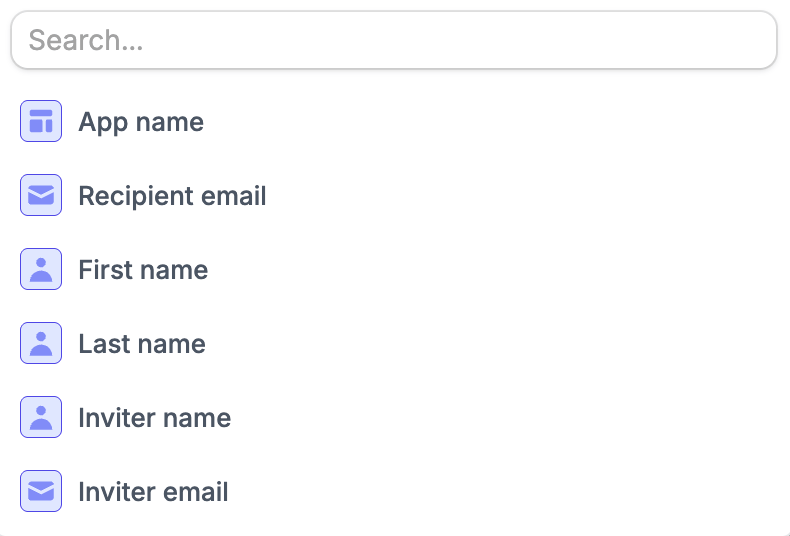
Type
@ to insert a value that fills in when the email sends. Invitation emails support App name, Recipient email, First name, Last name, Inviter name, and Inviter email.3
Send a test
Click
Send test email to check your template.4
Save your changes
Click
Save at the bottom of App settings to apply your edits.