

App SSO requires the Zite Enterprise plan and an identity provider configured with Zite. Without that plan, the setting shows an Enterprise label and Contact sales for access. For signing in to Zite itself, see SAML SSO for your Zite account.
Enable SSO
1
Prepare the app
Set up your organization’s SSO provider. Your app must be Public with login enabled.
2
Choose SSO as the sign-in method
Open Settings → Login → Sign-in and enable Sign in with SSO. This disables Magic link and Google sign-in for the app.
3
Review sign-up access
Choose Invite only, Anyone, or Only allowed domains. SSO verifies identity; your sign-up rules decide who may create an account. Review any custom access rules too.
4
Save, publish, and test
Save your settings and publish. Open the live app in a private browser window and sign in with an allowed work account.
What users see
People enter their work email, sign in through your identity provider, then return to the app.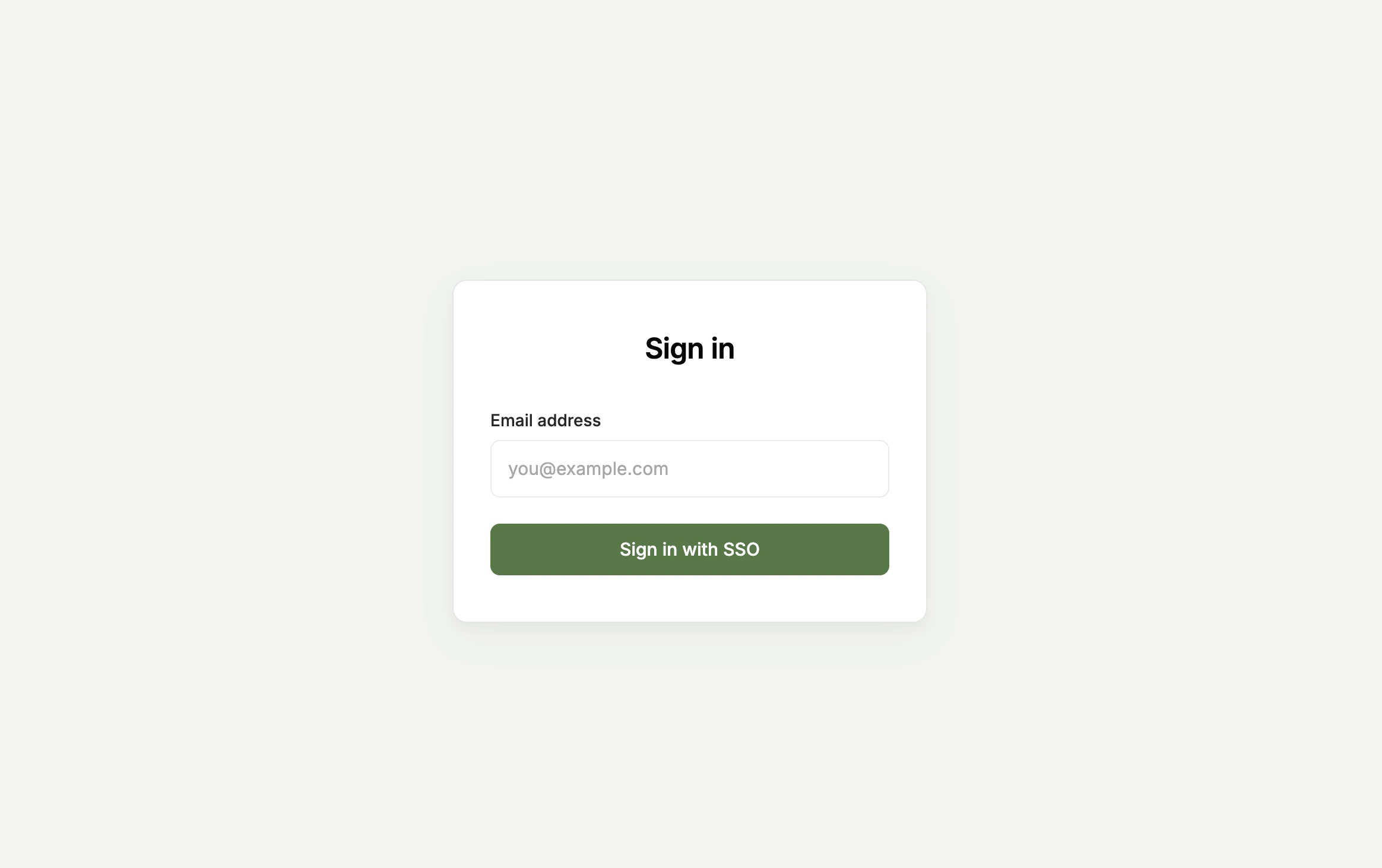
Use custom attributes
After someone signs in through SSO, available attributes appear in Login → Sign-in → Custom attributes.- Select the attributes your app needs and save.
- Use Refresh attributes if new ones are missing.
- Tell Zite how to use them: “Show the relevant approval queue for the user’s department.”
FAQs
Can people without an account in our identity provider sign in?
Can people without an account in our identity provider sign in?
No. Turning on SSO switches off the magic link and Google sign-in options, so only people with an account in your identity provider can sign in.
Is app SSO for internal apps?
Is app SSO for internal apps?
App SSO is for external apps with a login. Internal apps use Login with Zite, meaning the person’s Zite account, which follows your organization’s own sign-in setup.