Overview
Credits are used when Zite does AI-powered work, including Chat, Plan, and Build mode. The amount depends on how much work Zite needs to do: the model used, the size of the app, the context in the chat, and how many screens, files, tables, workflows, or integrations need to be changedCredits are used when Zite does AI-powered work, including Chat, Plan, and Build mode. The amount depends on how much work Zite needs to do: the model used, the size of the app, the context in the chat, and how many screens, files, tables, workflows, or integrations need to be changed.Quick guide
| What you need | Use this | Why it helps |
|---|---|---|
| Understand an existing page, workflow, bug, or setting | Chat mode | Zite can inspect and explain without changing the app. |
| Scope a new app or major feature | Plan mode | You can review screens, data, and workflows before Zite builds. |
| Make a known app change | Build mode | Zite edits the app only after the goal is clear. |
| Make a simple edit | Selective Edits, manual editing, or Zite Mini | Small changes do not need the most capable model. |
| Start a different feature after a long thread | Multi-chat | A fresh chat keeps context focused and can reduce unnecessary input. |
| Solve a complex or persistent issue | Zite Max | Use the strongest model when the task needs deeper reasoning. |
Start in the right mode
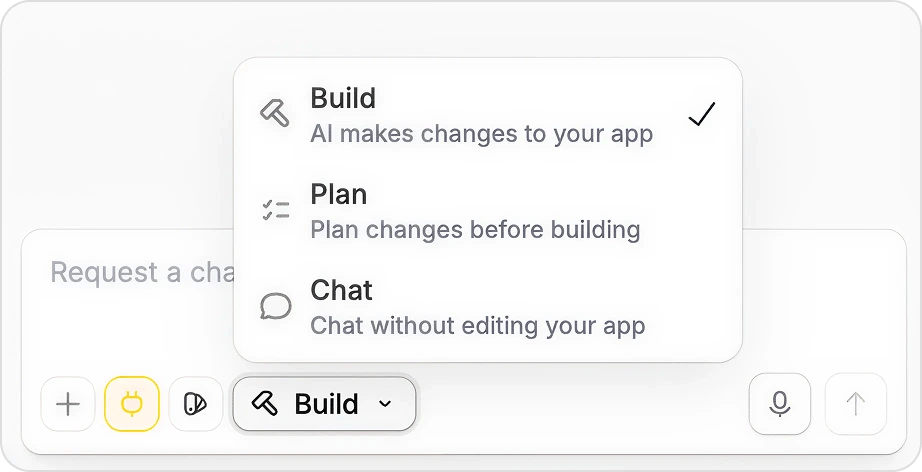
Zite has three modes: Build, Plan, and Chat. Use them intentionally instead of sending every request straight to Build mode.
Use Chat mode before you build
Chat mode is read-only. It can inspect your app, explain how something works, suggest approaches, or help you decide what to ask for next.Quick guide
| What you need | Use this | Why it helps |
|---|---|---|
| Understand an existing page, workflow, bug, or setting | Chat mode | Zite can inspect and explain without changing the app. |
| Scope a new app or major feature | Plan mode | You can review screens, data, and workflows before Zite builds. |
| Make a known app change | Build mode | Zite edits the app only after the goal is clear. |
| Make a simple edit | Selective Edits, manual editing, or Zite Mini | Small changes do not need the most capable model. |
| Start a different feature after a long thread | Multi-chat | A fresh chat keeps context focused and can reduce unnecessary input. |
| Solve a complex or persistent issue | Zite Max | Use the strongest model when the task needs deeper reasoning. |
Start in the right mode
Zite has three modes: Build, Plan, and Chat. Use them intentionally instead of sending every request straight to Build mode.
Use Chat mode before you build
Chat mode is read-only. It can inspect your app, explain how something works, suggest approaches, or help you decide what to ask for next. Use Chat mode when you are about to ask something broad like:Use Chat mode when you are about to ask something broad like:- “Improve this dashboard”
- “Make the checkout flow better”
- “Why is this not working?”
- “What should I add to this client portal?”
- “Improve this dashboard”
- “Make the checkout flow better”
- “Why is this not working?”
- “What should I add to this client portal?”
Use Plan mode for bigger work
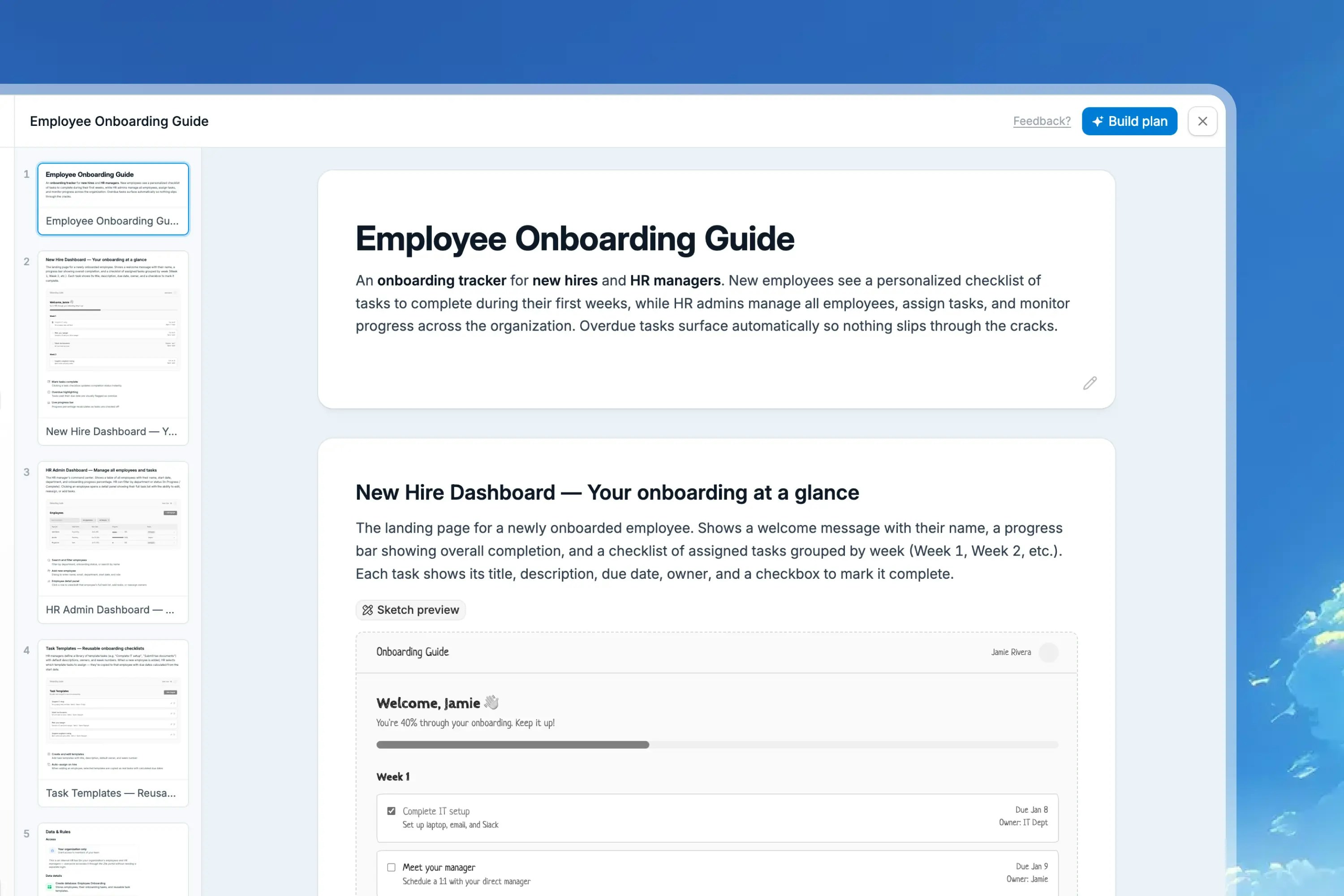
Plan mode is useful when the app direction, database structure, user roles, workflows, or integrations are still being decided. It consumes credits, but it can save more by catching wrong assumptions before Zite edits the app. Use Plan mode for:- New apps
- New portals or dashboards
- Features with multiple screens
- Workflow-heavy changes
- Client or stakeholder review
- Anything where the first build would be expensive to redo
Use Plan mode for bigger work
Plan mode is useful when the app direction, database structure, user roles, workflows, or integrations are still being decided. It consumes credits, but it can save more by catching wrong assumptions before Zite edits the app. Use Plan mode for:- New apps
- New portals or dashboards
- Features with multiple screens
- Workflow-heavy changes
- Client or stakeholder review
- Anything where the first build would be expensive to redo

Use Build mode when the change is clear
Build mode is where Zite changes your app. Use it when you can name the page, component, data, behavior, and constraints.Choose the right model
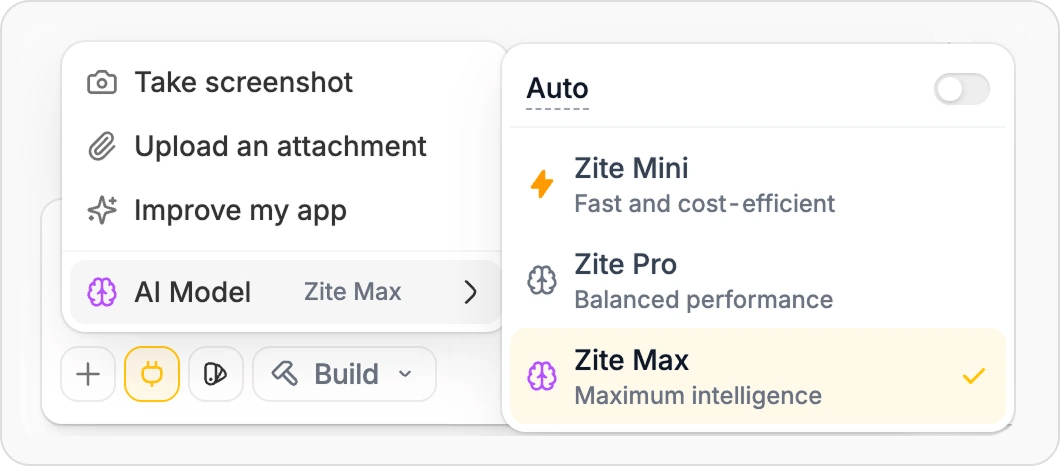
Different models use credits at different rates. Use the lightest model that is likely to complete the task well.
| Model | Use it for | Avoid using it for |
|---|---|---|
| Zite Mini | Text updates, small styling changes, simple component tweaks, quick fixes | New data models, complex workflows, or unclear requests |
| Zite Pro | Most feature work, bug fixes, design updates, and normal app building | Problems that have already failed several times |
| Zite Max | Complex reasoning, multi-step workflows, architecture changes, persistent bugs, high-stakes edits | Routine text, color, spacing, or copy changes |
Plan mode and Chat mode use Zite Max automatically. Build mode uses the model you select.
Keep chat context focused
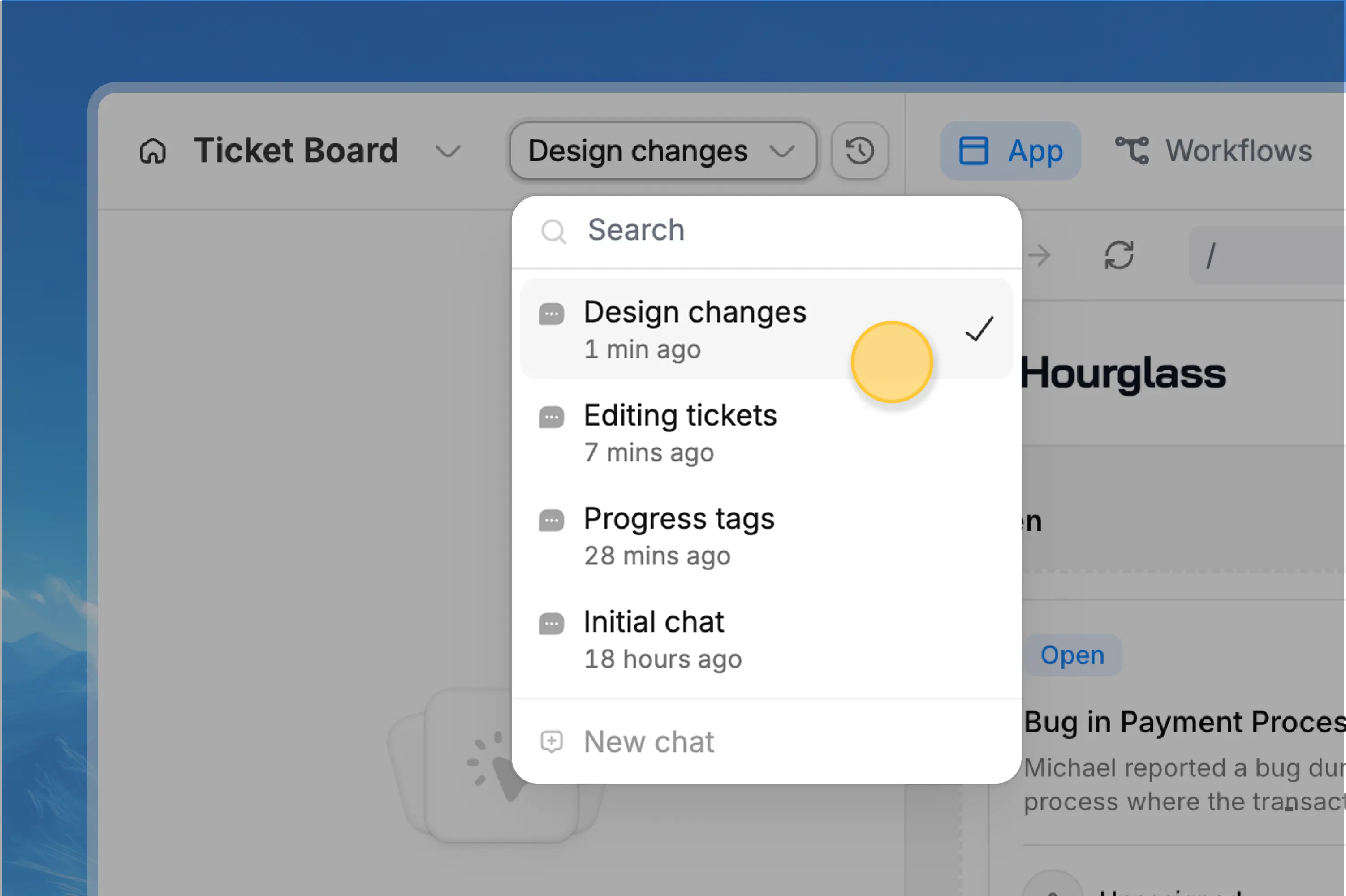
Long chats can include old decisions, bug reports, experiments, and outdated instructions. That extra context can make requests harder to process and can increase credit usage. Use Multi-chat to split unrelated work into separate threads inside the same app.
- You are moving to a different feature
- A troubleshooting thread is finished
- The chat has become long or unfocused
- You want to explore a different approach
- Earlier instructions should not influence the next change
- You are refining the change Zite just made
- The next request depends on recent context
- You are fixing an issue caused by the last build
Write prompts that reduce rework
Clear requests save credits because Zite spends less effort guessing and you spend less effort correcting the result. Good prompts usually include:- Where the change should happen
- What should change
- Why the change matters
- Data or integrations involved
- Constraints Zite should preserve
- What not to change
Weak request
Strong request
Attach references when they remove guesswork
Screenshots, mockups, spreadsheets, and example files can reduce rework when the visual target or data shape matters. Use attachments for:- Showing the current issue
- Giving Zite a target design or layout
- Sharing spreadsheet columns before creating a database
- Showing exactly where a button, text block, or table should change
Attachments are useful when they clarify the task. If an attachment is unrelated or outdated, leave it out so the request stays focused.
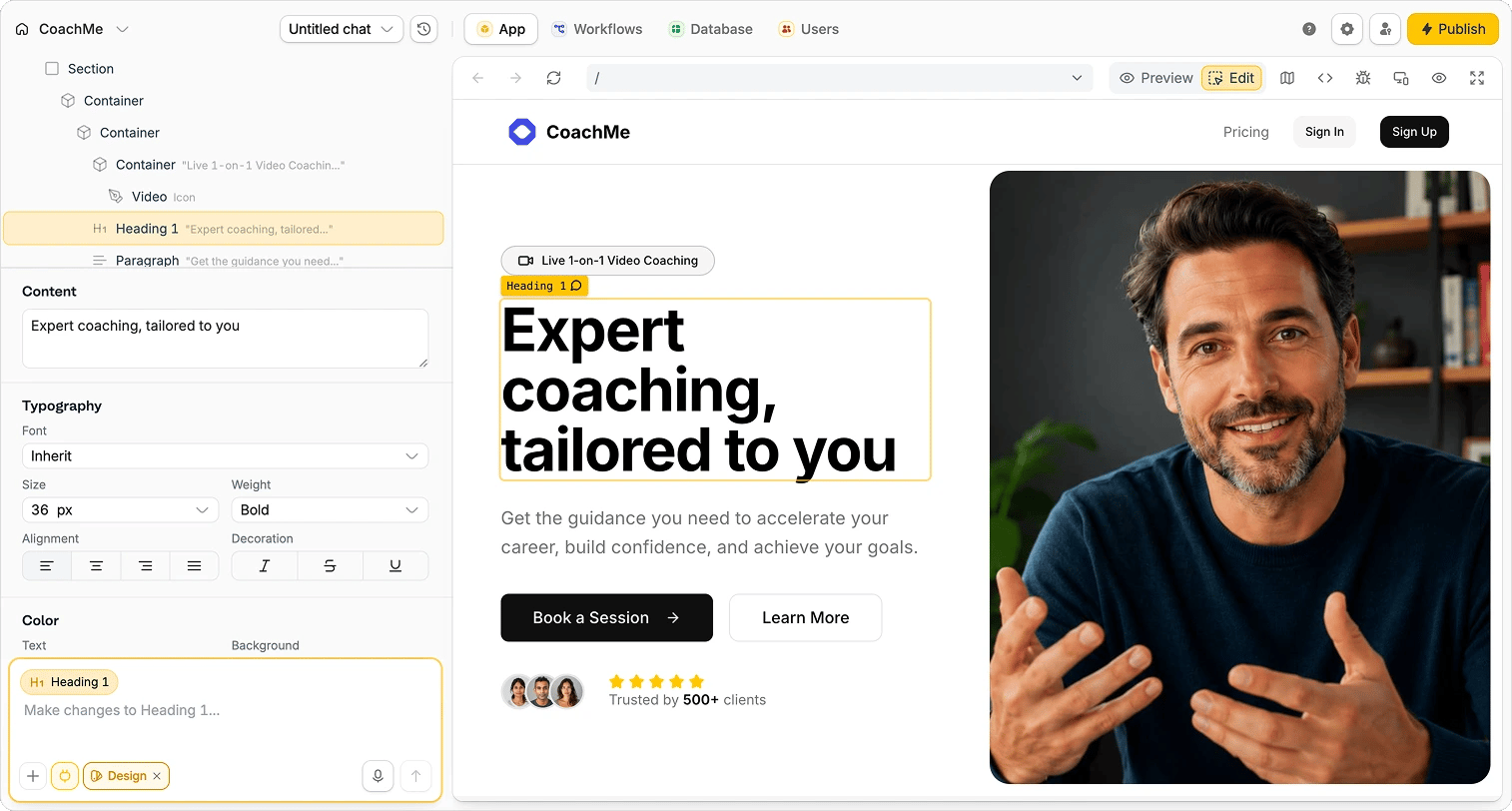
Use Selective Edits for small visual changes
Not every change needs an AI request. Selective Edits can often be faster and may use no credits. Use Selective Edits for:- Rewriting text
- Adjusting text size, weight, alignment, color, shadows, or opacity
- Changing background color or opacity
- Editing button color, rounding, or padding
- Deleting simple text or elements
A credit-efficient build workflow
Ask in Chat mode
Use Chat mode to inspect the current app, compare options, or ask what needs to change. Do this before editing when the path is unclear.
Plan large changes
Use Plan mode for new apps, multi-screen features, workflows, databases, and client-facing portals. Review the plan before building.
Build the smallest useful change
In Build mode, ask for one clear outcome. Include the page, data, behavior, constraints, and anything Zite should leave alone.
Use the right model
Start with Zite Mini for simple edits, Zite Pro for normal building, and Zite Max for complex or repeated problems.
Common credit drains
| Credit drain | Better approach |
|---|---|
| Vague prompts like “make this better” | Describe the page, outcome, data, and constraints. |
| Building before deciding the requirements | Use Chat mode or Plan mode first. |
| Using Zite Max for routine edits | Use Zite Mini, Zite Pro, or Selective Edits. |
| Working in one very long chat forever | Start a new chat for unrelated features. |
| Asking Zite to change unrelated areas at once | Split the work by page, workflow, or feature. |
| Repeating “try again” after a bad result | Explain what was wrong and what should be different. |
| Uploading broad references without instructions | Attach only useful references and say exactly how to use them. |
Use Build mode when the change is clear
Build mode is where Zite changes your app. Use it when you can name the page, component, data, behavior, and constraints.Choose the right model
Different models use credits at different rates. Use the lightest model that is likely to complete the task well.
| Model | Use it for | Avoid using it for |
|---|---|---|
| Zite Mini | Text updates, small styling changes, simple component tweaks, quick fixes | New data models, complex workflows, or unclear requests |
| Zite Pro | Most feature work, bug fixes, design updates, and normal app building | Problems that have already failed several times |
| Zite Max | Complex reasoning, multi-step workflows, architecture changes, persistent bugs, high-stakes edits | Routine text, color, spacing, or copy changes |
Plan mode and Chat mode use Zite Max automatically. Build mode uses the model you select.
Keep chat context focused
Long chats can include old decisions, bug reports, experiments, and outdated instructions. That extra context can make requests harder to process and can increase credit usage. Use Multi-chat to split unrelated work into separate threads inside the same app.
- You are moving to a different feature
- A troubleshooting thread is finished
- The chat has become long or unfocused
- You want to explore a different approach
- Earlier instructions should not influence the next change
- You are refining the change Zite just made
- The next request depends on recent context
- You are fixing an issue caused by the last build
Write prompts that reduce rework
Clear requests save credits because Zite spends less effort guessing and you spend less effort correcting the result. Good prompts usually include:- Where the change should happen
- What should change
- Why the change matters
- Data or integrations involved
- Constraints Zite should preserve
- What not to change
Weak request
Strong request
Attach references when they remove guesswork
Screenshots, mockups, spreadsheets, and example files can reduce rework when the visual target or data shape matters. Use attachments for:- Showing the current issue
- Giving Zite a target design or layout
- Sharing spreadsheet columns before creating a database
- Showing exactly where a button, text block, or table should change
Attachments are useful when they clarify the task. If an attachment is unrelated or outdated, leave it out so the request stays focused.
Use Selective Edits for small visual changes
Not every change needs an AI request. Selective Edits can often be faster and may use no credits. Use Selective Edits for:- Rewriting text
- Adjusting text size, weight, alignment, color, shadows, or opacity
- Changing background color or opacity
- Editing button color, rounding, or padding
- Deleting simple text or elements

A credit-efficient build workflow
Ask in Chat mode
Use Chat mode to inspect the current app, compare options, or ask what needs to change. Do this before editing when the path is unclear.
Plan large changes
Use Plan mode for new apps, multi-screen features, workflows, databases, and client-facing portals. Review the plan before building.
Build the smallest useful change
In Build mode, ask for one clear outcome. Include the page, data, behavior, constraints, and anything Zite should leave alone.
Use the right model
Start with Zite Mini for simple edits, Zite Pro for normal building, and Zite Max for complex or repeated problems.
Common credit drains
| Credit drain | Better approach |
|---|---|
| Vague prompts like “make this better” | Describe the page, outcome, data, and constraints. |
| Building before deciding the requirements | Use Chat mode or Plan mode first. |
| Using Zite Max for routine edits | Use Zite Mini, Zite Pro, or Selective Edits. |
| Working in one very long chat forever | Start a new chat for unrelated features. |
| Asking Zite to change unrelated areas at once | Split the work by page, workflow, or feature. |
| Repeating “try again” after a bad result | Explain what was wrong and what should be different. |
| Uploading broad references without instructions | Attach only useful references and say exactly how to use them. |