

What are workflows?
A workflow is the work your app performs behind the scenes. For example, a client submits a request, then a workflow saves it to your database and sends a confirmation email. Use workflows to:- Manage records: Find customers, save requests, or update project statuses.
- Notify people: Send emails or messages through connected tools.
- Use AI: Summarize customer notes or categorize support requests.
- Connect your tools: Read and update information through integrations.
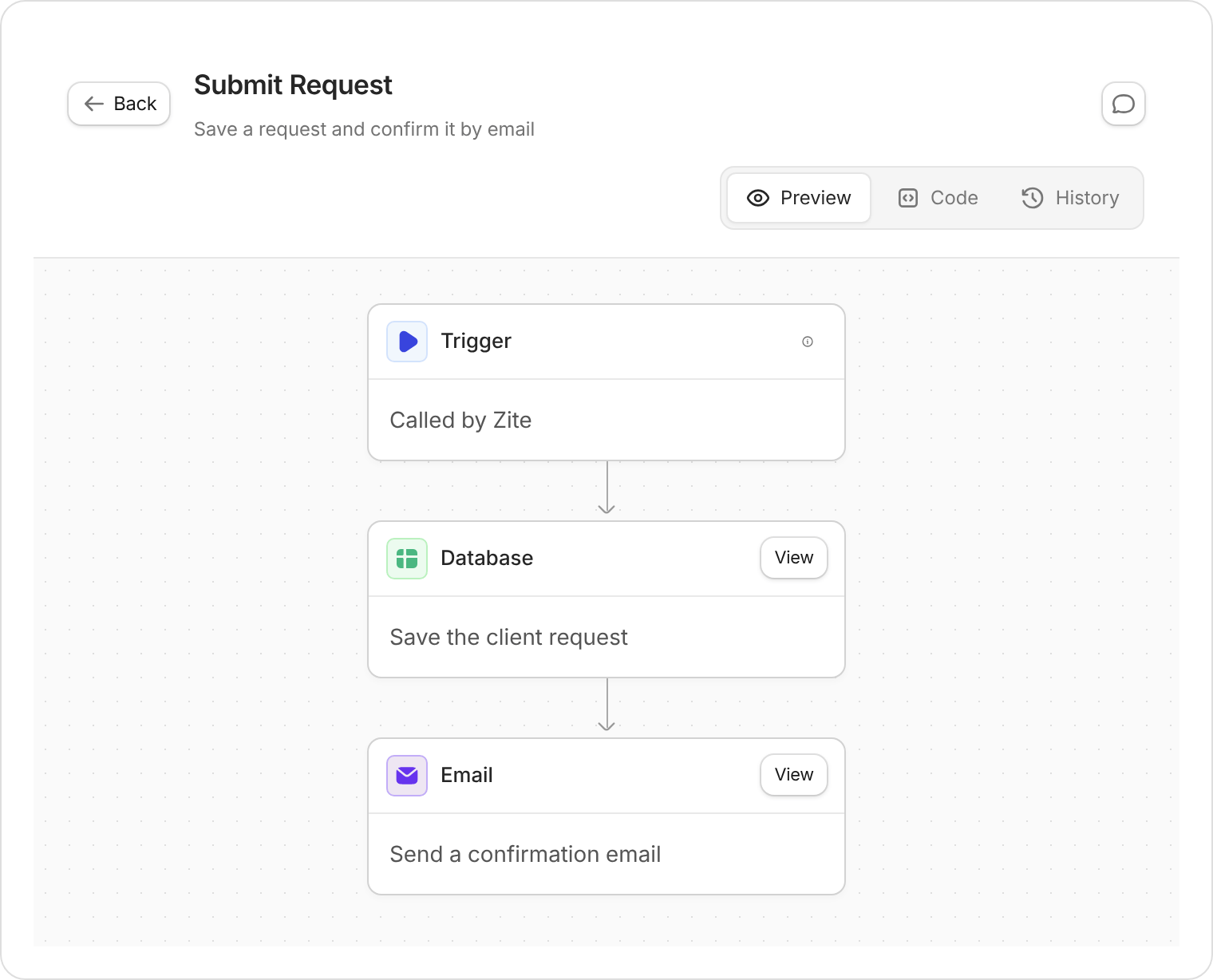
Example: one workflow saves a client request, then sends a confirmation. Your steps depend on what you ask Zite to build.
What starts a workflow?
Tell Zite when to run it, what to check, and what should happen.
Creating a workflow alone doesn’t make it watch for every database change. Describe the event or schedule that should start it, including any conditions.
Create workflows
1
Describe the task
In the editor’s chat, name the action, information, and result you want. For example:
When a signed-in client submits a request, save it in the Requests table with their email and a status of New. Send them a confirmation only after the request is saved.
2
Connect your tools
Follow Zite’s connection prompt if the workflow needs another service. Tell Zite which account, table, or destination to use.You can also manage connections with Integrations in the Workflows tab.
3
Test and publish
Try the action in your app’s preview. Check that the right record changes and the message reaches the right person.To test a workflow directly, open Workflows, select it, then choose History → Test run. Enter the inputs and, if required, choose Run as user, then select Run workflow.Once it works as expected, select Publish.
Test runs perform the workflow’s actions. Use sample records and your own email address when testing changes or messages.
View workflows
Open Workflows at the top of the editor. Search by name, or use Filter to narrow the list. The Apps column shows the services used; Access shows who can run it. Select a workflow to open it:- Preview: Follow the steps and conditions.
- History: Check past runs, inspect a failure, or start a test run.
- Chat about this workflow: Ask Zite to explain or change that workflow.
Authentication
For workflows involving customer or team data, tell Zite who should be allowed to run them and which records they may access. Test with the appropriate user, including someone who should not have access. See Authentication for sign-in settings.Workflow runs and your monthly limit
- Published workflow: Counts toward your workflow-run allowance. Multiple steps in one execution count as one run.
- Editor test: Doesn’t use the workflow-run allowance. Zite-provided AI can still use credits.
- Building or changing workflows with AI: Uses AI credits, separately from runs.