

Scheduled workflows are available on Business, Team, and Enterprise plans. If you downgrade after creating schedules, existing schedules keep running, but you need to upgrade again before creating new schedules.
Types of schedules
Zite supports two common schedule patterns:
You can create an editor schedule in chat, or create one manually from the
Schedules tab in Workflows. Click Create scheduled task, then describe what should run and when. For example, you can ask Zite to email a summary of open tickets every Monday at 9:00 AM.
You can also build a button in your app that lets a user set a reminder for three days from now.
Create a scheduled workflow
1
Describe the scheduleIn the chat editor, tell Zite what should happen and when it should run.Zite understands your current time and timezone when interpreting prompts like “Monday at 9:00 AM.” If you want a different timezone, include it in the prompt.
2
Review the generated workflowZite creates the workflow and attaches a schedule to it. Open 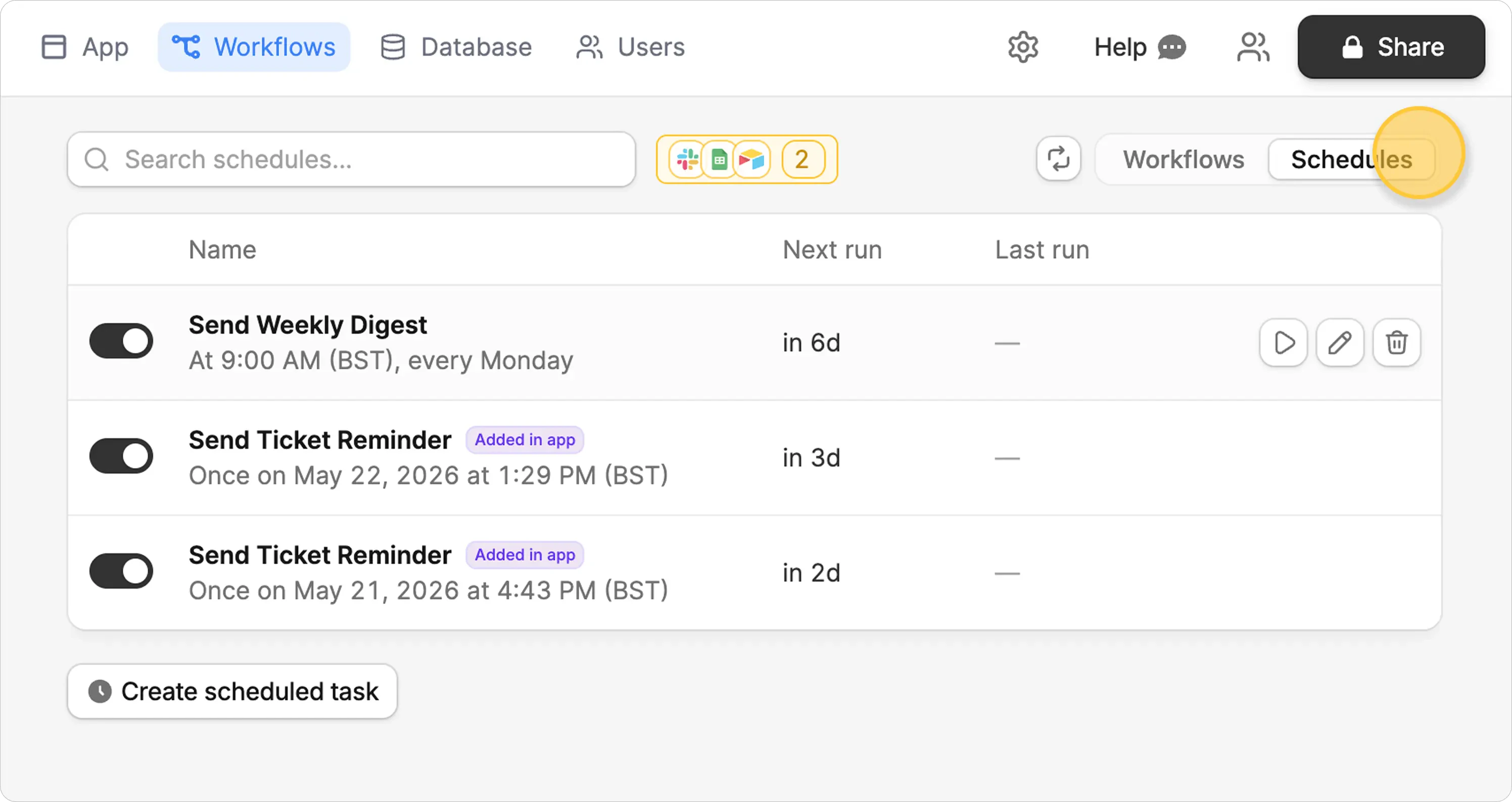
Workflows, then use the toggle on the right side to switch from Workflows to Schedules. This view shows scheduled tasks, their source, next run, and current status.3
Publish the appSchedules created in the editor do not run until the app is published. If you see an unpublished warning, publish the app before expecting the schedule to run.
Create user triggered schedules
You can also build app interactions that create schedules for the current user. For example, a support ticket app can include aSet reminder button that emails the assigned teammate in three days.
In-app schedules are useful when:
- the schedule depends on a user action
- the schedule should use the current user’s app context
- each user or record may need a different reminder time
- the task should be one-time instead of recurring
Workflows view as in-app schedules, so you can distinguish them from schedules you created in the editor.
Manage scheduled workflows
After a schedule exists, use these controls to adjust when it runs, test it, pause it, or remove it.
When you edit or pause a schedule that was created in the editor, publish the app for the change to take effect.
Check run history
Open a workflow and go toHistory to see past runs. Run history helps you confirm whether a schedule fired, whether it succeeded, and what triggered it.
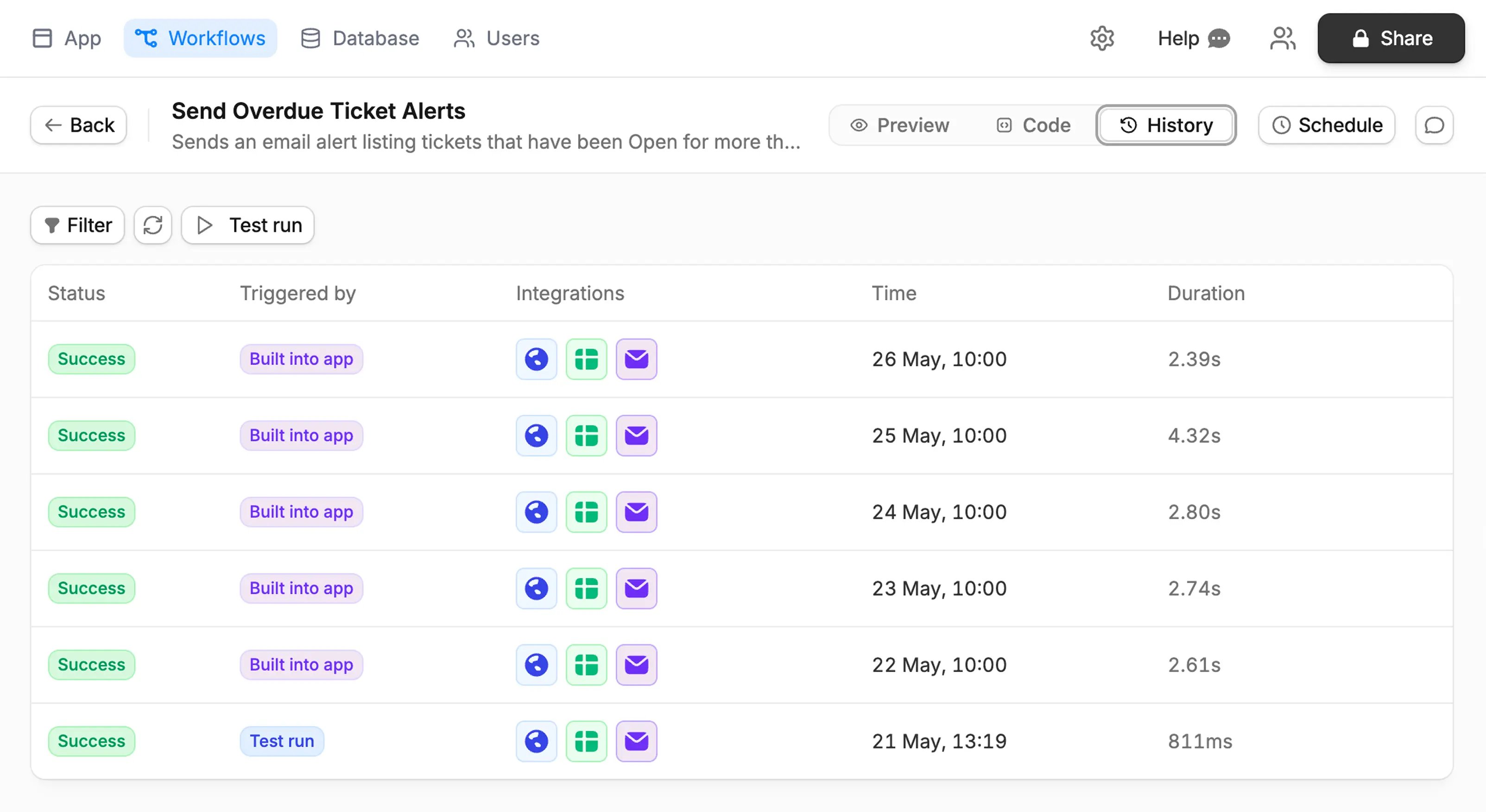
- scheduled runs
- test runs from
Run now - runs triggered from inside the app
Example prompts
Weekly ticket summaryFAQs
Do I need a specific plan to create scheduled workflows?
Do I need a specific plan to create scheduled workflows?
Yes. You need a Business plan or above to create new scheduled workflows. If you downgrade after creating schedules, existing schedules keep running, but you cannot create new schedules until you upgrade again.If you ask for a schedule without the Business plan, you’ll see an upgrade card. Reply
continue to build the rest of the app without the schedule.Do schedules run before the app is published?
Do schedules run before the app is published?
Editor schedules do not run until the app is published. If you edit or pause an editor-created schedule, publish the app for the change to take effect.
Which timezone does a schedule use?
Which timezone does a schedule use?
Zite uses your current time and timezone unless you specify another one. For example, “every Monday at 9:00 AM” is interpreted in your timezone.
Can in-app schedules use the current user's context?
Can in-app schedules use the current user's context?
Yes. In-app schedules can include context about the app user who created them, which is useful for user-specific reminders and follow-ups.
How do I confirm that a schedule ran?
How do I confirm that a schedule ran?
Open the workflow and go to
History. Run history shows whether the schedule fired, whether it succeeded, and the workflow context used for that run.