

Start here
Zite-specific issues
Zite shows Fix it for me
Zite shows Fix it for me
Click
Fix it for me first. Zite will use the error details it already detected to diagnose and repair the issue.If the same error appears again, switch to Chat mode and ask:Improve my app: Review or Designer
Improve my app: Review or Designer
Use
Improve my app when the problem is broader than one obvious error.Reviewscans the app for common issues and fixes them.Designerexplores the running app, captures screenshots, and polishes the look and feel. It can take longer.
Review for broken behavior, missing states, and general quality checks. Use Designer when the app works but feels visually inconsistent.Preview is blank, stuck, or spinning up
Preview is blank, stuck, or spinning up
Try these in order:
- Refresh the page.
- Re-open the app from your dashboard.
- Try a private or incognito browser window.
- Disable browser extensions that may block scripts.
- If this started after a recent edit, restore a previous version from history.
- If there is an error message, paste it into Chat mode and ask Zite to investigate.
No app created yet
No app created yet
No app created yet is usually a temporary connection or creation issue.- Refresh the page.
- Go back to your dashboard and re-open the app.
- If the app still does not load, start a new prompt or contact support.
Too many requests or timeout
Too many requests or timeout
Too many requests and Timeout errors usually mean too many changes were requested in a short time, or an external service took too long to respond.- Wait a few minutes and try again.
- Re-open the app.
- Break the request into smaller steps.
- Check whether the error came from Zite or an external integration.
Failed to update sandbox files
Failed to update sandbox files
Retry the build or refresh the page. Changes made before the error are automatically saved, so you will not lose edits that were already applied.This can happen because of a third-party sandbox provider issue. The Zite team is working on ways to reduce the impact of this error.
Recent changes broke the app
Recent changes broke the app
Use history to restore a working version, then make the next fix in a smaller step.Before rebuilding, ask Zite:
Common building issues
UI or layout looks wrong
UI or layout looks wrong
Upload a screenshot and describe the exact issue. If possible, use Selective Edits to highlight the element before asking Zite to change it.Keep the request small: one section, one page, or one interaction at a time.
Zite only completed part of the request
Zite only completed part of the request
Large prompts are more likely to produce partial results.
- Ask Zite to summarize what it changed.
- List what is still missing.
- Ask for one remaining change at a time.
- Use Plan mode for larger updates before building.
Workflow is failing or returning the wrong data
Workflow is failing or returning the wrong data
Start with workflow run history. It shows the trigger, inputs, steps, outputs, and errors.Useful prompts:
Database records are missing or incorrect
Database records are missing or incorrect
Check the app is connected to the right Zite Database, table, and fields.Also check:
- field names and field types match what the app expects
- imported data columns were mapped correctly
- workflows writing to the database have the expected inputs
- AI fields with failed cells show clear regenerate errors from the field header
An integration is not working
An integration is not working
First identify whether the issue is in Zite or the connected service.Check:
- the connected account is still authorized
- the workflow step has the required input values
- the external service is available
- any required API key, token, or secret is still valid
- the run history shows the exact failed step
Build with a repeatable process
A better process leads to fewer errors, lower credit usage, and better app outcomes. Plan the change before asking Zite to build it.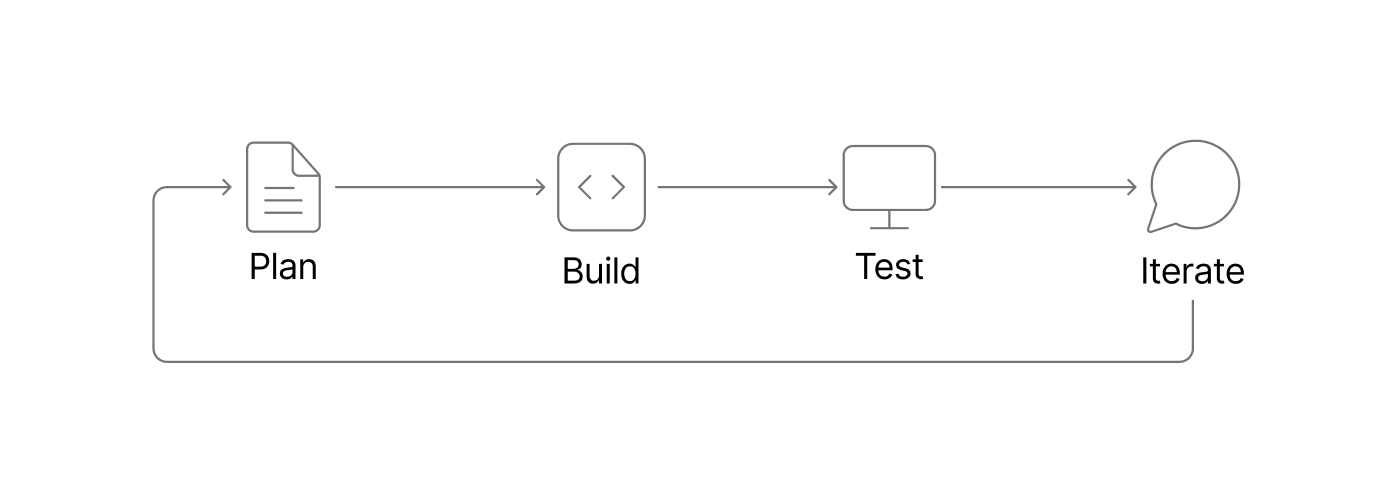
1. Start a new chat per feature
Start a new chat when you begin a distinct feature, workflow, page, or integration. A fresh chat gives Zite more targeted context and helps avoid carrying old assumptions into the next build. For example, if you are building a client portal, use one chat to create the customer dashboard, another chat to add invoice payments, and another chat to add support ticket submission. This keeps each conversation focused and can reduce token usage because Zite does not need to reason through unrelated history.2. Back up your database before schema changes
Make a database backup before asking Zite to make significant schema changes, such as adding linked records, changing field types, importing a large CSV, or restructuring tables. For example, before turning a simple Leads table into a full CRM with Companies, Contacts, Deals, and Activities tables, create a backup. If the database structure or data mapping does not work as expected, you can roll back the database to the previous version.Database backups only restore database data and schema. They do not roll back app UI changes.
3. Use history for UI and logic changes
For app UI and logic changes, use history to restore a previous version of your app if a build goes in the wrong direction. For example, if you ask Zite to redesign an approvals dashboard and the new layout hides important filters, restore the previous working version before trying again with a smaller prompt. History is especially useful for navigation changes, page redesigns, conditional logic, and workflow wiring.4. Use Plan mode before building new features
Use Plan mode before building features with multiple app screens, app workflows, database roles or permissions, or database changes. Plan mode helps you review the structure before credits are spent on implementation. For example, before building a field service app, ask Zite to plan the technician schedule, job detail page, customer record, parts inventory, and completion workflow. Review the plan, remove anything unnecessary, and confirm the database tables before moving into build.5. Use Chat mode to talk through implementation
Use Chat mode when you are not ready for Zite to make changes yet. It is useful for exploring tradeoffs, clarifying data models, or deciding whether a feature should be a page, workflow, database table, or integration. For example, before adding Google Calendar to a booking app, ask Zite how it would handle availability, time zones, cancellation rules, and confirmation emails. Once the implementation plan is clear, switch to Plan mode or Build mode with a more precise request.Prompting tips
- Name the exact page, section, database table, workflow, or integration.
- Include screenshots for UI problems.
- Include error messages and workflow run details when available.
- Ask Zite to explain before fixing when the cause is unclear.
- Keep fixes small: one issue, one area, or one workflow at a time.
- Avoid repeating the same fix prompt if it did not work. Switch to Chat mode or Plan mode and ask for a different approach.
Need more help?
Still stuck? Try this:- Use Plan mode and ask Zite for a step-by-step fix plan.
- If the issue started after a UI or feature change, revert to a stable version from history.
- If you need support, contact support@zite.com or start a chat from the help bubble.