

When to use Plan mode
- You are starting a new app and want to review the direction first
- The request is broad, complex, or still partly undecided
- You want to compare the planned screens and workflows before building
- You need to align with teammates before Zite creates the app
- You need to share a proposed app scope with a client or stakeholder
- You want to avoid rework by catching missing requirements early
Plan mode uses Zite Max and consumes credits, but it can reduce rework by helping you approve the plan before app changes are made.
Create a plan
1
Enter your prompt in the app creation box. Include the audience, main workflows, data you want to track, and any important constraints.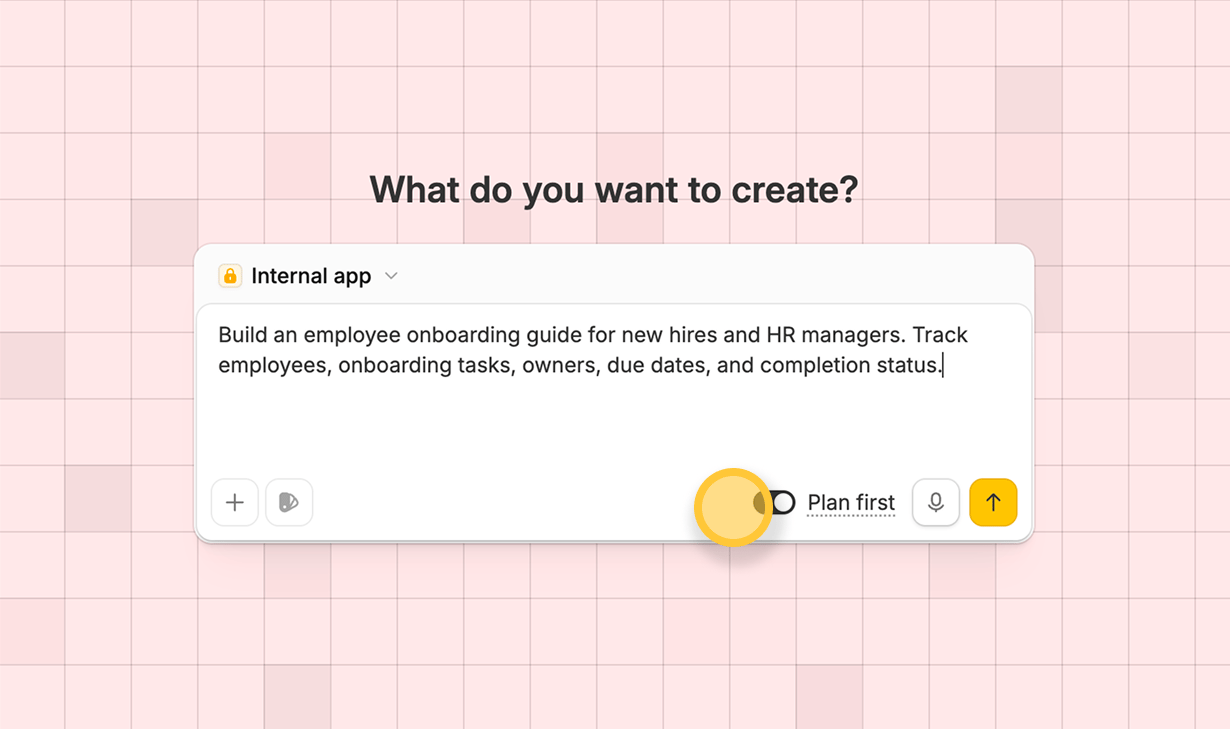
2
Open the action menu beside
Build it and select Plan it. Zite will create a plan instead of immediately building the app.3
Zite opens an editable plan that explains the app direction and shows wireframe previews for the planned screens.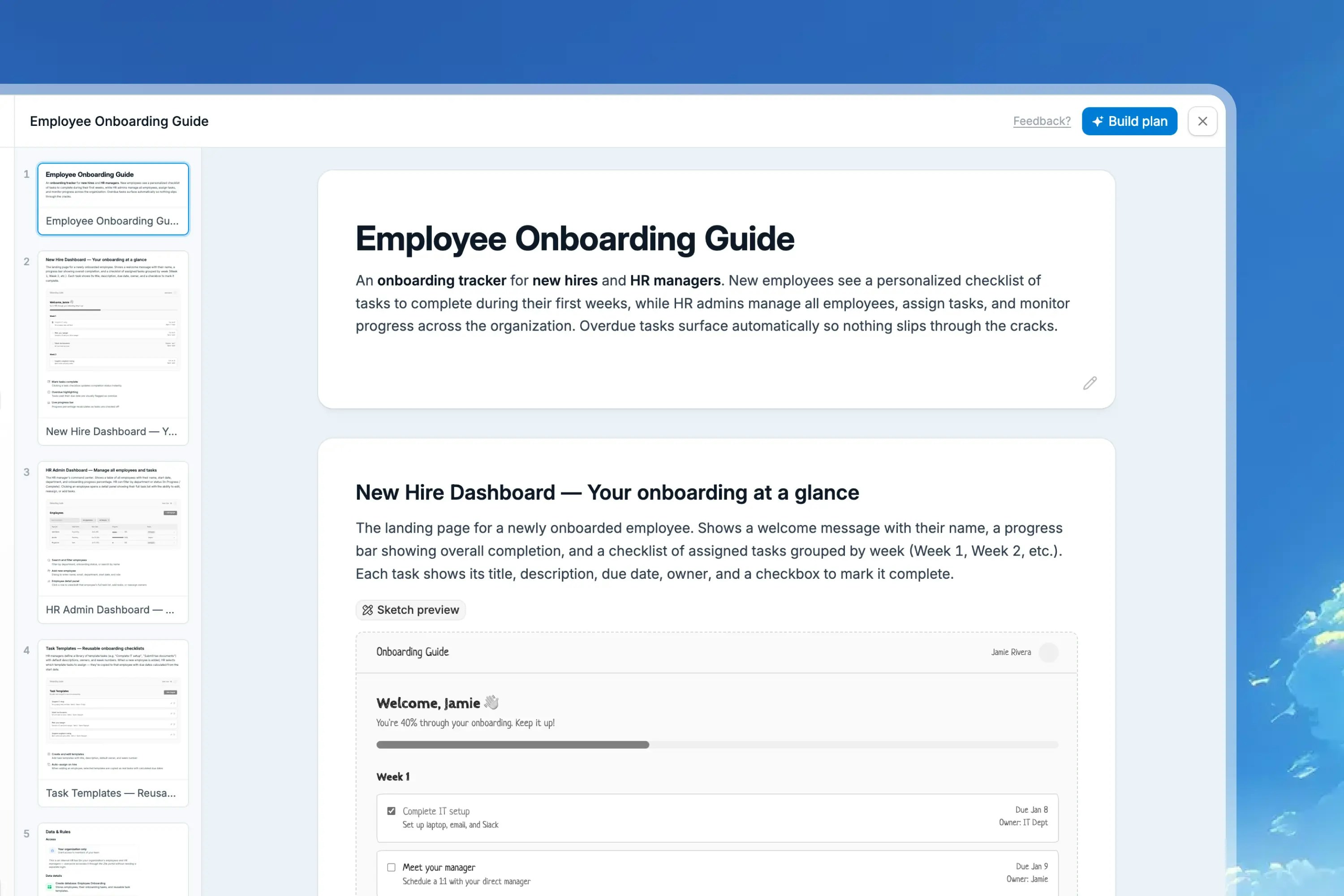
4
Plan mode suggests the tables needed for the app. If the structure is not right, ask Zite to add, remove, rename, or change fields before building.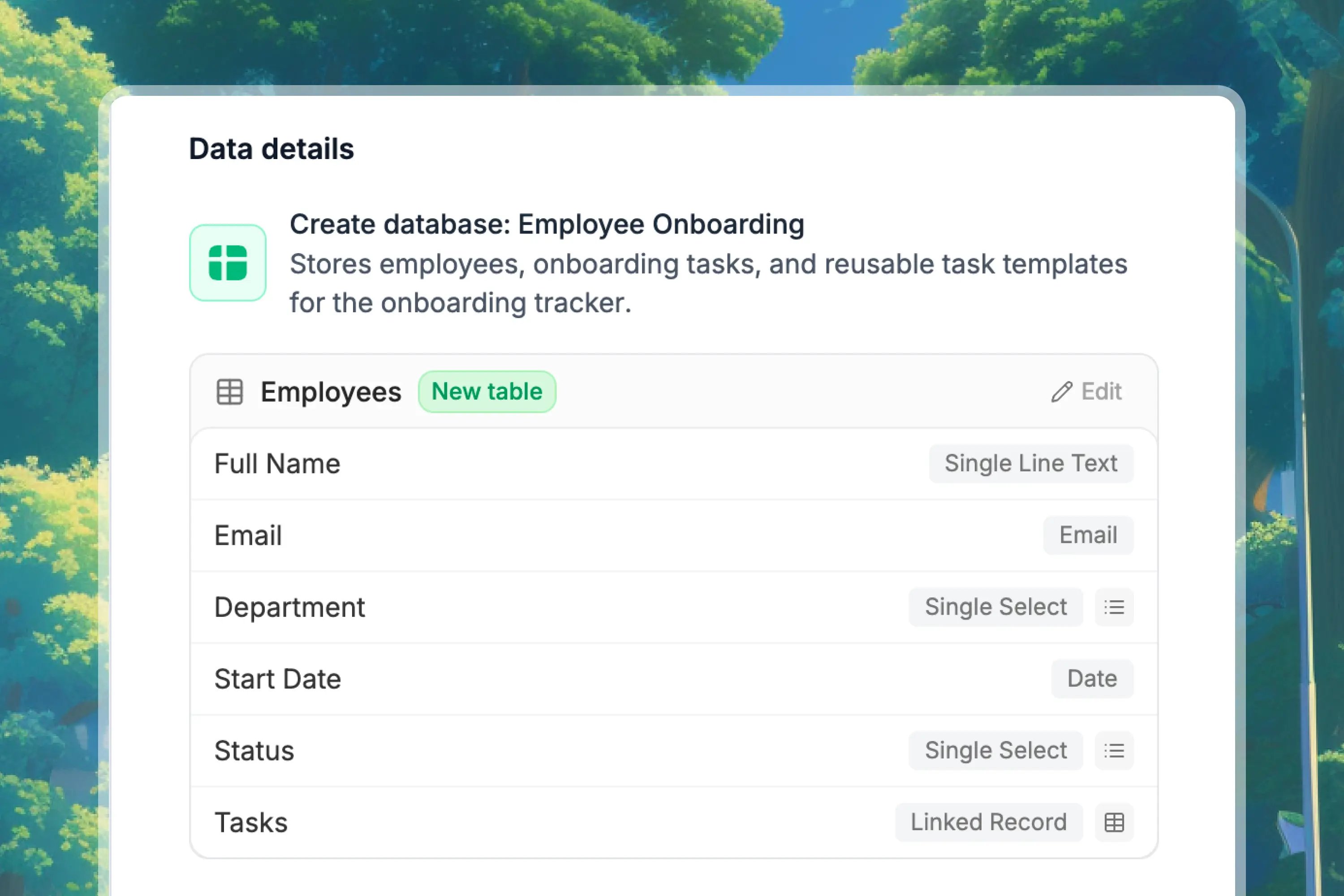
Refine the plan
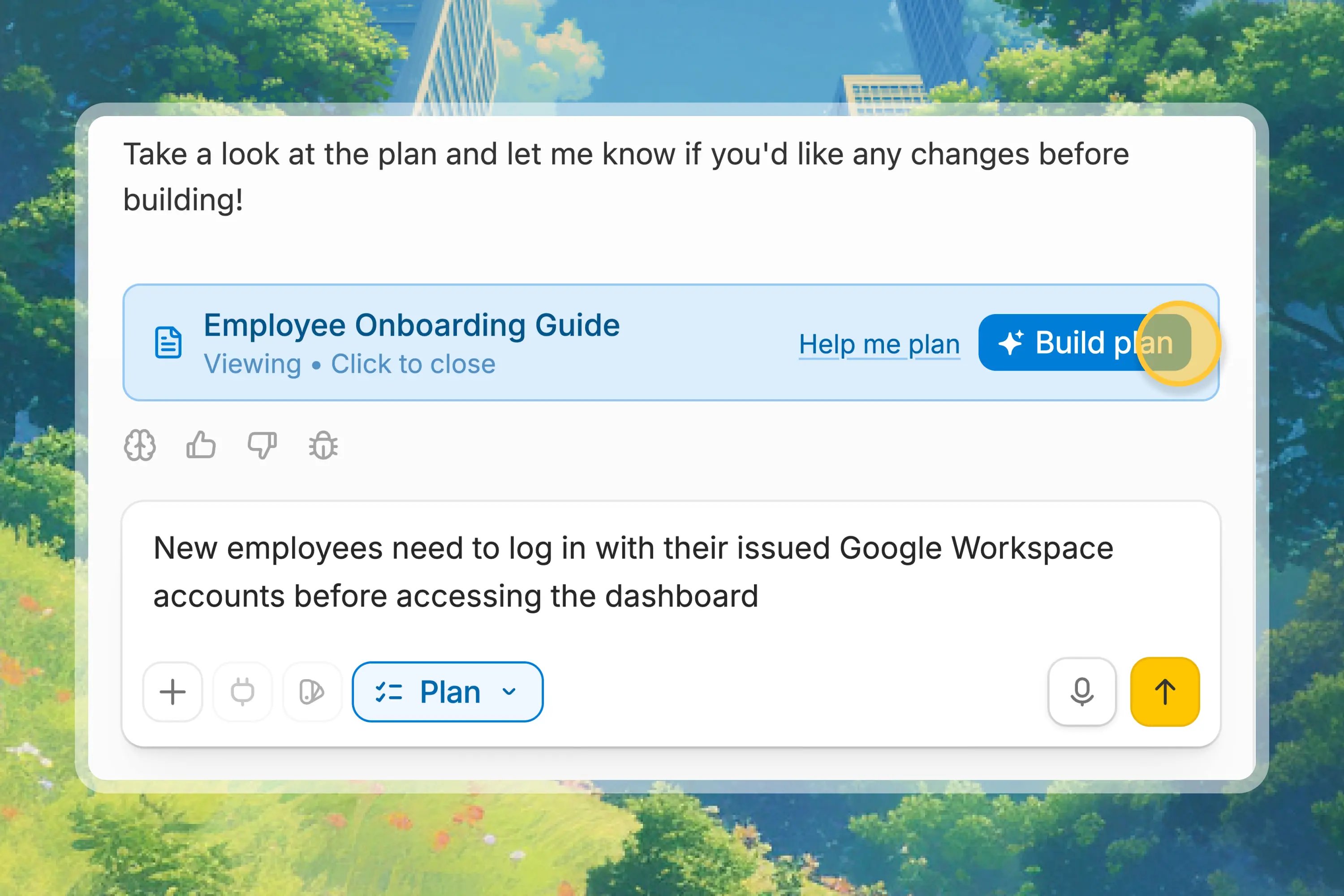
You can ask Zite to change the plan before building. Each plan screen has a prompt box underneath it, so you can request targeted changes with AI.- Use the prompt box under a specific screen when only that part needs changes.
- Ask for broader changes when the overall app direction, data model, or workflow needs to shift.
- Review the updated plan and keep prompting until it matches what you want Zite to build.
Download a plan PDF
Plans can be downloaded as PDFs, making it easier to send a proposed app scope to a client or stakeholder before build work starts. It is a simple way to align on screens, workflows, data, and assumptions while the project is still easy to refine.Build the plan
When you are happy with the plan, clickBuild plan. Zite switches from planning to building and uses the approved plan as the direction for the app.