

Overview
Everyone in your organization can create apps, forms, and workspaces by default. Admins can switch off any of these options for the whole organization, then allow selected groups to use them. This works well when you want to limit building to a pilot group or a trained team. Everyone else can still use the apps and forms they already have access to.Creation permissions are available on the Enterprise plan only. Contact sales to learn more about Enterprise.
How it works
Creation permissions have two levels:- Organization defaults: what anyone in the organization can create.
- Group permissions: exceptions for members of a specific group.
Admins can always create apps, forms, and workspaces, regardless of these settings.
Set organization defaults
1
Open group settings
From the dashboard, click your
Account name in the upper-left corner and select Settings. Open the Groups tab.2
Open All users
Click the
All users row at the top of the page, then switch to the Advanced tab.3
Choose what everyone can create
Under Users in the organization can create…, toggle 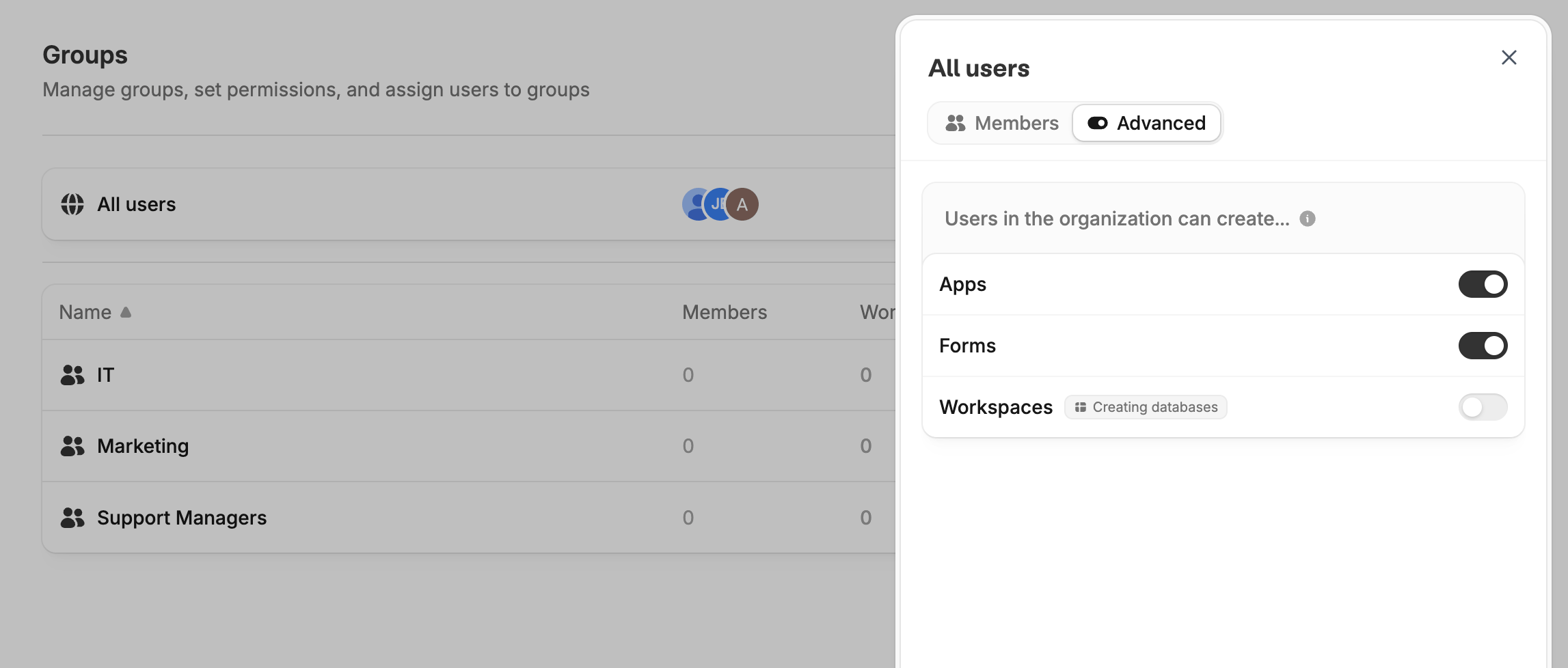
Apps, Forms, and Workspaces on or off, then click Save.The Forms toggle doesn’t cover scheduling or payment forms. Users can still create them.
Grant creation access to a group
If creation is disabled for the organization, you can enable it for one or more groups.1
Open the group
On the Groups tab, click the group you want to grant access to, then switch to the
Advanced tab.2
Turn on what this group can create
Under Users in this group can create…, turn on the items this group should be able to create, then click 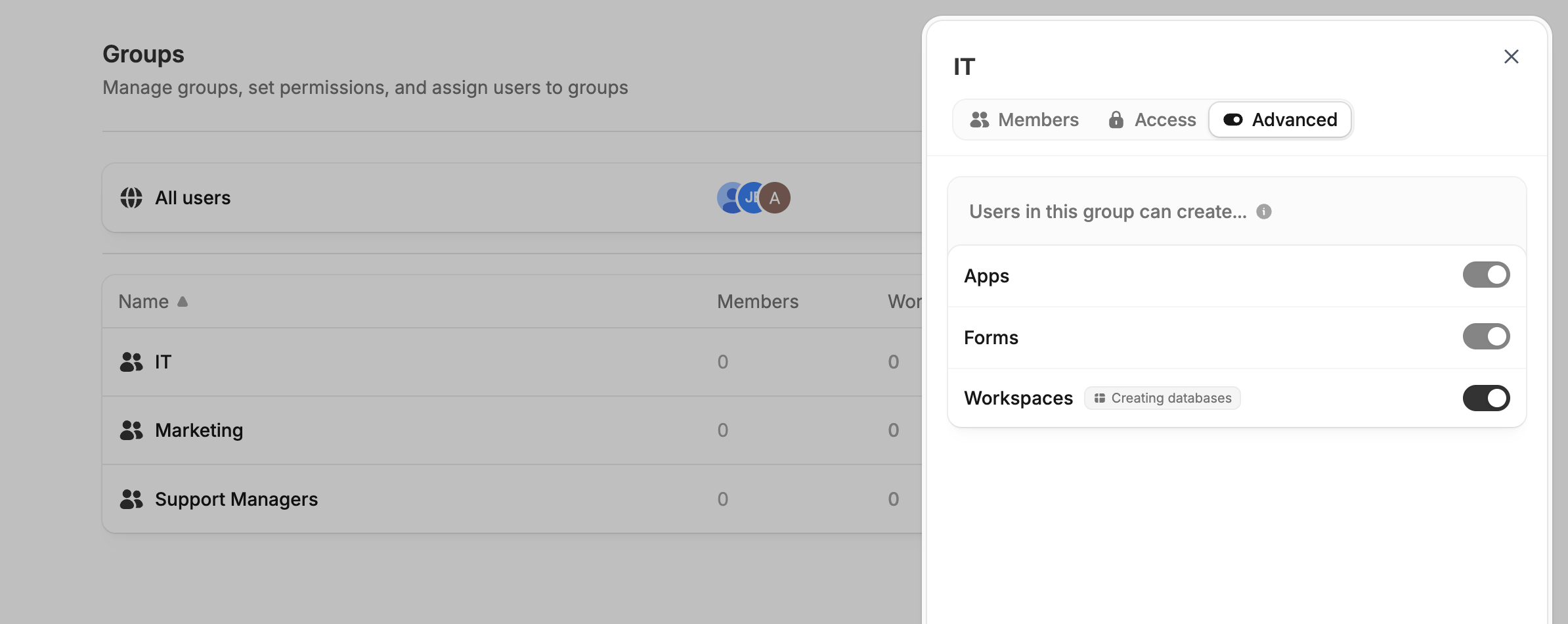
Save.Apps and Forms toggles are locked on because everyone can already create them.
If someone belongs to more than one group, their access adds up. A member can create apps if any of their groups allows it.