

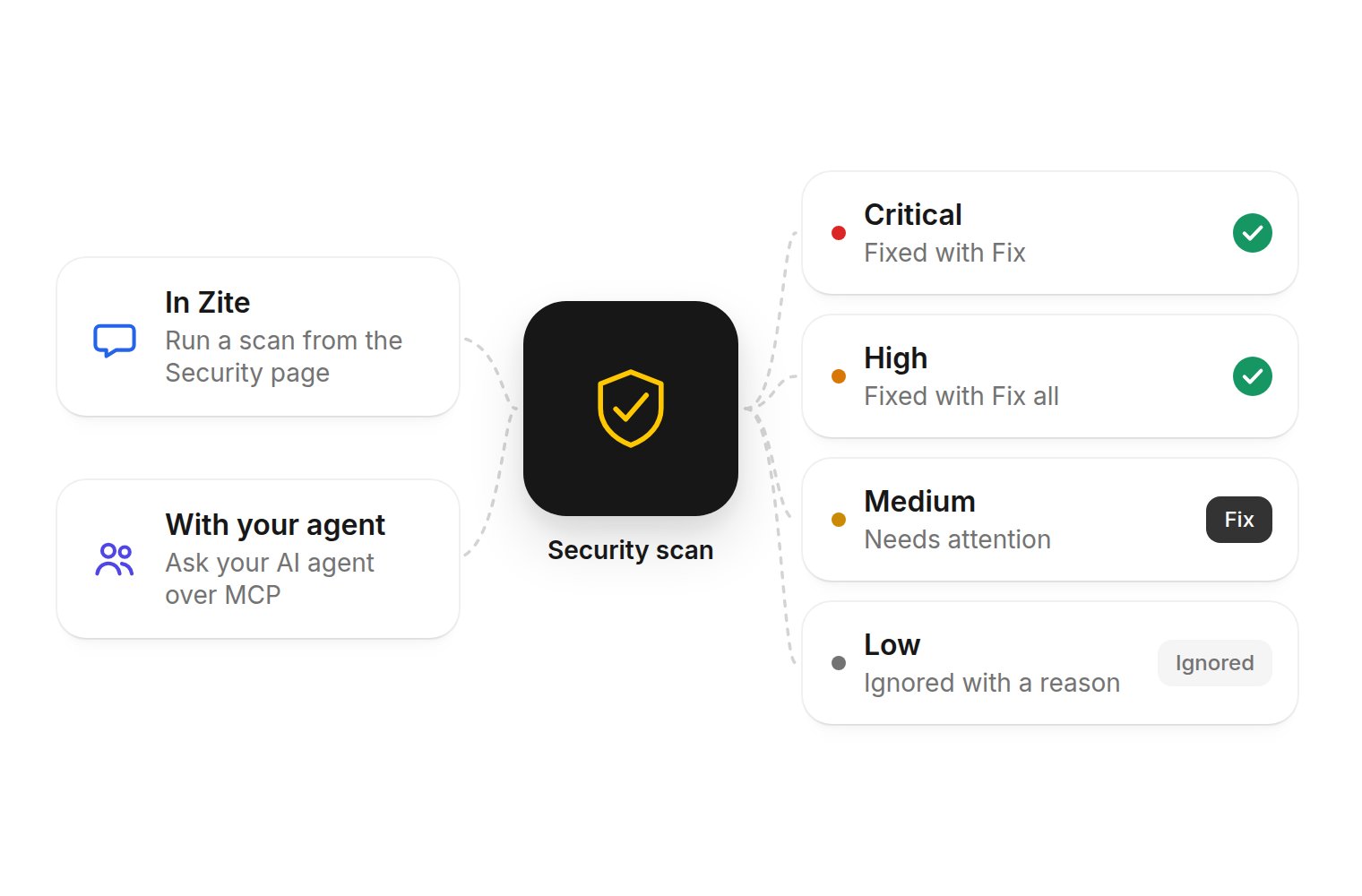
Run a scan in Zite or with your agent, then fix or ignore each finding.
Open the Security page
In the workspace, open Security. You will find it in the workspace overview, and in the workspace menu on a phone. If the page shows a number next to Security, that is how many open critical or high issues there are.Run a scan
If the workspace has not been scanned yet, you will see Check your workspace for security issues. Choose Scan workspace, then pick how to run it.In Zite
In Zite
Choose In Zite. Zite opens a new chat and starts the review. The message it sends is “Run a security scan of this workspace.”The review is read-only: the agent looks at your apps but does not change any code. You can watch its progress in the chat. If it asks you a question, answer there. If you reload the tab, the scan stops, and you can continue it from the chat.While a scan is running, the page says Scanning in the chat. If the agent is waiting for your answer, it says Scan waiting for your answer in the chat. You can still start a new scan if one is waiting on an answer.
With your own agent
With your own agent
Choose With your agent. In Run a scan with your agent, pick Claude, ChatGPT, Claude Code or another agent, connect Zite if you have not already, then choose Copy prompt and paste the prompt into that agent.Findings from your own agent land on the same Security page. These scans do not use the workspace’s free security allowance.
What a scan looks for
The agent looks at the workspace the way an attacker would: every app and automation, and how they share data. It only records something you should definitely fix: a concrete way for someone to see, change or delete data that is not theirs, act as someone else, or use a key they should not have. Typical gaps include:- Pages or actions on a public app that anyone on the internet can use, when they should have to sign in first.
- Signed-in users reaching other people’s records, or doing something their role should not allow. Being signed in is not the same as being allowed.
- Forms that save hidden fields a caller could set themselves, such as a price, a status or whether someone is an admin.
- Lists or pages that return other people’s details, or that send business rules to the browser that someone could use to get around them.
- API keys, passwords or tokens in page code, which anyone who opens the app can read.
- Keys written directly into server code instead of the app’s Secrets.
- Database queries built by pasting what a caller typed into the query itself.
- Packages the workspace uses that have a known high or critical security problem.
- Critical: anyone on the internet can read or change private data, or act as someone else. A key, password or token in page code is always critical.
- High: any signed-in user can read or change other people’s data, or do what their role forbids.
- Medium: a real but limited problem, such as seeing a few fields they should not see.
- Low: nobody can use it against the app today, but something sensitive is within reach of more people than should have it.
Work through what it found
Issues are listed under Open, Ignored and Resolved. If the workspace has more than one app, you can filter the list to one app. Fix all follows that filter. Choose an issue to read the description. Technical details is hidden until you open it, and is there for anyone who wants to see the file and the suggested code change.Fix an issue
Fix an issue
Choose Fix on one issue, or Fix all on the status card when several are open. If there are more than 10 open issues in view, the button says Fix top 10 and takes the most serious ones first.The agent works in the workspace chat, confirms the issue is real, and makes the smallest change that closes it. The issue stays open until that change is on the workspace’s main version. If the turn is stopped, discarded or retried, or the change never lands, the issue stays open.If a later scan finds the same issue after it was resolved, it comes back with a Reopened label.
Ignore an issue
Ignore an issue
If you are happy to leave an issue as it is, open the menu on that row and choose Ignore issue. You have to give a reason:
- I accept the risk
- Intended behavior
- Finding is wrong
- Other