Documentation Index

Fetch the complete documentation index at: https://zite.com/llms.txt

Use this file to discover all available pages before exploring further.

Use webhooks to:
  • Save Stripe payment events to a Zite Database
  • Update a dashboard when a customer is created in another system
  • Send an email or Slack message when a third-party status changes
  • Receive form submissions, order updates, support tickets, or other external events
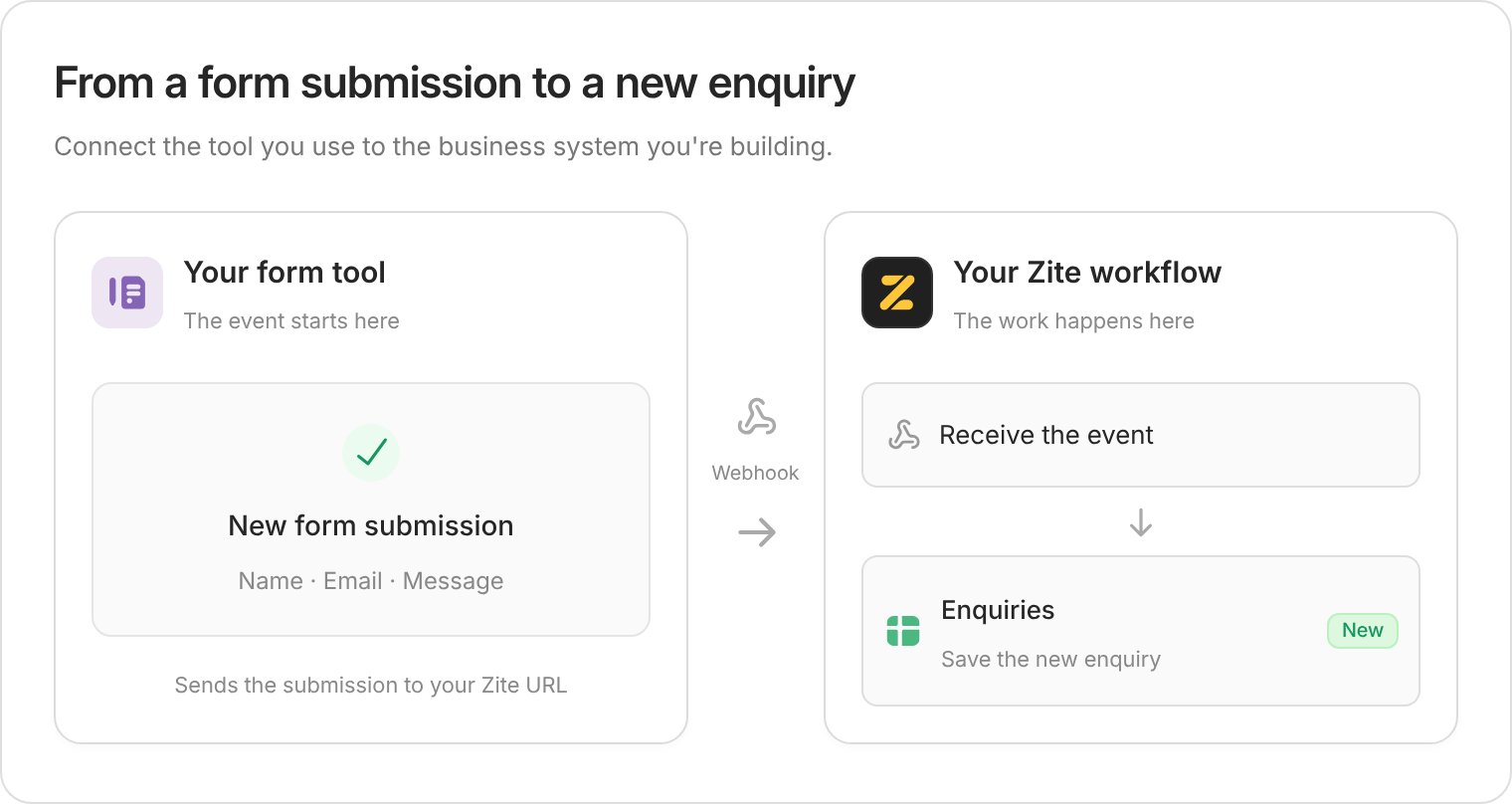
In Zite, an incoming webhook starts a workflow. After the webhook triggers the workflow, Zite can do anything workflows support, such as writing to a database, calling an integration, sending a notification, running AI, or updating data shown in your app.
Webhooks are available on all plans.

How webhooks work

Most webhook setups have the same parts:
PartWhat it means
Source appThe external service that sends the webhook, such as Stripe, Fillout, or another platform.
EventThe thing that happened in the source app, such as payment_intent.succeeded or form.submitted.
Webhook URLThe Zite URL you copy into the source app so it knows where to send events.
PayloadThe JSON data sent with the event. This usually includes IDs, timestamps, status fields, and details about the object that changed.
WorkflowThe Zite backend logic that receives the payload and decides what to do next.
The source app must support webhooks before Zite can receive them. Larger platforms usually have a webhook setup page where you paste in a destination URL and choose which events to send.

Common webhook examples

Many popular services can send webhooks or webhook-like push notifications. The exact setup differs by service, but the pattern is the same: paste a Zite webhook URL into the source service, trigger a sample event, then let Zite build a workflow from the captured payload.
ServiceExample eventsExample Zite workflow
StripeCustomer creation, successful charges, and completed payment intents.When a customer subscribes or makes a purchase, save the Stripe event data to a Zite Database table so your app can provision access and keep subscription status up to date.
TwilioIncoming messages, message delivery status changes, and voice call events.When an SMS arrives or a message delivery status changes, log it in Zite and notify the team.
SlackWorkspace events, bot events, mentions, messages, and reactions.When a message, mention, or reaction event arrives, create a task or support ticket in Zite.
Google CalendarCalendar event changes from watchable calendar resources.When calendar events change, update an internal schedule, booking dashboard, or reminder workflow.
In this Stripe webhook example, a purchase or subscription event sends Stripe event data to Zite, where the workflow saves the event and can provision access in your app.
Stripe webhook example showing purchase event data saved to a Zite table
Some services need extra setup beyond pasting a URL. For example, Slack may verify your request URL, and Google push notification channels can require renewal and a follow-up API call to fetch the latest data.

Before you start

Decide what event Zite should listen for and what should happen after it arrives. Good webhook prompts usually include:
  • the source platform
  • the event you care about
  • where the data should be stored or shown
  • which fields matter
  • whether the workflow should send notifications or update records
For example: Stripe payments
Build an app that receives Stripe webhook events and stores successful
payments in a Zite Database. Track the event ID, payment ID, customer,
amount, currency, status, whether it was live mode, and the raw payload.
Ignore duplicate events with the same Stripe event ID.
Twilio messages
Build an app that receives Twilio webhooks for incoming SMS messages and
message delivery status changes. Store the message SID, phone number,
message body, delivery status, timestamp, and raw payload in Zite Database.
Notify the support team when a message fails to deliver.

Create a webhook

1
Ask Zite to create the webhookIn chat, describe the webhook source and what the workflow should do with incoming events.
Create a webhook for Stripe payment events. When a payment succeeds,
save the payment details to the Payments table and update the dashboard.
Zite creates a workflow with a webhook trigger. If your app needs somewhere to store the incoming data, Zite may also suggest a database table.
2
Copy the webhook URLWhen Zite is ready for a sample event, it shows a webhook URL and waits for the next run. Copy this URL.
Zite waiting for the next webhook run and showing a copyable webhook URL
This URL is the endpoint the source app will call. Treat it like a public inbound URL and only paste it into services you trust.
3
Add the URL to the source appOpen the webhook settings in the source app, paste the Zite webhook URL, and choose the events you want to send.For Stripe, this is usually in Developers -> Webhooks. Other platforms may call this area webhooks, event destinations, callbacks, or HTTP notifications.Choose only the events your app needs. Sending every available event can make the workflow harder to test and may create unnecessary runs.
4
Send a test eventUse the source app’s test tool, or perform the action that should trigger the webhook. For example, in Stripe you can trigger a test payment or customer event.Zite lists the captured webhook runs. If the source app sends several events for one action, pick the event that best matches what your app should handle.
5
Select the event payloadClick Use selected event so Zite can learn the payload shape. This gives Zite the concrete JSON structure it needs to build or update the workflow.This step is especially useful for smaller platforms where the payload format may not be widely known.
6
Review the workflowOpen the generated workflow to confirm the trigger and actions. A typical webhook workflow might:
  • receive the webhook payload
  • check whether the event already exists
  • extract the fields your app needs
  • create or update a database record
  • send a notification or update a dashboard
Providers can retry webhooks or send related events close together, so duplicate handling is often important.
7
Publish the appWebhooks created in the editor may show as Not published. Publish the app before relying on the webhook in production.
8
Confirm events are arrivingTrigger another event from the source app, then check the workflow history and any database records or app screens that should update.

Manage webhooks

Open Workflows, then switch the view to Webhooks to see webhook triggers in your app.
Webhooks view showing a webhook trigger with its inbound URL
From this view you can:
  • Search for a webhook
  • Copy its inbound URL
  • See whether it is published
  • Enable or disable the webhook
  • Add another webhook
  • Open the related workflow
Webhook-triggered runs also appear in the workflow’s History tab. Use history to confirm whether a webhook arrived, whether the workflow succeeded, and which integrations or database actions ran.
Workflow history filtered to runs triggered by a webhook

FAQs

No. You can describe the webhook and the action you want in chat. Zite creates the webhook-triggered workflow and can use a captured sample payload to understand the incoming data.
Some platforms send several webhook events for one action. Selecting an event tells Zite which payload shape your workflow should use.
Webhooks can be tested in the editor while you are building, but publish the app before relying on them for production events.
Yes. A webhook starts a workflow, so successful runs from a published app count as workflow runs like other published workflow executions. Editor test runs do not count.
Your workflow should use a stable event ID from the source app to detect duplicates. Zite can usually add this automatically when the prompt and payload make the ID clear, but it is worth asking for duplicate handling explicitly.
Last modified on May 26, 2026