

You need editing access to the workspace to connect, disconnect, use Sync now or Retry, or replace GitHub’s branch with Zite’s version. Only organisation admins can add a GitHub account, at Settings > Developer > GitHub.
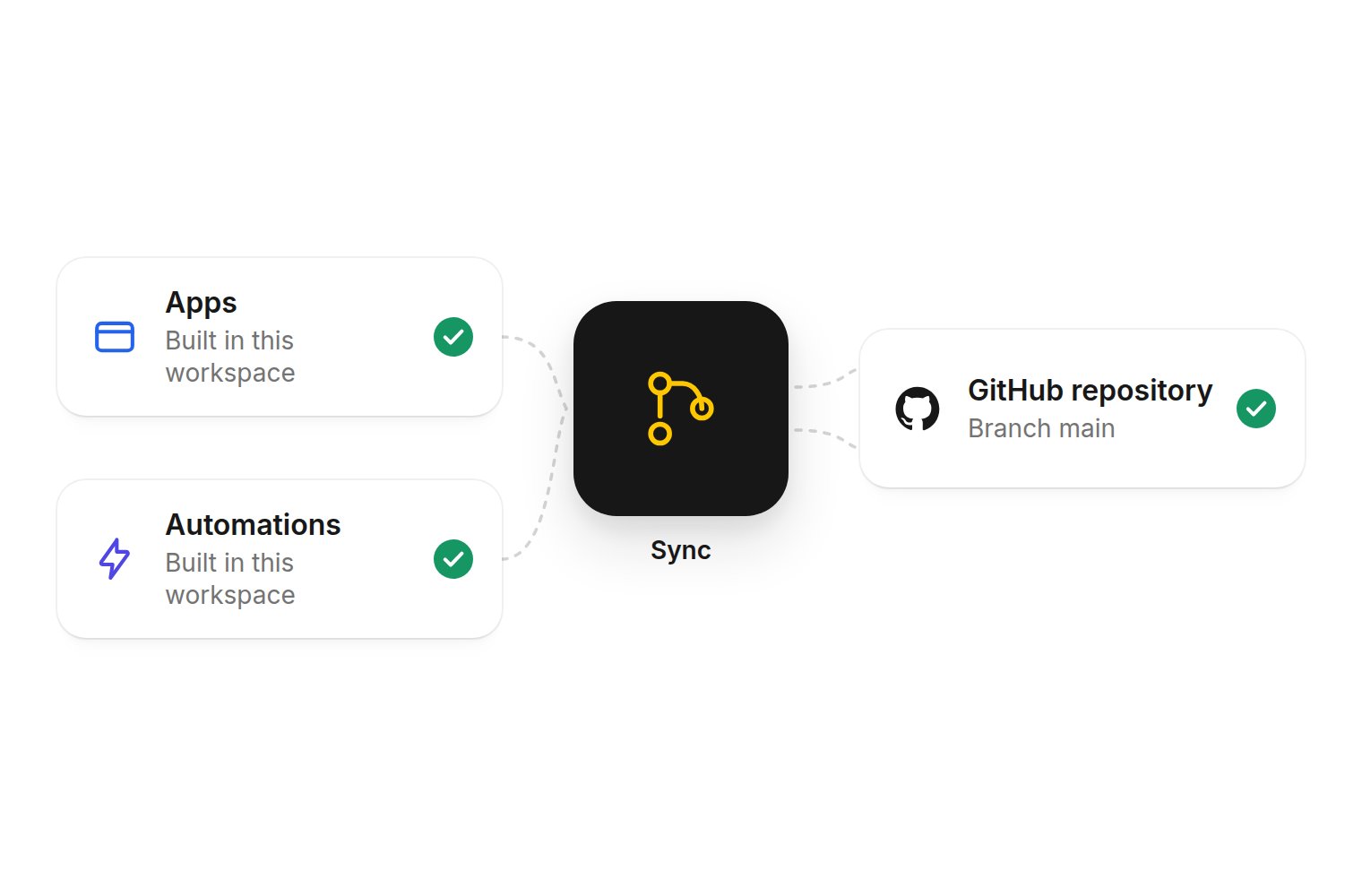
App and automation code in the workspace syncs both ways with a private GitHub repository on main.
Connect a repository
An organisation admin adds a GitHub account at Settings > Developer > GitHub. Then anyone who can edit the workspace connects a repository from workspace settings > Source control. Changes sync both ways. Zite only connects to a new or empty private repository. Creating a new private repository is the default. An empty existing one has no commits and no branches. Zite always syncs main. GitLab and Bitbucket are not supported.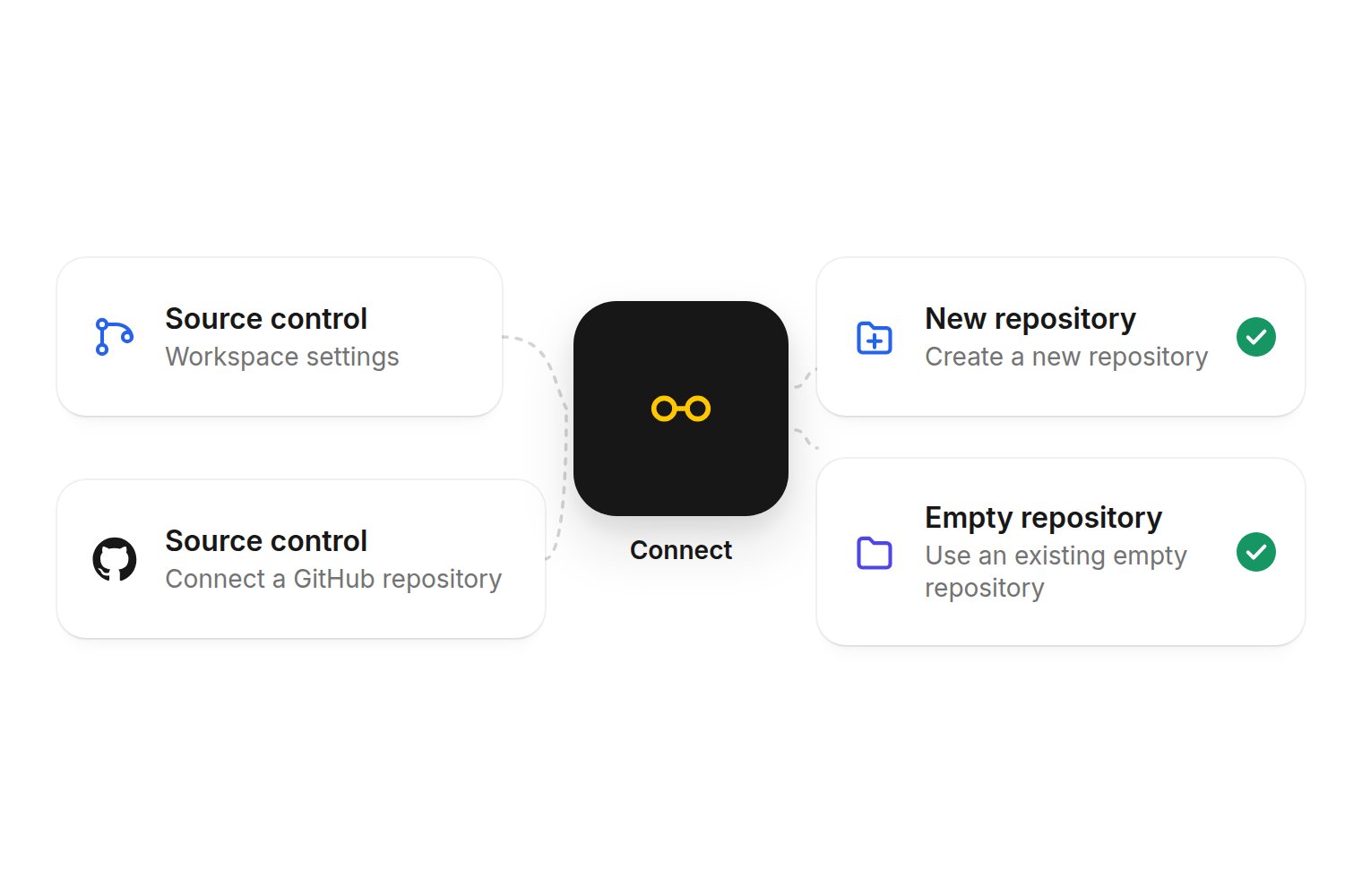
Open Source control or Connect a GitHub repository, then create a new private repository or use an existing empty one.
1
Add a GitHub account
An organisation admin opens Settings > Developer > GitHub and adds a GitHub account. Sign in to GitHub and approve access.If you are an organisation admin on Source control and no account is linked yet, you can also select Connect GitHub. Choosing an account fills the account field in place. If GitHub lists no account you can add, the picker says so and offers Install on another account.
2
Open Source control
Anyone who can edit the workspace opens workspace settings, then the Source control tab. You can also select Source control in the Code view header, which opens the same tab, or Connect a GitHub repository on the Source control row on Overview.
3
Create or choose a repository
The full form shows straight away. The repository step stays disabled until a GitHub account is connected.Next to the Repository label, New is the default. Enter a Repository name and select Create repository.To use an empty private repository you already have, select Existing, choose it, then select Connect repository.
4
Confirm access
Connecting an existing repository, or creating one on a personal GitHub account, opens a GitHub window so you can confirm write access. After you connect, the first sync starts on its own. You should see Starting the first sync with GitHub… with a spinner, then Syncing with GitHub…
How syncing works
Use Sync now on the connected card when you want a pass straight away. Zite also retries in the background. The card shows the repository name, Branch main, and the current status. Disconnect is in the ⋯ menu on the repository row. A Clone locally field shows git clone followed by the repository address, with a copy button. Zite does not rewrite a change that was pushed on GitHub. Synced X ago is when commits last moved between Zite and GitHub, not the last background check.
If both sides changed since the last sync, Zite records a combined change named Merge GitHub into Zite and sends it to GitHub. If a GitHub change edits the same lines as a change made in Zite, the sync stops.
Overview Source control row
Workspace editors, on a workspace that stores its code in Git, see a Source control row on Overview. It uses the GitHub icon, matching the Source control tab in workspace settings.- Not connected: Connect a GitHub repository. Selecting it opens the Source control tab.
- Connected: owner/repo plus the same compact status as the Code header (Synced 5m ago, Starting first sync…, Syncing…, Retrying…, or Sync stopped in orange).
Archived repositories
Archived repositories cannot be connected. When you select Existing, they are marked Archived and cannot be picked. They sort after Has commits. Unarchive the repository on GitHub, or choose another one. If a connected repository is archived later, GitHub refuses pushes. Unarchive it, then retry.If sync stops
Zite stops when it cannot sync safely, and it explains why. People who can edit the workspace see Retry, and Replace GitHub’s main with Zite’s when it applies. Select Retry after you have fixed the problem on GitHub. Replace cannot be undone. See More detail for the cases where it is offered.If a GitHub commit would trash apps
If one GitHub push would trash 3 or more apps or automations (or 2 that are at least half of them), the sync stops. The editor shows This GitHub commit would trash N apps. Nothing is trashed until someone confirms. This usually means the push came from an old copy of the repository.- If the push was a mistake, restore the folders on GitHub, or use Replace GitHub’s main with Zite’s.
- If you meant to trash them, the Trash N apps… button acts at once.
- Trashing the apps one by one in Zite instead can take up to a day to clear the stop.
What is not included
- Database records, uploads, and workspace context are not synced. This is code only.
- Public repositories cannot be connected. If a connected repository is later made public, sync stops until you make it private on GitHub and retry.
- One workspace per repository. Another workspace cannot use a repository that is already connected.
- Only main. This feature does not sync other branches, and it does not open or merge pull requests.
- zite.schema.json is generated from the database. Do not edit it on GitHub. A GitHub change to that file stops the sync.
More detail
Connect a GitHub account
Connect a GitHub account
If no account is linked, select Connect GitHub and finish the steps for the account or organisation that should own the code, then pick a new or empty repository. The Zite app can only reach the repositories you give it.If GitHub lists no account you can add, the picker says “Install Zite on an account you own to connect it.” and offers Install on another account. When an account can be added, it says “Choose a GitHub account to add.”While the GitHub window is open, the button says Waiting for GitHub…. Allow pop-ups if your browser blocks it. A GitHub organisation may need an owner to approve the app. You must be an owner of that GitHub account to add it yourself. Admins can also add accounts from Settings > Developer > GitHub.
Repository names and badges
Repository names and badges
Zite suggests a name based on the workspace, or zite-workspace. Use only letters, numbers, dots, dashes and underscores, 1 to 100 characters.An existing repository must be empty, private, and not used by another workspace. The field hint is “It must be empty and private.” A new repository says “Created as a private repository.”Search puts exact matches first, and unusable repositories below usable ones. Rows that cannot be used are marked Has commits, Public, Used by another workspace, or Archived. If you cannot find it, give Zite access to it on GitHub, then pick it with Existing.After you disconnect, that repository has commits, so it cannot be connected again.
Status in Code and History
Status in Code and History
In Code, the header shows the repository name plus Synced, Syncing…, Sync stopped, or Starting first sync…. Stopped is orange. Selecting Source control opens workspace settings on the Source control tab. A workspace banner says Last sync with GitHub stopped. with View details; Code uses the header instead.Version history and History show the same state. Versions from GitHub show a GitHub icon (Synced from GitHub) and a GitHub link on the row, on desktop and on a phone. They are a Code edit by the GitHub author name.
Replace GitHub's main
Replace GitHub's main
Replace GitHub’s main with Zite’s is offered when a GitHub change edits the same lines as a change made in Zite, the GitHub branch does not share any history with Zite, Zite’s version no longer contains the last synced change, or a GitHub commit would trash apps.
Disconnect the repository
Disconnect the repository
There is no control to switch repository. Open the ⋯ menu on the repository row, disconnect, then connect a different empty or new private repository.Disconnect repository? confirms: “Zite stops syncing with [repository]. The repository stays on GitHub. You cannot connect it again, because Zite connects only to an empty repository.” The workspace’s code in Zite is not deleted.If an admin removes the GitHub account from Settings > Developer > GitHub, each workspace using it stops syncing and cannot connect to the same repository again. The row may show Suspended on GitHub or Uninstalled from GitHub.
Why the sync stopped
Why the sync stopped
Fix the cause on GitHub, then select Retry. Use Replace GitHub’s main with Zite’s only for the cases above.
Checks on GitHub commits
Checks on GitHub commits
Zite posts two checks on each GitHub commit. Zite: Import succeeds with “Commit imported into Zite” and fails with “Could not import commit”. Zite: Build apps fails with a message such as “1 of 2 apps failed to build”.If a branch protection rule still requires Zite sync or Zite build, update it to the new names. Pull requests will otherwise wait for a check that no longer appears.
You cannot connect
You cannot connect
If you cannot edit the workspace: “Ask someone who can edit this workspace to connect it to GitHub.” If no GitHub account is linked and you are not an admin: “Ask an organization admin to add a GitHub account first.”Other messages cover a workspace that does not store its code in Git, an account or repository Zite cannot use, a blocked pop-up, or an expired GitHub setup. Retry or Replace may fail with “Could not restart the sync”. Disconnect may fail with “Could not disconnect”.
Apps, files, and secrets
Apps, files, and secrets
If someone deletes an app folder on GitHub, Zite will not restore it from trash. Revert that deletion on GitHub. If the deletion is large enough to stop the sync, see If a GitHub commit would trash apps. A new app folder needs the id Zite names in a Zite: Build apps check. A copied folder keeps the old id. Zite does not write that id onto the change for you.Zite does not scan for secrets. Stopping a sync does not remove a secret already on GitHub. A change that only reformats zite.schema.json is allowed. A schema change made in Zite can still merge.