> ## Documentation Index
> Fetch the complete documentation index at: https://zite.com/llms.txt
> Use this file to discover all available pages before exploring further.
# AI credit limits
> Set how many credits each person in your organization can spend building with AI.
## Overview
Your organization has one shared pool of credits. Everyone who builds with AI draws from the same monthly balance. Admins can limit how much each person spends during a billing period.
Set a default for the organization, then add custom limits for individual members when needed.
Credit limits are available on **Enterprise** plans. [Contact us](https://www.zite.com/enterprise) to enable them for your organization.
## How limits work
Limits have two levels:
1. **Organization default:** applies to everyone without a custom limit, including admins.
2. **Per-member limit:** overrides the default for one person and can be higher or lower.
A custom member limit takes priority. Without one, the organization default applies. If neither limit is set, the person can build without a personal ceiling.
A limit doesn't reserve credits. A 200-credit limit caps what the person can spend from the shared pool; it doesn't set aside 200 credits for them. The limits you assign don't need to add up to your plan's monthly allowance.
Spend resets with your credits at the start of each billing period. See [How credits reset](/help/platform/getting-started/credits#how-credits-reset).
## Set a default limit for everyone
From the dashboard, click your `Account name` in the upper-left corner and select `Settings`. Open [**Billing & usage**](https://build.fillout.com/home/settings/billing).
In the **Usage** section, click `Limits`.
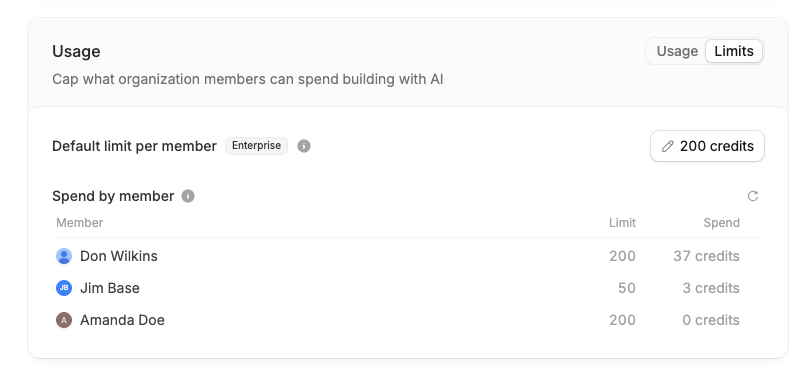 Next to **Default limit per member**, click the current value. Choose `Set a limit`, enter how many credits each person can spend per billing period, then click `Save`.
Choose `No limit` to remove the default.
## Set a limit for one person
Set a custom limit for anyone who needs more or less than the default.
On the **Limits** tab, click anyone in the **Spend by member** list.
Pick an option, then click `Save`.
Next to **Default limit per member**, click the current value. Choose `Set a limit`, enter how many credits each person can spend per billing period, then click `Save`.
Choose `No limit` to remove the default.
## Set a limit for one person
Set a custom limit for anyone who needs more or less than the default.
On the **Limits** tab, click anyone in the **Spend by member** list.
Pick an option, then click `Save`.
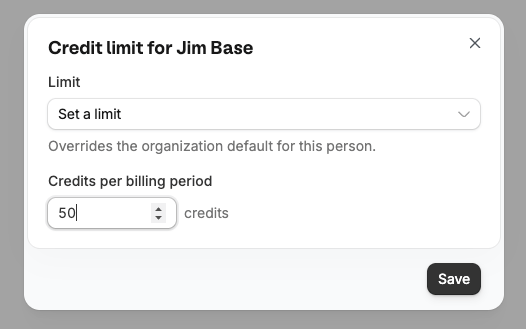 | Option | What it does |
| ---------------------------- | ------------------------------------------------------------------ |
| **Use organization default** | Follows the default, including any later changes to it |
| **No limit** | Exempts this person from the default entirely |
| **Set a limit** | A fixed number of credits per billing period, just for this person |
You can also set a limit from `Settings` → [`Team members`](https://build.fillout.com/home/settings/enabled-users). Open the member's panel and use the **Credit limit** row. It also shows their spend for the current period.
## Review spend by member
The **Spend by member** list shows each member's current limit and AI spend for the billing period. It sorts members by spend and marks anyone who has reached their limit as `At limit`.
Once an organization has more than eight members, you can search by name or email and filter the list to `At their limit` or `Custom limit`.
Member spend won't add up to your organization's total credit usage because some AI work is charged to the organization rather than a person.
## What counts toward a limit
Counts toward a person's limit:
* Building and editing apps with AI in the editor, including Build, Plan, and Chat mode
* Generating images while building
* `Improve my app`
* The AI assistant in the Fillout form builder
Doesn't count:
* AI running inside your published apps and workflows
* AI fields and other AI work in databases
* Emails sent from published apps
These activities still use your organization's credits, but aren't charged to a member.
## What a member sees
Only admins can open billing settings, so members don't see the **Limits** tab. Warnings appear in the chat input:
* At 80% of their limit, a warning shows what they've used, such as `40 of your 50 AI credits used.`
* At their limit, they're blocked from starting new AI work and told to ask an admin to raise it.
| Option | What it does |
| ---------------------------- | ------------------------------------------------------------------ |
| **Use organization default** | Follows the default, including any later changes to it |
| **No limit** | Exempts this person from the default entirely |
| **Set a limit** | A fixed number of credits per billing period, just for this person |
You can also set a limit from `Settings` → [`Team members`](https://build.fillout.com/home/settings/enabled-users). Open the member's panel and use the **Credit limit** row. It also shows their spend for the current period.
## Review spend by member
The **Spend by member** list shows each member's current limit and AI spend for the billing period. It sorts members by spend and marks anyone who has reached their limit as `At limit`.
Once an organization has more than eight members, you can search by name or email and filter the list to `At their limit` or `Custom limit`.
Member spend won't add up to your organization's total credit usage because some AI work is charged to the organization rather than a person.
## What counts toward a limit
Counts toward a person's limit:
* Building and editing apps with AI in the editor, including Build, Plan, and Chat mode
* Generating images while building
* `Improve my app`
* The AI assistant in the Fillout form builder
Doesn't count:
* AI running inside your published apps and workflows
* AI fields and other AI work in databases
* Emails sent from published apps
These activities still use your organization's credits, but aren't charged to a member.
## What a member sees
Only admins can open billing settings, so members don't see the **Limits** tab. Warnings appear in the chat input:
* At 80% of their limit, a warning shows what they've used, such as `40 of your 50 AI credits used.`
* At their limit, they're blocked from starting new AI work and told to ask an admin to raise it.
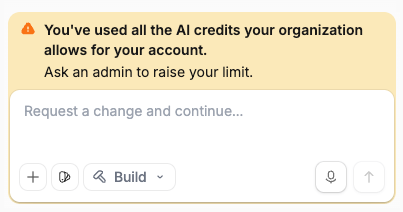 Reaching a limit only blocks new AI requests. Published apps stay live. The member can still open apps, edit them manually, and publish.
Admins who reach their own limit see a `Manage limits` button because they can raise it themselves.
## Change a limit mid-period
Changes take effect immediately. Raising a limit lets the person send their next message. Lowering it below what they have already spent blocks new AI work until the billing period resets. The dialog warns you before you save. Set the limit to `0` to stop someone from building with AI entirely.
The check runs before each new AI request, so work that's already underway finishes. Someone's spend can land slightly past their limit as a result.
To turn off AI for the whole organization, use `Disable all AI features` in `Settings` → [`Security`](https://build.fillout.com/home/settings/security).
## Audit log
Credit limit changes appear in the [audit log](/help/platform/audit-logs/overview) as security-critical events. Default changes use `org.creditLimitDefaultChange`; member changes use `user.creditLimitChange`. Each entry records who made the change, who it affected, and the previous and new limits.
## FAQs
No. Credits stay in one shared pool. A personal limit doesn't guarantee that those credits will still be available. If the organization runs out, everyone is paused regardless of their personal limits.
Yes. The organization default covers everyone without their own limit, admins included. An admin who reaches their limit can raise it themselves from the **Limits** tab.
AI used by published apps and workflows, database AI fields, and emails isn't attributed to a member. It counts toward the organization's total but not anyone's personal limit, so member spend is lower than the total.
Spend goes back to zero and everyone starts the new period with their full limit. The limits themselves stay as you set them.
They see it in the chat input as they approach it, and again when they reach it. Only admins can see the full **Limits** tab and the spend by member list.
Yes. Set their limit to `0`. They keep access to their apps and can still edit manually, but they can't start any AI work.
Reaching a limit only blocks new AI requests. Published apps stay live. The member can still open apps, edit them manually, and publish.
Admins who reach their own limit see a `Manage limits` button because they can raise it themselves.
## Change a limit mid-period
Changes take effect immediately. Raising a limit lets the person send their next message. Lowering it below what they have already spent blocks new AI work until the billing period resets. The dialog warns you before you save. Set the limit to `0` to stop someone from building with AI entirely.
The check runs before each new AI request, so work that's already underway finishes. Someone's spend can land slightly past their limit as a result.
To turn off AI for the whole organization, use `Disable all AI features` in `Settings` → [`Security`](https://build.fillout.com/home/settings/security).
## Audit log
Credit limit changes appear in the [audit log](/help/platform/audit-logs/overview) as security-critical events. Default changes use `org.creditLimitDefaultChange`; member changes use `user.creditLimitChange`. Each entry records who made the change, who it affected, and the previous and new limits.
## FAQs
No. Credits stay in one shared pool. A personal limit doesn't guarantee that those credits will still be available. If the organization runs out, everyone is paused regardless of their personal limits.
Yes. The organization default covers everyone without their own limit, admins included. An admin who reaches their limit can raise it themselves from the **Limits** tab.
AI used by published apps and workflows, database AI fields, and emails isn't attributed to a member. It counts toward the organization's total but not anyone's personal limit, so member spend is lower than the total.
Spend goes back to zero and everyone starts the new period with their full limit. The limits themselves stay as you set them.
They see it in the chat input as they approach it, and again when they reach it. Only admins can see the full **Limits** tab and the spend by member list.
Yes. Set their limit to `0`. They keep access to their apps and can still edit manually, but they can't start any AI work.
Related topics