> ## Documentation Index
> Fetch the complete documentation index at: https://zite.com/llms.txt
> Use this file to discover all available pages before exploring further.
# Migrate from Airtable to Zite
> Move an Airtable base, its records, and the interfaces your team uses into Zite.
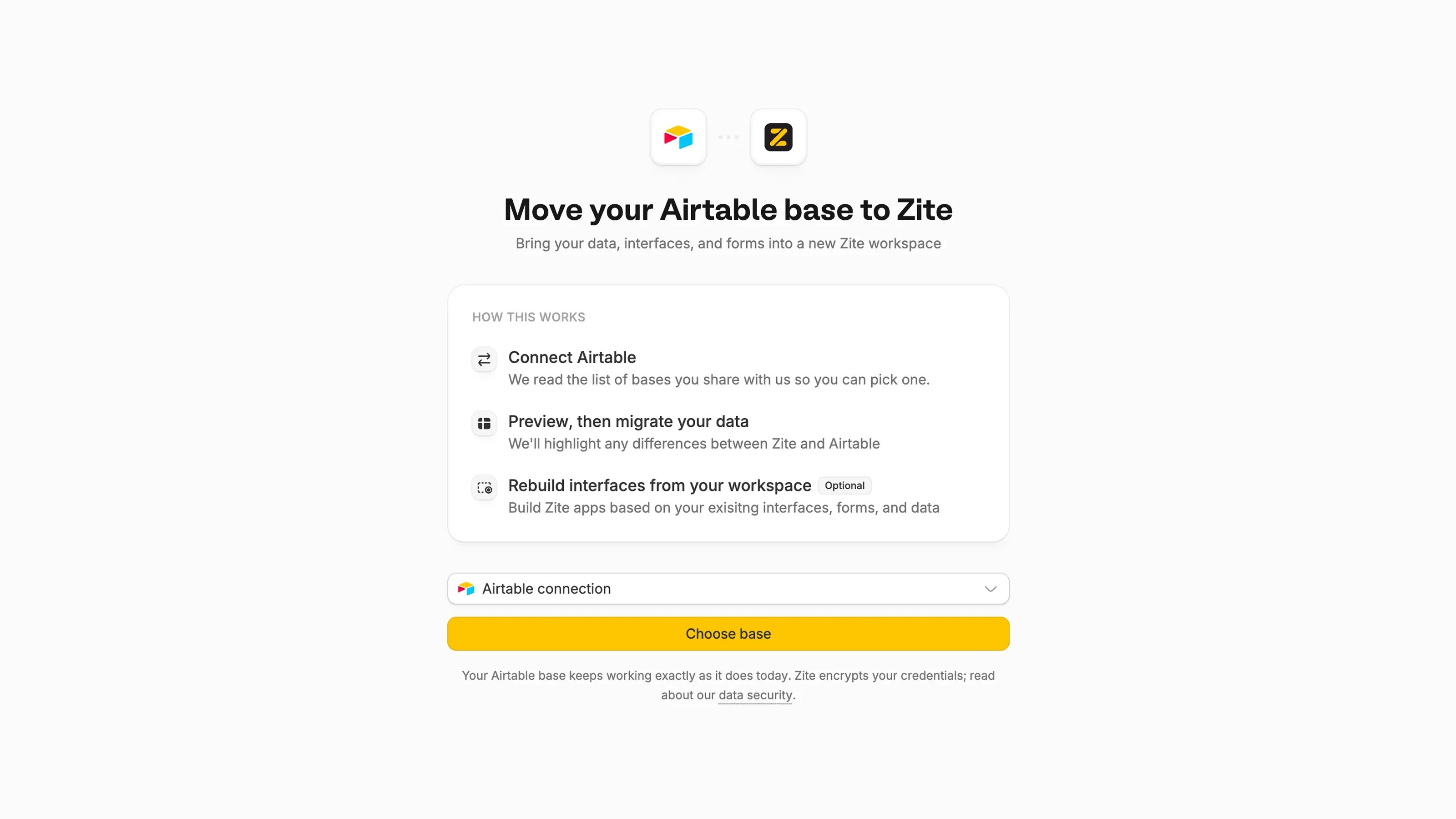 Move your Airtable base into Zite when you want your data and apps to live in one workspace. Zite imports the base into a Zite Database and can help recreate the Airtable interfaces your team already uses.
A migration creates a new copy of your data in Zite. Changes made in Airtable after the migration do not automatically appear in the Zite Database.
## Before you start
Make sure you have:
* Access to the Airtable account and base you want to migrate
* Permission to share your screen if you want Zite to recreate an Airtable interface
* A working microphone so you can explain how your interface is used
If Zite asks you to reconnect Airtable, reconnect the account before continuing. This gives Zite current access to the base and its structure.
## Migrate an Airtable base
Go to [build.fillout.com/migrate/airtable](https://build.fillout.com/migrate/airtable) and sign in to Zite.
Select `Connect Airtable`, then authorize Zite to access the Airtable account that contains your base.
Select the Airtable base you want to move. Review the tables, fields, and sample records shown in the preview before starting the migration.
Move your Airtable base into Zite when you want your data and apps to live in one workspace. Zite imports the base into a Zite Database and can help recreate the Airtable interfaces your team already uses.
A migration creates a new copy of your data in Zite. Changes made in Airtable after the migration do not automatically appear in the Zite Database.
## Before you start
Make sure you have:
* Access to the Airtable account and base you want to migrate
* Permission to share your screen if you want Zite to recreate an Airtable interface
* A working microphone so you can explain how your interface is used
If Zite asks you to reconnect Airtable, reconnect the account before continuing. This gives Zite current access to the base and its structure.
## Migrate an Airtable base
Go to [build.fillout.com/migrate/airtable](https://build.fillout.com/migrate/airtable) and sign in to Zite.
Select `Connect Airtable`, then authorize Zite to access the Airtable account that contains your base.
Select the Airtable base you want to move. Review the tables, fields, and sample records shown in the preview before starting the migration.
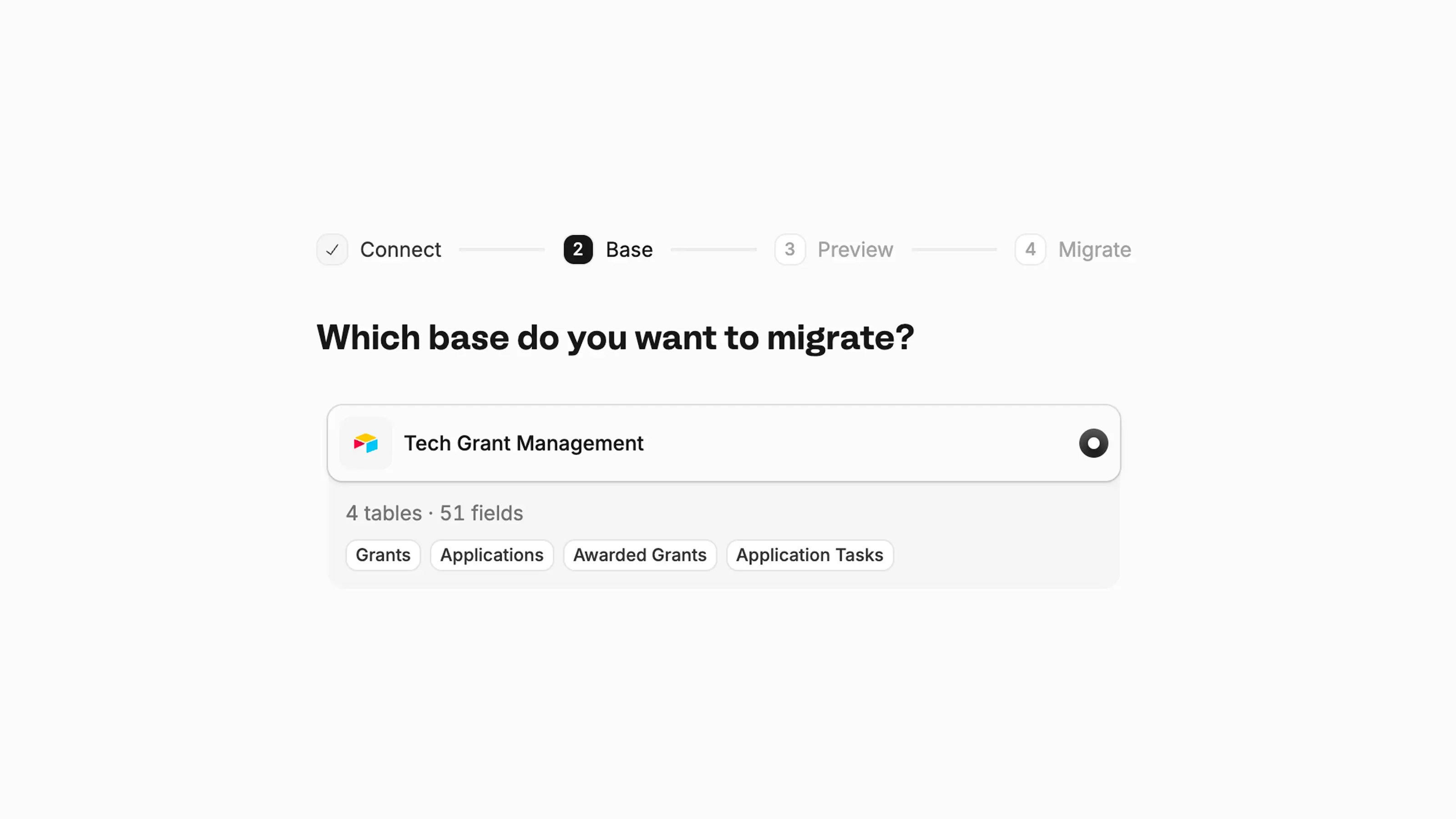 Some Airtable content may have import exceptions. Zite highlights these during this step so you can see what needs review before starting the migration.
Start the migration and keep the page open while Zite imports the base. Zite creates a new database workspace and shows the migration progress as it copies your tables and records.
If Zite cannot migrate a field or connection automatically, it shows a warning so you can review it after the import.
If your base uses Airtable interfaces, choose the option to migrate an interface. Allow screen and microphone access, then record a short walkthrough of the interface.
Some Airtable content may have import exceptions. Zite highlights these during this step so you can see what needs review before starting the migration.
Start the migration and keep the page open while Zite imports the base. Zite creates a new database workspace and shows the migration progress as it copies your tables and records.
If Zite cannot migrate a field or connection automatically, it shows a warning so you can review it after the import.
If your base uses Airtable interfaces, choose the option to migrate an interface. Allow screen and microphone access, then record a short walkthrough of the interface.
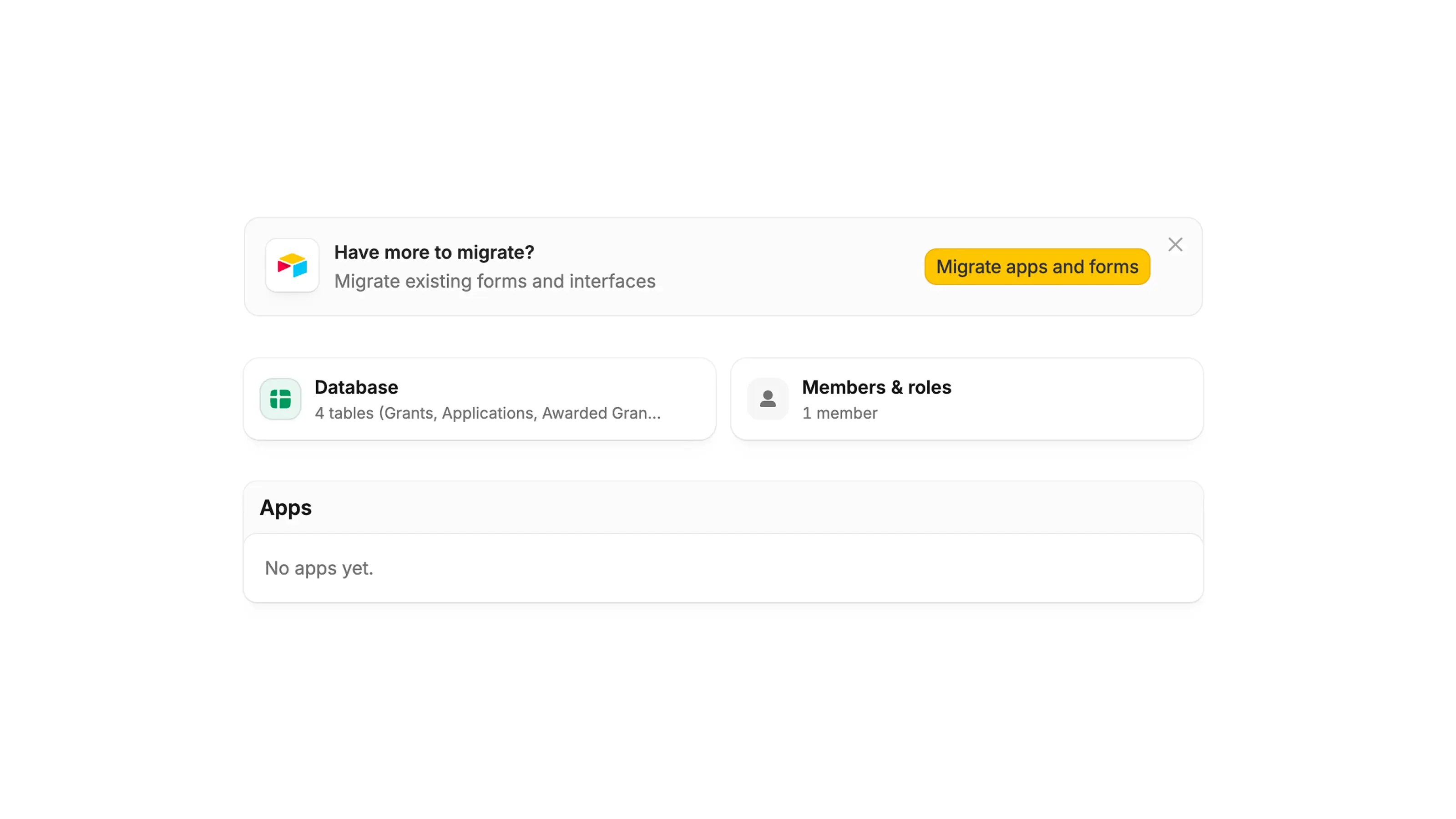 Explain what each page is for, who uses it, and the actions people need to take. Zite uses the recording, narration, and key screens to create a plan for a new Zite app.
Open the new Zite workspace and check the imported tables, records, linked fields, formulas, attachments, and views. Then test any migrated forms or generated apps before sharing them with your team.
## What Zite migrates
Zite imports supported Airtable content into a Zite Database, including:
* Tables, fields, and select options
* Records and supported attachments
* Relationships between supported tables and fields
* Supported forms and connections that use the Airtable base
For Airtable interfaces, Zite creates a new app from your recorded walkthrough rather than copying the interface pixel for pixel. You can update the generated app in the Zite editor after migration.
## After the migration
Before switching your team to Zite:
* Compare a sample of records in Airtable and Zite
* Check formulas, linked records, select options, and attachment fields
* Review any migration warnings for unsupported or unmapped fields
* Test forms, apps, permissions, and workflows that use the migrated data
* Invite teammates and publish the new apps when everything is ready
Keep the Airtable base available until you have confirmed that the new Zite workspace contains the data and tools your team needs.
Explain what each page is for, who uses it, and the actions people need to take. Zite uses the recording, narration, and key screens to create a plan for a new Zite app.
Open the new Zite workspace and check the imported tables, records, linked fields, formulas, attachments, and views. Then test any migrated forms or generated apps before sharing them with your team.
## What Zite migrates
Zite imports supported Airtable content into a Zite Database, including:
* Tables, fields, and select options
* Records and supported attachments
* Relationships between supported tables and fields
* Supported forms and connections that use the Airtable base
For Airtable interfaces, Zite creates a new app from your recorded walkthrough rather than copying the interface pixel for pixel. You can update the generated app in the Zite editor after migration.
## After the migration
Before switching your team to Zite:
* Compare a sample of records in Airtable and Zite
* Check formulas, linked records, select options, and attachment fields
* Review any migration warnings for unsupported or unmapped fields
* Test forms, apps, permissions, and workflows that use the migrated data
* Invite teammates and publish the new apps when everything is ready
Keep the Airtable base available until you have confirmed that the new Zite workspace contains the data and tools your team needs.
Related topics