> ## Documentation Index
> Fetch the complete documentation index at: https://zite.com/llms.txt
> Use this file to discover all available pages before exploring further.
# Zite Workflows
> Add backend logic to your Zite apps—connect to databases, send emails, run AI, and more.
## What are workflows?
Workflows are the backend logic that powers your Zite apps. They let you:
* **Connect to databases:** Read and write data from Zite Database, Airtable, Google Sheets, and more
* **Send messages:** Trigger Slack notifications or send emails
* **Run AI operations:** Generate text, images, or structured data with OpenAI
* **Process data:** Transform, filter, and combine data from multiple sources
* **Call external APIs:** Connect to third-party services
Workflows are sometimes called **endpoints** or **API routes**.
## Create workflows
Tell Zite what you want the workflow to do. For example:
```text theme={null}
Create a workflow that searches for products by name
and returns matching results with their prices.
```
If the workflow needs access to a service (like Slack or Airtable), Zite will prompt you to `+ Connect` it.
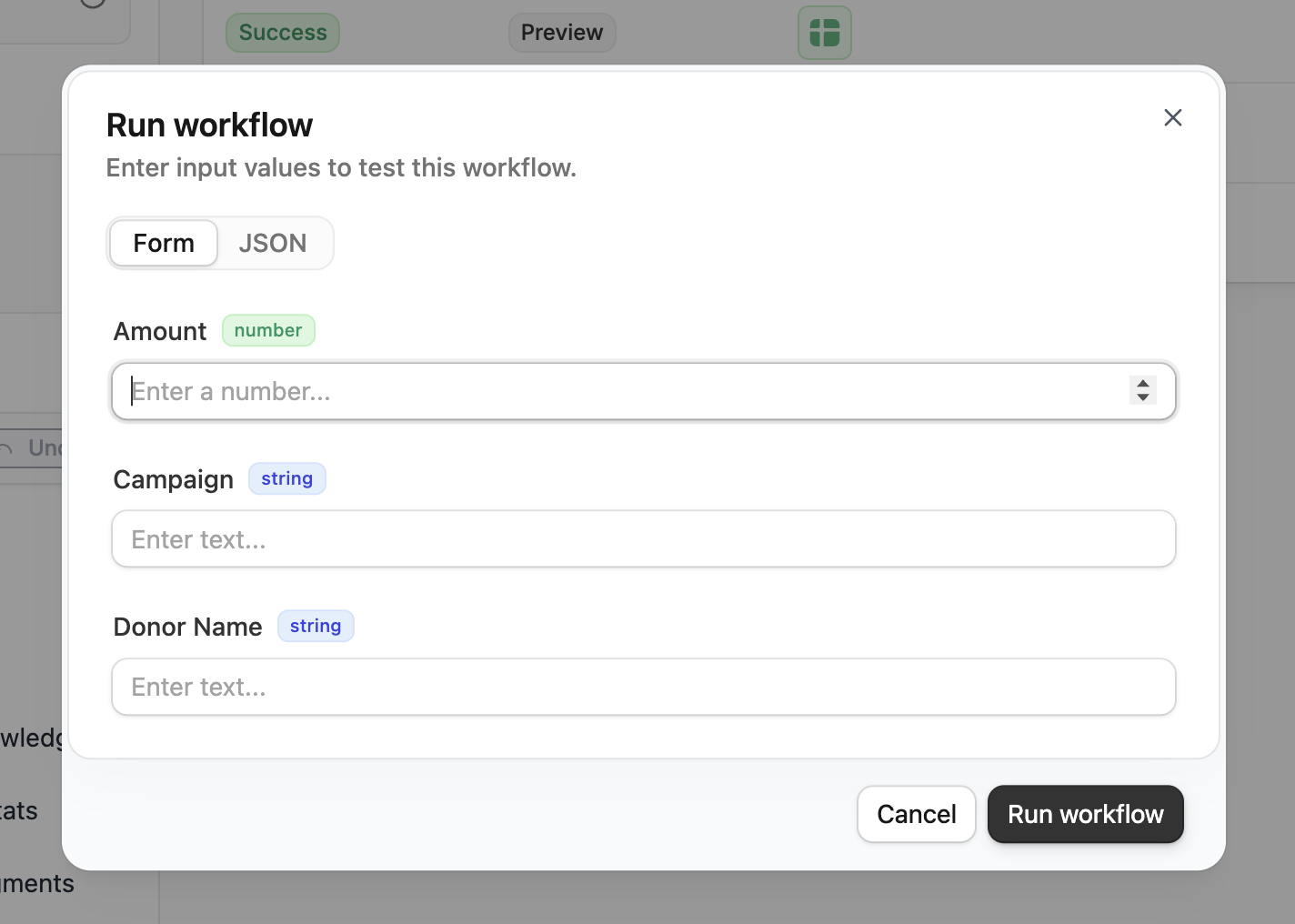
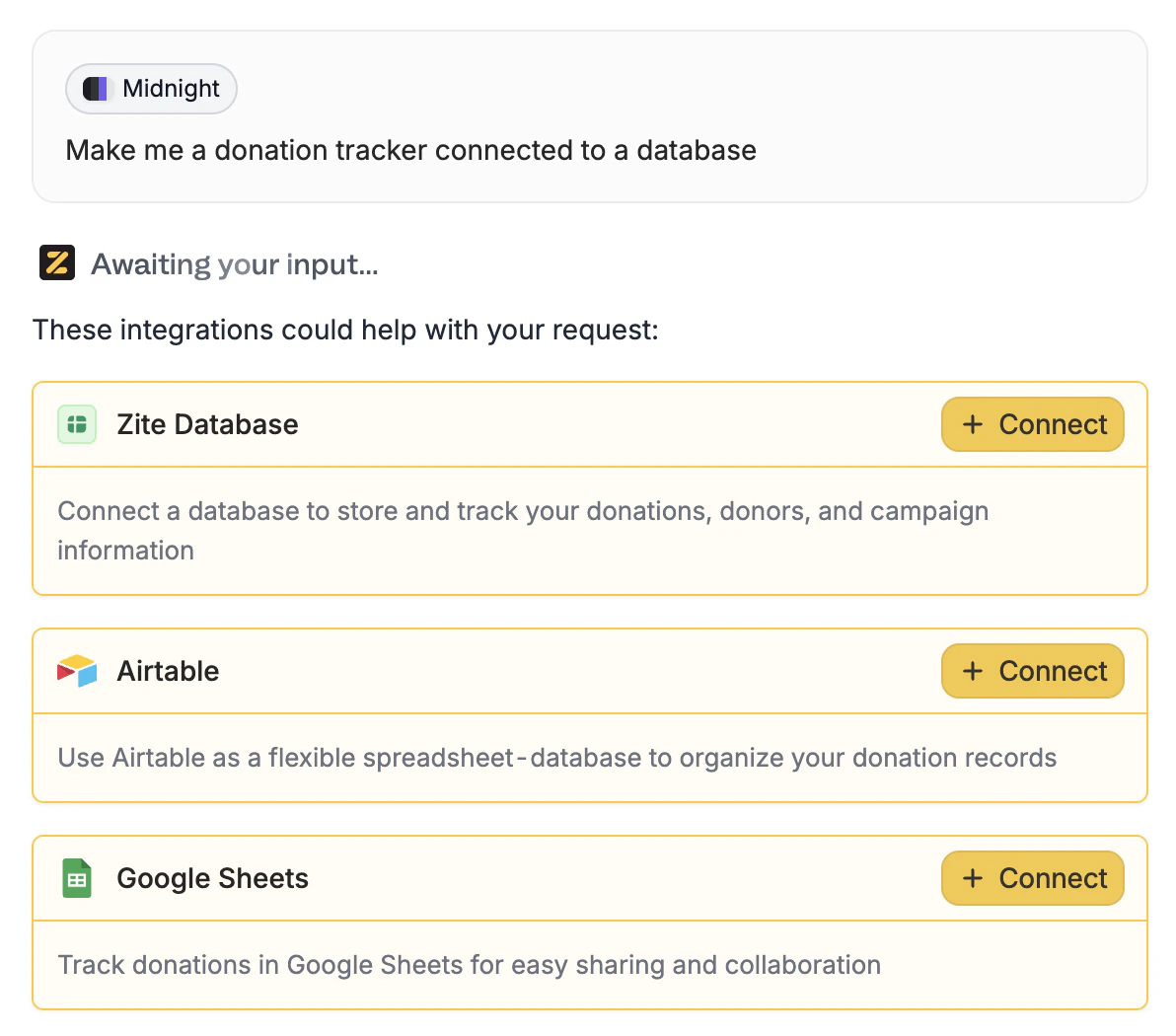 Zite generates the workflow and shows you a visual preview of what it does. Use `Test run` to verify it works as expected. More info [here](/help/platform/workflows/workflow-run-history#testing-with-custom-inputs).
For authenticated workflows, choose which user context to test with
Zite generates the workflow and shows you a visual preview of what it does. Use `Test run` to verify it works as expected. More info [here](/help/platform/workflows/workflow-run-history#testing-with-custom-inputs).
For authenticated workflows, choose which user context to test with
 Be specific in your prompts. Instead of "save user data," try "when a user submits the form, create a new record in the Contacts table with their name and email."
## Available integrations
Workflows can connect to all Zite integrations.
Browse integrations at [zite.com/integrations](https://www.zite.com/integrations).
Learn how to link your accounts and use integrations in your app [here](/help/integrations/overview).
## View workflows
Click `Workflows` see all workflows in your app. Each workflow shows a **name**, its **description**, **apps** it uses (Database, Slack, OpenAI, etc.), and who has **access**.
Be specific in your prompts. Instead of "save user data," try "when a user submits the form, create a new record in the Contacts table with their name and email."
## Available integrations
Workflows can connect to all Zite integrations.
Browse integrations at [zite.com/integrations](https://www.zite.com/integrations).
Learn how to link your accounts and use integrations in your app [here](/help/integrations/overview).
## View workflows
Click `Workflows` see all workflows in your app. Each workflow shows a **name**, its **description**, **apps** it uses (Database, Slack, OpenAI, etc.), and who has **access**.
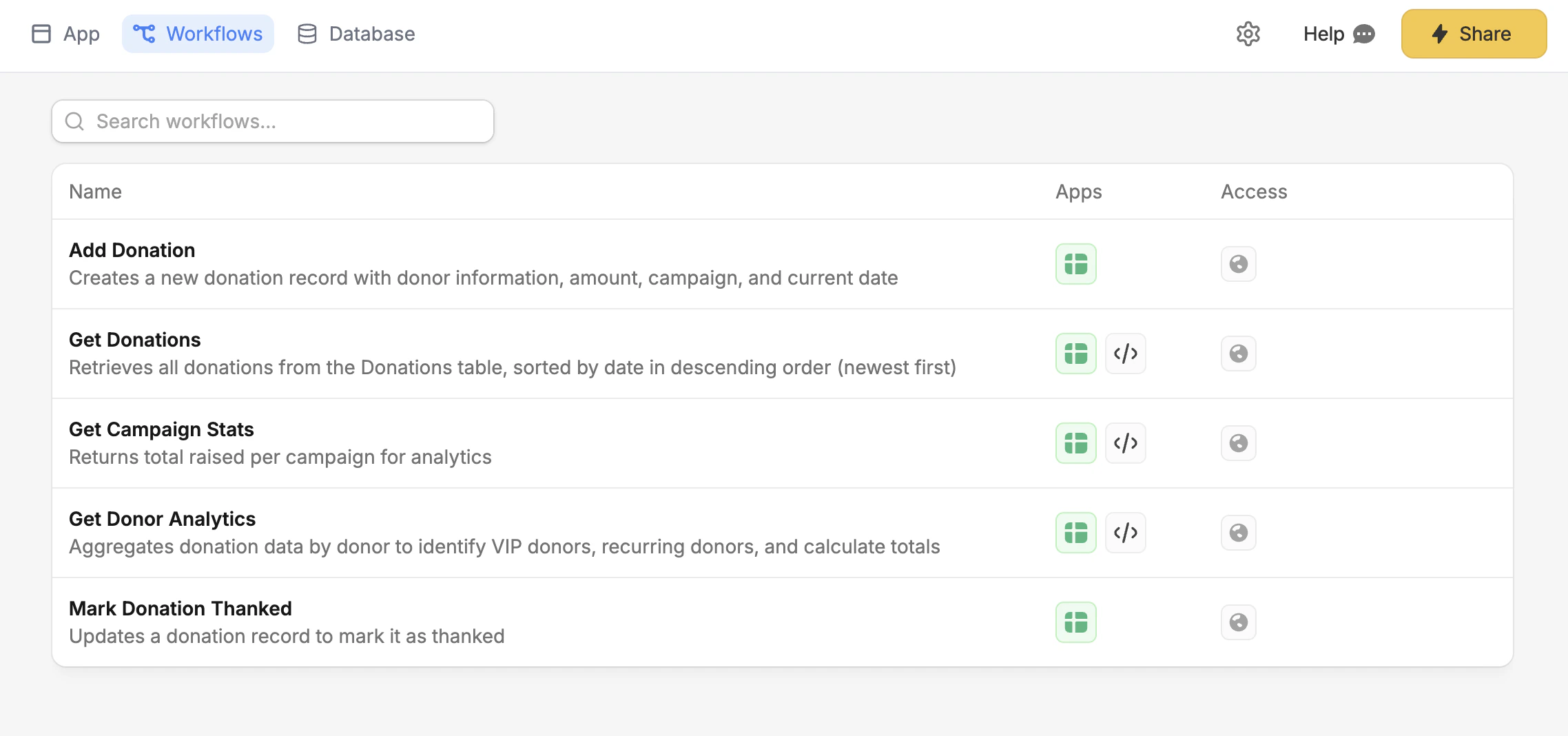 Click any workflow to open the editor, where you can view the code, see a visual preview, or check the run history.
* **Name** - The workflow's identifier
* **Description** - What the workflow does
* **Integration icons** - Which services the workflow uses
## Authentication
Workflows can require users to be logged in. When authentication is enabled:
* Only logged-in users can trigger the workflow
* The workflow has access to the current user's info (ID, email, profile data)
* Requests from non-logged-in users are automatically rejected
Set up authentication for your app.
## Workflow editor
The workflow editor has three tabs:
| Tab | Description |
| ----------- | ------------------------------------------------------------------------------------------ |
| **Preview** | Visual diagram showing the workflow's steps |
| **Code** | The TypeScript code powering the workflow |
| **History** | Execution logs for debugging ([learn more](/help/platform/workflows/workflow-run-history)) |
Click any workflow to open the editor, where you can view the code, see a visual preview, or check the run history.
* **Name** - The workflow's identifier
* **Description** - What the workflow does
* **Integration icons** - Which services the workflow uses
## Authentication
Workflows can require users to be logged in. When authentication is enabled:
* Only logged-in users can trigger the workflow
* The workflow has access to the current user's info (ID, email, profile data)
* Requests from non-logged-in users are automatically rejected
Set up authentication for your app.
## Workflow editor
The workflow editor has three tabs:
| Tab | Description |
| ----------- | ------------------------------------------------------------------------------------------ |
| **Preview** | Visual diagram showing the workflow's steps |
| **Code** | The TypeScript code powering the workflow |
| **History** | Execution logs for debugging ([learn more](/help/platform/workflows/workflow-run-history)) |
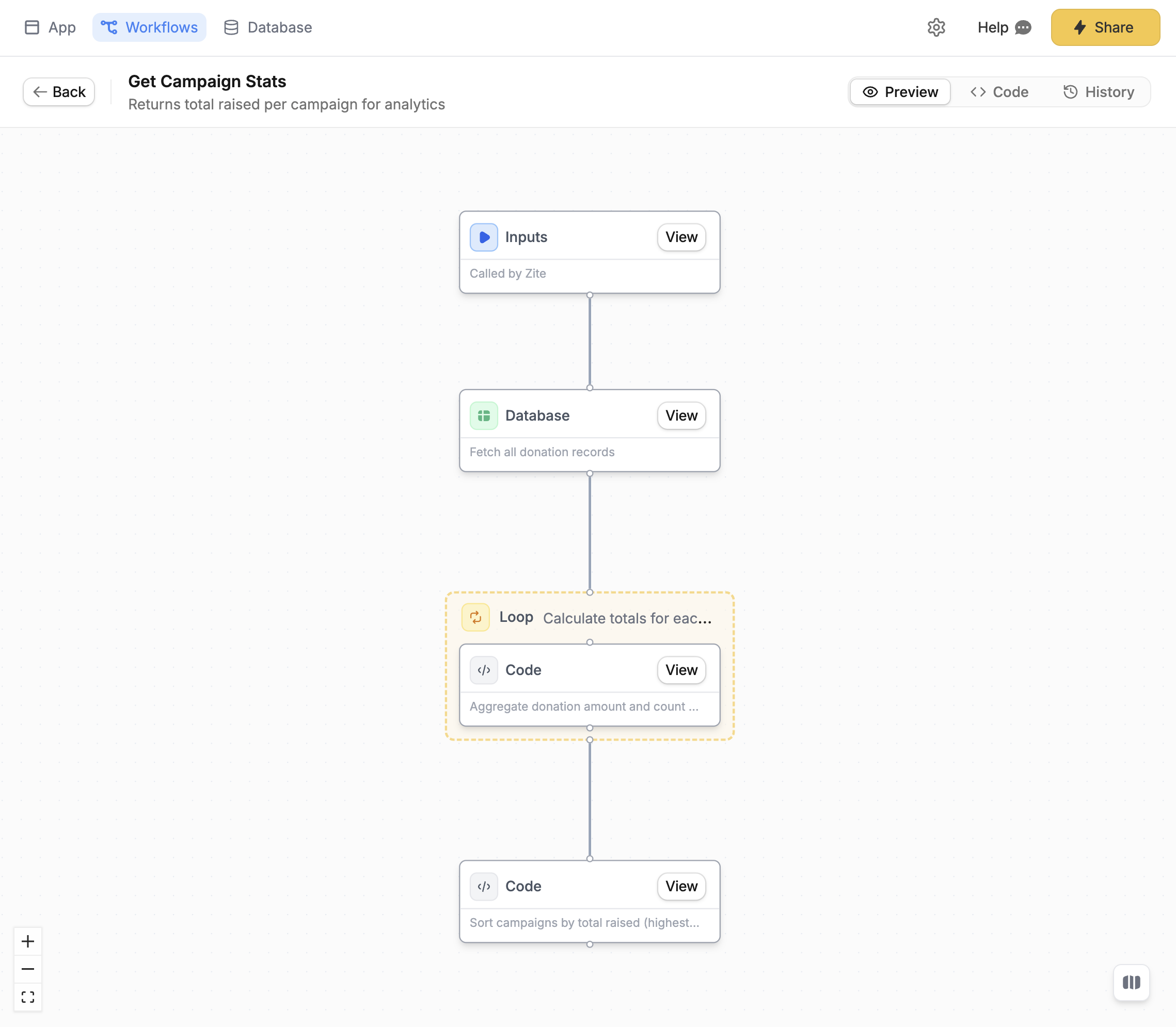 You don't need to write or understand code to use Zite Workflows. The code tab is there if you want to inspect or manually edit the logic.
## Streaming workflows
For real-time AI chat experiences, workflows can stream responses back to the user as they're generated, just like ChatGPT.
Ask Zite to "create a chat interface" or "add an AI assistant," and it will set up a streaming workflow automatically.
## Workflow runs and your monthly limit
Each workflow execution counts as one **workflow run**. Workflow runs are how Zite meters the work your apps do to interact with databases and third-party systems.
* Only runs from your **published apps** count toward your monthly workflow run limit.
* Runs from the editor are free and don't count.
* Each plan includes a monthly workflow run allowance. See current limits on the [pricing page](https://www.zite.com/pricing) or in your [Billing & Usage](https://build.fillout.com/home/settings/billing) settings.
If you go over your limit, your published apps will continue to run for your users—but you won't be able to publish edits until your usage resets or you upgrade your plan.
See exactly which apps are generating runs, and review the history of every run, in [Workflow run history](/help/platform/workflows/workflow-run-history).
## Example prompts
Here are some prompts to help you get started:
* "Create a workflow to fetch all orders from the past 7 days"
* "Add a workflow that creates a new contact when the form is submitted"
* "Update the task status to 'completed' when the user clicks done"
* "Send a Slack message to #sales when a new lead is created"
* "Notify the team in Slack when a new order is placed"
* "Post to #support when a ticket is marked urgent"
* "Add an AI chat assistant that answers questions about our products"
* "Generate a summary of the customer's order history"
* "Create a workflow that categorizes support tickets using AI"
* "Fetch data from Airtable and sync it to Google Sheets"
* "Calculate the total revenue from all orders this month"
* "Filter contacts by status and return only active ones"
## Best practices
1. Keep workflows focused.Each workflow should do one thing well. Break complex logic into multiple workflows.
2. Test before publishing.Use the live app preview and test your app to verify your workflows work correctly.
3. Check the run history. When something goes wrong, the run history shows exactly what happened.
4. Let AI debug for you. Ask Zite "why is my workflow failing?" and it can analyze the logs to help.
Need help? Contact our support team at [support@fillout.com](mailto:support@fillout.com).
You don't need to write or understand code to use Zite Workflows. The code tab is there if you want to inspect or manually edit the logic.
## Streaming workflows
For real-time AI chat experiences, workflows can stream responses back to the user as they're generated, just like ChatGPT.
Ask Zite to "create a chat interface" or "add an AI assistant," and it will set up a streaming workflow automatically.
## Workflow runs and your monthly limit
Each workflow execution counts as one **workflow run**. Workflow runs are how Zite meters the work your apps do to interact with databases and third-party systems.
* Only runs from your **published apps** count toward your monthly workflow run limit.
* Runs from the editor are free and don't count.
* Each plan includes a monthly workflow run allowance. See current limits on the [pricing page](https://www.zite.com/pricing) or in your [Billing & Usage](https://build.fillout.com/home/settings/billing) settings.
If you go over your limit, your published apps will continue to run for your users—but you won't be able to publish edits until your usage resets or you upgrade your plan.
See exactly which apps are generating runs, and review the history of every run, in [Workflow run history](/help/platform/workflows/workflow-run-history).
## Example prompts
Here are some prompts to help you get started:
* "Create a workflow to fetch all orders from the past 7 days"
* "Add a workflow that creates a new contact when the form is submitted"
* "Update the task status to 'completed' when the user clicks done"
* "Send a Slack message to #sales when a new lead is created"
* "Notify the team in Slack when a new order is placed"
* "Post to #support when a ticket is marked urgent"
* "Add an AI chat assistant that answers questions about our products"
* "Generate a summary of the customer's order history"
* "Create a workflow that categorizes support tickets using AI"
* "Fetch data from Airtable and sync it to Google Sheets"
* "Calculate the total revenue from all orders this month"
* "Filter contacts by status and return only active ones"
## Best practices
1. Keep workflows focused.Each workflow should do one thing well. Break complex logic into multiple workflows.
2. Test before publishing.Use the live app preview and test your app to verify your workflows work correctly.
3. Check the run history. When something goes wrong, the run history shows exactly what happened.
4. Let AI debug for you. Ask Zite "why is my workflow failing?" and it can analyze the logs to help.
Need help? Contact our support team at [support@fillout.com](mailto:support@fillout.com).