> ## Documentation Index
> Fetch the complete documentation index at: https://zite.com/llms.txt
> Use this file to discover all available pages before exploring further.
# Workflow Runs
> Understand workflow run usage and view, filter, and debug workflow executions with detailed logs.
## What is a workflow run?
A workflow run is one successful execution of a workflow from a published app. No matter how many steps, nodes, integrations, loops, or bulk operations the workflow includes, it counts as **one workflow run**.
Workflow runs are tracked separately from [credits](/help/platform/getting-started/credits). Each successful published-app execution uses 1 workflow run from your monthly workflow run allowance.
Workflow runs in the editor do not count toward your monthly workflow run limit and do not consume credits.
## What counts toward your limit?
| Execution type | Counts as a workflow run? |
| --------------------------------------------------- | ----------------------------------- |
| Successful workflow run from a published app | Yes |
| Workflow run from the editor | No |
| Failed run, timeout, or unsuccessful run | No |
| Workflow with many steps, loops, or bulk operations | Yes, if the run status is `Success` |
Check the run status in the workflow history. If the status is `Success`, it counts as a successful workflow run.
## Workflow runs and credits
A workflow run and credits are separate usage types. A workflow can count as one workflow run and still consume credits if it performs credit-consuming actions.
| Workflow activity | Usage |
| ------------------------------------------ | ----------------------------------------------------- |
| A published workflow runs successfully | 1 workflow run |
| A workflow sends emails | 1 workflow run |
| A workflow uses OpenAI with Zite's API key | 1 workflow run plus credits for the AI usage |
| A workflow uses your own OpenAI API key | 1 workflow run, no Zite credits for that OpenAI usage |
For example, if a published workflow runs successfully and sends two emails, it counts as one workflow run.
## Running out of usage
If you run out of workflow runs or credits, your published apps continue to work for users. Workflows still execute, and AI-powered workflows continue to run.
You will not be able to publish new edits until your usage resets or you upgrade your plan.
## Where to see usage
Workflow run limits are tracked across your whole organization, not separately per app.
To review usage, open [Billing & Usage](https://app.zite.com/home/settings/billing). You can use it to check workflow runs and OpenAI usage.
Eligible existing paid customers receive a 50% higher workflow-run allowance across plans for as long as they keep an active subscription.
## FAQs
Yes. A workflow with 3 steps and a workflow with 30 steps both count as one workflow run if each is executed successfully from a published app.
No. Only runs with a `Success` status count toward your monthly workflow run limit.
No. Workflow runs in the editor do not count toward your workflow run limit and do not consume credits.
Yes. If a workflow performs credit-consuming actions, those credits are consumed separately. For example, a successful workflow that uses OpenAI with Zite's API key counts as 1 workflow run plus credits for the AI usage.
No. If your workflow uses your own OpenAI API key, Zite credits are not consumed for that OpenAI usage. The successful published workflow execution still counts as one workflow run.
No. Workflow run limits are tracked across your whole organization.
No. Emails sent by workflows do not consume credits. A successful published workflow execution still counts as one workflow run.
## What is run history?
Every time a workflow runs, Zite keeps a detailed log of what happened. You can see the inputs, outputs, and each step in between—making it easy to understand what's working and debug what isn't.
Logs are retained for **90 days**.
Only successful runs from your published apps count toward your monthly workflow run limit. Runs from the editor are free.
## Viewing run history
Open any workflow and click the **History** tab to see all past runs.
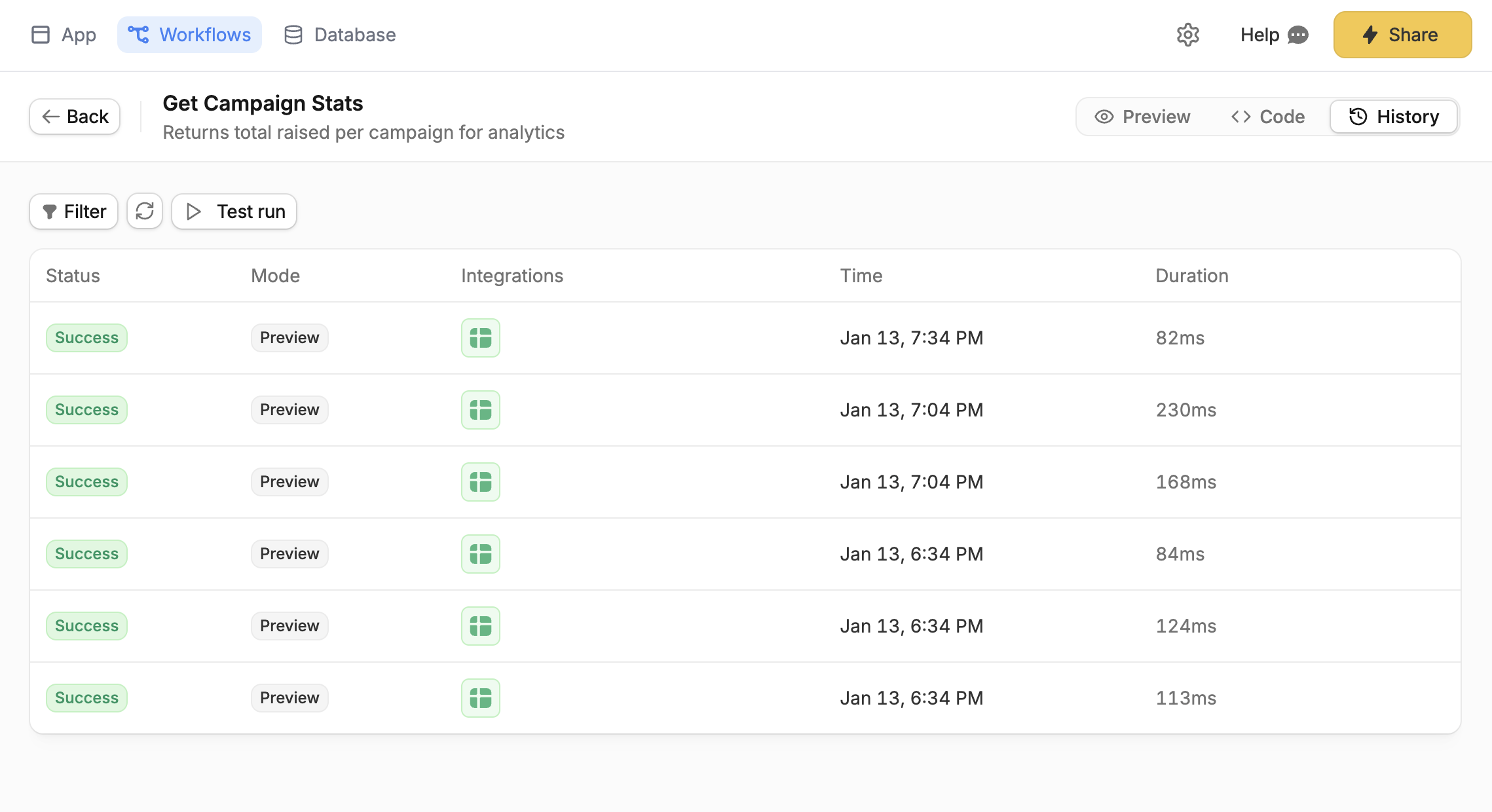 Each run shows:
* **Status** – Whether it succeeded or failed
* **Mode** – `Live` (production) or `Preview` (testing)
* **Time** – When it ran
* **Duration** – How long it took
Click any run to see the full details.
## Understanding a run
When you open a run, you'll see a step-by-step timeline of everything that happened:
Each run shows:
* **Status** – Whether it succeeded or failed
* **Mode** – `Live` (production) or `Preview` (testing)
* **Time** – When it ran
* **Duration** – How long it took
Click any run to see the full details.
## Understanding a run
When you open a run, you'll see a step-by-step timeline of everything that happened:
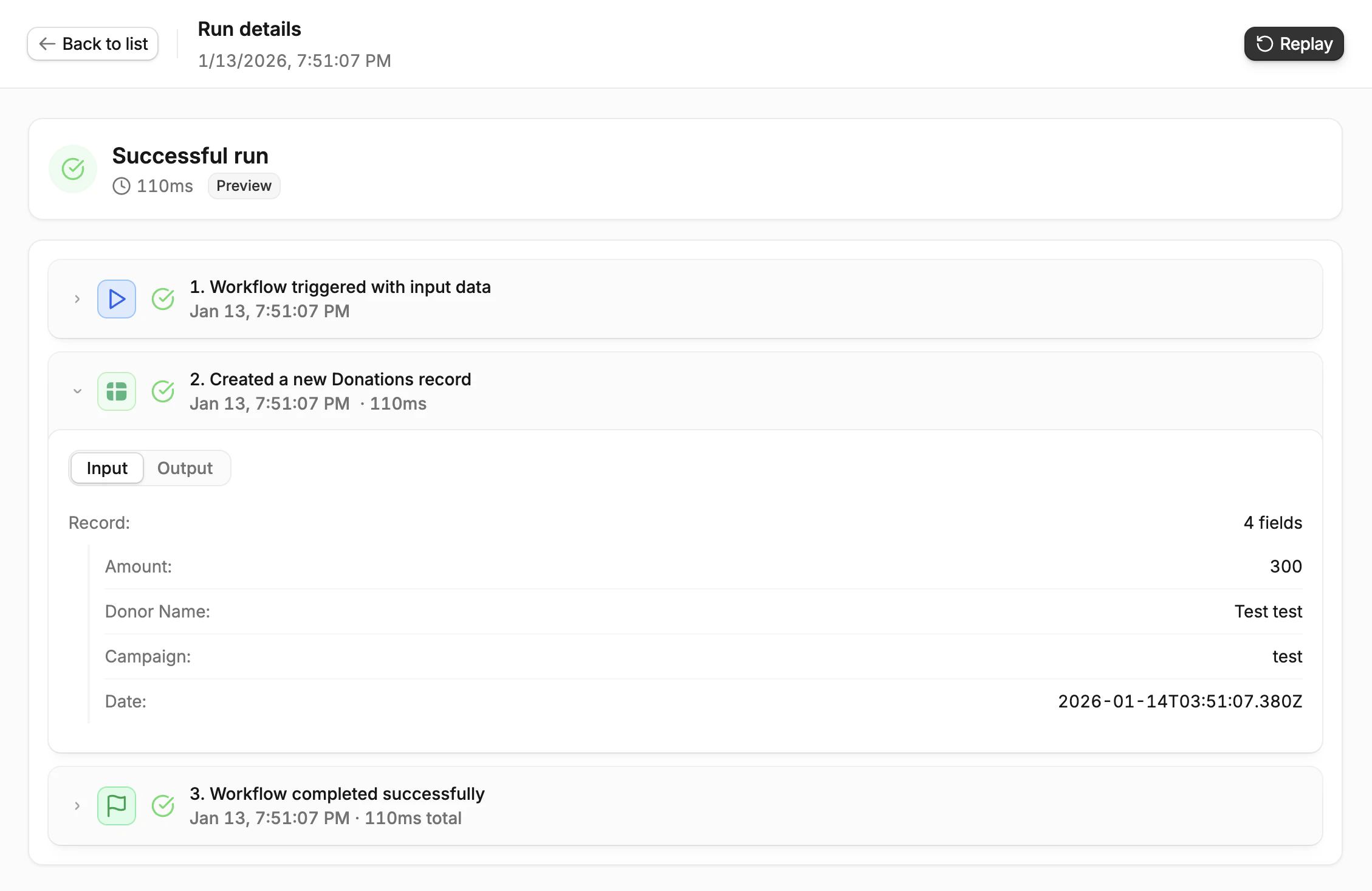 * **Input** – The data that triggered the workflow
* **Database calls** – Records that were read, created, or updated
* **External requests** – API calls to other services
* **Output** – The final result returned by the workflow
If something went wrong, you'll see the error message and exactly where it failed.
Click any step to expand it and see the full input and output data.
## Filtering runs
Use the filters at the top to find specific runs:
* **Mode** – Show only `Live` or `Preview` runs
* **Status** – Show only successful or failed runs
* **Time range** – Last hour, 24 hours, 7 days, etc.
Click `Clear all` to reset the filters.
## Testing with custom inputs
Click `Test run` to manually run a workflow with your own inputs.
Open the workflow and click `Test run` at the top.
Fill in the form fields, or switch to JSON mode for raw input.
* **Input** – The data that triggered the workflow
* **Database calls** – Records that were read, created, or updated
* **External requests** – API calls to other services
* **Output** – The final result returned by the workflow
If something went wrong, you'll see the error message and exactly where it failed.
Click any step to expand it and see the full input and output data.
## Filtering runs
Use the filters at the top to find specific runs:
* **Mode** – Show only `Live` or `Preview` runs
* **Status** – Show only successful or failed runs
* **Time range** – Last hour, 24 hours, 7 days, etc.
Click `Clear all` to reset the filters.
## Testing with custom inputs
Click `Test run` to manually run a workflow with your own inputs.
Open the workflow and click `Test run` at the top.
Fill in the form fields, or switch to JSON mode for raw input.
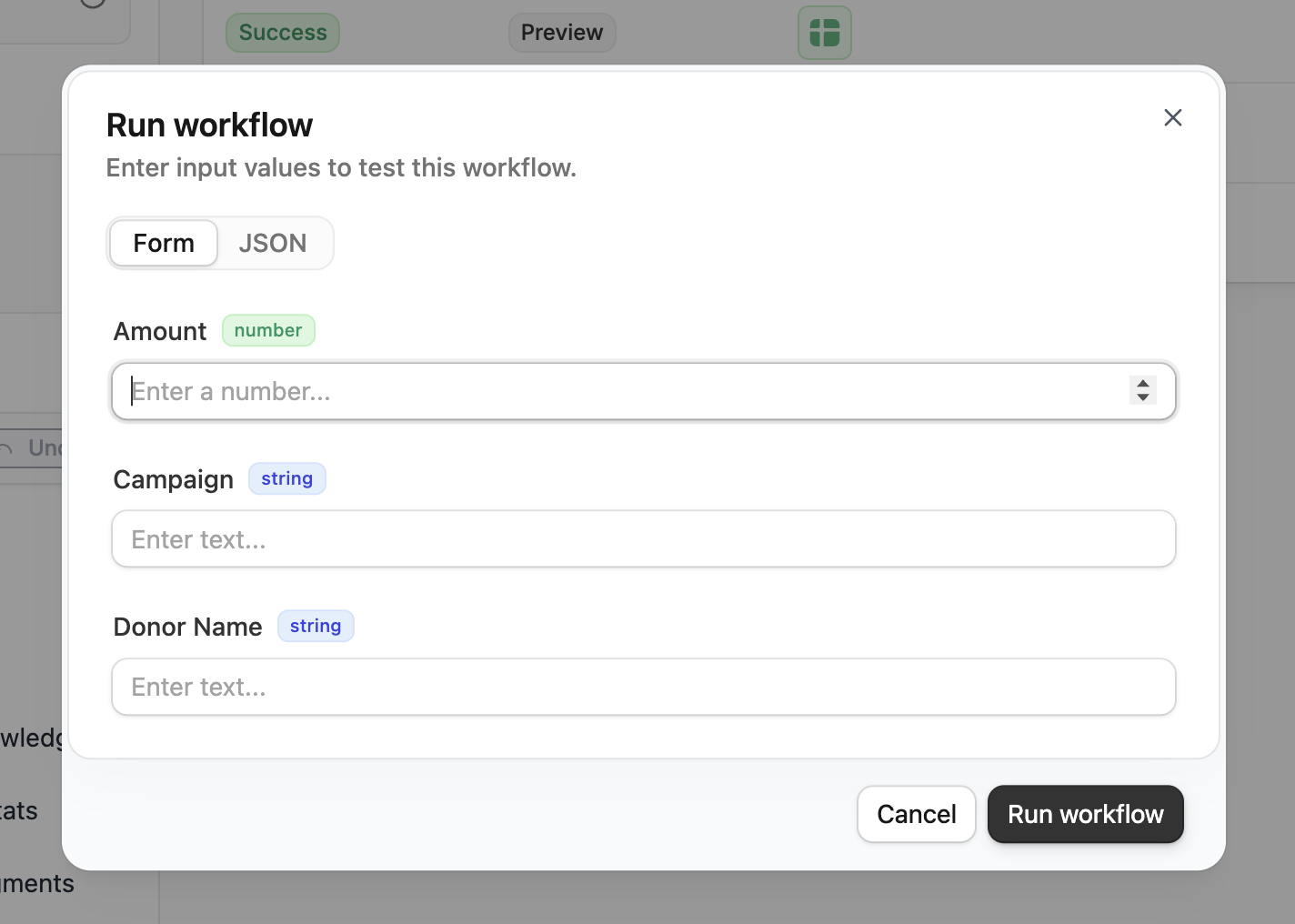 For workflows that require login, select which user to run as.
Click `Run` and check the result in your run history.
## Replaying a run
Want to run a workflow again with the same inputs? Click `Replay` from the run detail view. This creates a new run with identical input data—useful for testing a fix or reproducing an issue.
## Debugging with AI
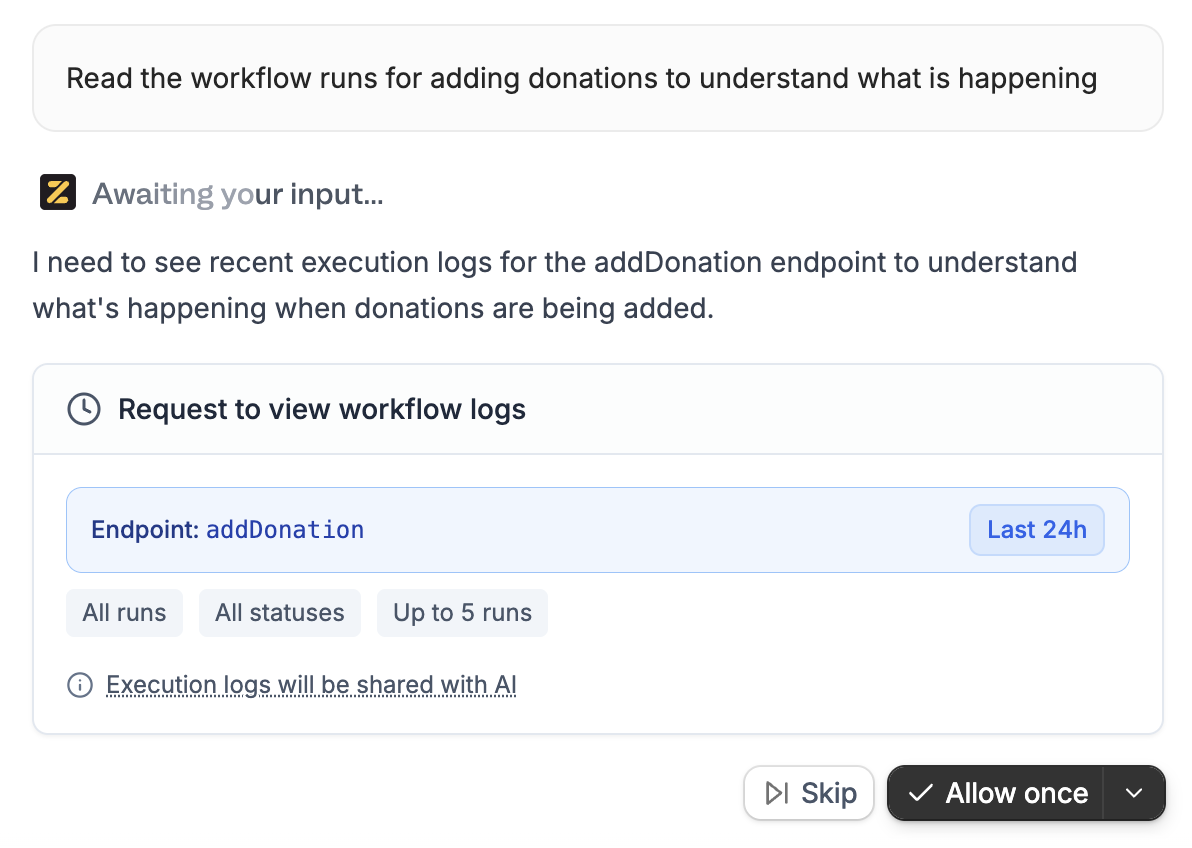
If something isn't working, ask Zite for help. The AI can read your workflow logs to identify what went wrong.
Try prompts like:
* "Why is my workflow failing?"
* "What's causing the error in my getOrders workflow?"
* "Help me debug this endpoint"
When Zite requests access to your logs, you can:
* `Allow once` – Share logs for this request only
* `Allow always` – Let Zite read logs anytime (you can change this in settings)
* `Skip` – Don't share logs
For workflows that require login, select which user to run as.
Click `Run` and check the result in your run history.
## Replaying a run
Want to run a workflow again with the same inputs? Click `Replay` from the run detail view. This creates a new run with identical input data—useful for testing a fix or reproducing an issue.
## Debugging with AI
If something isn't working, ask Zite for help. The AI can read your workflow logs to identify what went wrong.
Try prompts like:
* "Why is my workflow failing?"
* "What's causing the error in my getOrders workflow?"
* "Help me debug this endpoint"
When Zite requests access to your logs, you can:
* `Allow once` – Share logs for this request only
* `Allow always` – Let Zite read logs anytime (you can change this in settings)
* `Skip` – Don't share logs
 Need help? Contact our support team at [support@zite.com](mailto:support@zite.com).