

Businesses automate their workflows to reduce time and money spent on tasks. These are the 5 most common types of business process automation, plus the top tools to build them in 2026, based on my hands-on testing.
What is Business Process Automation (BPA)?
Business process automation (BPA) means using software to automate repetitive business processes. Instead of people manually moving information between tools, sending emails, or approving requests one by one, the software handles those tasks based on rules you set.
BPA covers a wide range. On one end, you have simple triggers like auto-sending a Slack message when someone fills out a form. On the other end, you have smart systems that use AI to make decisions, spot patterns, and get better over time.
This distinction matters because picking the wrong automation type wastes money and time. A team that just needs to send leads to the right salesperson doesn't need a full AI system.
5 Types of Business Process Automation
There are five main types of BPA, each built for a different kind of work. Here's how each one works and what it automates:
Task automation
Task automation handles one simple action that runs when something specific happens.
How it works: You pick a trigger (like a new form submission or an incoming email), set a rule, and choose what should happen next. The automation runs between your tools without anyone writing code.
Common use cases
- Auto-replying to new leads after they fill out a form
- Copying new customer records from your CRM to a shared Google Sheet
- Sending a Slack message when a high-priority support ticket comes in
- Creating an invoice automatically when a deal closes
Benefits of task automation
- Your team can focus on meaningful work while small, repetitive tasks run on their own.
- Fewer mistakes, since the automation follows the same rules every time.
- Fast to set up and easy to manage without technical skills.
When to use task automation
Use task automation when your work is:
- One step: One trigger leads to one action.
- Simple and predictable: The logic is clear and rarely changes, like copying data, sending alerts, or tagging records.
- Low risk: No approvals, exceptions, or coordination between teams needed.
- Repetitive: You do it often enough that even small time savings add up.
Avoid task automation if the work spans several steps, people, or tools. Chaining lots of small automations together gets messy and hard to fix when something breaks.
Workflow automation
Workflow automation connects multiple tasks into a coordinated sequence that moves work between people, tools, and data.
How it works: You map out the steps in a process (for example: request → review → approval → notification → record update), set the rules for each step, and let the software route everything automatically.
Common use cases
- New hire onboarding that collects documents, sets up accounts, and schedules orientation automatically.
- Purchase approvals that send requests to a manager, then finance, then procurement, in order.
- Support ticket workflows that sort issues by priority, escalate when needed, and send follow-up surveys after resolution.
Benefits of workflow automation
- Work keeps moving without someone manually passing it along, so nothing stalls when a person forgets the next step.
- Everyone follows the same process, which cuts down on errors and inconsistency.
- Scales better than stringing together individual task automations, because all the logic lives in one place.
When to use workflow automation
Use workflow automation when your work is:
- Multi-step: Three or more steps where each one depends on the last.
- Conditional: Different inputs need different paths (e.g., small purchases get auto-approved, large ones go to a manager).
- Approval-dependent: Someone needs to review or sign off before work continues.
- Cross-team: Work moves between departments or tools and needs coordination.
If you only need to automate a single action, workflow automation adds unnecessary complexity. Task automation is faster and cheaper for those cases.
RPA (Robotic Process Automation)
RPA uses software bots that interact with your screen the same way a person would.
How it works: A bot is trained (or "recorded") to copy what a human does on screen. It clicks buttons, navigates menus, copies data between fields, and fills out forms. It then repeats those actions on a schedule or when triggered.
Most automation tools connect your apps behind the scenes through built-in connections. RPA is different. It works by literally clicking through your software's screens. This makes it the best option for older programs that can't connect to anything else.
Common use cases
- Invoice entry bots that open an email attachment, read the invoice details, and type them into your accounting software.
- Claims processing bots that pull claim info from a portal, check it against your rules, and either approve it or flag it for a person to review.
- Data migration bots that pull records from an old system, clean them up, and enter them into a new one.
Benefits of RPA
- Bots handle high-volume, repetitive work without slowing down.
- Older software that can't connect to other tools becomes automatable without replacing it.
- Accuracy improves because bots follow the same steps every time.
When to use RPA
Use RPA when your work involves:
- Older software with no connections: Your tools don't talk to each other, and replacing them isn't realistic.
- High-volume, identical transactions: You process hundreds or thousands of the same action daily.
- Predictable formats: Every transaction looks the same, with few surprises.
- Screen-level work: The task requires clicking through menus and copying data between windows.
Avoid RPA if your software updates often. When a screen changes (a button moves, a label changes), bots break, and someone has to fix them. RPA also struggles with exceptions. If a form has an unexpected layout or a field is missing, the bot gets stuck.
Digital Process Automation (DPA)
Digital process automation handles entire business operations that span many workflows, teams, tools, and decision points. While workflow automation manages a sequence of steps, DPA manages the full lifecycle of an operation from start to finish.
How it works: A DPA platform coordinates work across multiple systems (your CRM, HR tools, finance software, etc.) and makes sure every step, handoff, and approval happens in order.
Common use cases:
- Automating procurement processes, including approvals, ordering, receiving goods, matching invoices, and issuing payments.
- Managing the full journey from a customer placing an order through inventory checks, shipping, invoicing, and payment collection.
- Automating employee lifecycle from recruiting, offer letters, onboarding, role changes, performance reviews, and offboarding as one connected process.
Benefits of DPA
- Work moves between teams and systems automatically, so nothing gets stuck in someone's inbox or lost in a spreadsheet.
- If a step takes too long, the system flags it before the delay escalates.
- The platform logs every action, approval, and decision, which matters for audits and compliance.
When to use digital process automation
Use DPA when the work involves:
- Full operations across multiple teams: The process touches procurement, finance, HR, IT, and other departments and needs central coordination.
- Compliance and record-keeping: You need proof of every action and decision for regulations or internal reviews.
- Deadline tracking: Timelines matter, and you need automatic alerts when steps run late.
Avoid DPA if the process lives within one team and one or two tools. Workflow automation handles that with less setup and cost.
Intelligent automation
Intelligent automation adds AI to traditional automation (like workflows and RPA) so the system can read data, make decisions, and improve over time instead of just following fixed rules.
How it works: These automations connect to AI models, which interpret the data involved in the process. For example, they can use natural language processing to understand custom emails or support tickets. Once the AI interprets the data, the system decides what to do next based on rules or the output from the AI model.
Common use cases:
- Smart ticket routing that reads the support ticket, checks the customer's history and each agent's strengths, and sends the ticket to the best person.
- Predictive approvals that review purchase requests and auto-approve low-risk ones based on what's been approved before.
- Proactive customer outreach that detects when a customer starts using your product less (a pattern that usually leads to cancellation) and triggers a personalized check-in before they leave.
Benefits of intelligent automation
- Handles messy, unstructured information that simpler automation can't, like free-text emails, scanned documents, or images.
- Customers get faster, more personalized responses.
- You can see how work actually flows (not how you assume it flows), so you automate the right things first.
When to use intelligent automation
Use intelligent automation when your work involves:
- Judgment calls: The work requires decisions that can't be reduced to simple yes/no rules, like sorting requests by urgency or scoring risk.
- Messy inputs: You're dealing with emails, documents, images, or chat messages that need to be read and interpreted.
- Improving existing automation: You already have a task, workflow, or RPA automation running and want to make it smarter.
Avoid intelligent automation if the logic is straightforward and rarely changes. Simpler automation is faster, cheaper, and easier to maintain. Adding AI to a basic Slack notification just adds cost for no benefit.
Tools for business process automation
Now that you know the types of business process automation, let’s look at the top 5 tools you can use to build them:
1. Zite: Best for building custom apps with built-in automation
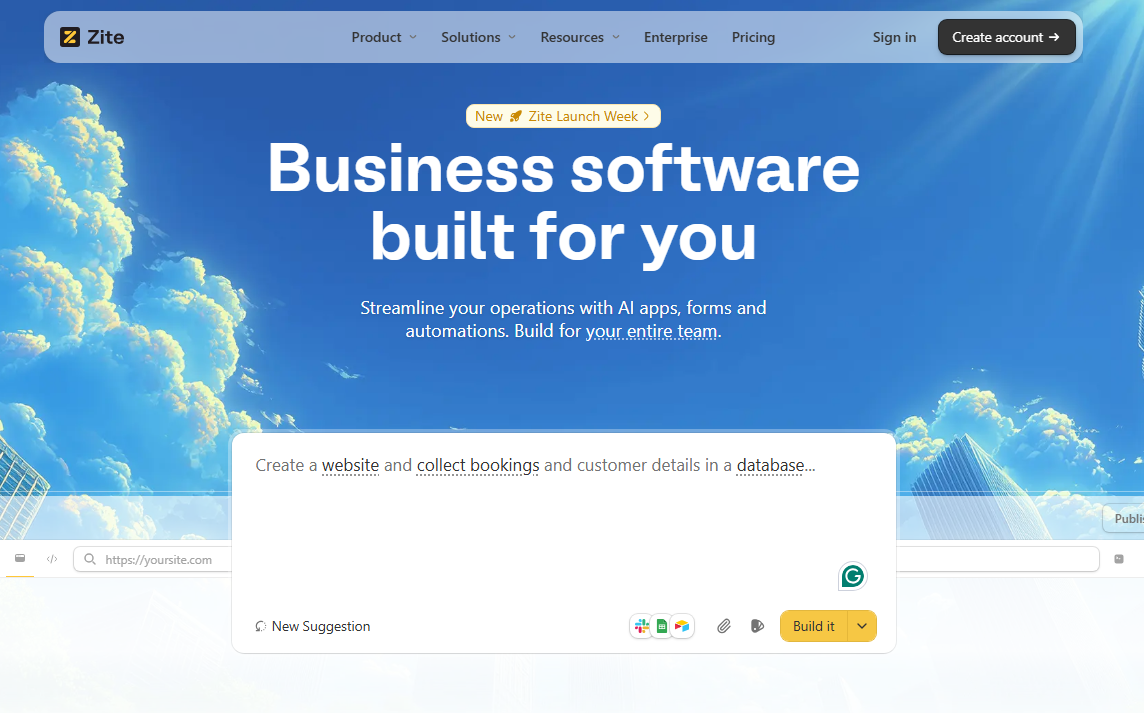
What it does: Zite is an AI-powered platform that turns plain-English descriptions into working business apps with automation built in. No coding required.
Ideal for: Teams that need both a custom app and automated workflows without hiring developers.
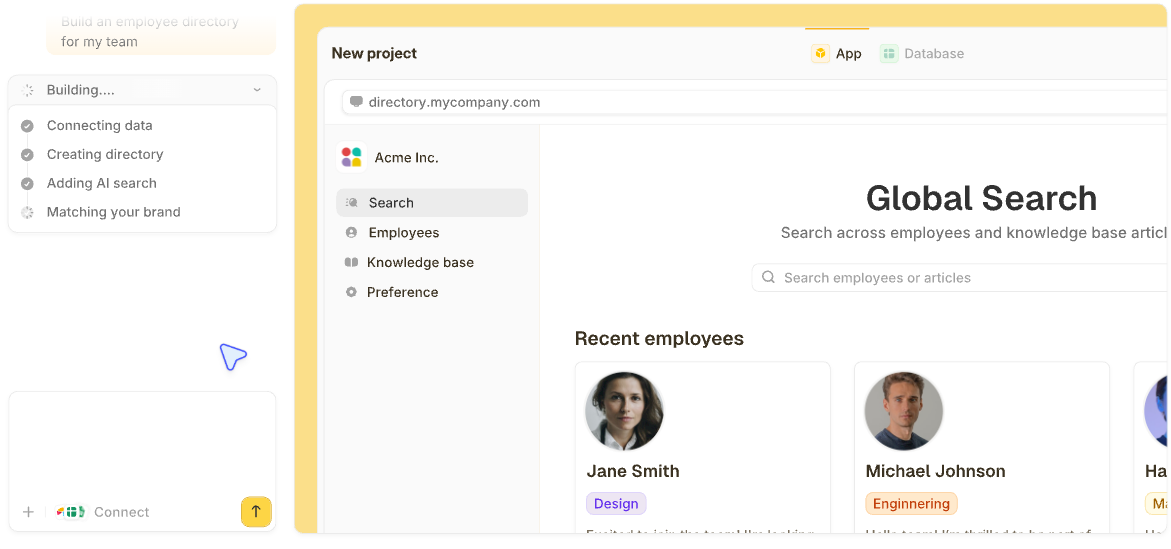
Most automation tools sit between your apps and move data back and forth. Zite takes a different approach. You describe what you want, and it builds the complete app (forms, database, interface, and workflows) with automation already included.
During testing, I built an employee onboarding portal where new hires submit documents that automatically go to their manager for review. Zite created the workflows, forms, Slack notifications, and database for that process entirely from my description.
The logic behind the portal shows up as step-by-step flowcharts in the workflow editor. You can follow how data moves and check that each step works as expected.
Key features
- AI app generation: Describe your process in plain language, and Zite builds the pages, forms, database, and logic in one go.
- Connects to your tools: Link Google Sheets, Airtable, Slack, and others to sync data and send notifications as part of your workflows.
- Visual workflows: Your app's logic appears as flowcharts you can inspect. When troubleshooting, you can view the workflow history and see exactly where something went wrong before asking Zite to fix it.
- Built-in database: Zite auto-creates your data tables from your description, with a spreadsheet-like view for browsing and editing records.
Pros
- AI builds full working apps from plain-language descriptions.
- Built-in database that sets up your tables automatically.
- No per-user pricing, so costs stay flat as your team grows.
- Custom branding and domains for portals your clients will see.
- OpenAI integration for AI-powered steps in your processes.
Cons
- Newer product with fewer ready-made connections to other tools.
- Not built for RPA-style screen automation.
Pricing
Free plan with unlimited users and apps, giving you 50 credits per month, which covers automation and AI steps. Paid plans start at $19/month (billed monthly) for 100 credits.
Bottom line
Use Zite when your process needs its own interface (like a client portal or onboarding system) and also needs automated workflows running behind it.
2. Zapier: Best for automating workflows between your existing tools
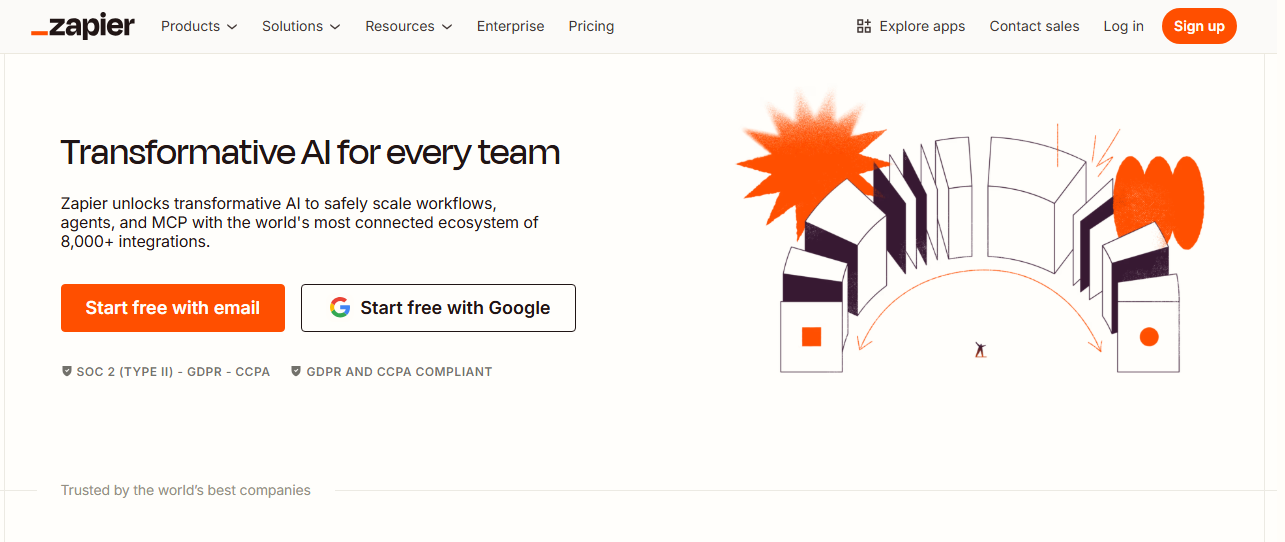
What it does: Zapier connects thousands of apps and lets you build automated workflows (called Zaps) that move data and trigger actions between them. No coding needed.
Ideal for: Teams that already use tools like Google Workspace, HubSpot, Slack, or Notion and want to automate tasks between them.
Zapier works well when your process spans multiple tools but doesn't need a custom app. I set up a workflow that takes new form submissions, logs them to a spreadsheet, creates CRM records, and posts Slack alerts, all through Zapier's visual editor.
It's quick for five-to-eight-step workflows, though the editor gets harder to manage as you add more branches and complexity.
Key features
- 8,000+ app connections: One of the largest libraries of tool connections available.
- AI capabilities: Describe what you want to automate in plain language, and Zapier drafts the workflow. You can also add AI steps for summarizing, sorting, or generating content.
- Multi-step workflows with conditions: Build workflows with multiple actions and paths so that different situations (like deal size or ticket priority) route work differently.
- Built-in tables and forms: Lightweight data storage and simple forms, so some workflows can run entirely inside Zapier without needing separate tools.
Pros
- Huge library of app connections.
- Template library for common automations.
- Fast setup for simple automations.
Cons
- Costs climb fast at scale because every step in every workflow counts toward your monthly limit.
- Workflows get hard to manage as you add more conditions and branches.
- Limited if you need a polished custom app interface alongside your workflows.
Pricing
Zapier has a free plan with up to 100 tasks per month and two-step Zaps. Paid plans start at $29.99/month (billed monthly) for multi-step tasks and 750 tasks per month.
Bottom line
Zapier is the easiest option for teams that want fast automation between their existing tools and are comfortable paying more as usage grows.
3. Microsoft Power Automate: Best for workflows and RPA in the Microsoft ecosystem
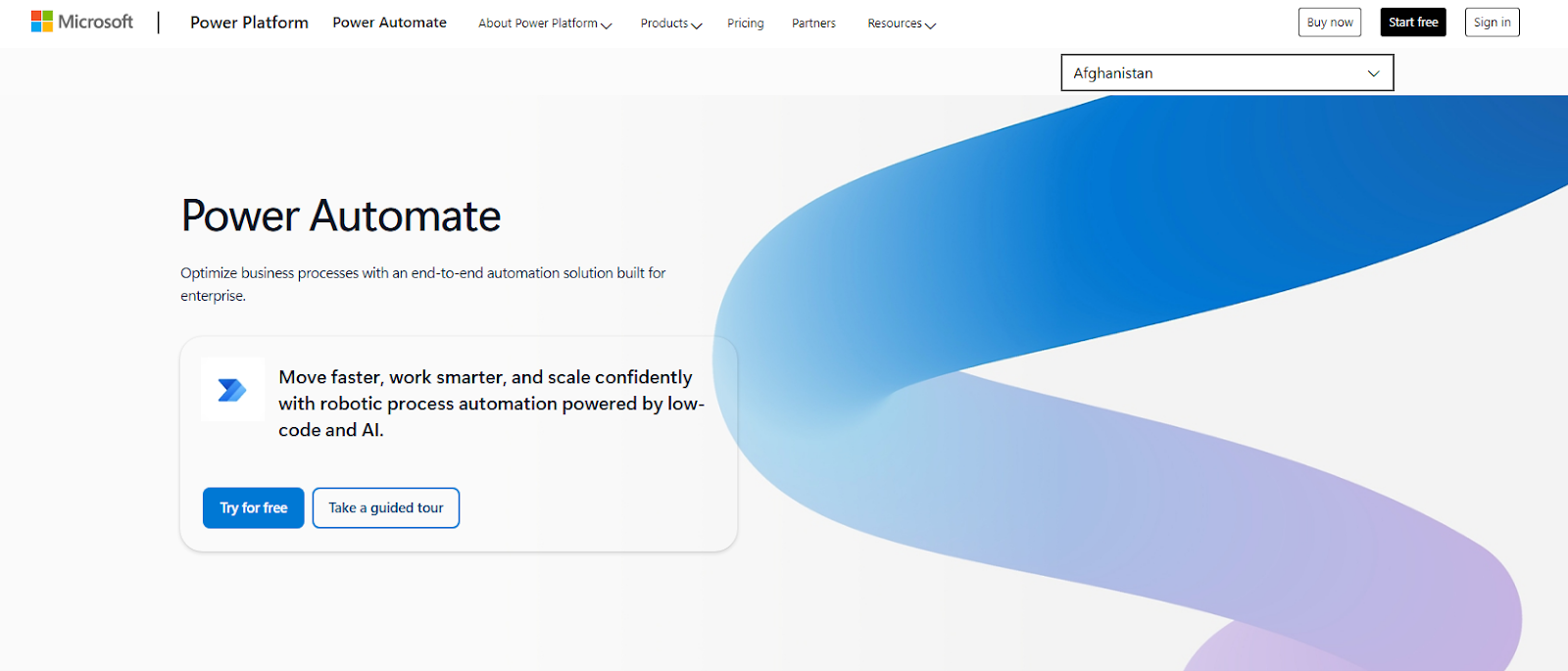
What it does: Power Automate is Microsoft's automation platform. It lets you automate tasks and processes across Microsoft 365, Dynamics 365, and hundreds of other apps.
Ideal for: Mid-size to large organizations already using Microsoft tools who want workflow automation, screen-level bot automation, and AI document processing in one place.
Power Automate is the strongest fit if your team already works in Microsoft. I built an approval flow that starts from a SharePoint list, routes decisions through Teams, and logs results back to Excel.
It handles both cloud-based workflows (for apps and online tools) and RPA, which makes it useful for connecting modern and legacy processes in one place.
Key features
- Multiple automation types: Supports both cloud workflows and desktop bots for automating older Windows software.
- Deep Microsoft integration: Built-in connections to SharePoint, Teams, Outlook, OneDrive, and other Microsoft tools.
- Process mining: Analyzes how your team actually works so you can spot slowdowns and find the best processes to automate.
Pros
- Strong security and admin controls through Microsoft's infrastructure.
- Tight integration with SharePoint, Teams, Outlook, and Dynamics 365.
- AI tools for reading and processing documents.
- 400+ connections beyond Microsoft apps.
Cons
- Fixing errors often requires some technical knowledge or help from IT.
- RPA bots break when the software they're automating changes its screens.
Pricing
Power Automate has a free 30-day trial. Paid plans start at $15 per user/month. There are also bot‑based plans from $150 per bot/month.
4. ProcessMaker: Best for formally mapped, end-to-end workflows
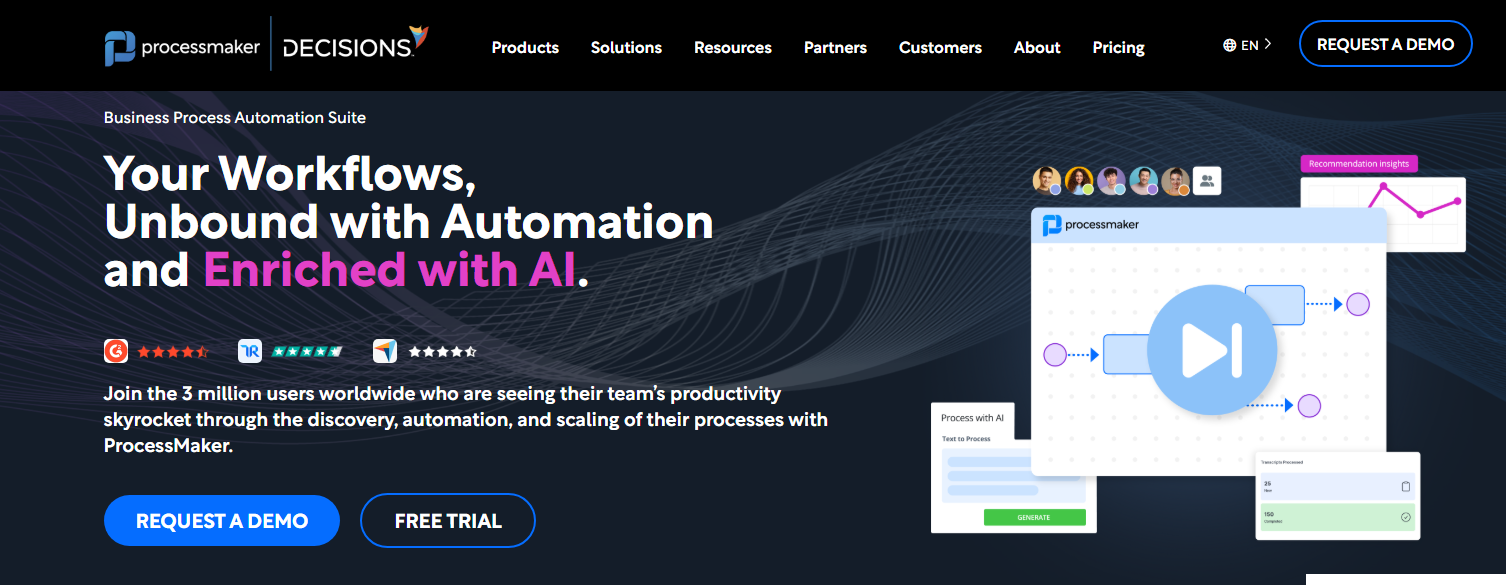
What it does: ProcessMaker is a platform for building automations that follow BPMN (Business Process Model and Notation), a standardized way to map out business processes as flowcharts.
Ideal for: Mid-sized and enterprise teams that need tightly controlled, well-documented workflows across departments.
In testing, I modeled processes using ProcessMaker's drag-and-drop designer. You place steps, decisions, and handoffs onto a canvas to map out an entire process visually. This approach gives you a lot of control, but it works best if you're comfortable thinking in structured, step-by-step terms.
That level of detail can be overkill for simple automations. But in regulated industries or complex operations, it gives teams one clear, visual map of how work should flow.
Key features
- Visual process designer: Drag-and-drop canvas for mapping out complete processes with steps, decisions, and handoffs.
- Built-in forms and screens: Create the forms and task screens your team interacts with as part of the workflow.
- Rules and AI decisions: Set up complex routing and approval logic, with AI to handle smarter decisions without writing code.
- Process analytics: Dashboards that show how long steps take, where bottlenecks are, and where deadlines are being missed.
Pros
- Strong fit for structured, end-to-end processes where everyone needs to follow the same map.
- Handles workflows, forms, and AI automation in one platform.
Cons
- You need to learn BPMN notation to get the full value from it.
- Priced for mid-market and enterprise budgets, so it's often too expensive for small teams.
Pricing
ProcessMaker pricing plans start at $3,000/month, billed annually, for 1000 cases per month.
Bottom line
Choose ProcessMaker if you need to formally document and govern your business processes, especially in regulated industries or environments where that rigor is required.
5. n8n: Best for AI-powered automation with full control
What it does: n8n is an open-source automation platform that connects different apps and services so they can automatically share data and perform tasks. It’s similar to a tool like Zapier, but advanced users can self-host and extend with code.
Best for: Technical or semi-technical teams that want to build AI-powered workflows with full control over where their data lives.
I built a workflow that captured incoming support requests, used AI to read each one and sort it by category, and then created a record in the CRM. Each step shows up as a block on a visual canvas, so you can see exactly how data moves. The trade-off is that the canvas gets crowded fast as workflows grow and becomes difficult to troubleshoot.
Key features
- Visual editor with code support: Build workflows by dragging and dropping steps. Add custom code anywhere you need more control.
- Self-host or use their cloud: Run n8n on your own servers for full data control, or use n8n Cloud if you don't want to manage the technical side.
- Built for data-heavy work: Tools for splitting, combining, and reshaping data as it moves through your workflow.
Pros
- Great for AI-powered automation where you need custom logic, not just pre-built AI actions.
- Self-hosting keeps your data on your own servers and lets you choose which AI tools to use.
- No per-user pricing. Cloud plans charge based on how many times your workflows run.
Cons
- Real learning curve if you're not comfortable working with technical tools and debugging errors.
- Self-hosting means your team handles setup, security, and updates.
Pricing
The self-hosted version is free (you pay for your own servers). n8n Cloud starts around $24/month.
Bottom line
Use n8n if you want AI-powered automations or need to keep data on your own servers. Make sure someone on your team is comfortable with technical tools if you self-host.
Which business automation tool should you use?
Choose:
- Zite if you want the easiest way to build custom apps with workflows built in. Best when you need both an interface and automation in one place.
- Zapier if your workflows run between existing tools and you want to connect them with pre-built integrations.
- Microsoft Power Automate if your company already uses Microsoft tools and wants automation inside that ecosystem.
- ProcessMaker if you need to formally map and document your processes for compliance.
- n8n if you want AI-powered automation with self-hosting options and the ability to write custom code.
Use Zite to automate your business processes
Most automation tools force you to piece together separate apps for your forms, database, workflows, and interface. Zite lets you describe what you need and it builds the entire app, including the automation, in one place.
The free plan supports unlimited apps and users and comes with enough credits to build and test before committing.
Frequently asked questions
What is the best tool for automating business processes?
Zite is the best option if you need a custom app with automation built in, while Zapier works best for connecting tasks between your existing tools.
What is an example of business process automation?
A common example is employee onboarding. When a new hire accepts an offer, the system automatically sends them paperwork, notifies IT to set up their accounts, and assigns onboarding tasks to their manager.
What is the biggest advantage of intelligent automation?
The biggest advantage of intelligent automation is that it can make decisions based on data without someone manually creating a rule for every possible scenario.
Do you need to know how to code to automate your processes?
No, you don’t need to code to automate your processes because tools like Zite let you create automations using plain-language descriptions. Other tools like Zapier and n8n let you build visually.