


ARRAYFORMULA in Google Sheets lets a single formula apply to an entire range at once, so you stop dragging a formula down 500 rows every time your data grows.
I've used it to replace helper columns across dozens of trackers and reports, and once the syntax clicks, most spreadsheets need far fewer formulas than people assume.
Here's the step-by-step, the mistakes that cause the most confusion, and when a spreadsheet has outgrown what a formula can fix.
What is ARRAYFORMULA?
ARRAYFORMULA is a Google Sheets function that takes a formula meant for one cell and applies it across a whole range, returning multiple results from a single formula instead of one.
Without it, a formula like =B2*C2 only calculates that one row, and you'd normally drag it down to cover the rest. Wrap the same logic in ARRAYFORMULA, and it calculates every row in the range at once.
What you'll need before starting
Prerequisites:
- A Google Sheet with at least two columns of data to work with
- Basic comfort writing a normal formula, like =B2*C2
- No paid account or add-on required
Time required: 2 to 5 minutes for a basic array formula, 10 to 15 minutes if you're combining it with functions like IF or VLOOKUP.
How to use ARRAYFORMULA in Google Sheets: step-by-step
Step 1: Write the formula you'd normally use for one row
Start with the calculation as if you were only doing it for a single row. Say column B holds the quantity and column C holds the price for each order. To multiply them for row 2, use:
=B2*C2
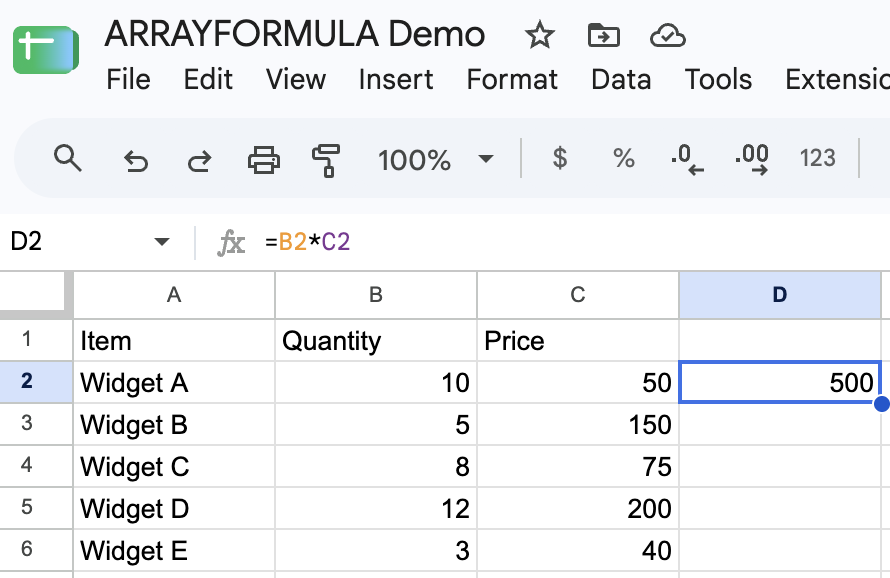
This step matters because ARRAYFORMULA doesn't change your formula's logic; it changes how many rows that logic runs across. Get the single-row version right first.
Step 2: Extend the cell references to a range
Change the single-cell references to a range covering all the rows you want calculated. B2 becomes B2:B100, and C2 becomes C2:C100:
=B2:B100*C2:C100
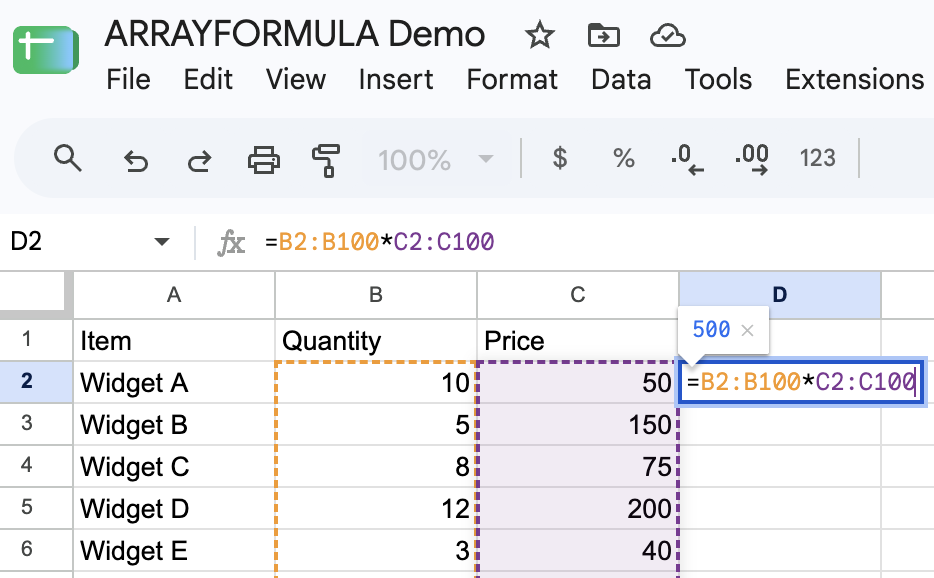
Pro tip: If your data keeps growing, use an open-ended range like B2:B instead of a fixed one like B2:B100. That way, new rows are calculated automatically, so you don't have to edit the formula later.
Step 3: Wrap the whole thing in ARRAYFORMULA
Put ARRAYFORMULA( before your formula and a closing parenthesis at the end:
=ARRAYFORMULA(B2:B100*C2:C100)
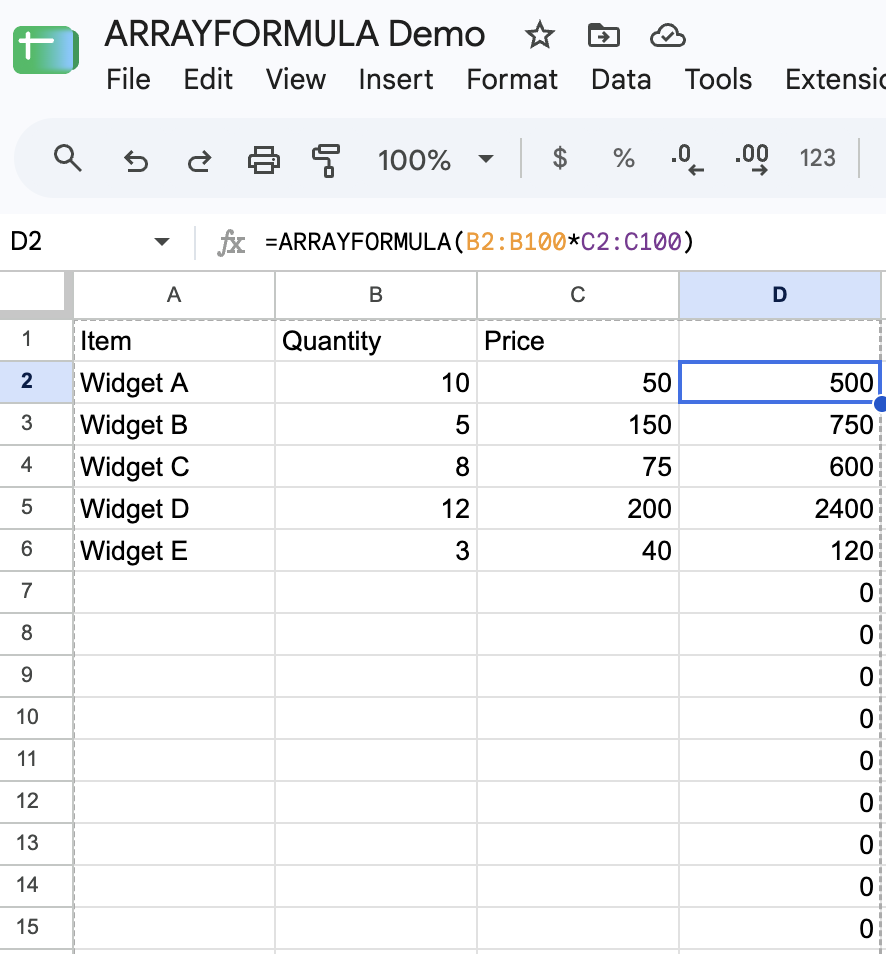
Enter this in a single cell, such as D2, and the whole range calculates at once. You never drag it down. Since the range runs to row 100, you'll likely see 0s below your real data. Step 4 shows how to clean that up.
Pro tip: Typing a formula and pressing Ctrl+Shift+Enter (Cmd+Shift+Enter on Mac) instead of just Enter automatically wraps it in ARRAYFORMULA for you, so you don't have to type the function name yourself.
Step 4: Keep blank rows blank on open-ended ranges
If your range extends beyond your actual data (which is the point of using an open-ended range), multiplying or comparing empty rows won't cause an error. It quietly returns 0 or FALSE instead. Dividing is the exception, and blank rows there give a #DIV/0!. Check whether the row is blank first, so those rows come back genuinely blank:
=ARRAYFORMULA(IF(B2:B="","",B2:B*C2:C))
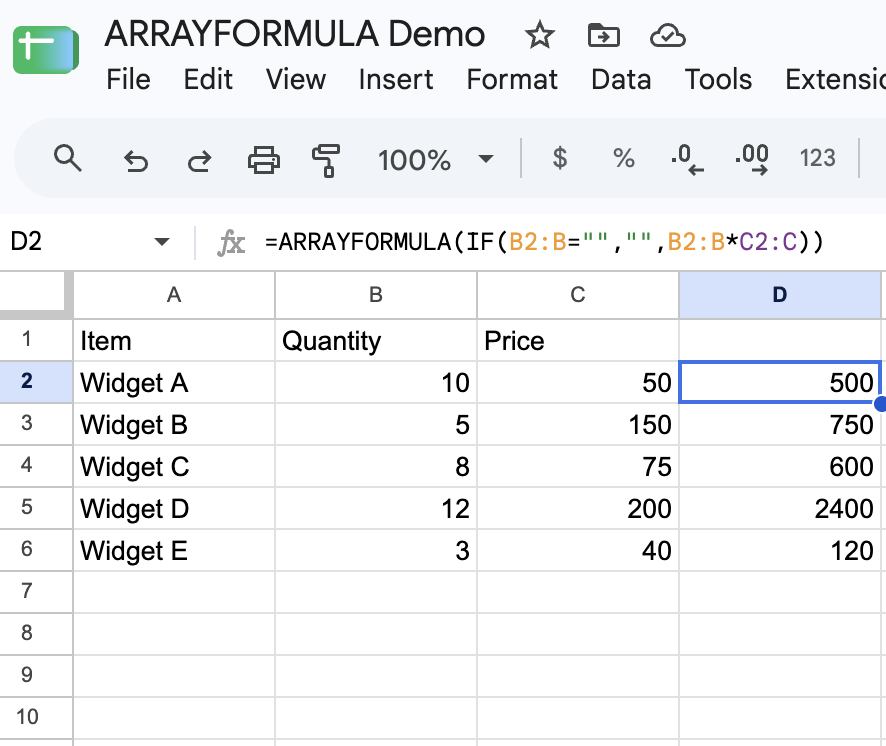
This is the combination most spreadsheets end up using in practice, since it lets the range grow with new data without stray zeros or false labels appearing below your last row.
Step 5: Combine ARRAYFORMULA with other functions
ARRAYFORMULA becomes far more useful once you combine it with logic, on top of plain arithmetic. A few common combinations:
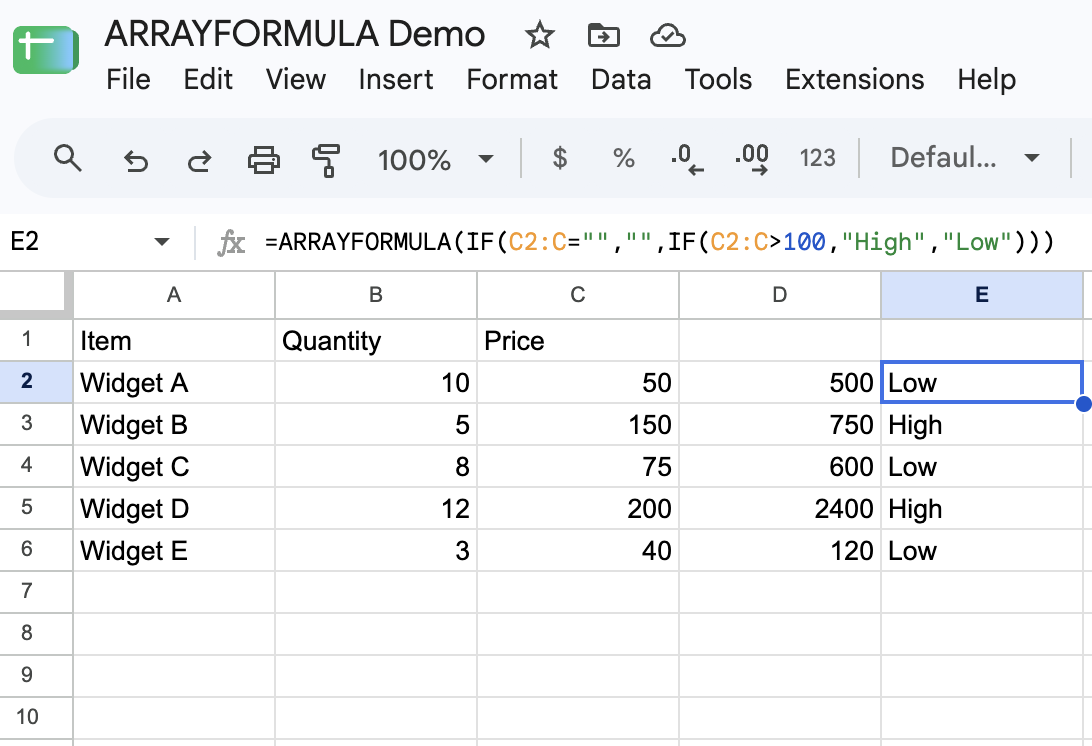
- Conditional values across a range: =ARRAYFORMULA(IF(C2:C="","",IF(C2:C>100,"High","Low"))) labels every row based on a condition, without dragging an IF formula down or mislabeling blank rows.
- Text combined across a range: =ARRAYFORMULA(IF(A2:A="","",A2:A&" "&B2:B)) joins two columns of text for every row at once, without leaving a stray space on blank rows.
- Lookup across a range: =ARRAYFORMULA(IFERROR(VLOOKUP(A2:A,Sheet2!A:B,2,FALSE),"")) looks up every value in column A against another sheet. VLOOKUP throws a real #N/A on rows it can't match, so IFERROR is the right catch here, and the Step 4 blank check isn't needed.
Step 6: Check that some functions don't need it
A few Google Sheets functions already return many results on their own, including FILTER and QUERY. SUMIF and COUNTIF are different, reading a whole range but handing back one number, so you still need ARRAYFORMULA for an answer on every row. See Google's ARRAYFORMULA reference.
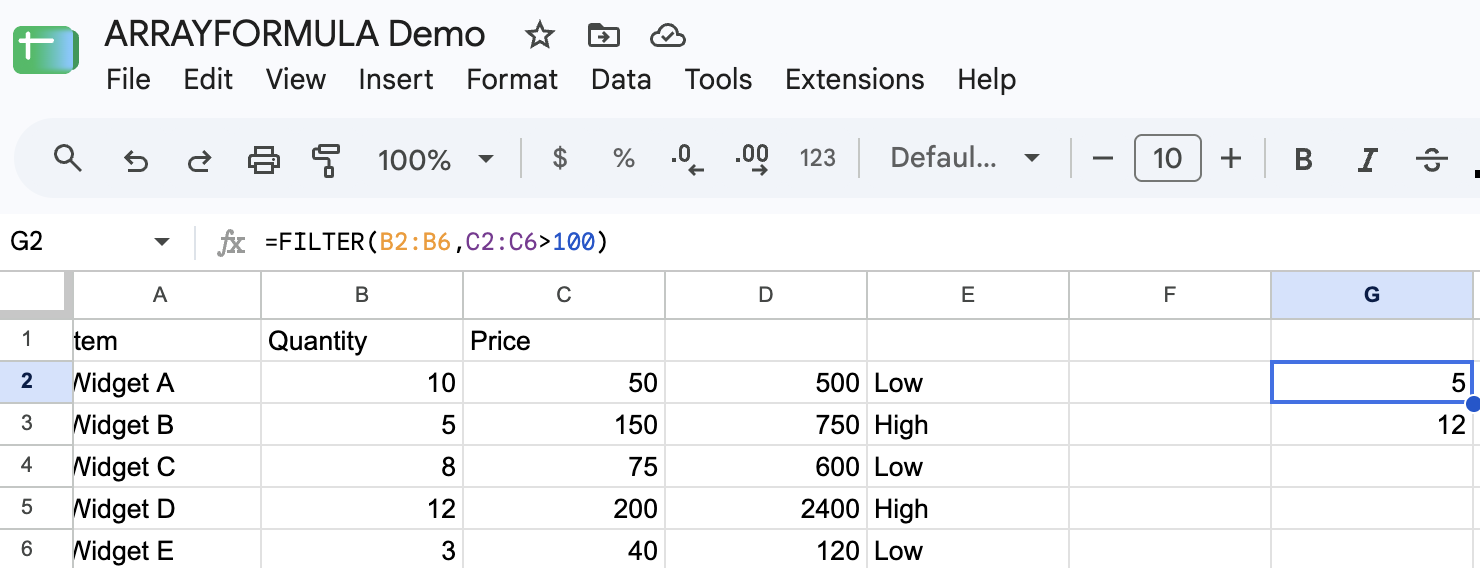
Wrapping these in ARRAYFORMULA doesn't break anything, but it isn't necessary either. If your formula already returns multiple results without ARRAYFORMULA, you can leave it out.
Common mistakes to avoid
- Mismatched range sizes: Multiplying a 100-row range by a 50-row range doesn't just break the extra rows. The whole formula fails with "Array arguments to MULTIPLY are of different size." Keep the ranges the same length.
- Assuming IFERROR catches blank rows: Blank-row multiplication and comparisons come back as 0 or FALSE, not an error. IFERROR has nothing to catch there, so use an IF blank-check instead.
- Trying to drag an ARRAYFORMULA down: Dragging it down stacks copies and throws "Array result was not expanded because it would overwrite data." Two array formulas can't fill the same cells.
- Using a fixed range that stops growing: A range like B2:B100 works until row 101, then quietly stops covering new data. Open-ended ranges avoid this.
If mistakes like these keep piling up as a sheet grows, that's often a sign you've hit the difference between a spreadsheet and a database.
Advanced tips
A few things worth knowing once you're comfortable with the basics:
- Reference an entire column carefully: A:A includes the header row and runs to the sheet's row limit. Fine for arithmetic, but a text function may also process the header itself. Test a smaller range if something looks off.
- Build dynamic headers without the wrapper: A header formula like ="Total: "&SUM(B2:B) updates on its own. SUM already returns one value, so this is a Step 6 case where ARRAYFORMULA isn't needed.
- Combine with SPLIT for text parsing across a range: =ARRAYFORMULA(SPLIT(A2:A,",")) splits comma-separated values in every row at once, instead of doing it row by row. Leave empty columns to the right, or you'll get a #REF!.
- Return several columns at once with curly brackets: Commas inside {} create new columns, so =ARRAYFORMULA({B2:B, C2:C*1.1}) fills two columns from one formula. Semicolons do the same for new rows.
Once formulas start feeling like the wrong tool for the job, Google Sheets alternatives rounds up the options, and Google Sheets vs Airtable vs Zite breaks down three of them side by side.
For a closer look at one piece of that, see Airtable dashboards.
Where ARRAYFORMULA hits its ceiling
ARRAYFORMULA in Google Sheets is one of the more capable things a spreadsheet formula can do, and its job is calculating values across a range.
Structure is a different job. Nothing in a sheet enforces the type of information that goes in each column, and two array formulas can still conflict silently as a sheet grows more complex.
Past a certain size, a sheet held together by array formulas and helper columns gets fragile, and one wrong edit can break formulas nobody remembers writing. This is the same limit other teams hit once a sheet grows past what formulas can hold together.
Zite picks up from there. Instead of a formula calculating across cells, your data lives in Zite's built-in database, where each field has a set type and records link to each other.
The logic that used to be a formula becomes a workflow you can read and trace.
Here's how Zite helps once formulas start feeling fragile:
- Keep the spreadsheet you already have: Connect your Google Sheet and the app stays in sync with it, or import the data into Zite's own database if you'd rather leave the spreadsheet behind.
- A built-in database instead of formula-dependent columns: Fields have defined types and linked relationships, so a formula error in one row stays contained instead of spreading through the whole sheet.
- Workflows that take action: What used to be a calculation can now notify someone or move work forward. You describe what should happen, Zite builds the workflow, laid out visually so you can trace every step.
- No per-seat fees: Every plan, including the free one, includes unlimited users, so the whole team that had access to the sheet gets the app too.
- AI Fields: Give a column an instruction, and Zite fills it in for every record, categorizing, summarizing, or scoring each one, instead of nesting ARRAYFORMULA inside IF to get the same result. Zite's help center shows how to set one up.
Once you've made that move, see the best no-code app builders with databases for what teams build next.
Frequently asked questions
How long does it take to learn ARRAYFORMULA in Google Sheets?
Learning the basic syntax takes 2 to 5 minutes if you already know how to write a normal formula, since ARRAYFORMULA just wraps around it. Applying it to real formulas with conditions or lookups takes longer, usually 10 to 15 minutes of practice before it feels natural.
Can I use ARRAYFORMULA on a whole column like A:A?
Yes, but a range like A:A includes the header row and every row below it, all the way to the sheet's row limit. That's usually fine for arithmetic. Start with a smaller range like A2:A if a text formula returns something you didn't expect.
Do I need a paid Google account to use ARRAYFORMULA?
No, ARRAYFORMULA is a standard Google Sheets function available on any free Google account. There's no premium tier or add-on required to use it.
Can Zite help with ARRAYFORMULA?
No, not inside the spreadsheet. Zite is a separate app, not a Sheets add-on. It takes the same "calculate this across many rows" thinking behind ARRAYFORMULA and turns it into a database field or an automated workflow, once a sheet full of formulas gets harder to trust.
What if my ARRAYFORMULA isn't working?
A non-working ARRAYFORMULA usually traces back to one of three things. Check whether your ranges match in size, whether an open-ended range needs a blank-row check instead of IFERROR, and whether you dragged the formula down instead of letting it fill the range on its own.