

Set up an AI field
1
Choose the output
Select Add field → AI field. Enter a Title and choose the Field type you want, such as Long text for a summary or Single select for a category.You can also turn on AI autofill in a supported existing field’s settings.
2
Describe what to generate
Write a clear Prompt. Use @ Insert field to include information from the current record.For example: “Summarize the customer notes in one sentence. Include the next action. Don’t invent missing details.” Insert your Notes field where the prompt needs it.
3
Test a few records
Select Create, then generate values for a few records and check the results before running it across more data.
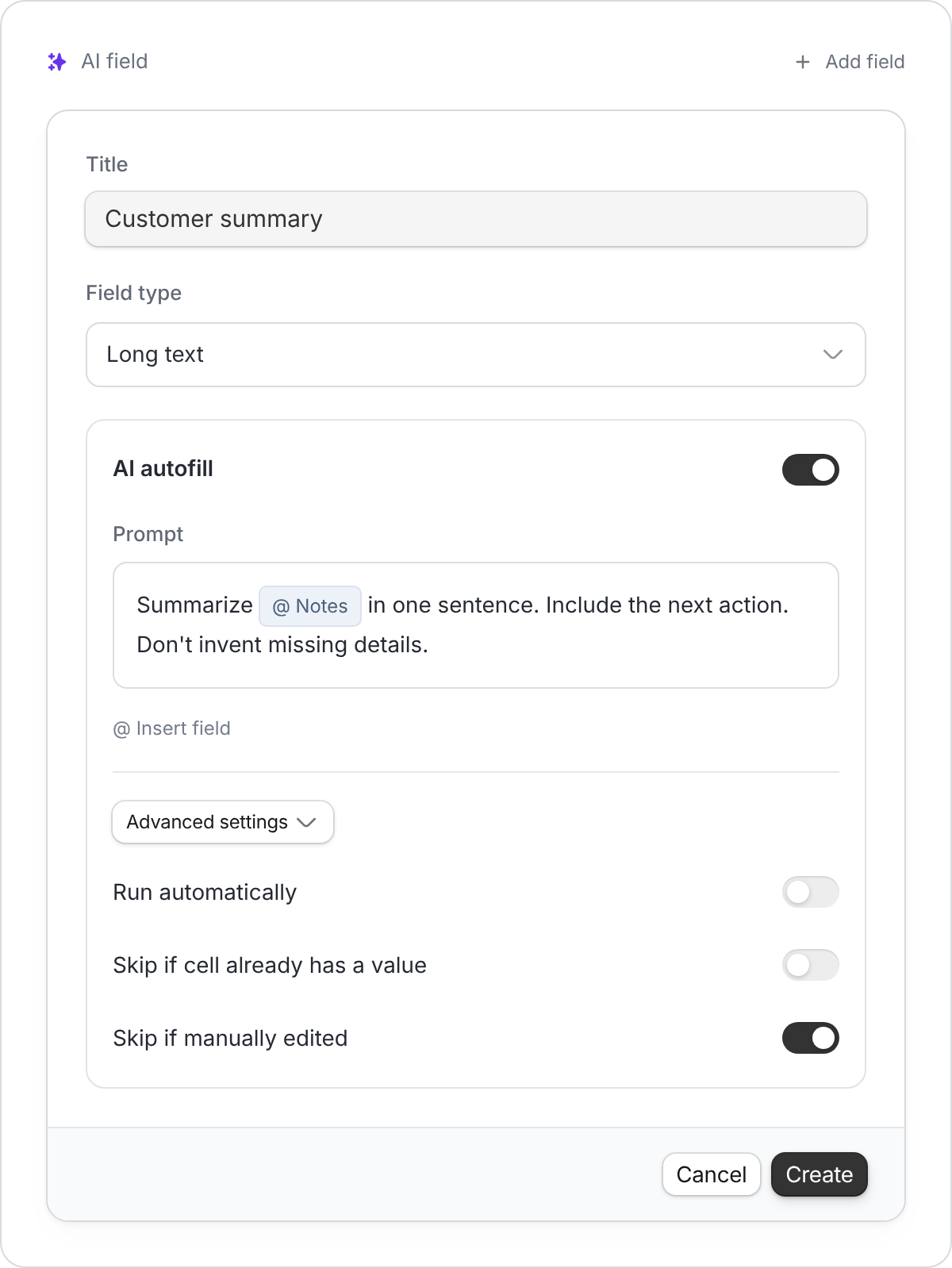
Start with a focused prompt and keep automatic runs off while testing.
Choose a tier
Open Advanced settings → Model. The Model setting offers three tiers. Zite keeps each tier on a current model, so you don’t need to update fields when a model is retired. The choice applies to this field.
Test the same few records before running a higher tier across a whole view. Higher tiers use more credits. Credit usage also depends on the prompt, source information, and generated result.
Image fields offer Mini, Pro, and Max. For an attachment field with Generate image enabled, Mini is fastest, Pro offers higher quality, and Max is the most precise but slowest. The tier also sets image quality, so there is no separate Quality setting. Choose Format and Size under Output options. Image credits depend on the tier and on each image generated.
Existing AI fields use the current model for their selected tier the next time they generate a value. For image fields, the tier also determines image quality. Check Advanced settings → Model to review or change the tier, then test a few records and compare the results.
Choose when it runs
Open the field’s Advanced settings:Generate or retry values
Use the AI control on a cell for one record. For a larger batch, open the column menu and select Generate AI values:- Empty cells: Fill cells without a value.
- Errored cells: Retry failed generations.
- Edited cells: Regenerate values you changed manually.
- All cells in view: Generate values for the current view, including filled cells.
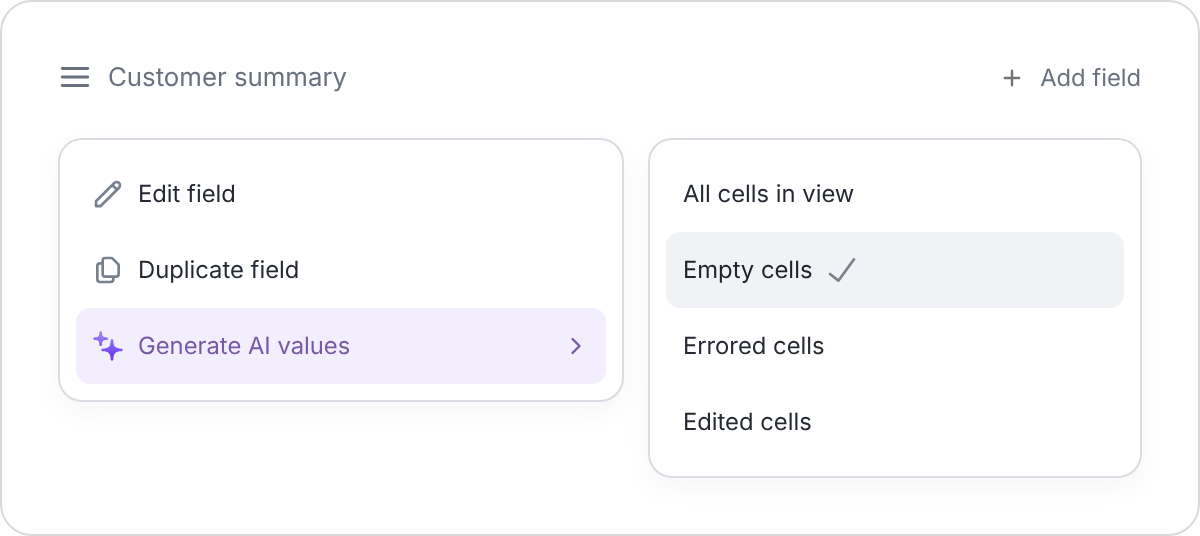
Use Empty cells when you only want to fill gaps.
If a value doesn’t generate
- Missing input: Fill the fields referenced by the prompt. Required empty inputs prevent generation.
- Large batch: Bulk generation supports up to 500 cells per operation. Use filtered views to work in smaller batches.
- Error: Check the cell’s error, adjust the prompt or input, and retry.
- Credits: AI generation uses credits. Check your credit balance if generation stops.
- AI disabled: An organization admin may have turned off AI features.