

How it works
A lookup field pulls information from a linked record. When the source data changes, the lookup field updates automatically to stay in sync. In order to add a lookup field, you must first add a link to table field. Check out this quick guide. For example, you might have a table for tracking staff bonuses that links to a staff information table. To automatically display each employee’s department, you can use a lookup field instead of entering it manually.Common use cases
- Company Directory: Display an employee’s department or email from a related record
- Project Management: Show project budget or priority level on related tasks or milestones
- Customer Support: Display customer tier or account status on support tickets
- Sales CRM: Pull in company size or industry details on leads and contacts
- Education: Show course details like credits or instructor on student enrollment records
Lookup fields
1
Link records
If you haven’t already, add a Link to table field first so your lookup field has related records to pull data from.
2
Link records
If you haven’t already, add a Link to table field first so your lookup field has related records to pull data from.
3
Add a new column
Click 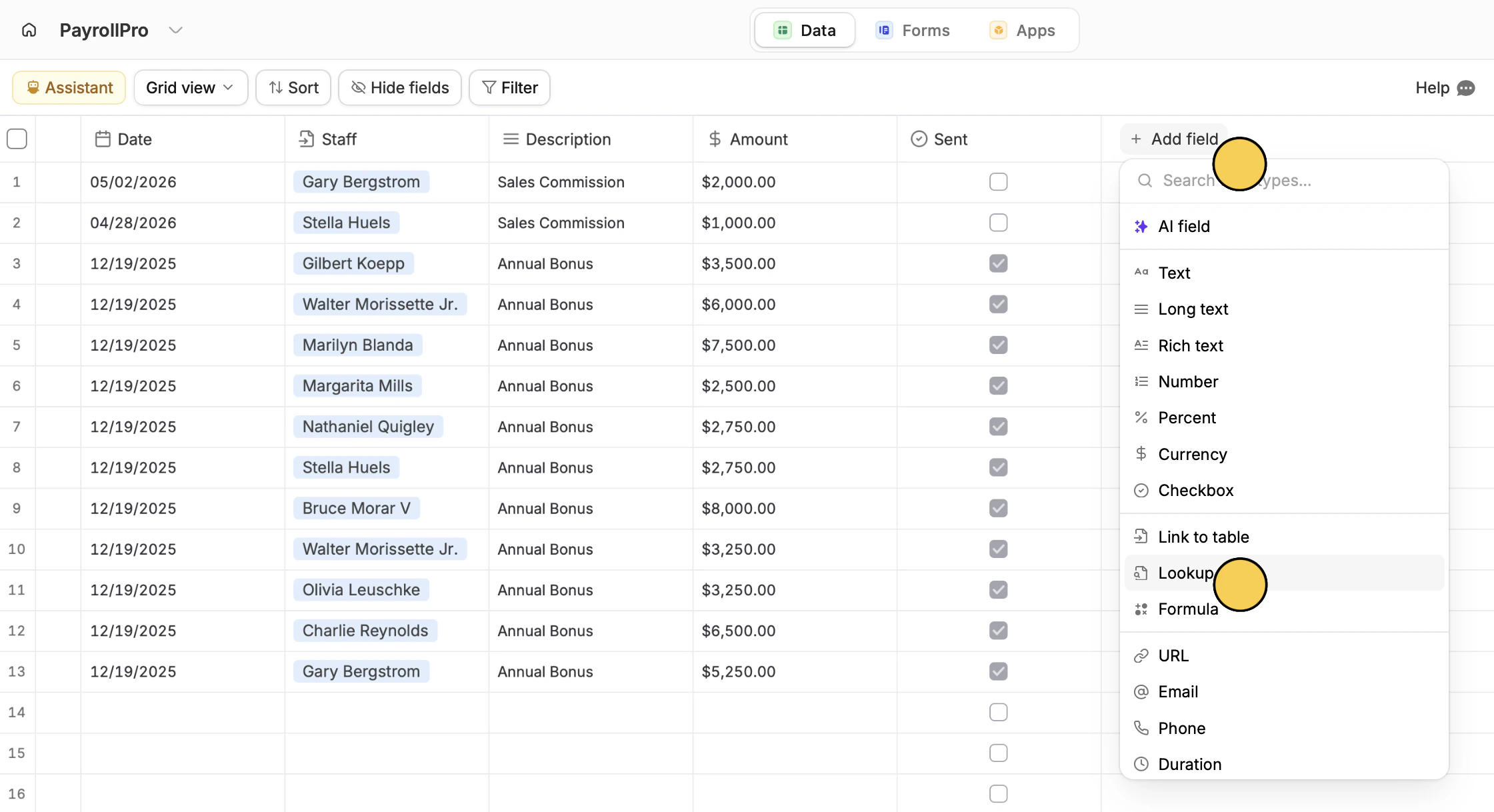
+ Add field and choose Lookup.4
Set details
Name your column, then select 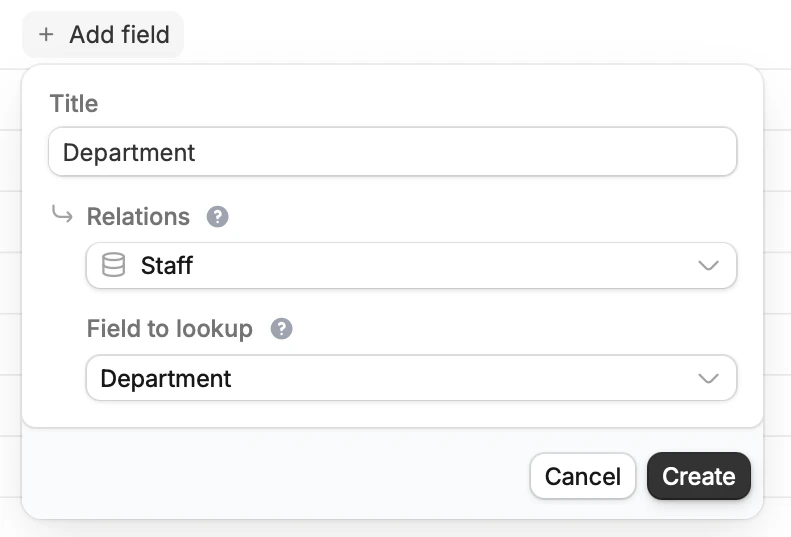
Relations (your linked record field) followed by the Field to lookup. Create.