
Sales pipeline automation uses CRM rules to move deals between stages, assign owners, create follow-up tasks, and update records without manual work. A new inbound lead that arrives in the CRM with an owner and a first task already attached is the clearest example.
This guide covers what to automate first and five tools worth knowing. It also shows how to build the pipeline in Zite, with fields and rules that fit your sales process.
What is sales pipeline automation? The 30-second answer
Flow Digital defines sales pipeline automation as the use of CRM workflows, rules, integrations, and AI-assisted processes to handle repeatable sales tasks as leads and deals move through the pipeline. Every rule has a trigger, such as a deal changing stage, and an action, such as creating a task or sending a message.
Pipedrive's help center describes the same trigger-and-action structure for its own automations.
Workflow automation connects multiple tasks into a coordinated sequence, and pipeline automation applies that idea to deals. The goal is to make the predictable parts of selling happen on their own, so reps spend their time on conversations.
The stages of a sales pipeline and what to automate at each
Automation works best when every stage has a clear meaning, so define the stages first. Salesforce lists seven stages, from prospecting through post-purchase, and this guide uses six that suit a small team.
Here are the six stages and what to automate at each:
| Stage | What happens | What to automate |
|---|---|---|
| Lead capture | A form, email, or ad creates a lead | Create the record, set the source, assign an owner, notify them |
| Qualification | A rep checks fit and need | Fill in company details, score the lead, route it to the right rep |
| Follow-up | The rep nurtures the lead and books a call | Create the next task, send timed emails, nudge when there's no reply |
| Proposal | A quote or proposal goes out | Set a check-in date, alert a manager on large deals |
| Close | The deal is won or lost | Update the stage, require a lost reason, refresh the forecast |
| Post-close handoff | The customer moves to onboarding | Create onboarding tasks, notify the delivery team, update the contact type |
Write down what has to be true for a deal to leave each stage. HubSpot's pipeline guide says every stage needs an objective exit criterion, such as "Economic buyer confirmed" or "Security review submitted," and suggests keeping the checks to three or fewer per stage. Those exit rules become automation triggers.
What to automate first, ordered by payoff
Start where a delay costs the most and the rule is easiest to write. These five rules come in the order I'd build them.
1. Lead routing and assignment
Routing comes first because every later rule needs a lead that has an owner. A routing rule creates the record, assigns an owner by territory or product line, notifies the rep, and creates the first task.
2. Follow-up sequences
Reminders and timed emails keep a rep in touch with a lead after the first contact. Flow Digital suggests inactivity rules such as no follow-up within 24 or 48 hours, no response after a proposal, and no activity on open deals for seven, 14, or 30 days.
3. Stage-change triggers
Each stage has a predictable next step, so moving a deal should create that task and notify the right person. Nutshell's help article walks through assigning users, setting tasks, and sending email and Slack notifications at each stage.
4. Data entry and enrichment
Reps lose time typing company details and logging activity by hand, and every skipped field leaves a gap in the pipeline data. Forms can write fields straight into the deal, and enrichment can fill in company size and industry from a domain. Salesforce notes that a CRM with AI can automatically add data from emails, calls, and meetings to deal records.
5. Forecast updates
A forecast built from stage probabilities updates itself when a deal moves. HubSpot's pipeline guide gives example close probabilities of 20% at lead nurturing, 30% at marketing qualified, 40% at sales accepted, and 50 to 75% at sales qualified.
The author bases them on their own team's data and tells readers to calibrate them to their own history. Multiply a deal's amount by its stage probability to get its weighted value.
Sales pipeline automation examples with the fields to use
These eight rules use the fields a deals table holds, written without spaces, so they also work inside formulas. Swap in your own field names and thresholds.
Here are eight rules and the fields each one uses:
| Trigger | Action | Fields used |
|---|---|---|
| New lead where LeadSource is "Demo request" | Assign to the senior rep, notify them in Slack, create a "Call today" task | LeadSource, Owner |
| New deal with a Contact but no CompanySize | Look up the company and fill in CompanySize and Industry | Contact, CompanySize, Industry |
| Stage changes to Qualified | Create a "Book discovery call" task for the Owner | Stage, Owner |
| Stage changes to Proposal sent | Set NextFollowUpDate three days out and create a check-in task | Stage, NextFollowUpDate |
| DealValue above 25,000 while Stage is Proposal sent | Notify the sales manager | DealValue, Stage |
| LastContacted older than 14 days on an open deal | Email the owner a reminder, and tell the sales manager if nothing changes three days later | LastContacted, Owner |
| Stage changes to Closed lost | Require a reason before saving, then create a re-engagement task 90 days out | Stage, LostReason, NextFollowUpDate |
| Stage changes to Closed won | Create onboarding tasks, notify the delivery channel, set the Contact's type to Customer | Stage, Contact |
Nutshell applies the same idea to closed deals, with follow-up tasks for won and lost leads and a company-type rule that updates the company when a lead closes.
What works and what falls short
- Faster response comes from a routing rule that gives each new lead an owner and a first task right away.
- Consistent follow-up means every deal gets the same next step, whichever rep owns it.
- Cleaner data follows when required fields and stage rules catch gaps before they reach the forecast.
- More time selling results when reps stop re-entering details and tracking their own reminders by hand.
- Rules multiply, and each new rule is one more thing to test when the process changes.
- Mistakes repeat at scale because a rule that reads a wrong field value sends the wrong task on every matching deal.
- Over-automation hurts relationships when a canned message arrives at the wrong moment, which can cost more trust than a late reply.
Five sales pipeline automation tools and which one fits
Flow Digital's criteria for choosing a tool are process complexity, how much admin your reps will tolerate, integrations, and reporting. Weigh the five tools below against those four.
Here are five tools that automate a sales pipeline, with the situation each one suits:
-
Pipedrive: Best for small teams that work from a visual pipeline. Its pipeline view uses Kanban boards with drag-and-drop. Its automations pair a trigger with an action, support date triggers and if/else paths, and require the Growth plan or higher.
-
HubSpot: Best for teams that want sales, marketing, and service in one CRM. Sales Hub pricing lists up to 50 workflows with restricted triggers and actions on Starter. Professional allows up to 300 fully customizable workflows, and Enterprise allows up to 1,000 and can trigger sequences.
-
Salesforce: Best for larger teams with complex processes. Salesforce says a CRM such as Sales Cloud, with tracking, automation, and analysis tools, helps teams manage the pipeline without manual updates. Its pipeline guide notes that a CRM with AI can automatically pull data from emails, calls, and meetings into deal records.
-
Keap: Best for small service businesses that want follow-up automation, email and text, and payments together. Keap lists one plan at $299/month with two users, and it includes CRM, pipeline automation, landing pages, payments, appointments, and reporting.
-
Zapier: Best for connecting tools you already use. Zapier lists a free plan with 100 tasks/month, and the Professional plan starts at $29.99/month and adds multi-step Zaps and webhooks.
For more no-code options, see this list of no-code automation tools. If you want a pipeline built around your own fields and rules, the steps below show how.
Build your own sales pipeline automation in Zite, step by step
This build suits a small team whose pipeline lives in a spreadsheet or a shared inbox. It uses Zite's database and workflows, and the same structure works in any database that supports formulas and rules.
If your reps place calls from the CRM and need every call logged to the deal, a sales CRM like Pipedrive fits better. Email works inside the pipeline too: Zite connects to Gmail and Outlook, and once you describe how emails match your contacts, each deal can show the emails exchanged with its contact.
Those emails come from the one mailbox you connect, such as a shared sales inbox.
Step 1: Define the stages and exit rules
Copy the stage table above and adjust it to your sales process. For each stage, write the one thing that must be true before a deal moves on.
Step 2: Create the deals table
Deals that already live in Google Sheets or Airtable can come with you. Zite imports both into a Zite table, where the formula fields in Step 5 work. Notion and HubSpot connect too, so a team already tracking deals in HubSpot can build on that data. Otherwise, start a new deals table in Zite.
Give each deal one record with these fields. Step 5 adds two formula fields to the same table. For the full CRM version of this structure, see this guide to building your own CRM.
Here are the 11 fields to start with:
| Field | Type | Purpose |
|---|---|---|
| DealName | Text | What the deal is |
| Contact | Linked record | Who it's with |
| CompanySize | Number | Employees at the company |
| Industry | Single select | The company's industry |
| Stage | Single select | New lead, Qualified, Following up, Proposal sent, Closed won, Closed lost, Onboarding |
| DealValue | Currency | Size of the deal |
| Owner | User | Rep responsible |
| LeadSource | Single select | Where the lead came from |
| NextFollowUpDate | Date | When the next touch is due |
| LastContacted | Date | Most recent activity |
| LostReason | Long text | Why a lost deal was lost |
The Stage field splits Close into Closed won and Closed lost, and Onboarding marks the post-close handoff.
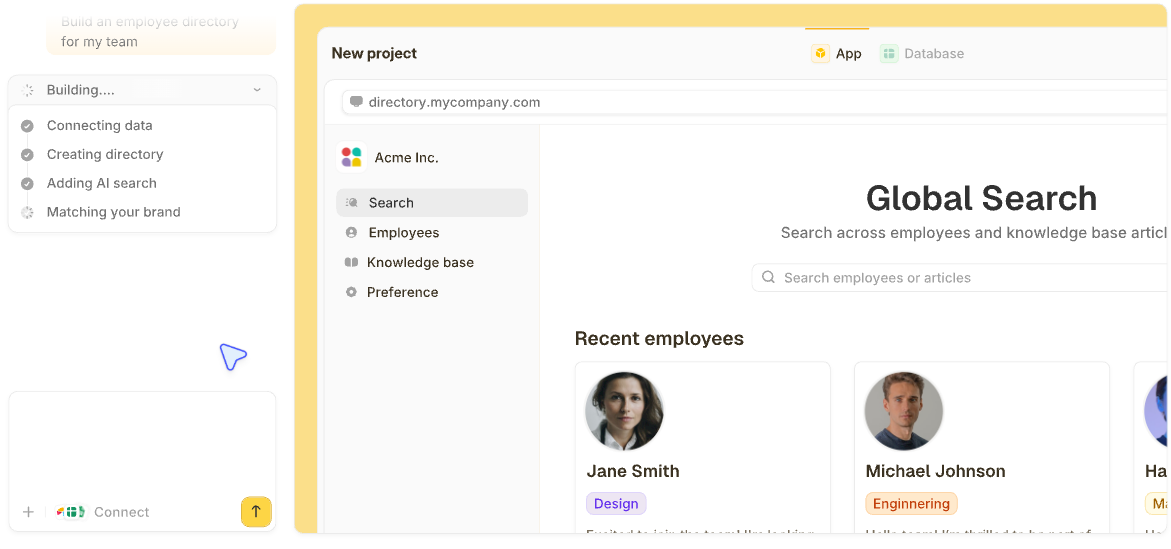
You can also let Zite create the table. Describe the pipeline, for example, "a deals table with these stages, an owner for each deal, and a next follow-up date," and Zite builds the table and fields for you to check.
Step 3: Capture leads with a form
A form should create the deal record directly. Add LeadSource as a form question, so each lead arrives with its source already set. A Zite app can include a lead form that saves each submission as a deal, and a Fillout form can also collect leads.
Step 4: Add the rules by prompt
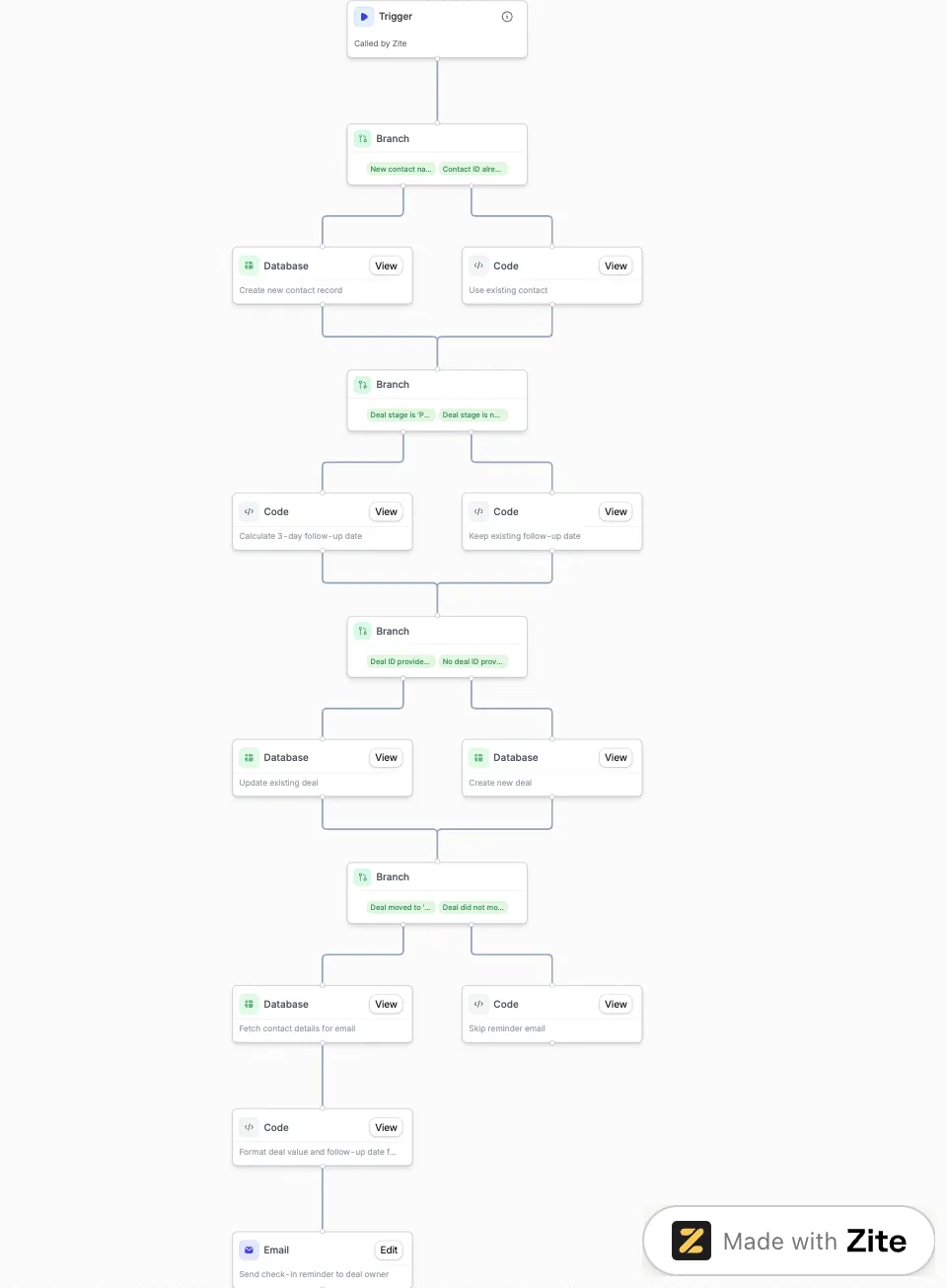
Describe each rule in plain language, and Zite builds the workflow and shows a visual preview, so you can read it and test it before it goes live.
Here are three prompts to start with:
When a deal is saved with LeadSource "Demo request", set Owner to [your senior rep], post a message with the deal name to the #sales channel in Slack, and create a task called "Call today."
When Stage changes to Proposal sent, set NextFollowUpDate to three days from today and email the Owner a reminder about the check-in.
When Stage changes to Closed won, create an onboarding task and notify the delivery channel in Slack.
In my test app, the second rule became a branch inside the Save Deal workflow that runs only when a deal moves to Proposal sent. Your app may build the rules as separate workflows, so open the preview and check. The reminder goes to the deal's owner, and because Owner is a User field, Zite already has each rep's email address from your workspace, so there are no addresses to store as secrets.
Workflows can post to Slack. Every Zite plan includes email sending and webhooks, and the emails your published apps send use credits. Rules that run on a timer, such as the 14-day inactivity reminder, use a scheduled workflow, which is available on the Business, Team, and Enterprise plans.
The company lookup in the examples table can run through Zite's Apollo integration, which spends credits on your own Apollo account and requires a paid Apollo plan.
Step 5: Add the forecast fields
Two formula fields, StageProbability and WeightedValue, keep the forecast current. Zite's formula reference writes field names in curly braces, as in the two formulas below. StageProbability gives each stage a probability. The numbers are placeholders, so replace them with your own conversion history.
You can also skip the formula syntax. Describe the calculation, for example, "give each stage a probability: New lead 10%, Qualified 30%, Following up 40%, Proposal sent 60%, Closed won and Onboarding 100%, Closed lost 0%," and Zite generates the formula for you to review.
IF({Stage}="New lead", 0.1, IF({Stage}="Qualified", 0.3, IF({Stage}="Following up", 0.4, IF({Stage}="Proposal sent", 0.6, IF(OR({Stage}="Closed won", {Stage}="Onboarding"), 1, 0)))))WeightedValue multiplies DealValue by StageProbability.
ROUND({DealValue} * {StageProbability}, 2)Step 6: Build the pipeline view and review it weekly
Ask for a board with one column per stage and a card for each deal showing DealName, DealValue, Owner, and NextFollowUpDate. Zite's guide to creating your own CRM covers the Contacts and Companies tables that go with the Deals table.
Each rep can see only their own deals if you ask for that, such as "show each rep only the deals they own." It works on every plan. Test it by opening the board as one of your reps. Review the board once a week, and fix any rule that fired when it shouldn't have.
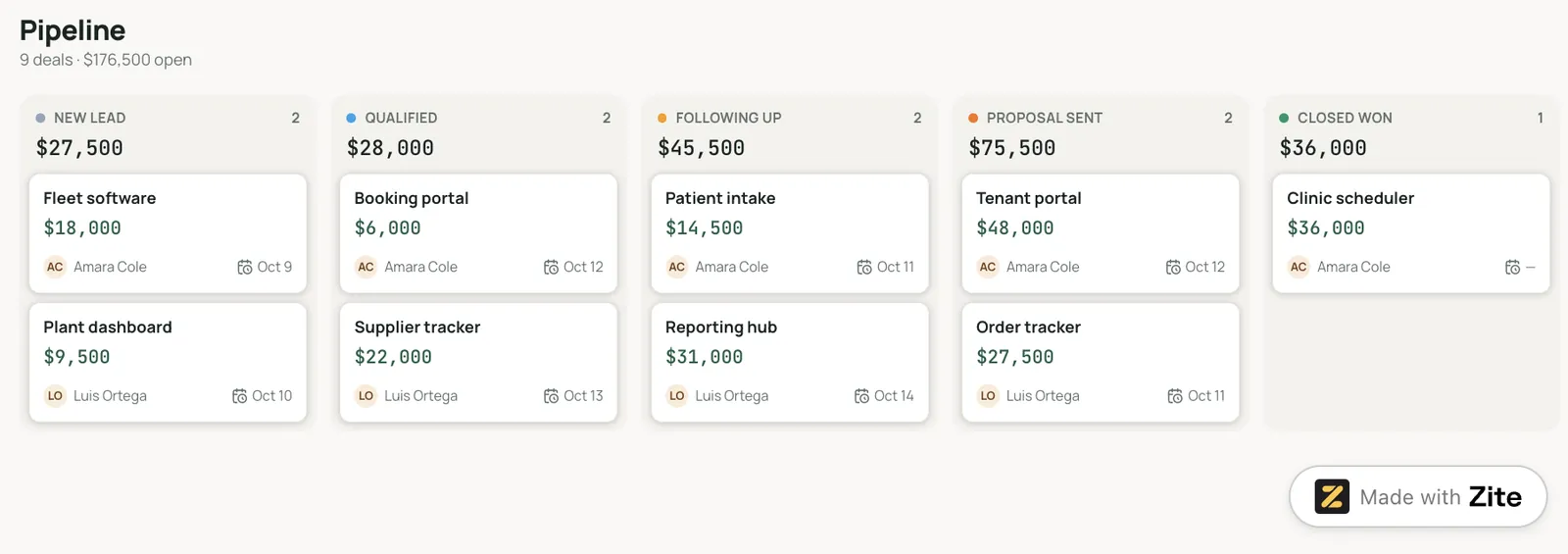
Because the pipeline lives in Zite's database, the rest of the customer journey can run on the same deal records. The lead form feeds the table, each rep gets a board of their own deals, the sales manager gets a dashboard, a deal that reaches Closed Won starts the onboarding checklist, and a portal lets each new customer follow their own onboarding.
AI fields can also help with qualification. Describe what each one should produce, such as a summary of the rep's call notes, a Hot, Warm, or Cold rating against your criteria, or a segment for the deal, and turn on Run automatically so each new deal gets one as it arrives. AI generation uses credits.
How to tell if sales pipeline automation is working
Flow Digital lists nine KPIs for judging automation, including lead response time, stage-to-stage conversion rate, stale-deal count, win rate, and forecast accuracy. It warns that automation may run constantly and still help little when those numbers don't improve. You can track four of them with the deals table you built and one extra field.
Here are four numbers to track:
-
Lead response time: Add a FirstContacted field with the DateTime type, then a formula field such as DATETIME_DIFF({FirstContacted}, CREATED_TIME(), "hour"). You can also describe it, for example, "hours between when the deal was created and FirstContacted," and Zite writes the formula. Check the result on one record before you rely on it.
-
Win rate: Count the deals in Closed won and in Closed lost, then divide Closed won by the sum of both.
-
Stale-deal count: Count open deals whose LastContacted date is older than 14 days, the same test the reminder rule uses. A falling count means the reminders are working.
-
Forecast accuracy: Compare the total WeightedValue of open deals at the start of the month with the DealValue that reached Closed won by month-end. A wide gap means the stage probabilities need tuning.
Record each number before you add a rule and again two weeks later, so you can see which rule changed it.
What not to automate
McKinsey estimated in 2020 that about a third of sales and sales operations tasks can be easily automated with today's technology. Flow Digital lists what should stay with a person.
Here are five things to keep with a person:
-
Discovery conversations: A form screens the lead, then a rep decides whether the opportunity is worth chasing.
-
Objection handling: A buyer who feels ignored needs a rep to repair the trust, and a canned sequence can't do that.
-
Negotiation: Pricing calls belong to a rep because a rigid workflow can't weigh a discount against the whole deal.
-
Account strategy for large deals: Large deals with many stakeholders need a person to manage each relationship.
-
Sensitive messages: Let AI draft follow-ups and have a person review anything that touches an important deal before it is sent.
A good test is whether a wrong or badly timed message would damage the deal. If it would, automate the reminder and keep the message human. AI fits best in the admin around a deal, such as call summaries, draft follow-ups for review, and risk flags. Flow Digital advises adding it once the data is clean.
Should you automate your sales pipeline? My take
Pipeline automation pays off when deals follow a repeatable path and reps lose time on admin. It adds little when nobody has settled the stages yet.
Who is sales pipeline automation perfect for?
Here are three groups that gain the most:
-
Teams with steady inbound leads and a pipeline that already has defined stages.
-
Small teams tracking deals in a spreadsheet and missing follow-ups.
-
Managers who want consistent data and a forecast that updates itself.
Who should skip sales pipeline automation?
Here are two signs to wait:
-
You haven't agreed on what each stage means, since rules can't fix an undefined process.
-
You have no CRM or deals table yet, in which case, start with this guide to building a CRM system from scratch.
Best practices and common mistakes
Here are three habits to build:
-
Start with one rule: Build lead routing first, watch it for a week, then add the next rule.
-
Name an owner for every rule: That person fixes the rule when it misfires.
-
Roll out in phases: Settle the stage rules before you add AI, and show reps what each rule does before it goes live.
Here are two mistakes to avoid:
-
Never revisiting a rule: A rule written for last year's process keeps firing after the process changes.
-
Stacking rules on one trigger: Two rules that both fire when a deal changes stage can send duplicate emails.
My verdict on sales pipeline automation
Sales pipeline automation is worth building once your stages are defined and leads arrive steadily. Start with lead routing and follow-up reminders, since every later rule builds on them, and add forecast fields once the data is clean. Keep conversations that need judgment with a person.
Ready to build your sales pipeline automation?
Zite is free with unlimited users and 50 credits/month, so your whole sales team can use what you build before you pay anything. Paid plans start at $25/month for Pro. Scheduled workflows, which the timed reminders in Step 4 need, start on the Business plan at $89/month.
Frequently asked questions
What are the five stages of a sales pipeline?
The five stages of a sales pipeline, in Pipedrive's framework, are opportunity capture, qualification, opportunity development, commitment, and post-sale expansion. Salesforce lists seven stages instead, and this guide uses six that suit a small team. Teams pick the count that matches their sales process.
How can I automate my sales process?
You can automate your sales process by defining each stage, then adding rules for lead routing, follow-up reminders, and stage changes. Start with lead routing, then add the next rule once the first one works. The build steps above show how to set it up in Zite, with the stages, fields, and rules shaped around your own process.
Which CRM is best for pipeline management?
For pipeline management, Pipedrive suits small teams that work from a visual pipeline, HubSpot suits teams that want sales, marketing, and service in one CRM, and Salesforce suits larger teams with complex processes. Zite suits teams that want to build a pipeline around their own fields without code.
What is an RPA in sales?
RPA in sales is robotic process automation, which Salesforce describes as software-based robots that automate business processes and reduce the risk of errors. For example, a tool can extract invoice data and enter it into older systems. A sales team could use a robot like this to copy lead data from one tool into another.
What are some examples of sales automation?
Examples of sales automation include assigning an owner to each new lead by territory, creating a follow-up task when a deal moves to Proposal sent, and reminding the owner when an open deal has had no contact for 14 days. The examples table above lists eight rules with the fields each one uses.