


Conditional formatting in Google Sheets changes how a cell looks based on its value. Overdue tasks turn red, and completed ones turn green, without you touching a single cell manually. I've set this up across dozens of trackers and budgets, and the process takes minutes once you know where the menu lives and how the rule logic works.
Here's the step-by-step, plus the mistakes that trip people up once rules start overlapping.
What is conditional formatting?
Conditional formatting is a rule that tells Google Sheets to change a cell's appearance, whether that's color, text style, or background, automatically when a condition is met. Instead of manually highlighting overdue invoices every week, you set the rule once, and the sheet updates itself as the data changes.
It's the difference between a spreadsheet that shows you data and one that shows you what needs attention.
What you'll need before starting
Prerequisites:
- A Google Sheet with some data in it
- Edit access to that sheet
- No paid account required; conditional formatting works on any free Google account
Time required: 2 to 5 minutes for a basic rule, 10 to 15 minutes if you're setting up several rules with custom formulas.
How to use conditional formatting in Google Sheets: step-by-step
Step 1: Select the range you want to format
Click and drag to select the cells the rule should apply to. This can be a single column, a row, or a full data range.
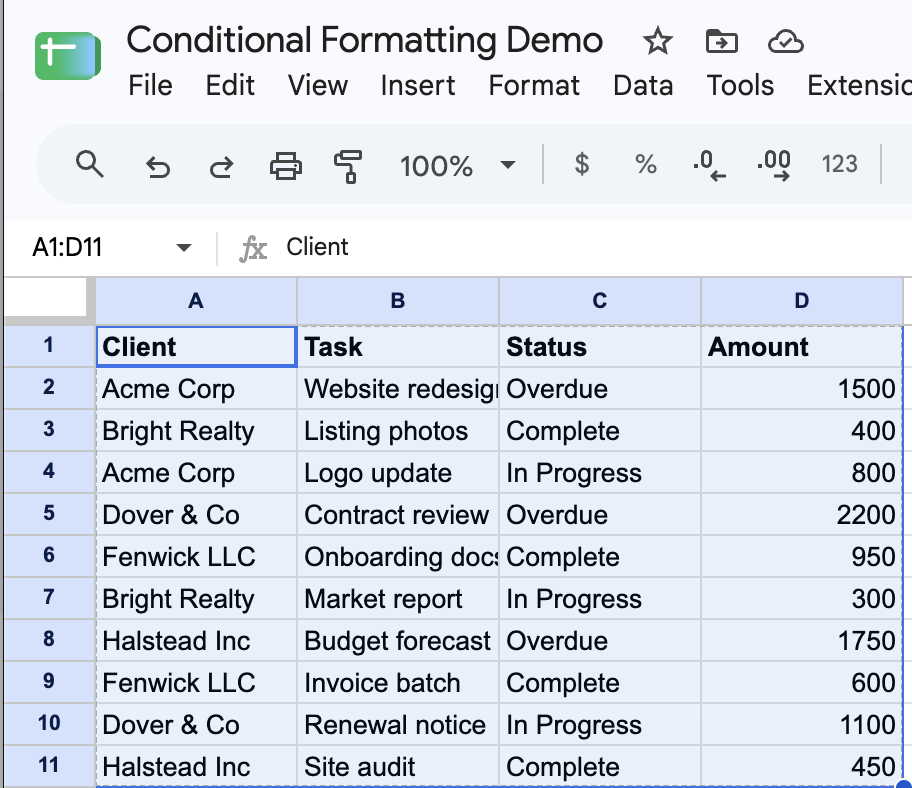
You might want to highlight an entire row based on one column's value, such as marking a whole task row red when its status is "Overdue." If so, select the full row range now, not just the status column. You'll need that wider selection for the custom formula in Step 4.
Pro tip: Select a few extra blank rows below your data if you expect to add more rows later. The rule will cover those rows, so Sheets formats new entries as soon as you add them.
Step 2: Open the conditional formatting menu
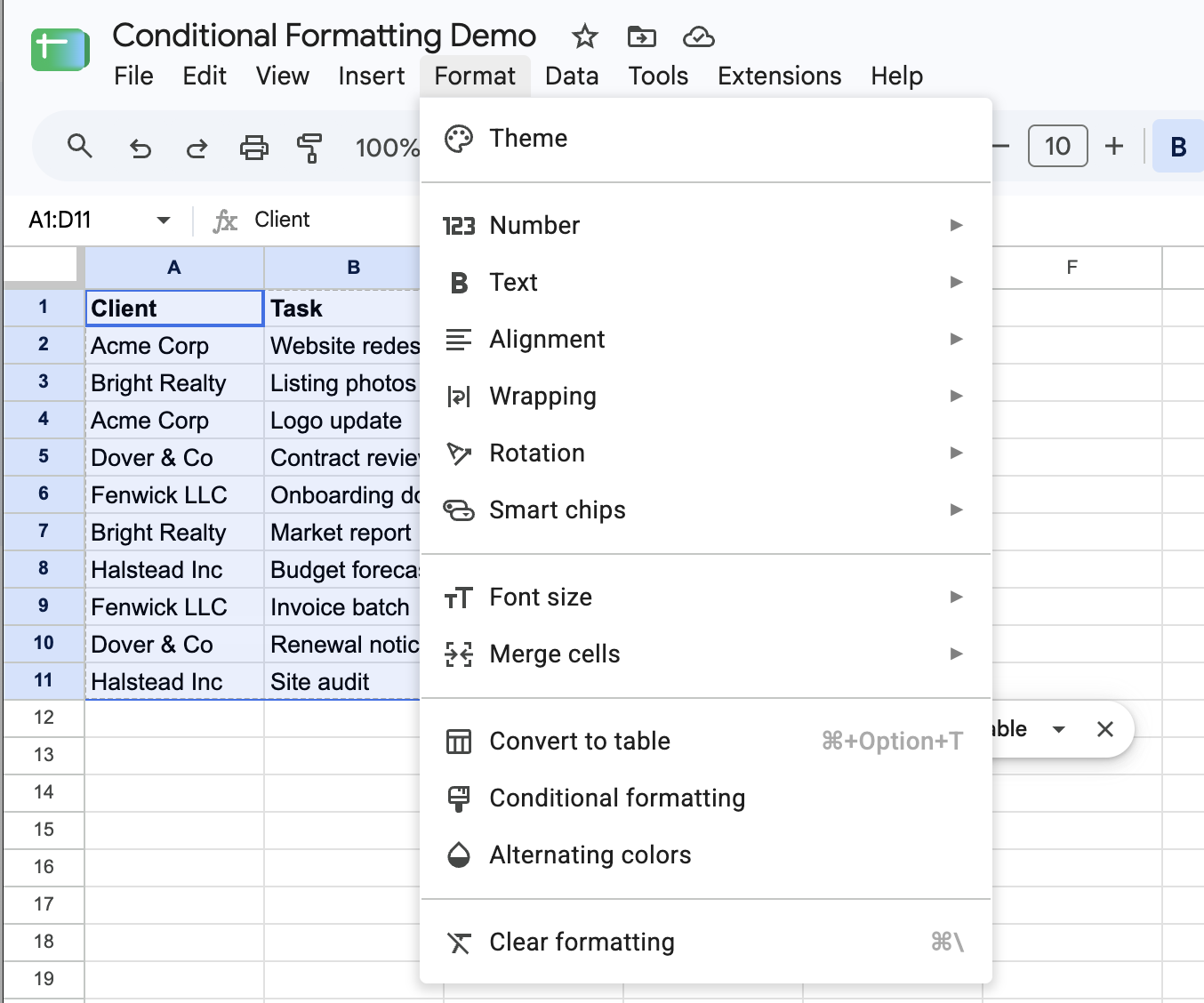
Go to Format > Conditional formatting. A panel opens on the right side of the screen showing the range you selected and the rule options. Google documents every option in this panel on its conditional formatting help page.
Step 3: Choose Single color or Color scale
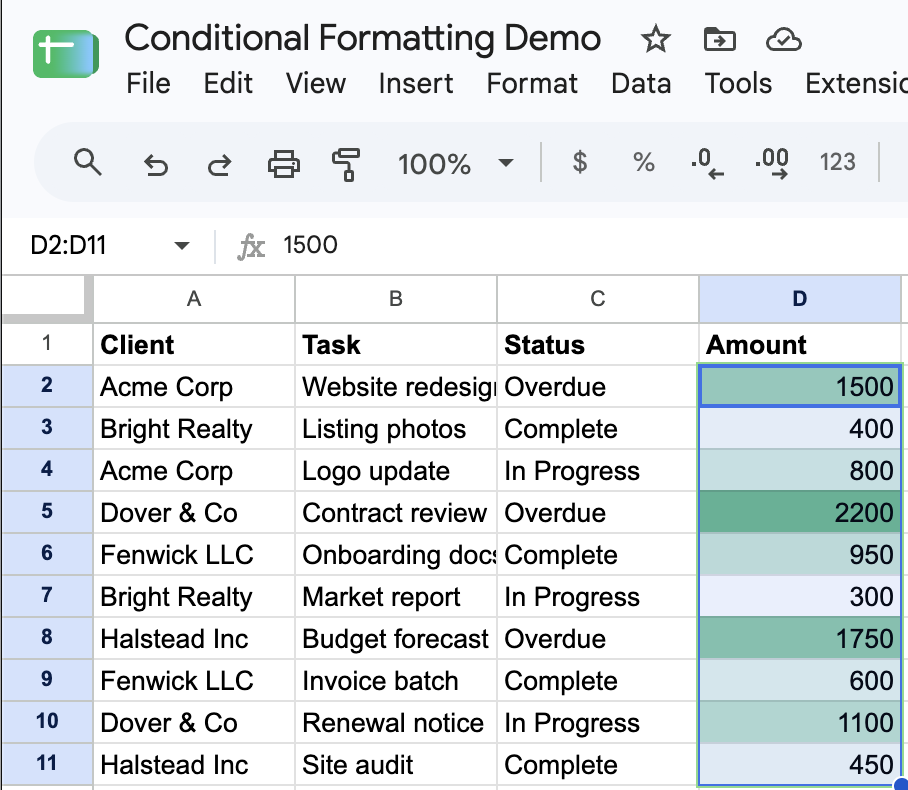
With Single color, Google Sheets applies one format when a condition is true, such as turning a cell red when its text is "Overdue." With Color scale, it shades cells along a gradient based on their numeric value instead, like a heat map running from low to high sales.
Use Single color for status flags and category-based rules. Use Color scale for numeric ranges where you want to see relative highs and lows at a glance.
Step 4: Set your format rule
Under "Format cells if," choose a condition from the dropdown. "Text contains," "Greater than," and "Is not empty" are the presets that cover most needs.
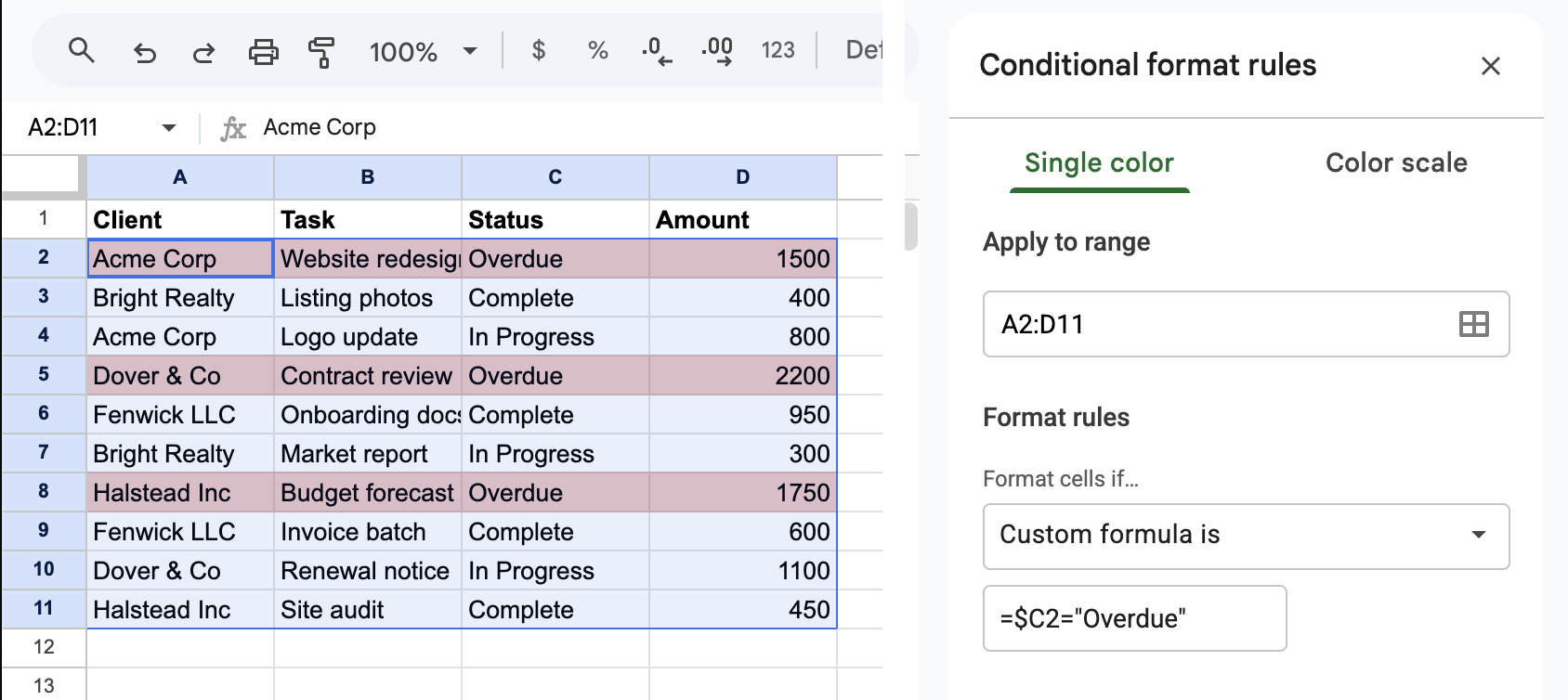
For anything the presets can't handle, select Custom formula is and write a formula that returns true or false. To highlight an entire row when the status column says "Overdue," with your data starting in row 2 and status in column C, the formula is:
```
=$C2="Overdue"
```
The dollar sign before the C locks the column reference, so the rule checks column C for every row in your selection. The row number stays relative and adjusts automatically.
Pro tip: Forgetting the `$` before the column letter is a frequent reason a custom formula rule doesn't work the way people expect. Without it, the formula shifts sideways as well as down, and it stops checking the right column.
Step 5: Choose the formatting style
Pick a background color, text color, or text styling like bold, italic, or strikethrough for cells that meet the condition. Google Sheets shows a live preview in the panel as you make your choices.
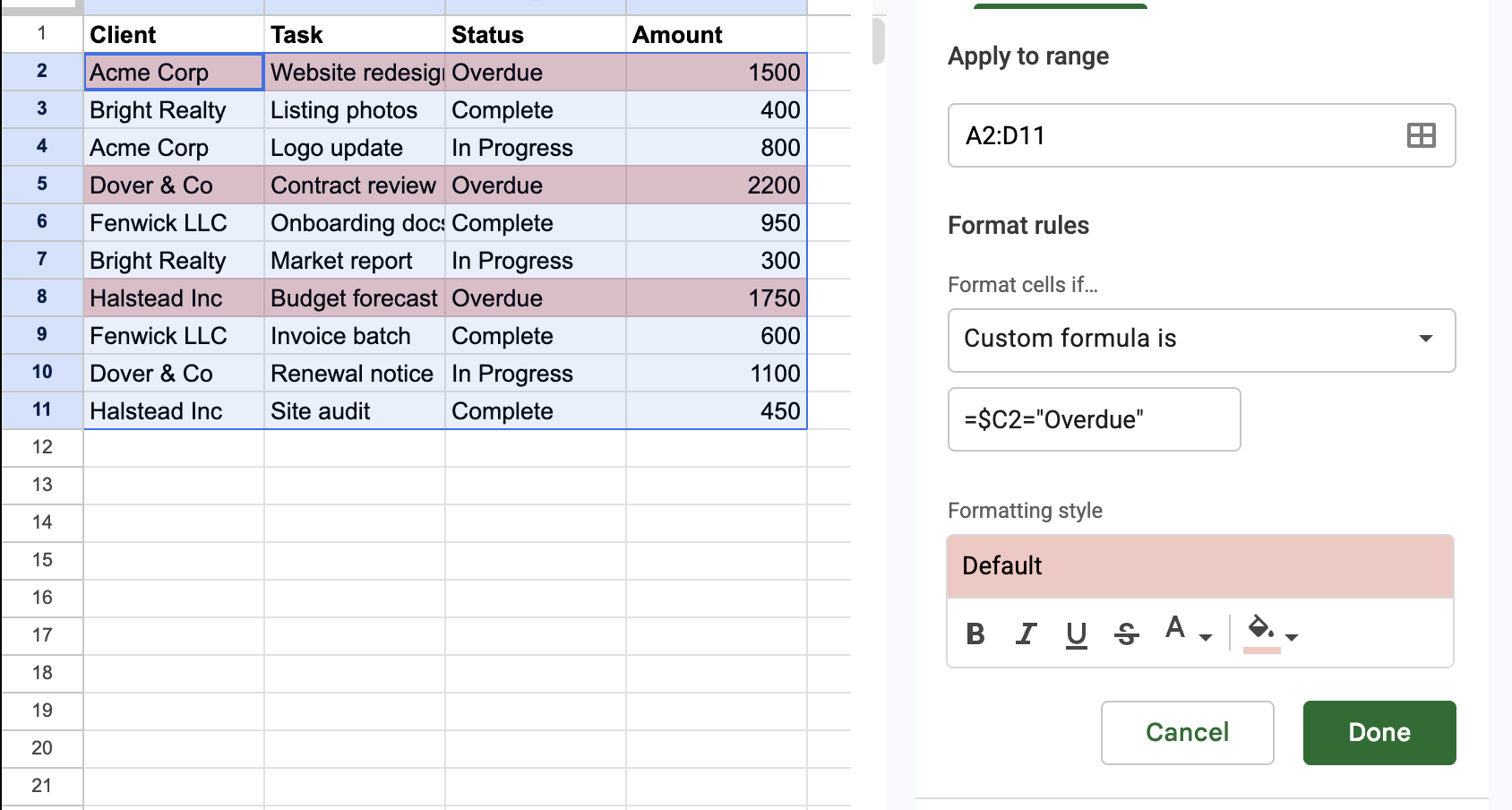
Click Done to apply the rule.
Step 6: Add and manage multiple rules
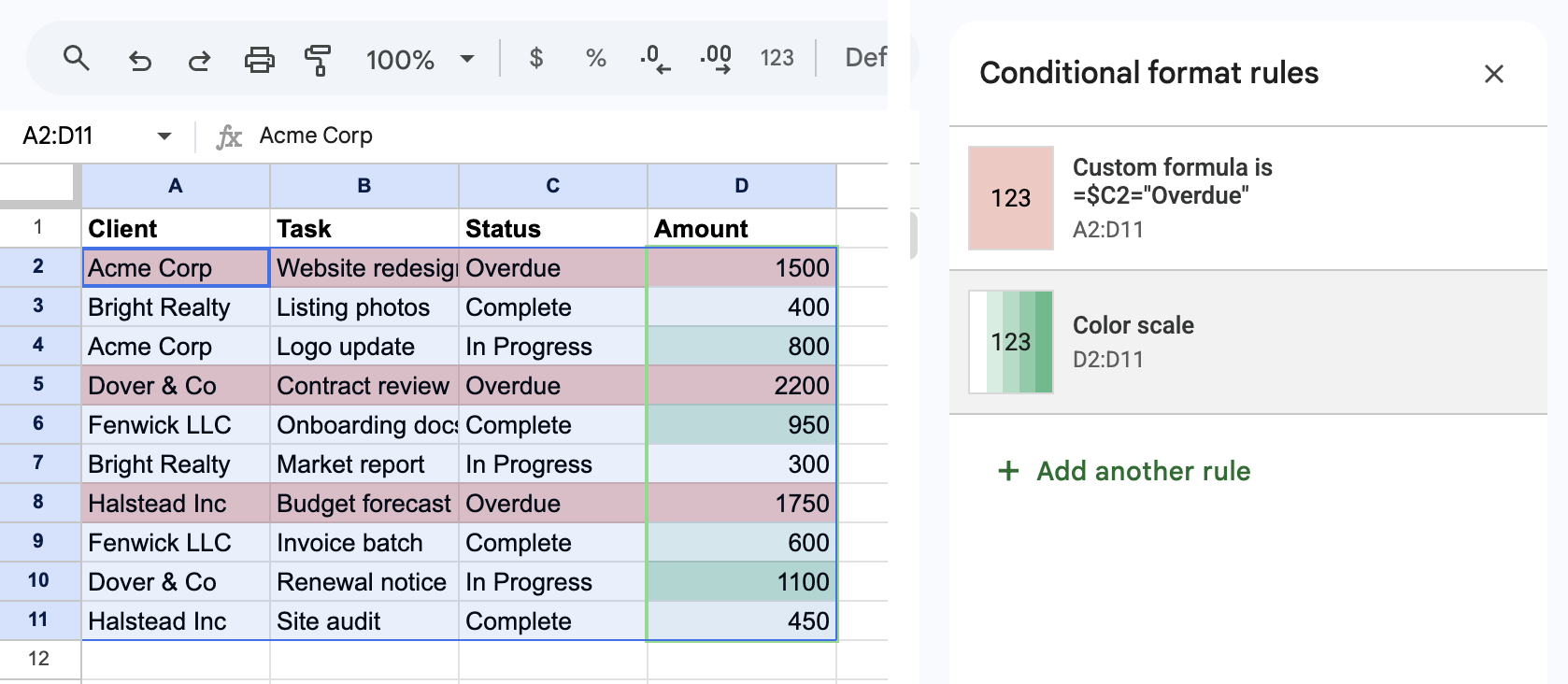
Click Add another rule to layer on more conditions, like green for "Complete" and yellow for "In Progress" on the same status column. Each rule appears in a list you can reorder by dragging.
Rule order matters when more than one rule could match the same cell. Google Sheets applies the first matching rule in the list and ignores the rest for that cell. If a cell that should be red is showing yellow, Google Sheets is applying an earlier rule in the list first.
Step 7: Use a custom formula for advanced logic
Custom formulas replace the built-in presets with logic you write yourself, matching duplicates, combining conditions, or checking values across sheets. A few worth knowing:
- Flag duplicates: `=COUNTIF($A:$A,A2)>1` highlights any cell in column A that appears more than once.
- Combine conditions: `=AND($C2="Overdue",$D2>1000)` only highlights rows that are both overdue and over a dollar threshold.
- Reference another sheet: `=INDIRECT("Sheet2!A1")="Approved"` lets a rule on one sheet check a value on another. The plain Sheet2!A1 version won't work here; conditional formatting only accepts a cross-sheet reference inside INDIRECT.
Common mistakes to avoid
Five mistakes account for most of the "why isn't this working" moments. Watch for these:
- Forgetting the `$` in custom formulas: Without it, the reference shifts with every row instead of staying locked to one column. Skip it, and the formula fails without any error message telling you why.
- Selecting the wrong range: Selecting only the status column when you meant to highlight the whole row leaves the rest unformatted. The logic is still correct. The range was just too narrow.
- Ignoring rule order: When two rules could both match, only the first one in the list wins. A rule that "isn't working" is often working, just buried under a rule above it.
- Applying rules to entire columns: Formatting an entire column instead of your actual data range works but can slow down large sheets, since Google Sheets evaluates every row.
- Using color scale for categories: Color scales are built for numeric ranges. Applying one to text categories produces results that don't mean anything.
Advanced tips
Three techniques go beyond a single rule on a single range:
- Highlighting based on checkboxes: Works well for task trackers. If you're using Google Sheets checkboxes, a custom formula like =$E2=TRUE can strike through or fade a completed row, so you spot finished tasks faster than scanning for checked boxes one by one. If your checkboxes use custom values, match the value instead, as in =$E2="Yes".
- Data validation plus formatting: Keeps color consistent. Set up a dropdown list under Data > Data validation, then pair it with a matching rule, and all status options automatically get the same color. Nobody has to type "Overdue" correctly every time for it to work.
- Test formulas in a blank cell first: Catches errors early. Before pasting a custom formula into the conditional formatting panel, type it into an empty cell and confirm it returns TRUE or FALSE as expected. It's faster to troubleshoot there than inside the formatting panel.
Where conditional formatting hits its ceiling
Conditional formatting only touches appearance. Nothing else. Nobody gets notified when a row turns red. Nothing routes to the right person, and a formatting rule can't stop a teammate from editing a cell they shouldn't touch.
Past a few hundred rows, rules also get slow to manage and easy to break by accident. This is the same limit covered in spreadsheet vs database.
Formatting flags a problem. Acting on one is a separate job. This guide to Google Sheets alternatives covers the tools teams switch to once a plain spreadsheet no longer fits how they work.
Zite is an AI app builder, and it picks up from there. You describe the app you need, a task tracker, a client portal, an approval dashboard, and Zite builds it with the database, the workflows, and the permissions already in place.
The same "if this, then that" thinking behind a formatting rule now takes action instead of only changing how a cell looks. A status change notifies someone, a threshold routes a request to an approver, and access is enforced by role instead of hoped for. Google Sheets vs Airtable vs Zite breaks down how the three compare.
Here's how Zite helps once formatting isn't enough:
- Keep the spreadsheet you already have: Connect your Google Sheet and the app stays in sync with it, or import the data into Zite's own database if you'd rather leave the spreadsheet behind.
- AI Fields: Give a column an instruction, and Zite fills it in for every record, categorizing, summarizing, or scoring each one, instead of checking a fixed condition the way a formatting rule does. Zite's help center shows how to set one up.
- Workflows that take action: You describe what should happen when a status changes or a threshold is crossed, and Zite builds the workflow for you. You can open it, see every step, and trace what happened on any run.
- Role-based access, enforced: Decide who sees and edits which records, instead of a shared sheet where anyone with the link can change anything.
- No per-seat fees: Every plan, including the free one, includes unlimited users, so the whole team that had access to the sheet gets the app too.
- A structure that holds at scale: A database with linked tables instead of a sheet that slows down and gets fragile as rows pile up.
Once your data lives in a database, teams build custom dashboard software on top of it.
Start building with Zite for free if your spreadsheet has outgrown what conditional formatting in Google Sheets can do.
Frequently asked questions
How long does it take to set up conditional formatting in Google Sheets?
A basic conditional formatting rule takes 2 to 5 minutes to set up. Select a range, pick a condition, choose a color. Custom formula rules with multiple conditions take longer, usually 10 to 15 minutes once you're testing the formula and layering several rules on the same range.
What's the hardest part of conditional formatting in Google Sheets?
The hardest part is writing custom formulas correctly, specifically remembering to lock the right cell reference with a `$` sign. Get that wrong, and the rule looks like it's not working, when it's checking the wrong cell for each row instead of failing outright.
Do I need a paid Google account to use conditional formatting?
No, conditional formatting doesn't require a paid Google account. Every free account gets the preset rules and custom formulas at no extra cost.
Can Zite help with conditional formatting?
Not inside your spreadsheet. Zite is a separate app builder, not a Sheets add-on, but a Zite app can do what a formatting rule does, like showing overdue records in red. The same condition can also trigger a notification, route an approval, or restrict who can edit the record.
What if my conditional formatting rule isn't working?
If your conditional formatting rule isn't working, check three things in order. First, confirm you selected the correct range. Second, check whether a $ is missing from a custom formula's cell reference. Third, look for another rule higher in your list matching the same cells first.