

There's no fixed Google Sheets row limit, just a 20 million-cell cap per spreadsheet, counted across all tabs combined. That works out to 20 million rows in a single column, or 769,230 rows across a standard 26-column sheet. I've hit this wall more than once building out a sheet that outgrew what it was supposed to hold, and most explanations skip the math.
Here's the exact cap, the limits most guides leave out, and how to manage both sides of this question. That means trimming rows down when you have too many and knowing when you've outgrown the sheet entirely.
The Google Sheets row limit explained
Google Sheets caps total cells at 20 million per spreadsheet, shared across every tab in the file.
Row count only matters in relation to column count, since both draw from the same cell pool. Zite doesn't share that constraint, and this comparison of Google Sheets, Airtable, and Zite covers how its relationships work instead.
The other hard caps
A few more limits exist beyond the cell cap, and each is easy to miss until you hit it.
-
18,278 columns, which lands exactly on column ZZZ.
-
A 100MB storage ceiling applies to any file created in or converted to Google Sheets, separate from the cell cap, per Google's documented limits.
-
50,000 characters per cell is the ceiling on how much text a single cell can hold.
Technical limit vs. practical limit
The 20-million-cell cap is the technical ceiling, but slowdowns usually hit first.
Performance starts degrading well before that. Google doesn't publish a performance threshold, and how fast a sheet slows down depends more on formulas, conditional formatting, and Apps Script triggers than on the row count. Scripts add up quickly, since a trigger that runs on every edit does its work again each time someone types.
Google's own performance guidance points to two drivers behind that slowdown. A formula cascades through every dependent cell on each edit, and conditional formatting rules run against their entire range no matter how many rows it holds.
This comparison of spreadsheet vs database covers that performance ceiling in more depth.
How to limit or delete rows and columns in Google Sheets
If your sheet has more rows than it needs, trim the extras in three steps.
Step 1: Select the first extra row
Click the row number of the first row you want to remove, right after your data ends.
Step 2: Select everything below it
Press Ctrl+Shift+Down (Cmd+Shift+Down on Mac) to extend the selection to the bottom of the sheet in one move, instead of dragging through thousands of rows manually.
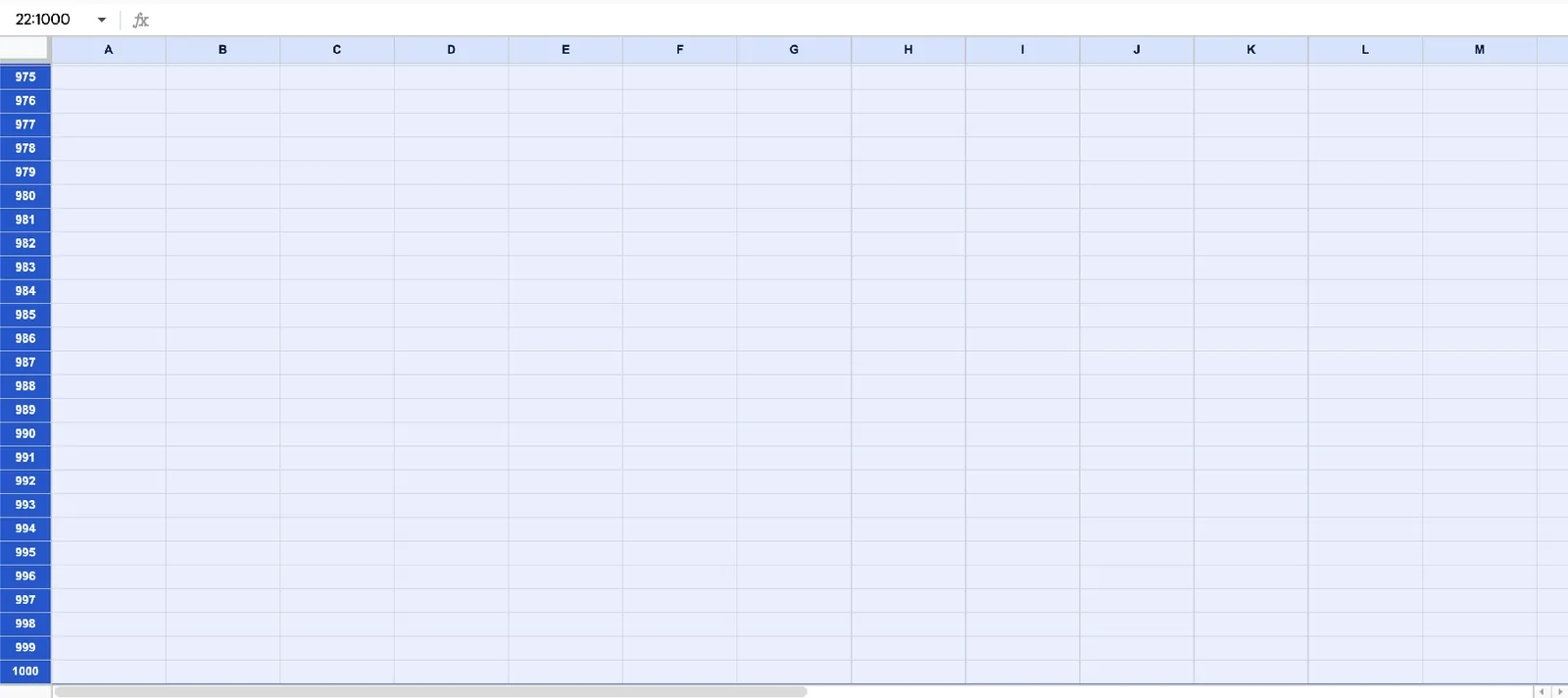
Step 3: Delete the selected rows
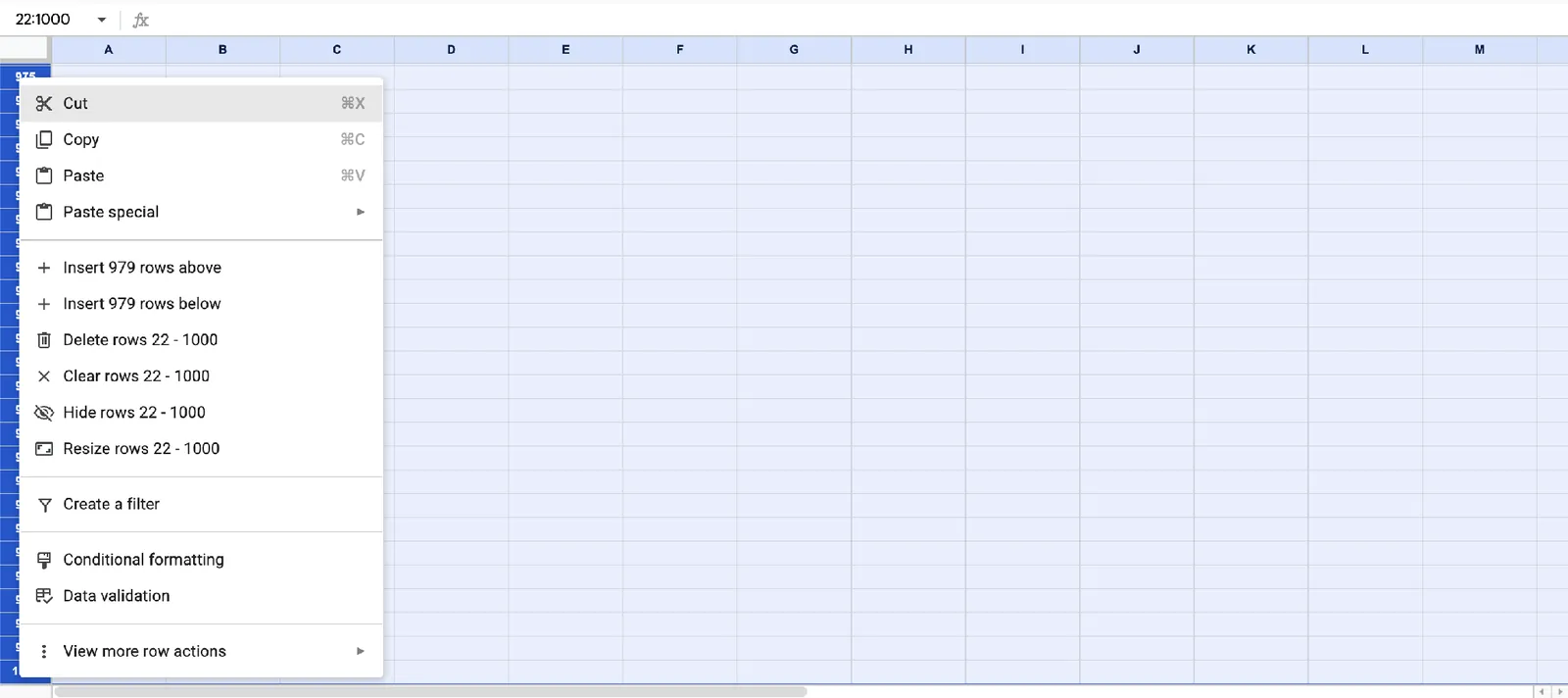
Right-click anywhere in the selected row numbers and choose "Delete rows." To trim unused columns, click the letter of the first empty column, press Ctrl+Shift+Right (Cmd+Shift+Right on Mac), then right-click the selected letters and choose "Delete columns."
Pro tip: Empty cells still count toward the 20 million cap, so a sheet with thousands of unused rows and columns uses up room for nothing. Trimming those unused rows and columns is the fastest fix for a file that's hitting limits it shouldn't be anywhere near.
Mistakes to avoid when deleting rows
-
Formulas that point to deleted rows turn into #REF! errors, so check summary tabs first.
-
Tell other editors before you trim a shared sheet.
Locking down who can add rows
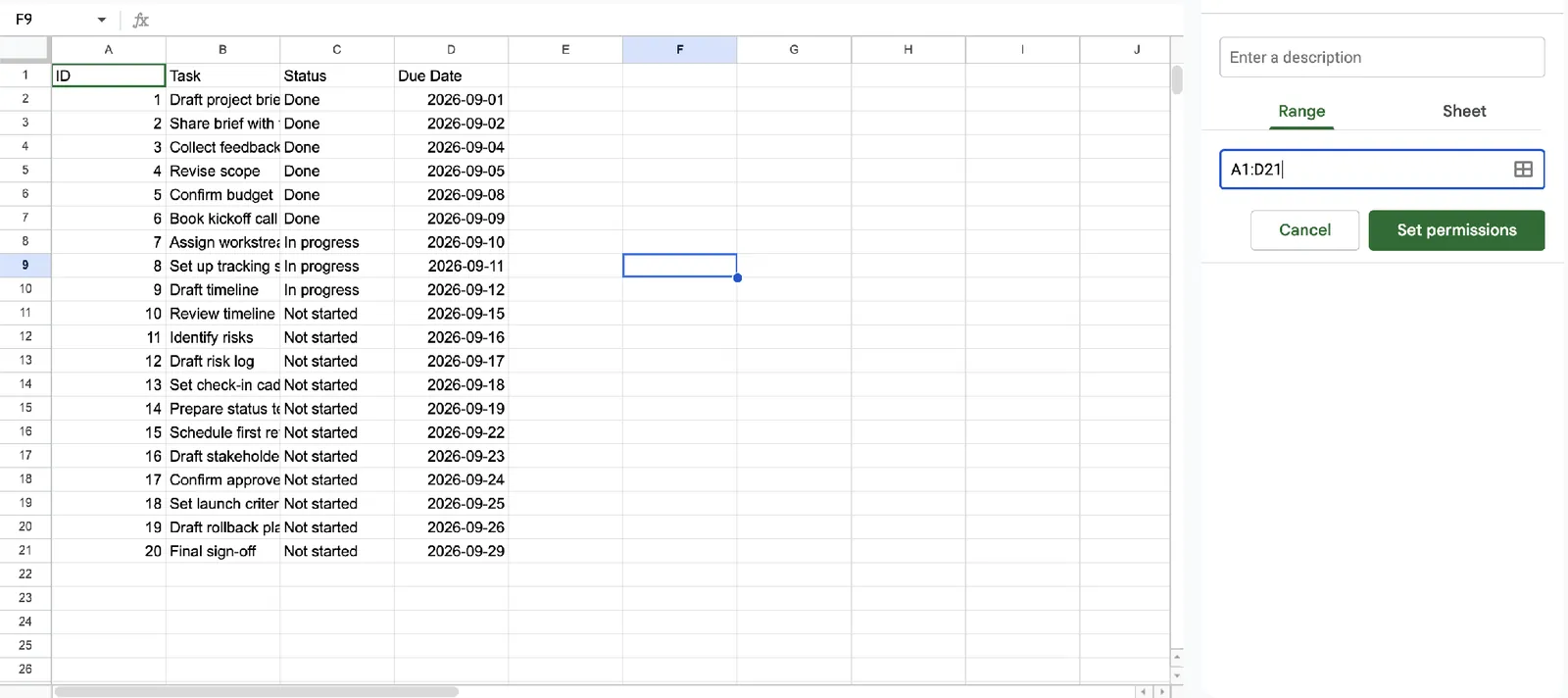
For a shared template or data-entry form, you can also stop editors from typing past a set range. Go to Data > Protect sheets and ranges, choose Sheet, and tick "Except certain cells" so editors can only type inside the range you leave open.
Once trimming isn't enough
Trim empty rows and columns first, using the steps above.
Split data across multiple files, linked back together with IMPORTRANGE, if the data itself needs the space. Each file gets its own 20-million-cell budget.
Use Connected Sheets for BigQuery data instead of importing everything into the spreadsheet directly. The data stays in BigQuery, and formulas, pivot tables, and charts run against the full dataset rather than just the preview rows Sheets displays.
Move to a dedicated database once the data's relationships and structure have outgrown what a spreadsheet can hold, regardless of how much room is left under the cell cap. This list of Google Sheets alternatives rounds up the other tools built for that job.
The next step is building an app on top of that database. This roundup of no-code app builders with databases covers the options, and if you're weighing Google's own AppSheet, this list of AppSheet alternatives compares it with the rest.
Moving past the cell limit
Zite moves the data into its own database, which counts records instead of cells, so adding a column doesn't use up your room the way it does in a sheet.
Import the sheet, describe what you need, and Zite builds the apps on top of it: a screen where the team adds and updates records, a dashboard for managers, and a view for clients, all working from the same data.
Linked records keep related data connected, so you don't need lookup formulas. If you'd rather keep the sheet for now, Zite can also connect to it and read and update it directly, though the data then stays under the sheet's cell cap.
Zite's free plan includes unlimited users and apps, 50 credits/month, and up to 5,000 database records. Paid plans start at $25/month for Pro, which holds 100,000 records and 5,000 workflow runs/month. Business is $89/month with 250,000 records and 50,000 workflow runs/month, and Team is $300/month and holds up to 1,000,000 records.
Switch once trimming and managing rows takes more effort than working with the data itself.
Frequently asked questions
Can Google Sheets handle 100,000 rows?
Yes, 100,000 rows fit comfortably within the 20-million-cell cap for any reasonable column count. At that size, speed depends on how many formulas and conditional-formatting rules the sheet runs.
Is there a 40,000-row limit in Google Sheets?
No. Google Sheets has no 40,000-row limit today. Sheets caps total cells, not rows, so a limit that specific usually comes from an import tool, add-on, or connected service.
How do I limit the number of rows in a sheet?
Limit the number of rows by selecting the first unwanted row, pressing Ctrl+Shift+Down to select everything below it, and deleting those rows, which removes them from the sheet entirely rather than just hiding them.
Can Google Sheets go past 1,000 rows?
Yes, 1,000 rows is far below any hard limit. A new Google Sheet starts with 1,000 rows visible, but more can be added freely up to the 20-million-cell cap.
Can you have more than 26 columns in Google Sheets?
Yes, Google Sheets supports up to 18,278 columns, reaching all the way to column ZZZ and far beyond the 26 columns in the single-letter A-to-Z range.