

The one question an inventory list sheet has to answer fast is how much of this is on hand right now. I've set these up for small retailers and service businesses across a couple dozen client builds, and the ones that stay accurate share the same handful of habits instead of a fancier spreadsheet.
Here's the six-step process, the mistakes that let counts drift unnoticed, and what to reach for once a spreadsheet stops being enough.
Download the free inventory list template to skip the setup and start entering items directly. It matches every column from Step 2, includes the reorder formula from Step 5 already working, and comes with a Read Me tab explaining each column.
What is an inventory list?
An inventory list is a running record of every item a business has on hand, tracked well enough that a quick look answers what's in stock, how much, and when it needs reordering.
A physical count tells you what was on the shelf that morning. An inventory list carries that number forward and keeps it current as stock moves.
Periodic vs. perpetual: which kind of inventory list are you building?
Every inventory list falls into one of two categories.
A periodic list gets updated at set intervals, weekly or monthly, usually through a scheduled physical count. It works fine for a small, slow-moving inventory where nothing changes much between counts.
A perpetual list updates continuously, as each sale or shipment happens. It takes more discipline to keep up but stays accurate at any given moment instead of only on count day. Step 5 below, which separates the master list from a transaction log, is what turns a periodic list into a perpetual one.
Most small retailers and service businesses land on some version of perpetual once the item count grows past what a monthly recount can keep up with. If your inventory affects how you report income, the IRS guidance on accounting methods is worth a skim before you pick one.
What you'll need before starting
Prerequisites:
- A spreadsheet tool: Google Sheets, Excel, or similar. This list of Google Sheets alternatives is worth a look if you're still choosing one.
- A physical count of your current inventory, not an estimate.
- A list of every item you're tracking, even a rough one to start from.
Time required: 30 to 60 minutes for initial setup, longer if you're counting a large physical inventory for the first time.
How to create an inventory list sheet: step-by-step
Step 1: Decide what level of detail you're tracking
Before building anything, decide whether you're tracking by individual item, by SKU variant (size, color), or by batch. This decision shapes every column that follows, and changing it later means rebuilding the sheet.
Pro tip: When in doubt, track at the more granular level. Collapsing detailed data into a summary later is easy; splitting summary data back into detail after the fact usually means starting over.
Step 2: Set up your core columns
Here are the columns most inventory lists need:
- Item name.
- A unique ID or SKU.
- Category.
- Quantity on hand.
- Unit cost.
- Sale price, if you resell the item.
- Reorder point.
- Lead time, how many days a reorder takes to arrive.
- Location or supplier.
- Notes, for anything that doesn't fit elsewhere.
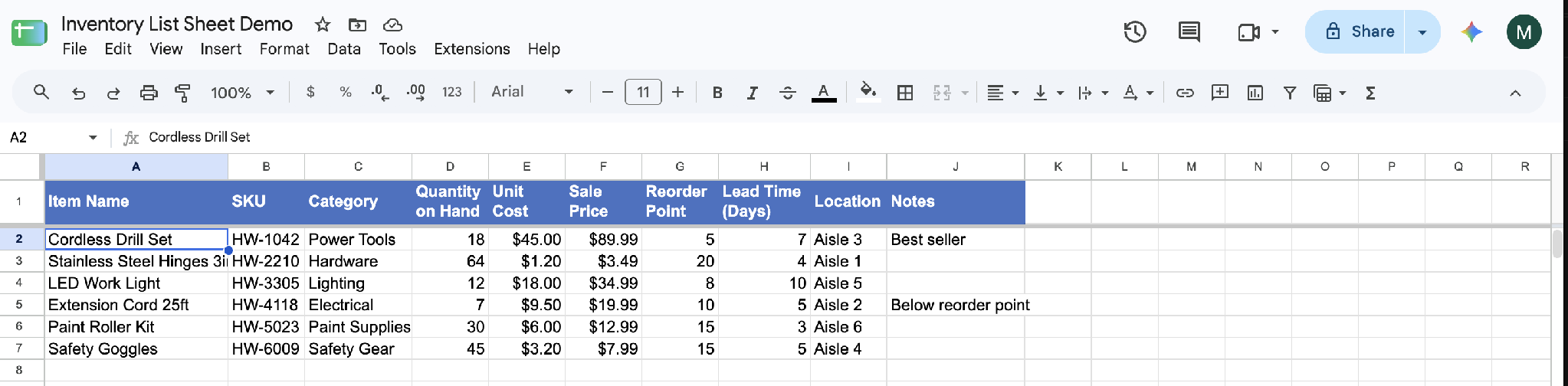
The unique ID column matters more than it looks like it should. Two items with similar names are easy to confuse; two items with different SKUs never are.
These ten cover most general-purpose inventory. Specialized inventory, like food needing a use-by date or clothing needing size and color, usually means adding one or two fields on top instead of restructuring the whole sheet.
Step 3: Enter your starting count
Do a physical count and enter those numbers instead of a guess from memory or last quarter's report. This is the step people skip, and it's the reason the sheet is wrong from day one if they do.
Pro tip: Count in the same order you'd walk the space, shelf by shelf or bin by bin, so nothing gets missed or counted twice.
Step 4: Add calculated fields
Add a column that multiplies quantity by unit cost for total value per item, and a column that flags anything at or below its reorder point.
=IF(D2<=G2,"Reorder","OK")
With quantity in column D and reorder point in column G, this returns a plain "Reorder" flag so nobody has to read the sheet line by line.
Step 5: Separate the master list from the transaction log
Add a second tab for logging stock in and stock out, instead of editing the master quantity directly every time something moves. The master count then updates from a formula referencing the log, not from someone typing over the old number.
This single habit separates a sheet that stays accurate from one that slowly drifts, since a direct edit tells you the number moved but never why.
Step 6: Set an update cadence and an owner
Decide how often the sheet gets updated and who owns it. If you built the transaction log in Step 5, that means logging every move as it happens. If you skipped it, pick a fixed day and count on that day every week. A sheet nobody owns turns into a sheet nobody trusts within a few weeks.
Common mistakes to avoid
These are the ones I run into most:
- No unique identifier column: Item names alone lead to duplicate or mismatched entries, especially once similar products get added.
- Editing quantity directly instead of logging transactions: This works until someone needs to know why a number changed, and the edit history shows the old value without the reason behind it.
- Starting from an estimate instead of a physical count: A sheet built on a guess stays wrong until someone recounts everything from scratch.
- No reorder point or low-stock flag: Without one, running out shows up as a stockout instead of a warning you could act on earlier.
- One person's local file: A sheet living on one laptop, edited by only one person, becomes a bottleneck the moment anyone else needs to check stock.
Advanced tips
Three upgrades worth making once the basics are solid:
- Use conditional formatting to highlight low stock visually. A colored cell catches attention faster than a column you have to scroll to see.
- Build a summary tab. A small dashboard tab showing total inventory value, items below reorder point, and recent changes gives a faster read than scrolling the full list.
- Consider a barcode scanning app that feeds into the sheet. If you're moving enough volume through a physical store that counting by hand slows you down, scanning is faster and more accurate.
Where a spreadsheet inventory list hits its ceiling
A spreadsheet handles inventory well for one person, one location, and a manageable item count. It starts to strain in predictable ways. A sale gets recorded in one place and the stock count in another. An item runs out, and the sheet only says so the next time someone thinks to look.
This comparison of spreadsheet vs. database covers that tradeoff in more depth.
The columns, the transaction log, and the reorder points you just set up are already the shape of a database. Zite picks up from there. Describe the tool you need in plain language, such as "track stock across three locations, log every stock movement, and flag anything below its reorder point," and Zite builds the app, its database, and the logic that runs it.
Import your sheet to start with the counts you already have, or connect a Google Sheet, so the app reads and writes its rows. The app in the screenshot started from a description like that.
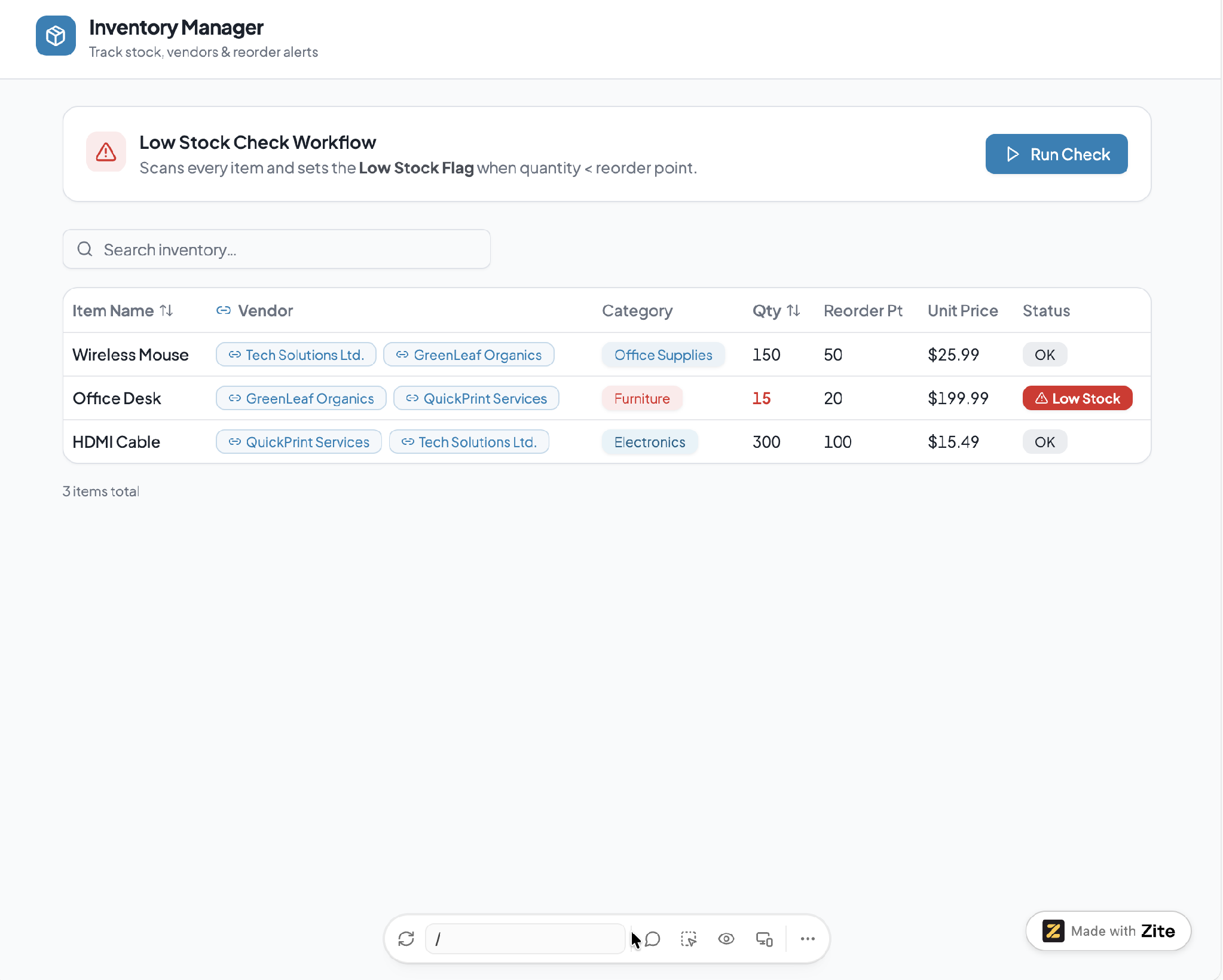
Here's how Zite helps once a spreadsheet starts to strain:
- One database, one source of truth: Every stock movement is logged in the app, so nobody types over a formula or works from a stale copy, and a User field can limit each person to the records they own. This roundup of the best AI database software for businesses covers what that upgrade looks like more broadly.
- Inventory linked to orders and customers: A sale recorded in the app can update stock on its own, so there's no second entry to make. If order handling is the bigger gap, this post on order management software is worth a read.
- Low-stock alerts: On the Business plan and up, a scheduled check can email or Slack whoever needs to know when an item falls below its reorder point. The check is a visually laid-out workflow, so you can follow each step and change it by describing the edit.
Zite is free with unlimited users and 50 AI credits a month, capped at ten messages a day. Paid plans start at $25/month for Pro, with 100 credits and a custom domain. Business is $89/month with 400 credits, and Enterprise is custom-priced.
Start building with Zite for free if your inventory sheet has outgrown a shared spreadsheet.
This breakdown of custom business software covers when building beats buying.
Frequently asked questions
How long does it take to create an inventory list sheet?
Creating an inventory list sheet takes 30 to 60 minutes once you know what you're tracking. The physical count usually takes longer, depending on how much inventory there is and how organized the space already is.
What's the hardest part of creating an inventory list?
The hardest part of creating an inventory list is keeping it accurate after the first setup. The habits that keep it accurate, like logging transactions instead of editing quantities directly, are easy to skip once the sheet is already up and running.
What columns should an inventory list sheet include?
An inventory list sheet should include, at minimum, item name, a unique ID or SKU, category, quantity on hand, unit cost, and a reorder point as its core columns. Add location or supplier columns if you're tracking inventory across more than one place or vendor.
Do I need special software to track inventory?
No, you don't need special software to track inventory. A spreadsheet handles it well for a single person or small team with a manageable item count, though dedicated software becomes worth it once stock has to stay in step with orders, or someone needs an alert without opening the sheet.
Can Zite help me track inventory?
Yes, Zite can help you track inventory by building the system around how your business works. Describe what you track and what should happen when stock moves or runs low, and Zite builds the app, its database, and the alerts. Import your current sheet to start with the counts you already have, so nothing gets re-entered.