
Purchase order tracking means knowing, at any point, what's been ordered, what's been delivered, and what's been paid, without digging through email threads to find out. I've set these trackers up for procurement teams enough times to know the ones that hold up long-term all capture the same core fields, whether they live in a spreadsheet or dedicated software.
Here's the field list, the full PO lifecycle, a tracker structure you can copy directly, and three ways to run one.
What you'll need before starting
Prerequisites:
-
A list of vendors and the POs currently open with each one.
-
A tool to build the tracker in, whether that's a spreadsheet or dedicated software like Zite.
-
Whoever approves POs on your team, identified before you start.
Time required: 20 to 30 minutes to set up the tracker structure, plus ongoing time to keep it updated as POs move through their lifecycle.
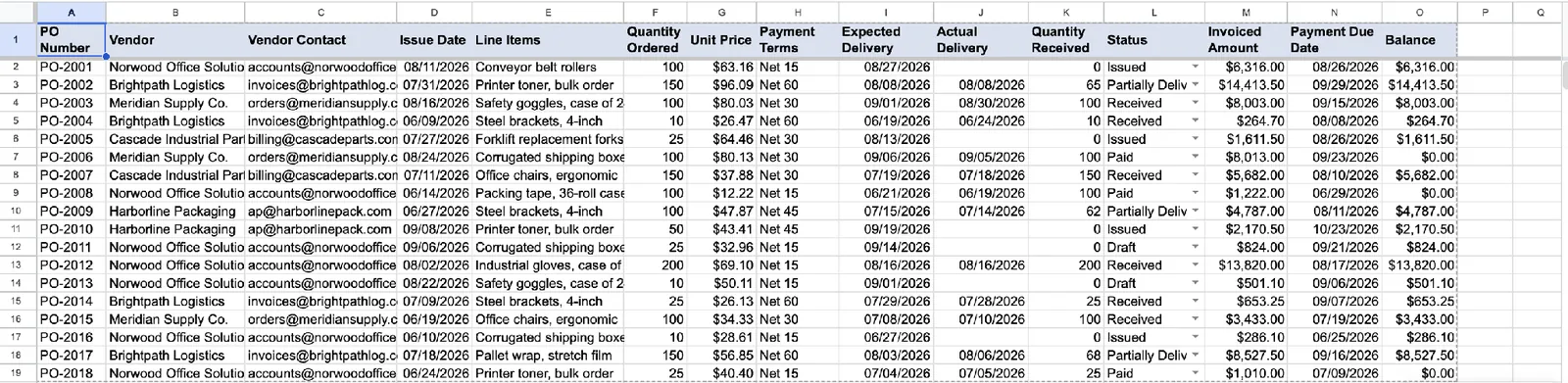
The fields a purchase order tracker needs
Every field a PO tracker needs falls into five groups. Skip one, and a question about that PO goes unanswered later.
PO details: PO number, issue date, line items, quantities, and unit prices. This is what was ordered.
Vendor info: Supplier name, vendor contact, and payment terms. Who you ordered from, and on what terms.
Delivery status: Expected delivery date, actual delivery date, and quantity received. Whether the order showed up, and whether it showed up complete.
Financials: Invoiced amount, payment due date, and balance. What's been billed, and what's still owed.
Current status: A single field showing where the PO sits right now, covered in the tracker structure below.
The purchase order lifecycle, step by step
Step 1: Requisition
Someone identifies a need and submits a request for what to order. This is the point before a PO officially exists. It's still worth tracking, since a requisition that never becomes a PO usually means someone dropped it.
Step 2: Approval
The requisition gets approved by whoever holds that authority, often based on the amount or the department. No PO should go to a vendor before this step clears.
Step 3: Issue to vendor
The approved PO goes to the vendor, with a PO number, the line items, quantities, prices, and expected delivery date all specified.
Step 4: Acknowledgment
The vendor confirms they've received the PO and can fulfill it as specified. Compare that confirmation against the original PO to catch a pricing or quantity mismatch before goods ship.
Step 5: Partial or full delivery
Goods arrive, either all at once or in parts. Record the actual delivery date and the quantity received against what was ordered, since a partial delivery needs to stay visible until the rest arrives.
Step 6: Three-way match against the invoice
Before payment, compare three documents: The PO, the delivery record, and the vendor's invoice. Quantities and prices need to agree across all three before approving payment.
Pro tip: This is the step I see skipped most often, and it's the one that catches overbilling or a short shipment before money goes out. A tracker that only shows "delivered" and "paid" without this check is missing the control that protects a procurement budget.
Step 7: Payment
Once the three-way match clears, payment goes out according to the agreed terms, and the PO closes.
A purchase order tracker structure you can copy
Use these columns, in this order:
| Column | What it holds |
|---|---|
| PO Number | Unique identifier for the order |
| Vendor | Supplier name |
| Vendor Contact | Who to reach about this PO |
| Approver | Who signs off on this PO internally |
| Issue Date | When the PO was sent |
| Line Items | What was ordered |
| Quantity Ordered | How many units |
| Unit Price | Price per unit |
| Payment Terms | Net 30, Net 60, etc. |
| Expected Delivery | Date goods are due |
| Actual Delivery | Date goods arrived |
| Quantity Received | Units delivered against what was ordered |
| Status | Current lifecycle stage |
| Invoiced Amount | What the vendor billed |
| Payment Due Date | When payment is owed |
| Balance | What's still owed |
Make a copy of this purchase order tracker to start from these 16 columns already filled in with sample rows, instead of rebuilding the structure by hand.
For the Status column, use a dropdown with eight values: Draft, Pending Approval, Issued, Acknowledged, Partially Delivered, Received, Matched, and Paid, so a report or filter can rely on the exact values matching every time.
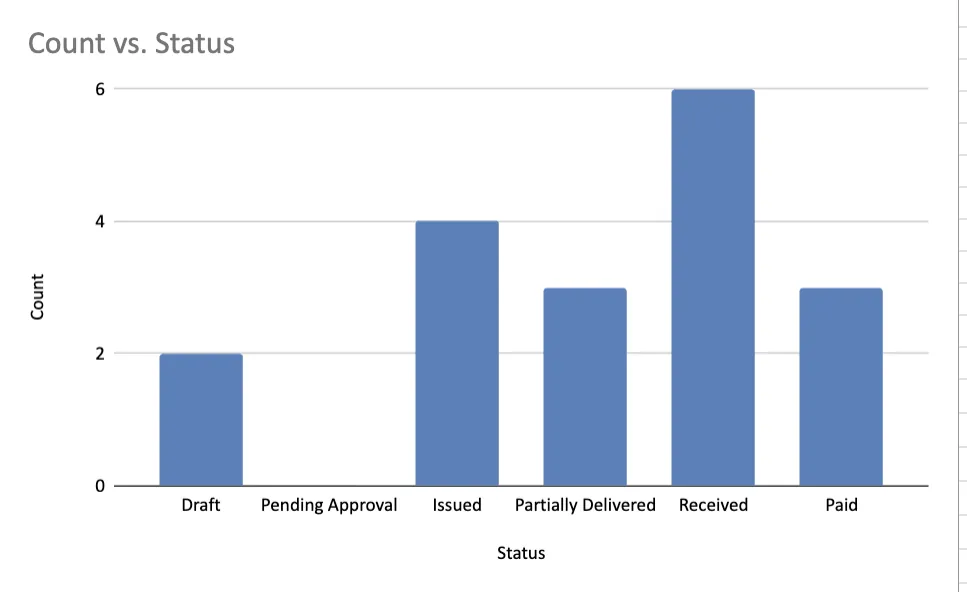
A tracker built with these columns rolls up into a status overview instantly. Add a COUNTIF formula for each status value in a side column, then chart the eight results to see how many POs sit in each lifecycle stage without opening a single row.
Three ways to track purchase orders
A spreadsheet template: Fast to set up and free, using the exact structure above in Google Sheets or Excel. Works well for a low volume of POs and a small team, but gets harder to manage once multiple people need to update it at once or a vendor needs their own view.
Dedicated procurement or AP software: ProcureDesk, Stampli, and Kissflow all build the lifecycle, approvals, and three-way matching directly into the product. This suits teams with high PO volume and multiple approval layers, but it comes with a steeper setup and a recurring subscription fee.
This roundup of process automation software looks at that wider field beyond procurement.
A custom tracker built for your own process: A custom tracker sits between a spreadsheet's simplicity and dedicated software's rigidity, built around exactly how your team approves, receives, and pays, without configuring around someone else's assumptions.
Build your own purchase order tracker
Move to a custom tracker once the spreadsheet version keeps needing workarounds, like a separate email thread for approvals or a manual reminder system for overdue deliveries.
Build the approval step into the tracker itself: A PO moves from Draft to Pending Approval automatically, and the approver sees exactly what's waiting on them without having to dig through a separate email thread. If approvals specifically are the current gap, this breakdown of approval workflow software walks through what to look for.
Add alerts for overdue delivery and a growing balance: A workflow can flag a PO past its expected delivery date, or a vendor whose remaining balance is growing, before either becomes a bigger problem. For the concept behind this, see this explainer on workflow automation.
Give vendors read-only visibility into their own POs: A vendor checking the status of their own order doesn't need a phone call to procurement, and doesn't need to see anyone else's orders either.
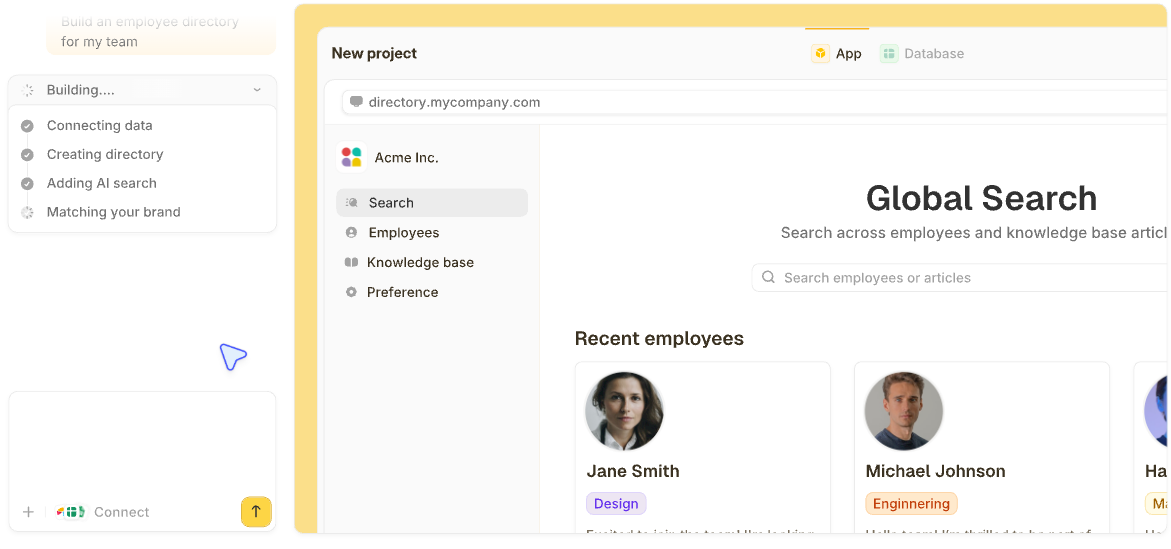
Zite builds the whole tracker from a description of how your team works: the app people use to request and approve POs, the database behind it, the workflows that send approvals and alerts, and a separate vendor view for checking their own orders. The same business process automation approach works for any other process built around approvals.
Here's how Zite handles it:
-
Approval workflows: A PO moving to Pending Approval triggers a notification, and the workflow itself shows as a visual diagram you can open any time, with a run history of what happened at each step.
-
Delivery and balance alerts: Overdue deliveries and growing balances get flagged automatically, without a manual check, though date-based alerts like an overdue delivery need the Business plan.
-
Vendor-facing views: Give a vendor read-only access to their own POs specifically, without exposing the rest of the tracker.
-
Start from your existing tracker: Bring in your current Excel PO log, or link Google Sheets or Airtable straight to Zite, instead of rebuilding from scratch. Slack and Gmail connect too, for approval alerts.
-
Unlimited users: Every plan includes unlimited users, so adding approvers or team members doesn't raise the bill.
Paid plans start at $25/month for Pro on monthly billing.
Start building with Zite for free.
Common mistakes to avoid
These four mistakes undercut a PO tracker fastest:
-
Free-typing the status field instead of using a dropdown: A typo like "Recieved," or a different word entirely like "Delivered" instead of "Received," breaks any report built on that field.
-
Skipping the three-way match: If you pay an invoice without checking it against the PO and the delivery record, overbilling and short shipments go unnoticed.
-
No visibility for the vendor: Without some way to check status themselves, vendors call or email procurement for updates that a shared view could answer directly.
-
Tracking financials but not delivery dates: Without expected and actual delivery dates, you won't catch a late shipment until it's already urgent.
This guide covers the procurement side specifically, tracking POs you've issued to a vendor. If you're tracking orders coming in from customers instead, see this guide to order management software, since that's a different process with a different tracker structure entirely.
Frequently asked questions
How can I track a purchase order?
Track a purchase order by recording its PO details, vendor info, delivery status, and financials in one place, then updating its status as it moves from draft through approval, issue, delivery, and payment. A dropdown status field with consistent values makes the tracker reliable to report on later.
What is the best way to track POs?
The best way to track POs depends on complexity. A spreadsheet template works well for a small team with a simple approval chain, dedicated procurement software suits a team with several approval layers to coordinate, and a custom tracker fits a process too specific for either to configure around comfortably.
How can I check the status of a purchase order?
Check the status of a purchase order by looking at its status field and expected delivery date against today's date, then contacting the vendor directly using the contact info captured on the PO itself if something looks off. A tracker with vendor-facing visibility can often answer this without a follow-up call at all.
How to track PO number?
A PO number works best as the tracker's unique identifier, searchable or filterable on its own, so questions about a specific order start with looking up its number rather than searching through vendor names or dates.
How can I track my purchases?
Track your purchases by keeping every PO in one tracker, whether that's a spreadsheet template, dedicated procurement software, or a custom tool built around your own approval and delivery process. Each approach captures the same core fields, so you always know what's been ordered, delivered, and paid.