
Yes, you can use Google Sheets as a database, up to a specific point. It handles one table per entity, a unique ID column, and a few thousand rows well.
It stops working once you need relationships between tables, permissions scoped to a single record, or more than a couple of people editing at once. I've built and outgrown a fair number of these, and the breaking point is consistent. Below are the six setup steps, a free template you can copy, the hard limits, and the signs it's time to move on.
The 30-second answer
Google Sheets can function as a database for a few well-structured tabs, each with a unique ID column, read and written by a small number of people at a time.
It works well for a few thousand rows with lookups and two or three editors. Past that, expect slow formulas and broken links between tabs.
Key features that make it work
-
A unique ID column: Every row needs a value that nothing else shares, the same job a primary key does in a relational database.
-
Lookup formulas: VLOOKUP, XLOOKUP, or INDEX/MATCH pull a value from one tab into another based on a matching ID, faking a relationship between tables. IMPORTRANGE pulls a range from a separate spreadsheet file, so a lookup can match against a shared reference table that lives somewhere else.
-
The QUERY function: Runs a SQL-like SELECT statement against a range, pulling a filtered, sorted subset of the data without touching the source table.
-
Data validation: Restricting a column to a fixed list keeps values consistent enough for formulas or filters to rely on.
-
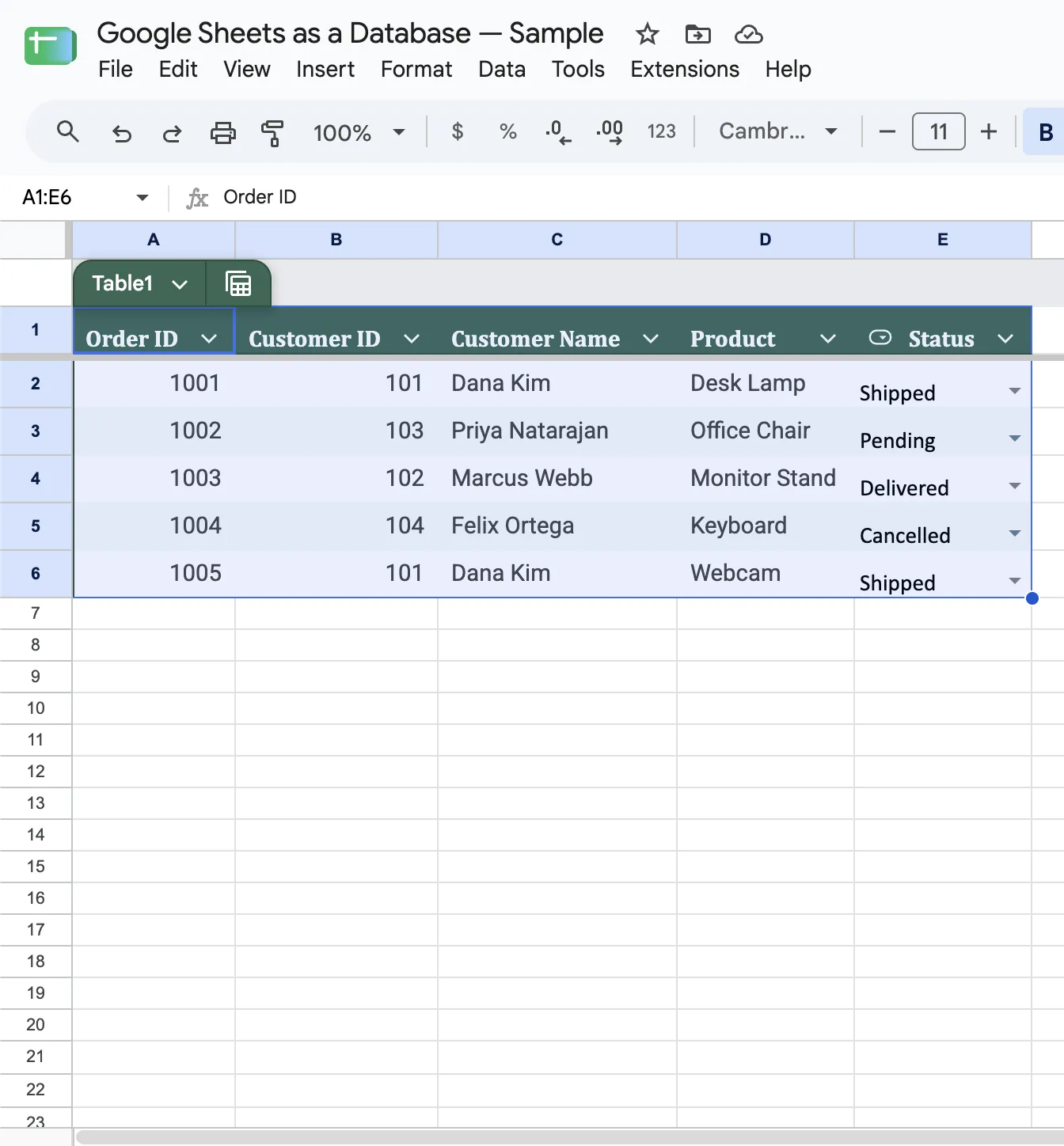
Native Tables: Google's built-in Tables feature assigns real column types, like dropdowns and smart chips, and lets formulas reference a named table instead of a raw cell range.
The Sheets API and Apps Script: Both let a program read and write Sheets data directly, without a person clicking through the interface.
To get tables that link to each other directly, this comparison of Google Sheets, Airtable, and Zite covers how Airtable and Zite handle it.
How to Set Up Google Sheets as a Database
What you'll need: A Google account and the records you plan to store.
To skip typing this out from scratch, copy this starter template, already built with the Customers and Orders tabs, the ID columns, the working lookup formula, and the Status dropdown.
Step 1: One flat table per entity
Give each type of data its own tab: Customers on one, orders on another, products on a third. A single sheet that mixes unrelated data types becomes unusable fast.
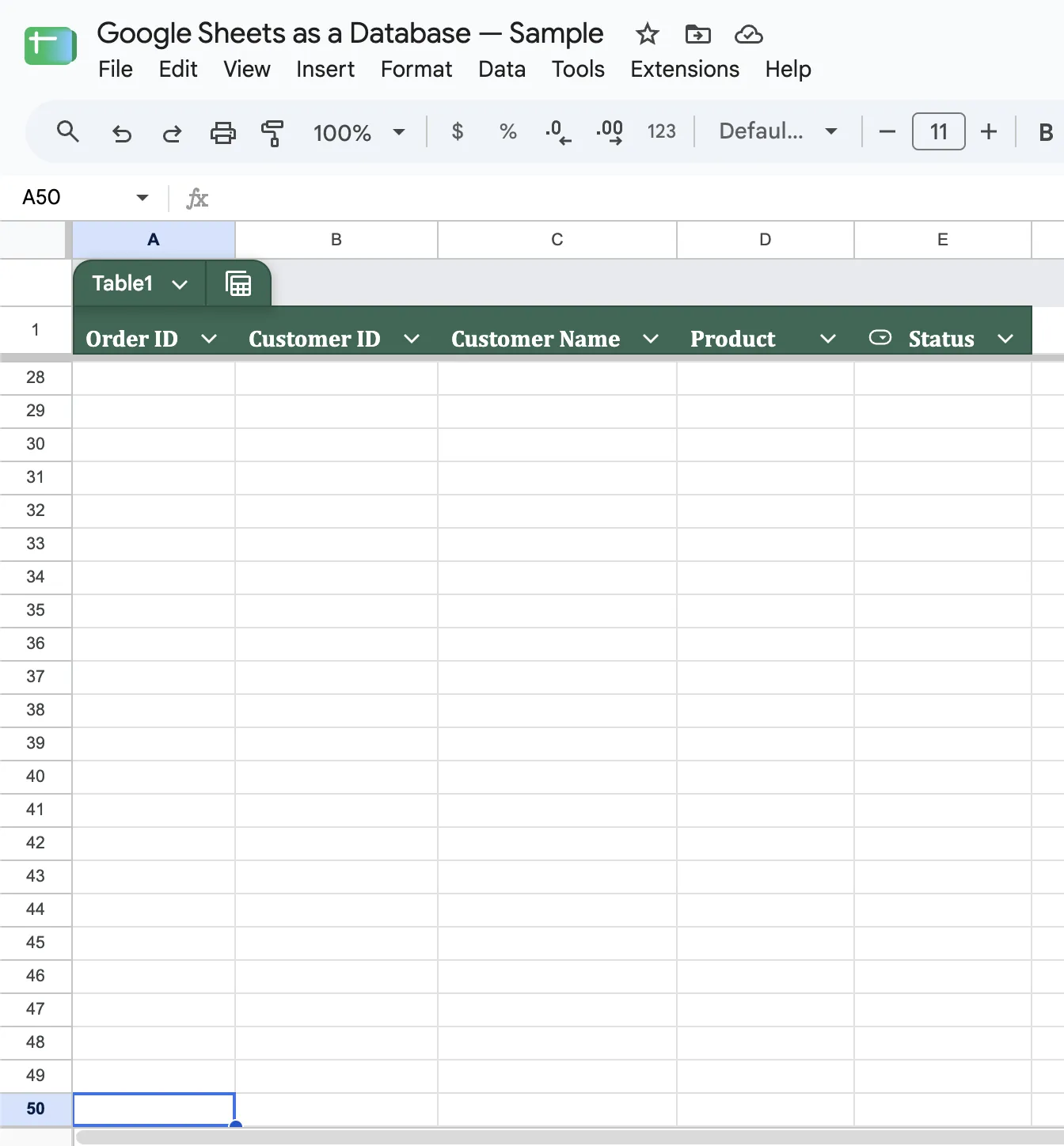
Step 2: Header row, frozen
Put one field name per column in row 1, like Customer ID, Name, and Email, with no merged cells, blank columns, or second header row. Then freeze that row on every tab through View > Freeze > 1 row. A database-style sheet gets scrolled constantly, and a frozen header keeps every column labeled as you go.
Step 3: Data validation on every constrained column
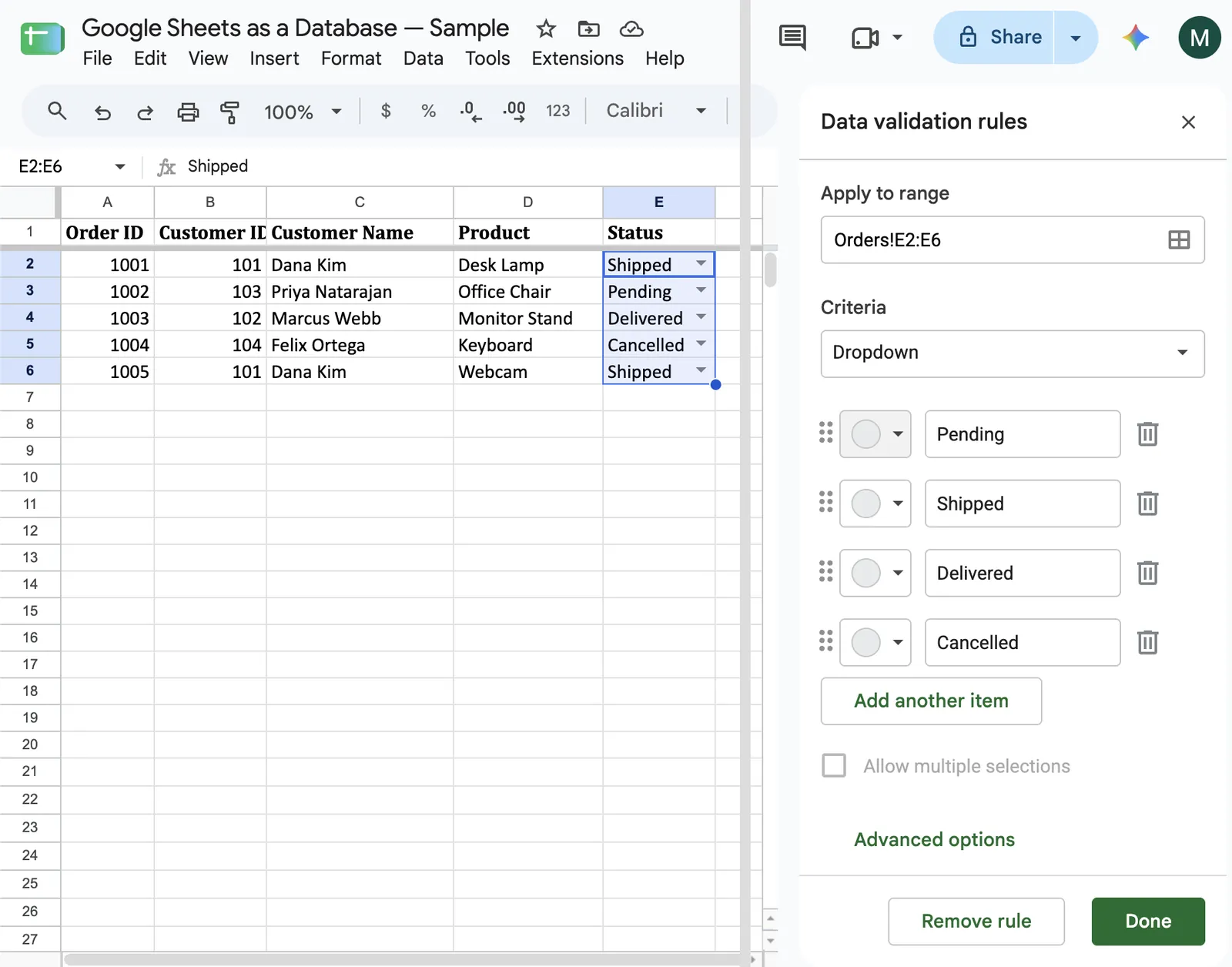
Any column with a fixed set of valid values, like a status or a category, gets a dropdown through Data > Data validation. Free-typed entries break any formula or report built on that column.
Step 4: A unique ID column on every table
Add an ID column to each tab, and make sure no two rows ever share an ID. A custom data validation rule like =COUNTIF(A:A, A2)=1 rejects a duplicate the moment someone types it. Without this, nothing reliably matches a row in one tab to a row in another.
Store that ID directly in the record that references it, never a formula that derives it by matching on a name. I've seen a reference list renamed months after launch, and every past record that depended on matching the old name by text stopped resolving at once.
Step 5: Lookup formulas to fake relationships
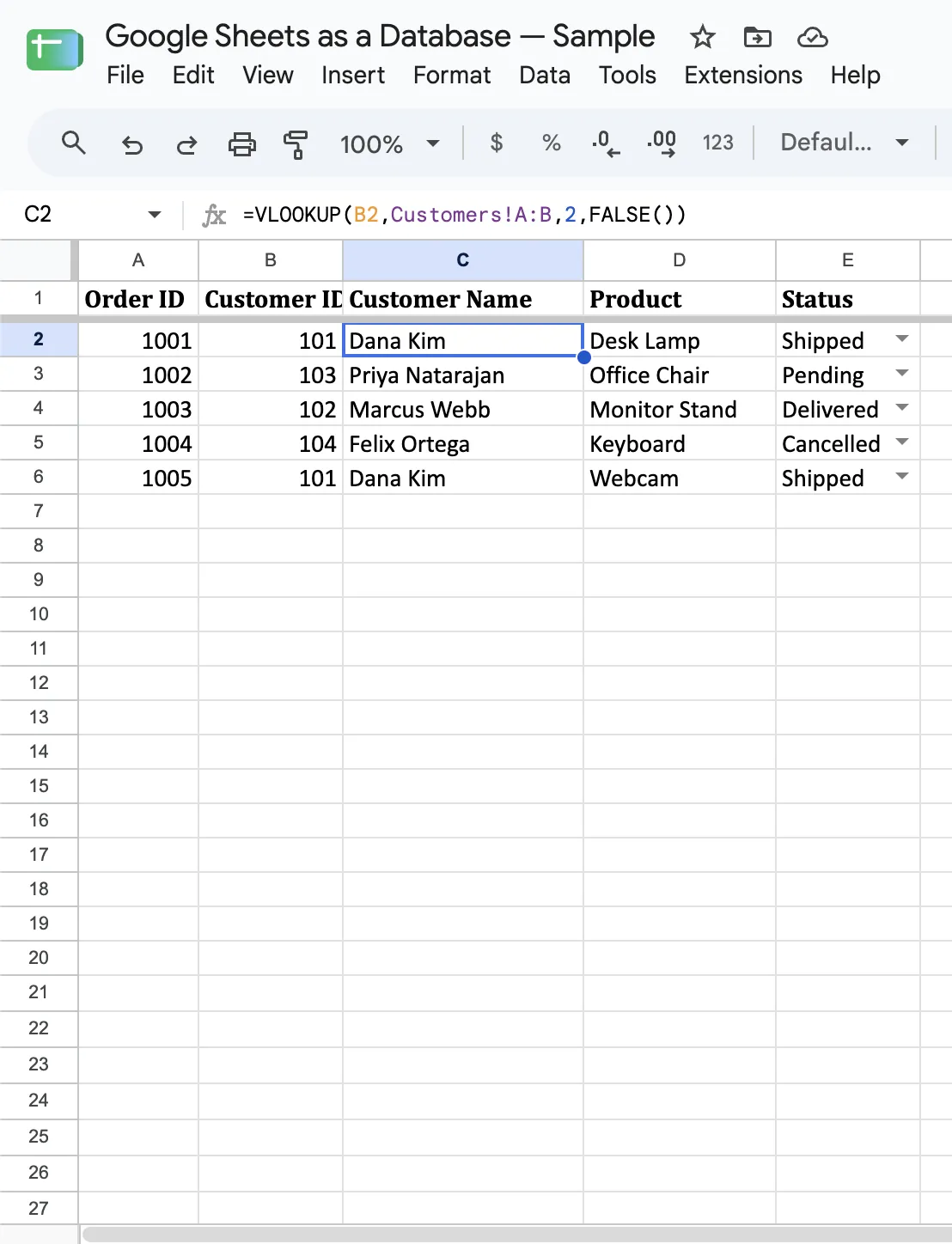
Use a lookup formula to pull a value from a related tab based on the matching ID, the same way a foreign key connects two tables in a relational database.
=VLOOKUP(A2, Customers!A:C, 2, FALSE)In the Orders tab, this looks up the customer ID in A2, finds it in column A of the Customers tab, and returns the name from column 2. FALSE forces an exact match, so a near-miss ID returns an error.
Step 6: A Google Form as the entry point (optional)
A Google Form writes new rows straight into a sheet, and each question can require an answer or restrict it to a set of choices before that row ever reaches the table.
A form keeps data entry controlled without handing colleagues direct access to the spreadsheet, and it pairs especially well with a shared reference sheet that other people need to add to but never edit by hand.
The Sheets API and Apps Script
A script or app can read and write this kind of database just as easily as a person clicking through the interface. A lightweight app or script connects to a sheet as its backend through the Sheets API's standard REST interface.
That connection usually runs through a service account rather than a personal login, so the script reads and writes on its own schedule without anyone's session staying open.
Apps Script runs inside Sheets itself, triggered by an edit, a time interval, or a custom function. That makes it useful for logic that needs to run on its own, like a nightly cleanup or an alert when a row changes.
Open-source Python libraries built on gspread let code query a Sheet like a database, which plenty of small projects rely on. Google's own AppSheet builds a full app on top of the same spreadsheet-as-backend idea, and this list of AppSheet alternatives is worth a look for anyone already evaluating it.
The Pros and Cons of Google Sheets as a Database
Pros (what works well)
-
Free and familiar to almost everyone who will touch it, with no cost to start.
-
A unique ID plus lookup formulas come close to a working relationship between tables.
-
The Sheets API and Apps Script let code read, write, and automate the sheet alongside manual edits.
-
Fast to start, with no schema or server setup required.
-
A low-risk starting point, since the whole table exports to CSV in a couple of clicks whenever it's time to move to something built for the job.
Cons (where it falls short)
-
A hard cell cap of 20 million cells across the whole file, which sounds large until extra tabs, helper columns, and unused empty rows eat into it.
-
A slowdown that depends on formula load. Google doesn't publish a performance threshold, and sheets with heavy cross-tab lookups slow down far sooner than sheets with plain values.
-
No referential integrity, so deleting a row or changing an ID that other records look up breaks every one of those lookups at once, with no warning.
-
No row-level permissions, since anyone who can open the file can see every row. Protecting sheets and ranges can stop someone from editing a row, but it can't hide that row from them.
-
Concurrent edits to the same range, since two people editing the same cells at once can overwrite each other, and the only record is version history.
For a fuller breakdown of these tradeoffs against a dedicated database, see this comparison of spreadsheet vs database.
This list of Google Sheets alternatives covers other tools built for the same job, in case a dedicated database isn't the fix you're after.
Should you use Google Sheets as a database? My take
Below a certain scale, yes, without much hesitation. A few linked tabs, a unique ID, a handful of editors, and a few thousand rows are well within what a spreadsheet can handle as a database.
Google Sheets works well as a database for:
-
A few linked tabs, each with a clear unique ID and a modest row count.
-
A small internal tool with one or two people updating it.
-
A quick backend for a prototype or a personal project; read through the Sheets API.
Move off Sheets when you hit:
-
Several people editing the same records at the same time, where one change can overwrite another.
-
Permissions that need to be scoped to a single record rather than the whole file.
-
Row counts heading past a few thousand with formulas layered on top.
-
Anything customer-facing, since a spreadsheet was never built to be a safe, controlled interface for outside users.
How to move off Sheets once you hit that point
The fix at this point is a proper database with apps on top: records that link to each other directly, and screens that show each person only what they should see.
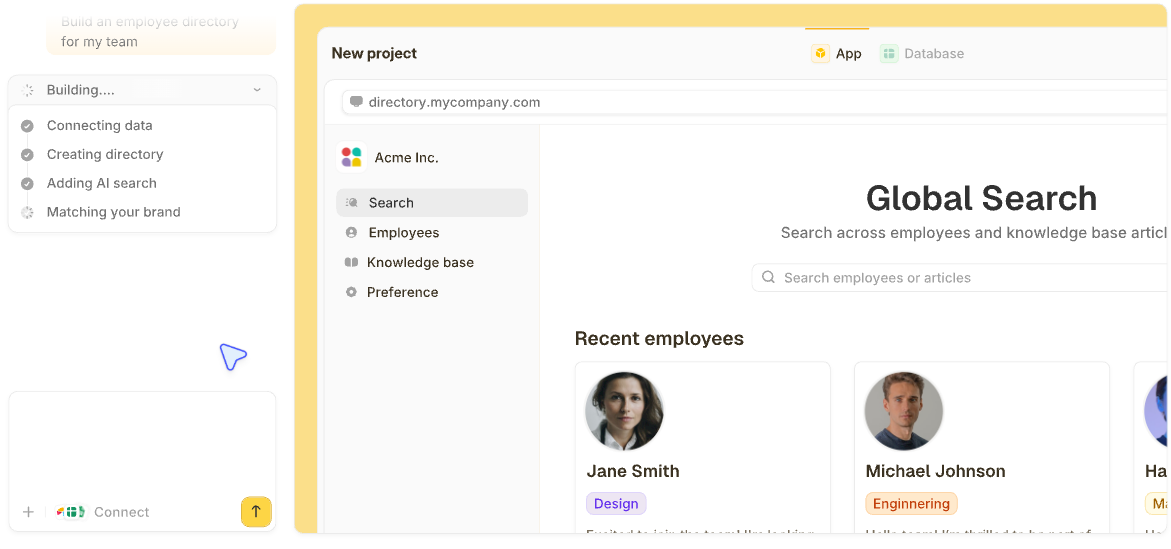
Zite builds both from a description. Linked tables replace the ID column and the lookup formula, and people work in apps instead of the file: a screen where the team adds and updates records, a portal where each customer sees only their own orders, and a dashboard for managers.
The database still looks and feels like a spreadsheet. Workflows that used to need Apps Script are generated from a plain description, and every step shows up visually, so you can see exactly what runs and fix it when something's off.
Zite also connects directly to an existing Google Sheet and reads and updates it in place, so the data you already have comes along.
Zite is free with unlimited users and apps, 50 credits/month, and up to 5,000 database records. Paid plans start at $25/month for Pro, which raises that to 100,000 database records and 5,000 workflow runs/month. Business is $89/month with 250,000 database records, 50,000 workflow runs/month, and Zite's more advanced AI models.
For the app-building side of that same move, this roundup of no-code app builders with databases walks through the options.
The clearest signal it's time to switch is a spreadsheet whose lookup formulas are doing more work than the data itself.
My verdict on Google Sheets as a database
Google Sheets is free, familiar, and programmable through the API and Apps Script. Its limits show up around a few thousand rows of lookups, a handful of editors, and the first time you need per-record permissions. Past that point, switch to a database with apps on top, like Zite, where you describe what you need and the AI builds it.
Use Google Sheets below that scale without guilt. Past that scale, a spreadsheet can't do a database's job safely, because linked records, access for each person, and a controlled way in for customers all need more than formulas.
Frequently asked questions
Can you use Google Sheets like a database?
Yes, you can use Google Sheets like a database as long as you're working with a few linked tabs, each with its own unique ID column, and a handful of editors. Once you need many linked tables kept in step, permissions on single records, or more than a couple of people editing at once, Google Sheets stops functioning like a database.
How do you turn a Google Sheet into a database?
Turn a Google Sheet into a database by giving each data type its own tab, adding a unique ID column to every table, using data validation on constrained columns, and connecting tables with lookup formulas that match on that ID.
Does Google Sheets count as a database?
Yes, in a limited sense. Google Sheets holds structured data with something close to relationships, but it lacks referential integrity, row-level permissions, and the performance of a dedicated database at scale.
How do I create a database in Google Sheets?
Create a database in Google Sheets by copying the free starter template in this guide, then swapping in your own tabs and fields.