

Documentation Index
Fetch the complete documentation index at: https://zite.com/llms.txt
Use this file to discover all available pages before exploring further.
Overview
Use backups to save a database before making major changes, importing data, editing field structure, or connecting new workflows. You can restore from a named manual backup later, or restore your database to a specific minute using point-in-time restore. There are two types of database backups:- Manual backups: Saved backups that you create yourself. You can keep up to 10 manual backups, and they do not expire.
- Point-in-time restore: A recent recovery option that lets you preview and restore the database to a specific minute. Free plans can restore up to 1 day back. Paid plans can restore up to 7 days back.
Open backups
Open your database, then click theBackups icon in the top right toolbar.
Create a backup
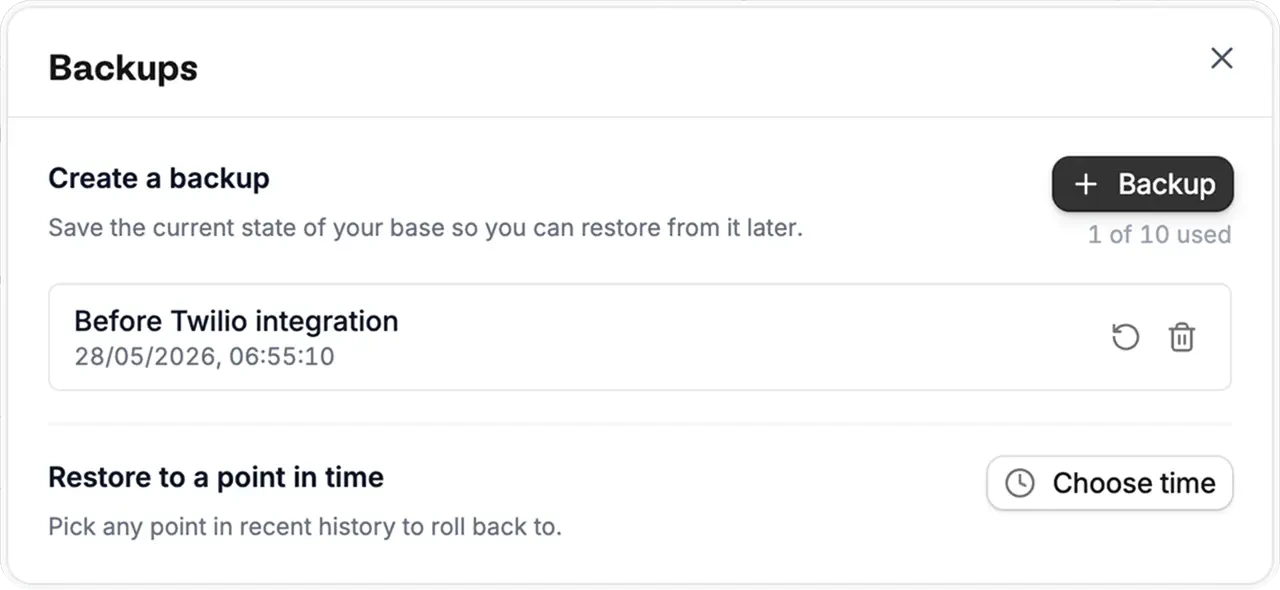
ClickBackup, then enter a name that will help you recognize the backup later. For example, you might create a backup before importing a CSV, connecting an integration, or changing important fields.
After naming the backup, click Create backup.
You can keep up to 10 manual backups. Manual backups do not expire, so you can restore to any saved backup as long as you created it manually.
Restore from a backup
In theBackups panel, find the backup you want to restore and click the restore icon .
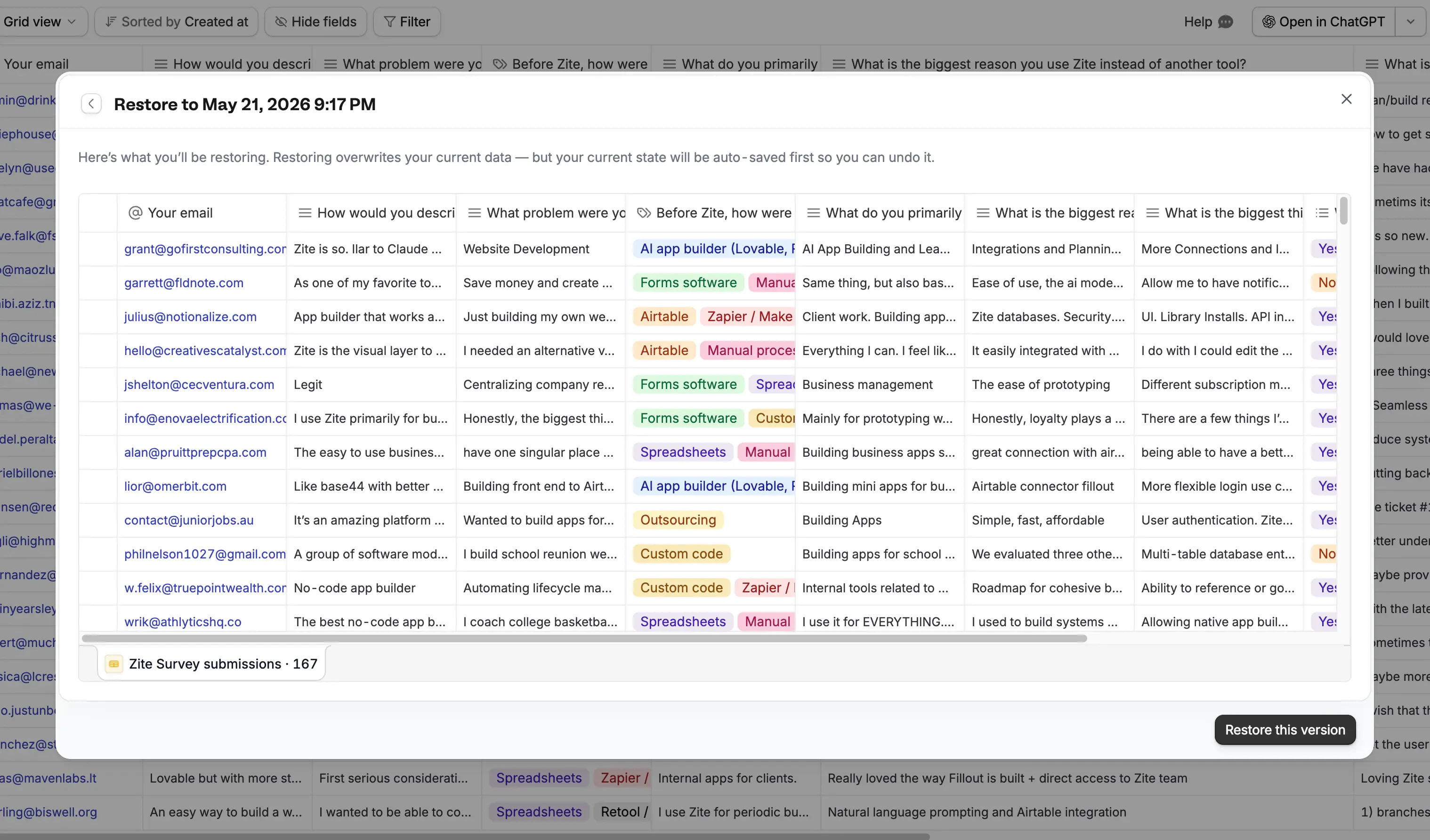
Zite will show a preview of the database at that point in time. Review the records and fields, then click Restore this version to replace the current database with that version.
Restore to a point in time
If you do not have a named backup, clickChoose time under Restore to a point in time.
Select a date and time, then click Preview. Zite will show a view of your database at that moment before anything is restored. Review the preview, then restore the version if it is the state you want to recover.
Free plans can restore to a point in time from the previous 1 day. Paid plans can restore to a point in time from the previous 7 days.
Undo a restore
When you restore a database, Zite automatically creates a backup of the database state from just before the restore. You can restore from that backup to undo the latest restore. Zite only keeps the most recent undo backup. If you restore multiple times, you can only undo the latest restore.Check connected apps and forms
Restoring a database does not update connected apps, forms, automations, or integrations. If you restore to a database state that no longer works with something connected to the database, you will need to update that app, form, automation, or integration after the restore.FAQs
What's the difference between manual backups and point-in-time restore?
What's the difference between manual backups and point-in-time restore?
Manual backups are named backups that you create yourself. Point-in-time restore lets you pick a specific recent minute and preview the database from that moment before restoring.
How far back can I restore a database?
How far back can I restore a database?
Manual backups do not expire, so you can restore as far back as your saved manual backups go. Point-in-time restore is limited by plan: Free plans can restore up to 1 day back, and paid plans can restore up to 7 days back.
Can I undo a restore?
Can I undo a restore?
Yes. Zite automatically creates a backup of the database state from just before a restore, and you can restore from that backup to undo the latest restore. Zite only keeps the most recent undo backup.
What happens to connected apps and forms after a restore?
What happens to connected apps and forms after a restore?
The restore only changes the database state. It does not update connected apps, forms, automations, or integrations, so you may need to update anything connected to the database after restoring.