

- Every Monday at 9:00, email each project owner a list of their open tasks.
- When a new order is added to the Orders table, create an invoice in QuickBooks.
- When your form tool sends a new enquiry, save it in the Enquiries table and notify the sales team in Slack.
New workspaces only for now: Automations aren’t enabled in existing workspaces yet. They’re coming to existing workspaces in the next few days. See Who can use automations.
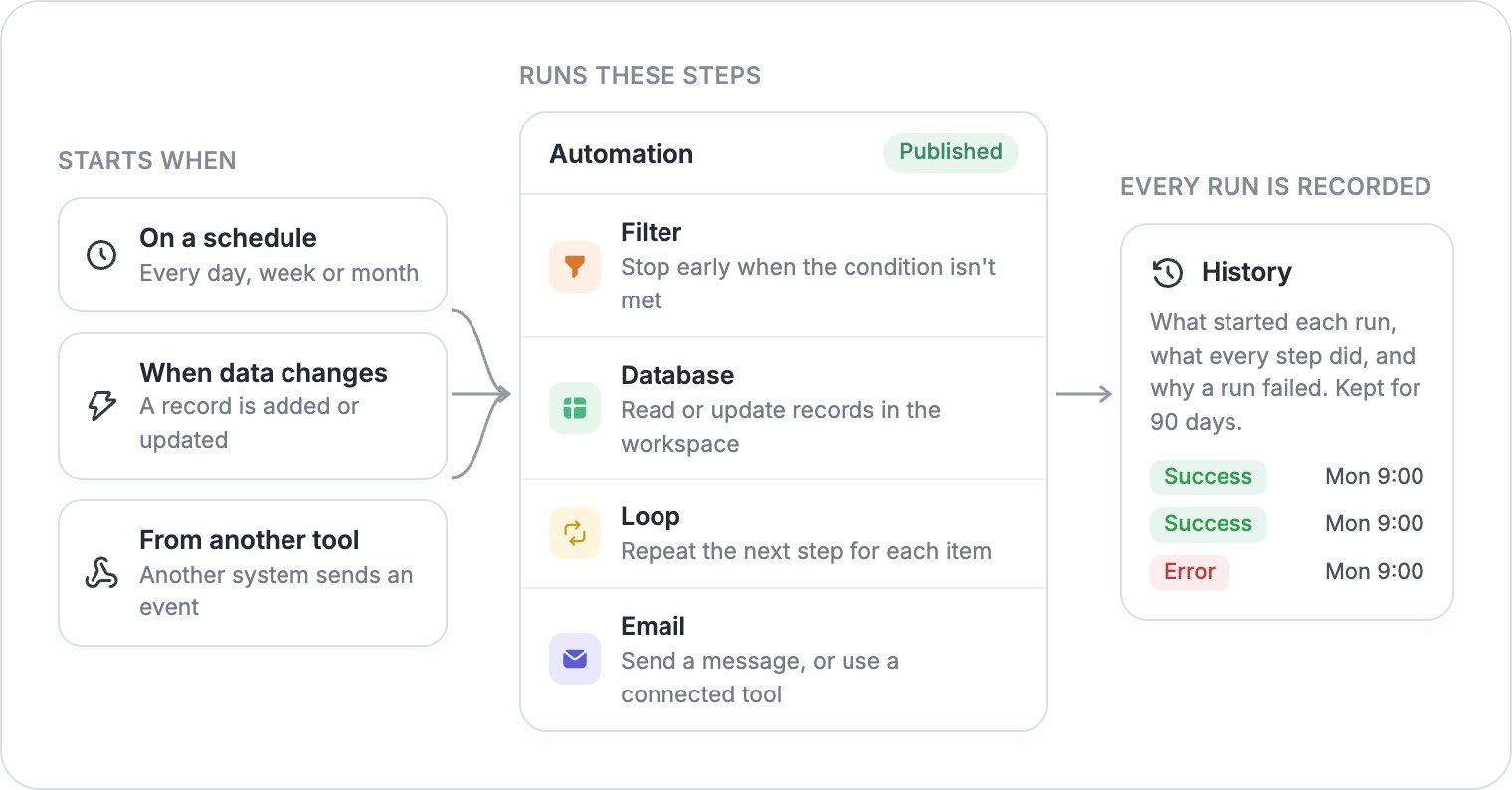
What starts an automation, the steps it runs, and the record of every run.
Who can use automations
Automations are currently available in new workspaces in US-hosted organisations. They’re coming to existing workspaces in the next few days. Organisations hosted outside the US, such as in the EU or Canada, don’t have them. If a Solution includes automations, they arrive unpublished and don’t run until you publish them. If your workspace sidebar doesn’t show Automations, this workspace does not have them. Ask Zite to run that task on a schedule or from a webhook inside an app instead. You need edit access to the workspace to see, create, and change its automations. Workspace members who can only use apps don’t see the Automations section. Creating an automation also requires permission to create apps in that workspace. See Creation permissions.Ways to start an automation
What an automation can do
Each automation is a sequence of steps. Zite draws them as a diagram so you can check what it does step by step. Steps can:- Read and update records in the workspace database.
- Send email from Zite’s own sender address, or from a connected Gmail or Outlook account.
- Use connected tools such as Slack, Google Sheets, HubSpot, QuickBooks, and Stripe. The automation uses the workspace’s connections, so the people it affects don’t need their own accounts.
- Use AI to summarize, classify, or score information, using Zite’s AI or a connected OpenAI, Anthropic, or Google Gemini account.
- Filter and branch, so a run can stop early or take a different path depending on the data.
- Wait between steps, for example to send a reminder seven days after an invoice goes out.
- Generate PDFs such as invoices or reports.
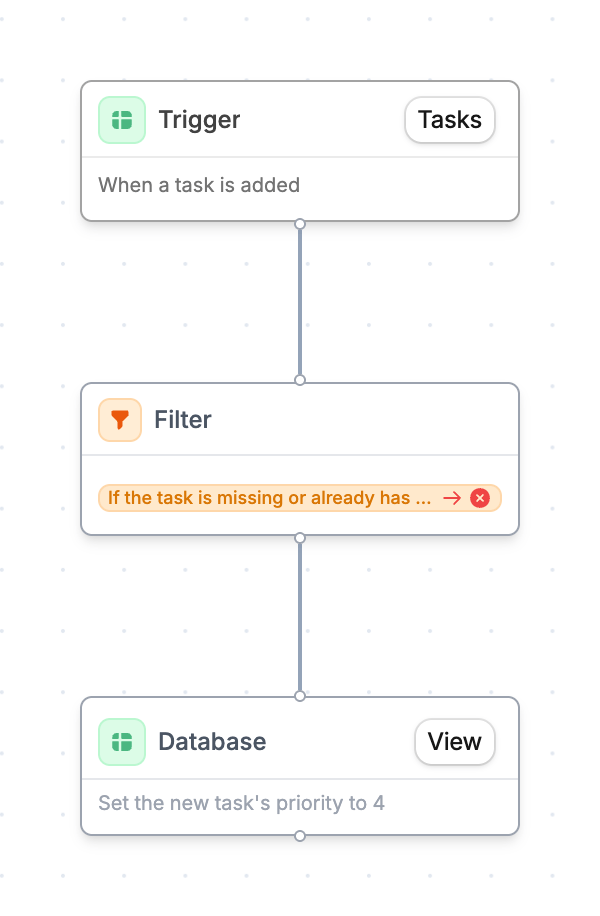
Example: a three-step automation that sets a default priority on new tasks.
How automations differ from workflows inside apps
Apps also run workflows: saving a request when someone clicks Submit, for example. The difference is what starts the work and who it runs as.What happens in a run
Each time the trigger happens, Zite starts a run. A run works through the steps in order and records what each step read, changed, or sent. If a step fails, Zite retries it automatically and doesn’t repeat steps that already completed, so a retry doesn’t send the same email twice. Open the automation’s History to check each run, inspect a failure, and resume or replay it. Run history is kept for 90 days. See Test and monitor automations.Runs and your plan
Each run of a published automation counts as one workflow run toward your organization’s monthly allowance. Test runs from the editor don’t count. Building or changing an automation with Zite uses AI credits, separately from runs. See Runs and credits and Plans & limits.Next steps
Create an automation
Describe the task, review the steps, test it, and publish.
Choose what starts it
Schedules, data changes, webhooks, and events in connected tools.
Manage automations
Turn an automation on or off, publish changes, and keep the list organized.
Automation examples
Requests you can adapt for reminders, invoicing, lead routing, and more.